The Copilot Settings center lets you configure and customize the DataWorks Copilot experience across four areas: Rules, MCP Servers, General Settings, and Models. Use the following table to find the tab that matches what you want to do.
| Goal | Tab |
|---|---|
| Teach Copilot your team's coding standards and preferences | Rules |
| Connect Copilot to external tool services and data sources | MCP Servers |
| Turn Copilot on or off for your Tenant, or change where generated files are saved | Settings |
| Configure the API key for the underlying language model | Model |
Access
-
Click the Copilot icon in the upper-right corner of the DataWorks interface to open the DataWorks Copilot panel.
-
In the Copilot panel, click the
 Settings button to open the Settings center.
Rules
Rules inject persistent context, standards, and preferences into Copilot so that generated code and responses consistently follow your requirements — without repeating yourself in every conversation.
Rule types
DataWorks provides two types of Rules:
| Type | Who manages it | Who can use it | Scope |
|---|---|---|---|
| Personal Rules | Individual developers | Only the creator | Any Workspace the creator can access |
| Enterprise-class Rules | Workspace administrators and higher | All members in the configured scope | A specific set of Workspaces, or all Workspaces in the Tenant |
Manage rules
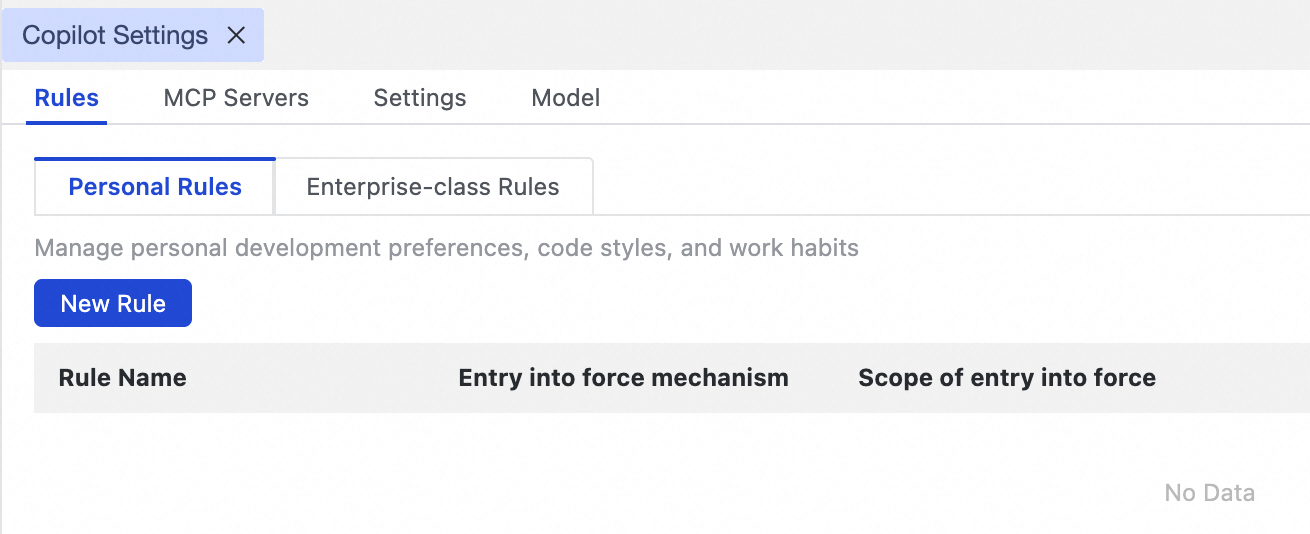
In the Settings center, click the Rules tab. Switch between Personal Rules and Enterprise-class Rules to manage them separately. For each existing rule, you can view its name, Activation Mechanism, and Effective Scope, and edit or delete it. Click New Rule to create a rule.
When creating or editing a rule, configure the following properties:
| Parameter | Description |
|---|---|
| Rule Name | A descriptive name and an optional description for the rule. |
| Rule Content | The context or prompt you provide to Copilot — standards and specifications it must follow when generating code. Enter the content directly, or upload a document. Supported formats: .doc, .docx, .pdf, .txt, .md, .xls, .xlsx, .ppt, .pptx, .rtf, .csv, .json. Each file cannot exceed 50 KB. |
| Entry into force mechanism | Controls when the rule is applied: Always applied. (automatically loaded in every conversation) or Manual application (loaded only when you add it to the conversation context manually). |
| Scope of entry into force | For Enterprise-class Rules only. Set to Specify the workspace to apply the rule to members of selected Workspaces (requires Administrator permissions on those Workspaces), or All Work Space to apply it at the Tenant level. |
Example rule
The following example enforces a data warehouse naming convention for DataWorks tables and nodes.
-
Rule Name: Table and node naming conventions
-
Rule Content:
# Naming conventions for DataWorks Data Warehouse (ODS/DWD/DWS/ADS) tables and nodes
As a senior data warehouse architect, you must strictly follow these naming conventions when creating any table or Node in DataWorks. These conventions are essential for ensuring that data assets are clear, maintainable, and consistent.

### 1. Table Naming Convention
All table names must follow a unified, structured paradigm.

#### 1.1 Core naming formula
[layer_prefix]_[custom_description]_[update_strategy_suffix]

#### 1.2 Layer Prefix - [Mandatory]
-   Dimension Layer (DIM): Must start with dim_.
-   Data Warehouse Detail (DWD): Must start with dwd_.
-   Data Warehouse Summary (DWS): Must start with dws_.
-   Application Data Store (ADS): Must start with ads_.

#### 1.3 Update Strategy Suffix - [Mandatory]
-   DIM: Use the _df suffix, representing Daily Full Snapshot.
-   DWD: Use the _di suffix for daily incremental data or the _df suffix for Daily Full Snapshot.
-   DWS / ADS: Use suffixes like _1d, _7d, or _nd to represent the data aggregation period (for example, last 1 day, last 7 days, last N days).

#### 1.4 Delimiter
All words in a table name must be in lowercase and separated by a single underscore _.

#### 1.5 Naming examples
-   DIM example: dim_user_info_df (User information dimension table, daily full snapshot)
-   DWD example (incremental):  dwd_trade_order_detail_di (Trade order details, daily incremental)
-   DWD example (full):  dwd_product_base_info_df (Basic product information, daily full snapshot)
-   DWS example:  dws_user_active_uv_7d (7-day active UV summary for users)
-   ADS example:  ads_screen_kpi_overview_1d (Dashboard core KPI overview, daily)

### 2. Node Naming Convention

Node names should clearly reflect the core table they output and their processing logic.

-   Naming principle: The Node name should closely match the name of the main table it produces, following the format [layer]_[business_logic].
-   Example:
    -   An ODPS SQL Node that produces the dwd_trade_order_detail_di table should be named dwd_trade_order_detail_di.
    -   If a Node handles complex logic, it could be named dws_build_user_active_uv_7d.

### 3. Self-check Checklist

After naming, use this checklist for verification:
1.  Does the table name start with the correct layer prefix (dim_, dwd_, dws_, ads_)?
2.  Does the table name end with the correct update strategy suffix (_df, _di, _1d, etc.)?
3.  Are all words separated by an underscore _?
4.  Does the Node name clearly reflect its function and output?
Use rules in conversations
-
Rules set to Always applied. require no action — Copilot automatically applies them in every conversation.
-
Rules set to Manual application must be activated per conversation: click the
 button below the input box, select Rule, and then select the rule to apply.
MCP servers
An MCP (Model Context Protocol) Server is a collection of backend tool services that the Copilot Agent relies on to perform tasks. It provides the tools, data sources, and APIs the Agent uses for operations such as querying, analysis, and code generation.
In the Settings center, click MCP Servers to view the built-in Alibaba Cloud-DataWorks-MCP-Server and its associated tools. To use these tools in Copilot Agent, see DataWorks Agent.
General settings
In the Settings center, click Settings.
Global settings
Copilot master switch — controls whether Copilot is enabled for the current Tenant. Turning this off removes all users in the Tenant from accessing Copilot, Agent, and related features.
This setting requires Tenant Administrator permissions and affects all users in the Tenant.
Personal settings
Default storage path for generating code files — specifies where Agent saves generated code files. The default is Project Directory. Change it to Personal Directory as needed.
Model configuration
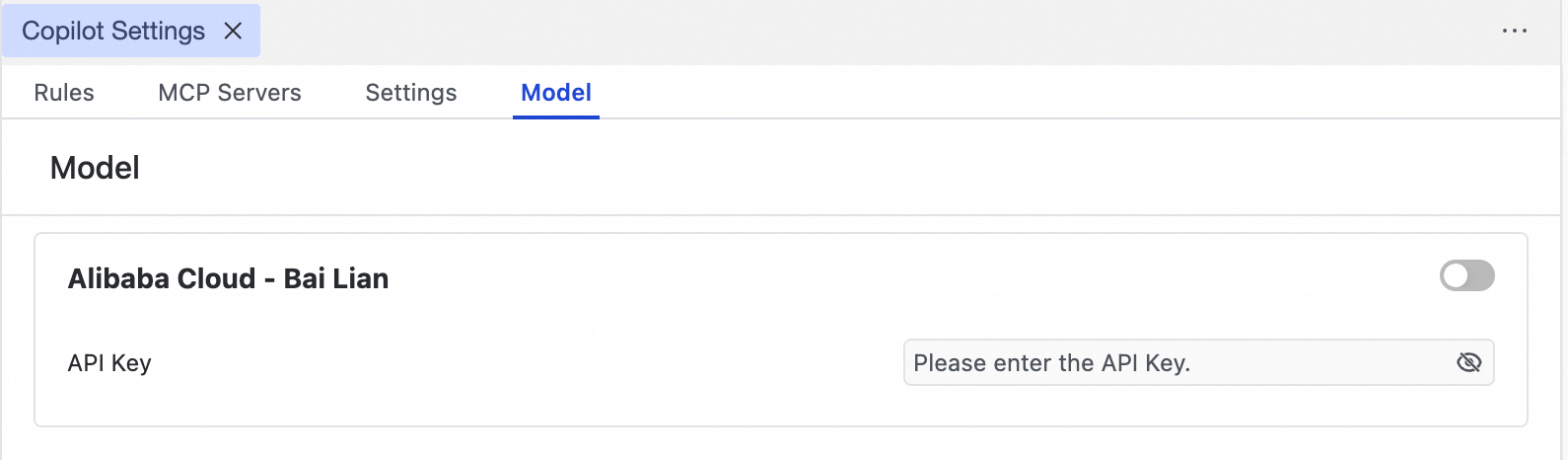
In the Settings center, click Model to configure the API key for the Bailian model. Once configured, Copilot and Agent use the enabled API key by default when calling a Large Language Model (LLM).