DataWorks Copilot is an AI coding assistant built on a large language model (LLM) and deeply integrated into the Data Studio development environment. Unlike general-purpose AI assistants, it understands your code context, table schemas, and data assets — so you can describe what you need in natural language and get working SQL or Python code without switching tools or writing boilerplate from scratch.
What you can do with Copilot
Generate SQL and Python code from a plain-language description.
Refactor existing code to use different patterns, such as replacing a
JOINwith a window function.Debug errors by pasting in a failing query and asking Copilot to find and fix the issue.
Optimize slow queries for better execution efficiency and lower database load.
Add comments and explanations to complex logic so teammates can understand your code.
Design test cases to verify that each part of a task works as expected.
Answer syntax and function questions for SQL and MaxCompute functions, with usage examples.
Generate Notebook cells from a keyword or description.
Search tables across all compute engines and data sources by keyword.
How Copilot works
Copilot operates through two entry points that fit different stages of the development workflow.
Intelligent code editor — As you type in a code-based node, Copilot analyzes your code and referenced table schemas to predict what comes next. Completion suggestions appear automatically; press Tab to accept. For targeted actions, select code in the editor, right-click, and choose Copilot from the shortcut menu.

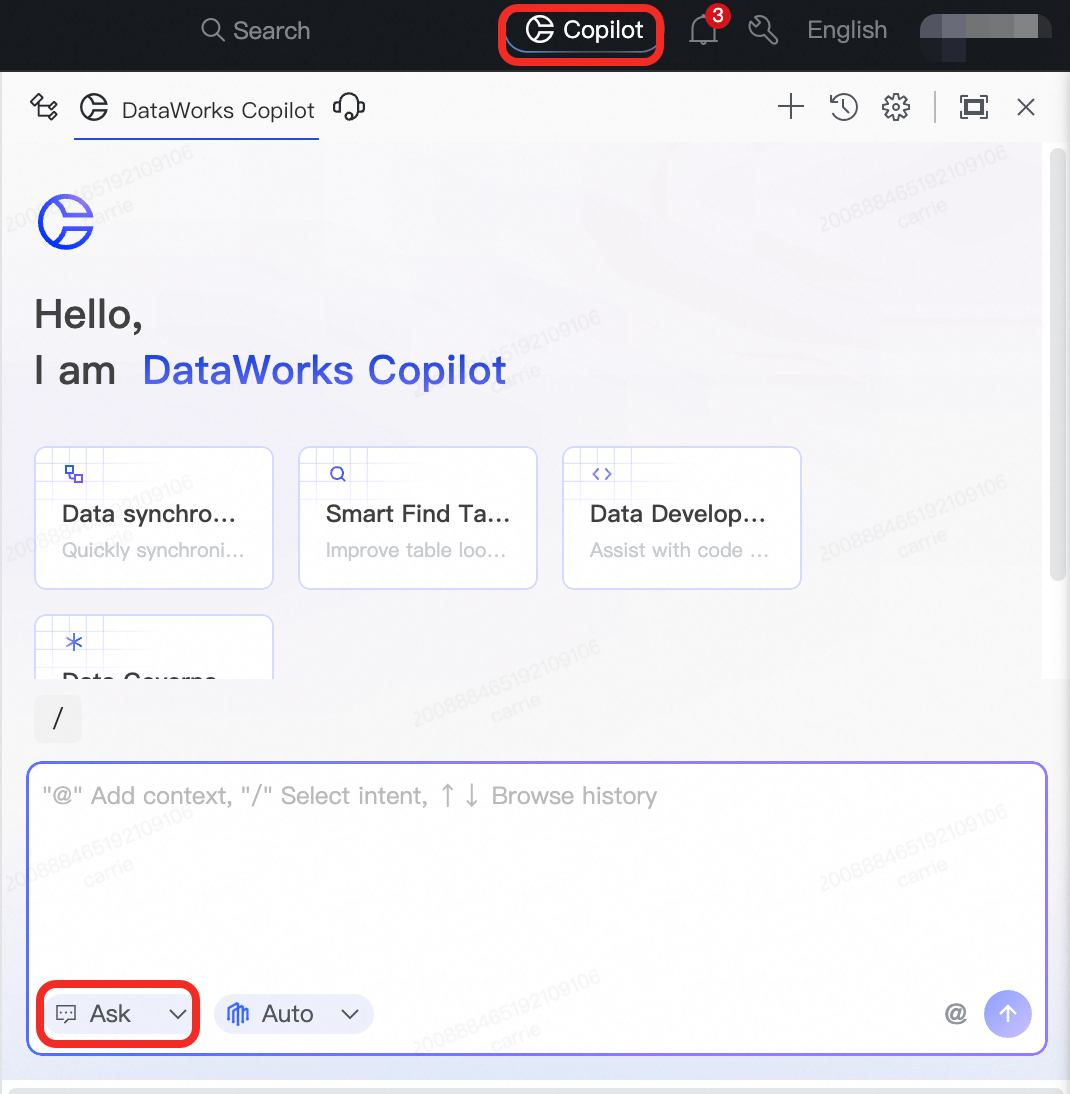
Copilot Chat (Ask mode) — A conversational panel where you ask questions, request code, and refine results through multi-turn conversation. Ask mode is the default mode for Copilot Chat. While chatting, select code in the editor to automatically include it as context.
Quick start
The following steps use Copilot Chat (Ask mode) to walk you through the core workflow.
Step 1: Open Copilot Chat
Log on to the DataWorks console. In the left navigation pane, choose Data Development and O&M > DataStudio.
Select the desired workspace and click Enter Data Development (Data Studio).
Click the
 icon in the upper-right corner of the top navigation bar to open Copilot Chat in Ask mode.
Step 2: Add context (optional)
To give Copilot more accurate information about your data environment, add context before submitting a request. Type @ in the input box, or click the @ icon in the lower-right corner of the dialog box, and select the type of context to add.
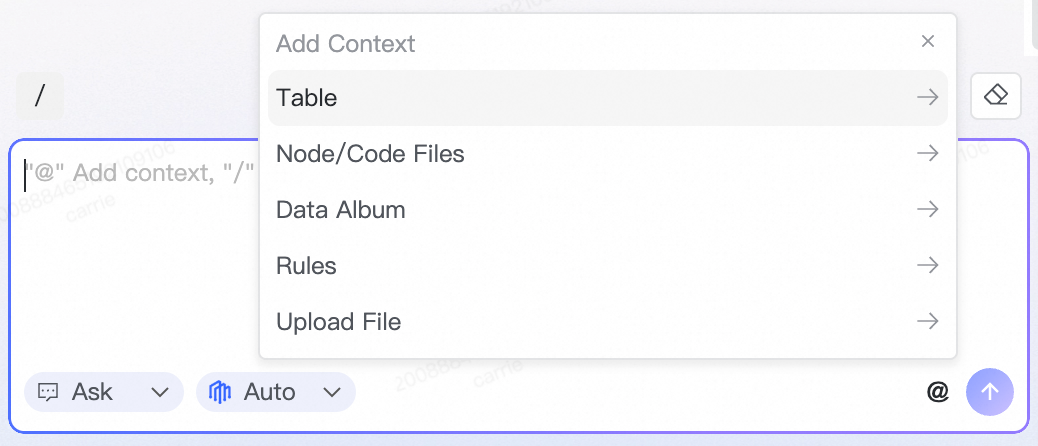
| Context type | What it provides |
|---|---|
| Table | Metadata of one or more tables |
| Node/Code file | The code in a specific node |
| Data album | A data album from Data Map |
| Rules | One or more rules temporarily applied to the current conversation |
| Local file | A local document as background information |
Tip: Add table context whenever your request involves specific columns or schemas. Copilot uses that metadata to generate more accurate queries.
Step 3: Switch the large language model (optional)
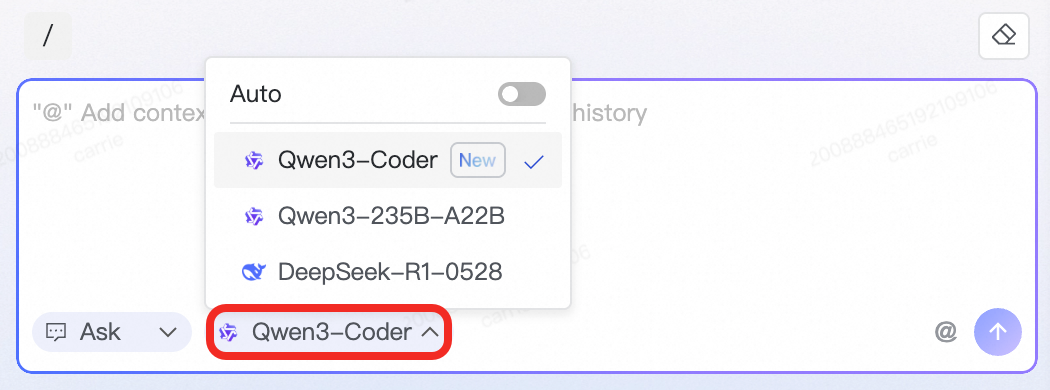
Copilot uses the default model unless you choose otherwise. To switch, click the  icon at the bottom of the dialog box and select a different LLM from the menu.
Step 4: Submit a request
Type your request in the dialog box and send it. Use follow-up messages to refine the result — for example, ask Copilot to adjust the output, add a filter, or explain what it generated.
Capabilities in detail
All capabilities are available through Copilot Chat (Ask mode). Many are also accessible via right-click shortcuts in the code editor. In the chat input box, type / to see the list of slash commands.
Tip: For any capability that involves specific tables or columns, type @ before submitting your request to add table metadata as context. This improves the accuracy of generated queries.Code generation/SQL generation
Generates SQL or Python code from a natural language description.
How to access:
Chat: In the input box, type
/, select Code Generation, describe what you need, and send.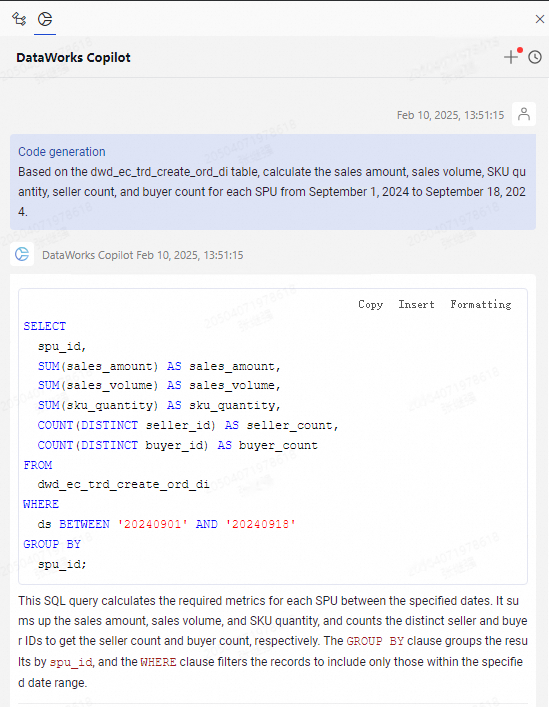
Editor: Right-click a blank area and choose Copilot > Generate SQL.
Example prompt: "Write an SQL query to find the top three products with the highest sales in each city from the sales table."
Code refactoring/SQL refactoring
Rewrites selected code based on your instructions, such as changing structure, improving readability, or adopting a different pattern.
How to access:
Chat: Select the code to refactor, type
/in the input box, select Rewrite Code, describe the change, and click Send.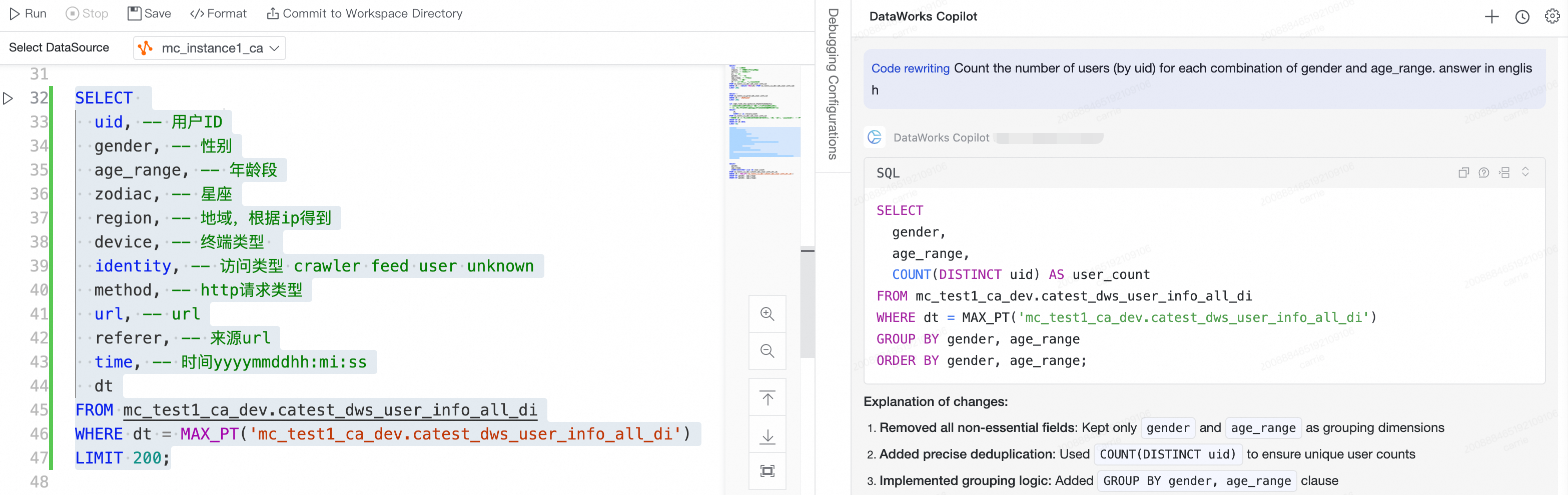
Editor: Select the code, right-click, and choose Copilot > Refactor SQL.
Example prompt: "Rewrite this SQL query that uses JOIN to use a window function instead."
Code debugging/SQL debugging
Finds and fixes errors in a code snippet.
How to access:
Chat: Select the code to debug, type
/in the input box, select Code Error correction, and click Send.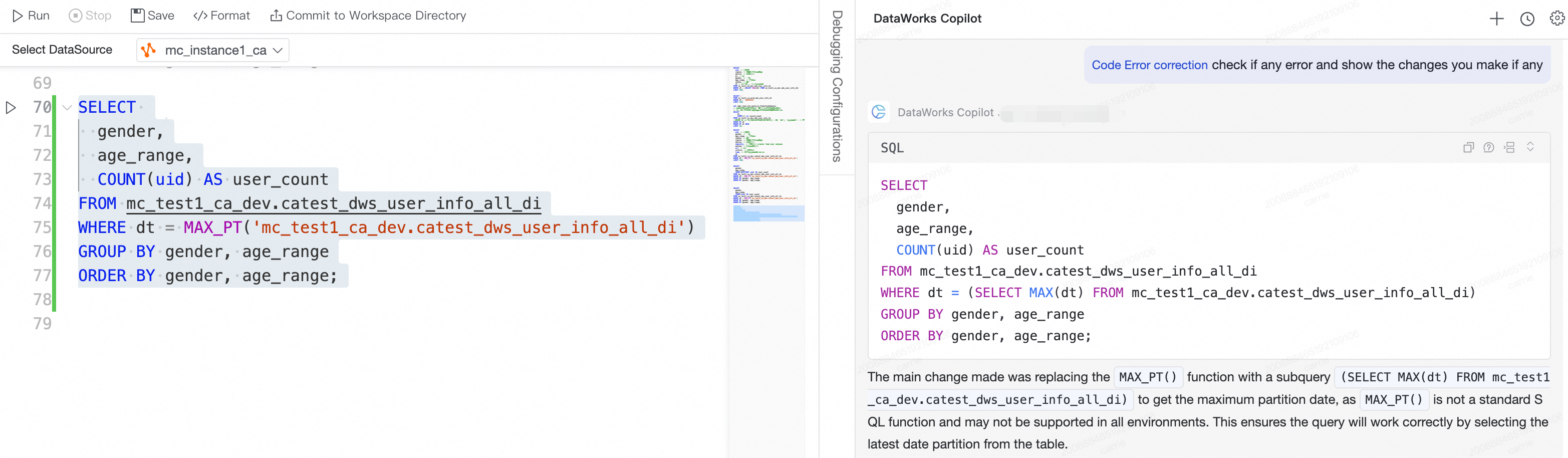
Editor: Select the code, right-click, and choose Copilot > SQL Correction.
Example prompt: "This SQL query fails with an invalid identifier error. Help me find the mistake."
Comment generation
Adds inline comments to SQL code to explain the logic.
How to access:
Chat: Select the code, type
/in the input box, select Generate Comments, and click Send.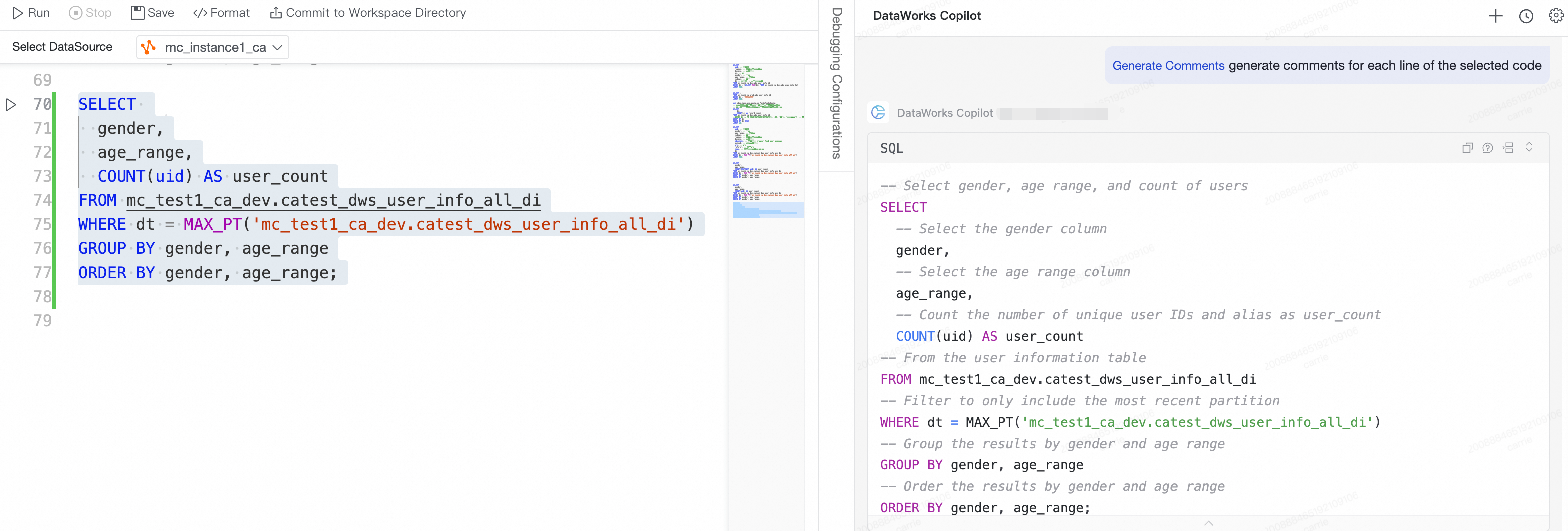
Editor: Select the code, right-click, and choose Copilot > Generate comments.
Example prompt: "Add comments to this complex SQL logic to explain the purpose of each common table expression (CTE)."
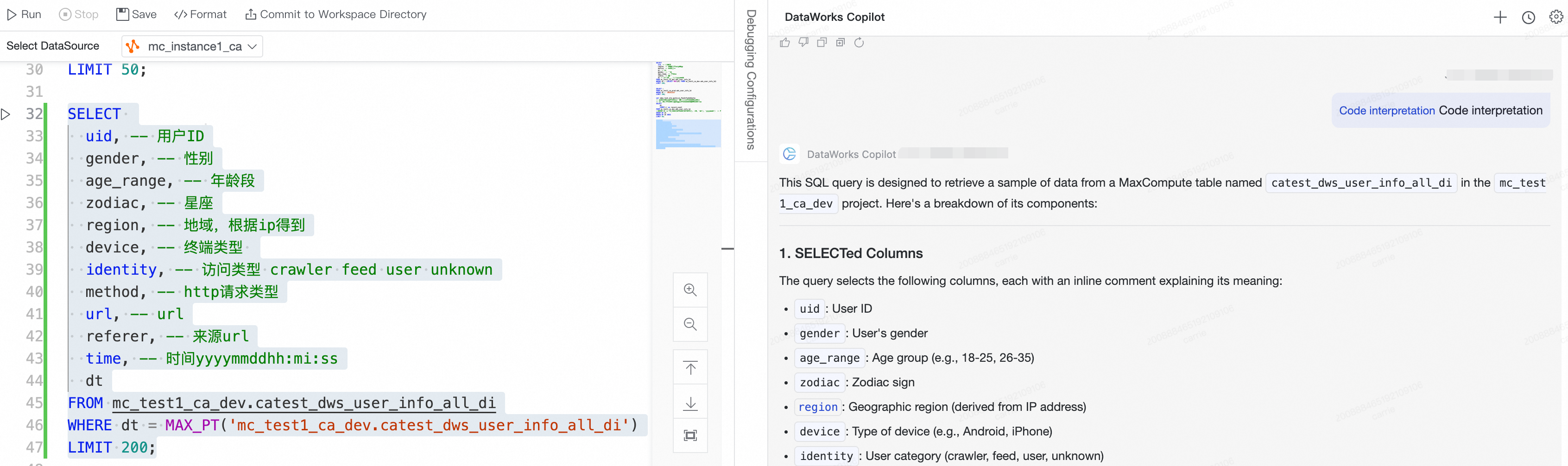
Code explanation
Explains what a piece of SQL code does, walking through the logic step by step.
How to access: Select the code in the editor and click the icon in the upper-right corner of the top navigation bar to open Copilot Chat in Ask mode. In the input box, type /, select Code Explanation, and click Send.
Example prompt: "Explain what PARTITION BY and ROW_NUMBER() mean in this code."
Code optimization
Rewrites SQL to simplify logic, reduce redundancy, and improve execution efficiency.
How to access: Select the code in the editor and click the icon in the upper-right corner of the top navigation bar to open Copilot Chat in Ask mode. In the input box, type /, select Code Optimization, and click Send.
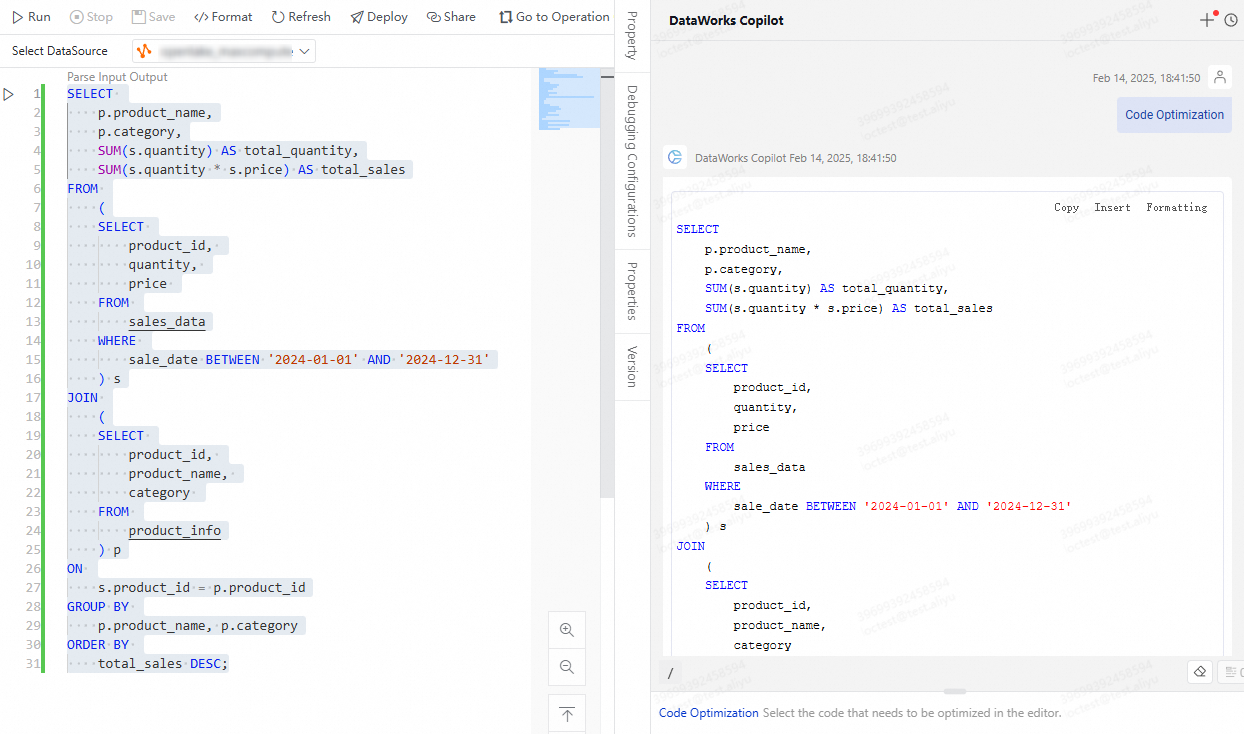
Example prompt: "This query is very slow. Help me optimize it and check for any performance bottlenecks."
Code testing
Generates a test plan and test cases for SQL code, including edge cases to consider.
How to access: Click the icon in the upper-right corner of the top navigation bar to open Copilot Chat in Ask mode. In the input box, type / and select Code Test. Then select the code you want to test in the editor, and click Send.
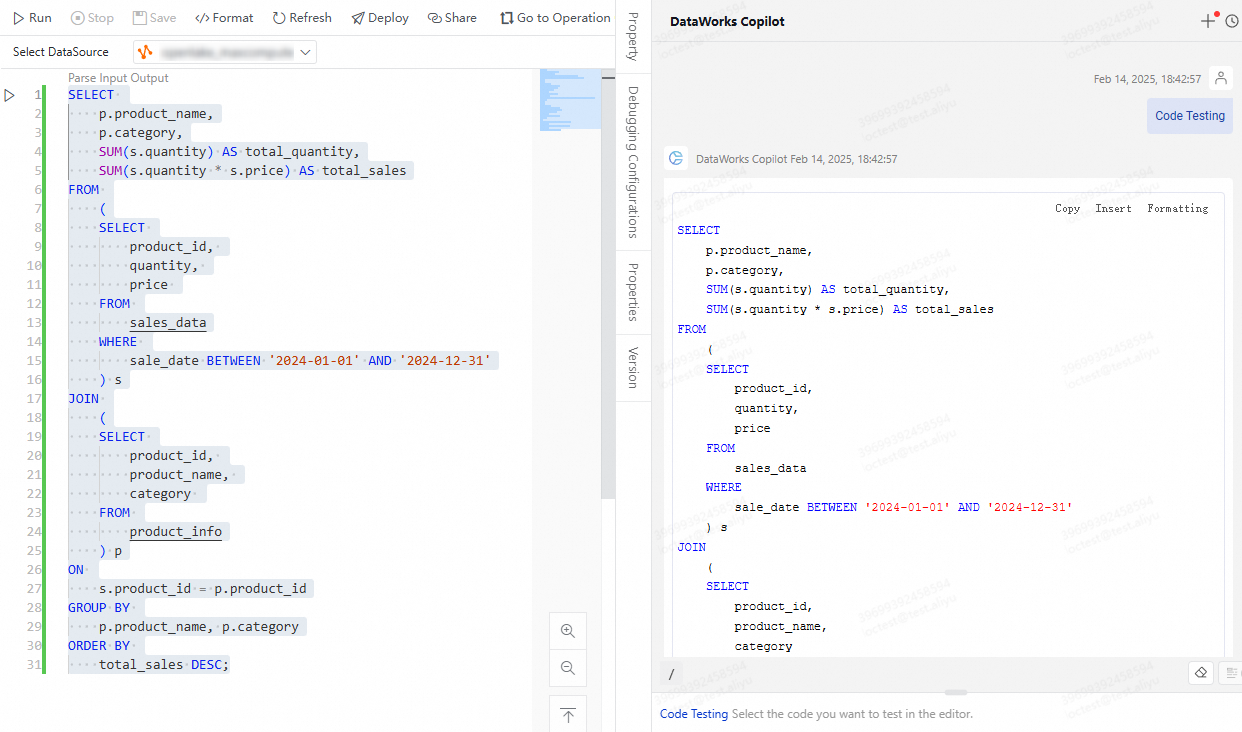
Example prompt: "Design test cases for this SQL query that calculates user retention rate. What edge cases should be considered?"
Code Q&A
Answers questions about SQL syntax, MaxCompute functions, and engine-specific behavior, with explanations and usage examples.
How to access: Open Copilot Chat in Ask mode, type your question in the dialog box, and click Send.
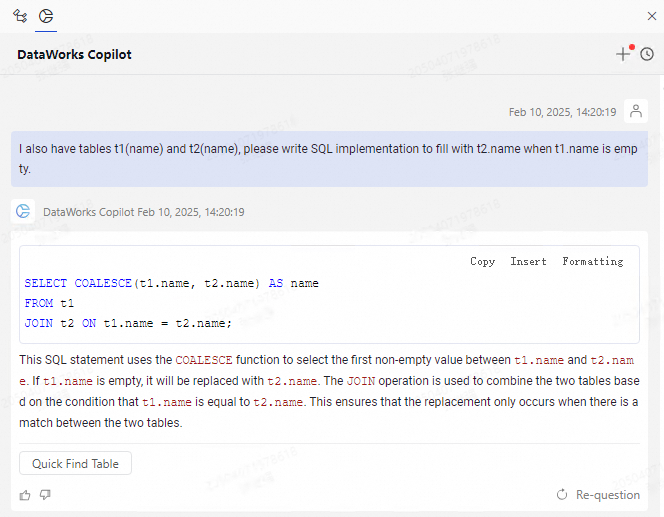
Example prompt: "What is the difference between the explode function and lateral view in MaxCompute?"
Intelligent Notebook cell generation
Generates a complete Notebook cell from a description or keyword.
How to access: Type / in the input box, select Generate Notebook Cell, enter your description, and click Send.
Example prompt: "Create a cell that uses pandas to read the /data/users.csv file and display the first 5 rows."
Quick table search
Searches for tables by keyword across all attached compute engines and data sources.
How to access: Type / in the input box, select Quick Table Search, enter your keyword, and click Send.
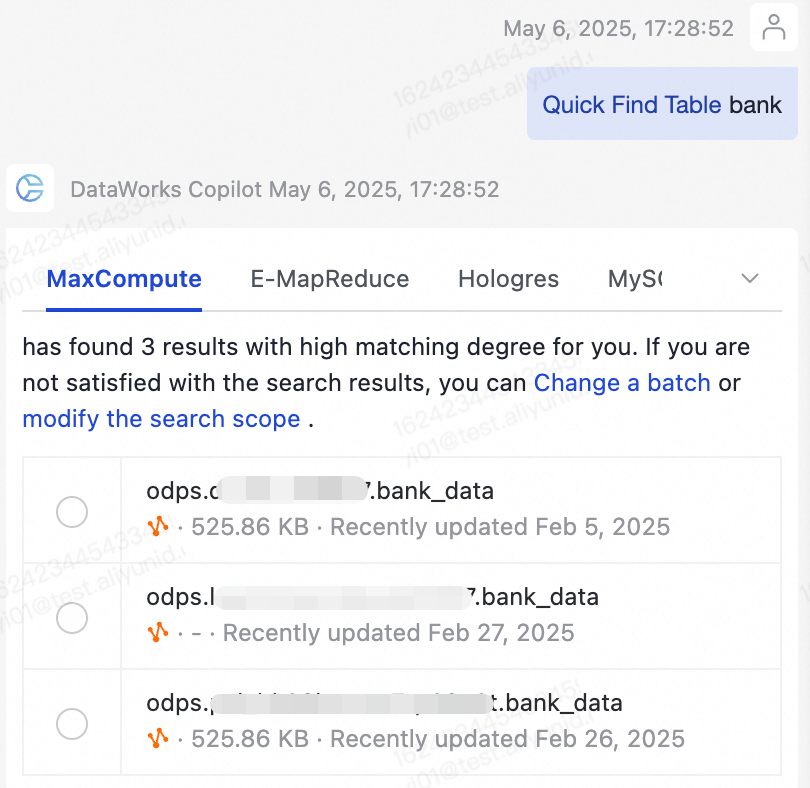
Example prompt: "Find all tables related to 'user'."
Example prompts by task
The following table shows example prompts organized by use case to help you get started quickly.
| Use case | Example prompt |
|---|---|
| Generate a query | "Write an SQL query to find the top three products with the highest sales in each city from the sales table." |
| Refactor with a pattern | "Rewrite this SQL query that uses JOIN to use a window function instead." |
| Debug an error | "This SQL query fails with an invalid identifier error. Help me find the mistake." |
| Optimize performance | "This query is very slow. Help me optimize it and check for any performance bottlenecks." |
| Add comments | "Add comments to this complex SQL logic to explain the purpose of each CTE." |
| Understand code | "Explain what PARTITION BY and ROW_NUMBER() mean in this code." |
| Design tests | "Design test cases for this SQL query that calculates user retention rate. What edge cases should be considered?" |
| Ask a syntax question | "What is the difference between the explode function and lateral view in MaxCompute?" |
| Generate a Notebook cell | "Create a cell that uses pandas to read the /data/users.csv file and display the first 5 rows." |
| Find tables | "Find all tables related to 'user'." |