An aggregate table organizes statistics for multiple derived metrics in the same data domain, time period, and dimensions. It supports business queries, OLAP analysis, and data distribution. This topic describes how to create an aggregate table.
Overview
An aggregate table combines derived metrics in a data domain by time period and related dimensions. The related dimensions, time period, and derived metrics generate the table's statistical fields for reporting and other analysis. You can use an aggregate table to show the business results measured by multiple derived metrics over the same time period and dimensions.

Prerequisites
-
A data layer has been created. Data layers group tables with the same purpose so they are easier to find and use. Aggregate tables are usually placed in the summary data layer to output a statistical granularity, such as a dimension or combination of dimensions, together with multiple derived metrics. This supports later business queries and data distribution. You can also place an aggregate table in another data layer based on your business needs. For information about creating a data layer, see Define data warehouse layers.
-
A data domain has been created. Aggregate tables are based on a Data Domain to identify the business type being modeled and contain business processes. For information about creating a data domain, see Data domain.
-
The Period has been created to specify the time range of the statistics.
Create an aggregate table
-
Log on to the DataWorks console. In the target region, click in the left-side navigation pane. Select a workspace from the drop-down list and click Go to Data Modeling.
-
On the Data Modeling page, click Dimensional Modeling in the top menu bar to open the Dimensional Modeling page.
-
Create an aggregate table.
-
On the Dimensional Modeling page, hover over the
 icon and click .
 -
Configure the basic information for the aggregate table.
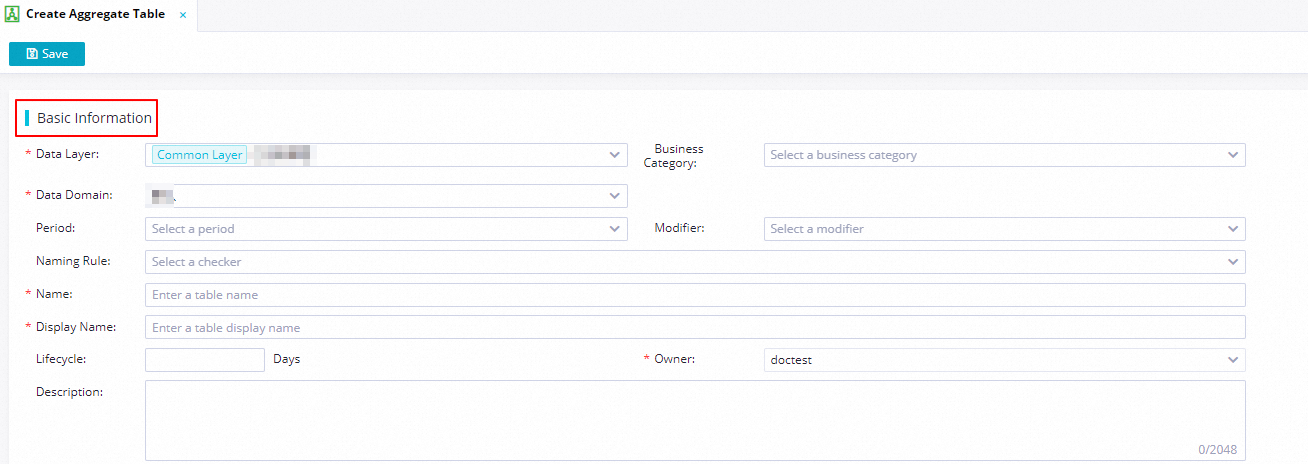
Parameter
Description
Example value
Data Layer
The data layer where the aggregate table is placed. By default, the Common Layer of the DWS is selected. You can select another data layer based on business needs. For information about creating a data layer, see Define data warehouse layers.
Summary data layer
Business Category
Select a business category that has been created. For more information, see Business category.
Sales
Data Domain
Select the data domain for the aggregate table. This determines the statistical subject that the table integrates and presents. For information about creating a data domain, see Data domain.
NoteEach aggregate table can belong to only one data domain.
Transactions domain
Granularity
Select a dimension that has been created. For information about creating a dimension, see Create a conceptual model: dimension.
Order type
Period
Specify the time range of the statistics integrated into the aggregate table, such as the last day or week.
Select from existing time periods. If none meets your business needs, see Period to create one.
1w (last 7 days)
Modifier
Specify the business scope of the statistics.
Select from existing modifiers. If none meets your business needs, see Modifiers to create one.
Online store
Naming Rule
Select a checker for table naming rules. You can select a checker created for a data layer during data warehouse planning. For instructions, see Configure data warehouse layer checkers, Use checkers.
-
Table Name
Name of the aggregate table. If a table naming rule is configured, the name must follow that rule.
dws_trade_buyer_subpay_1dTable Display Name
Chinese display name of the table.
Buyer transaction staged payment aggregate table
Lifecycle
Table retention period, in days.
90 days
Owner
Owner of the aggregate table. The user who creates the table is selected by default.
-
Description
Description of the table.
-
-
-
Click Save in the upper-left corner to save the aggregate table settings.
Add table fields
You can add fields to the table by using Shortcut Mode or Script Mode. The Shortcut Mode option supports the following import methods:
-
Import from Table/View: Import fields from an existing physical table or view in a compute engine. In the Find existing table/view drop-down list, search for and select a physical table or view to import fields.
NoteCurrently, fields can be imported only from tables or views in MaxCompute, Hologres, or EMR Hive.
-
Import from Metrics: Select derived metrics from Data Metrics as model fields.
Quick mode:Import from table/view
-
Click Shortcut Mode. Under Import from Table/View, enter a name in the input box after Expand.
-
On the Find existing table/view to select a table or view. You can then import all or some fields from the referenced table or view.
Note-
Fuzzy matching is supported: enter a keyword to find tables or views whose names contain it.
-
Only production tables can be searched; development tables cannot be searched.
-
 The icon indicates importing all fields.
 -
 The icon indicates importing some fields.
-
-
If you choose to import some fields, select the fields to add to the model in the dialog box, then click Import.
-
If any imported field has an empty Field Display Name field, follow the prompt to populate its description with its display name.
Quick mode:Import from metrics

-
Click Shortcut Mode. Under Import from Metrics, enter a name in the input box after Quick Import.
-
The dialog box shows currently submitted Derived Metric and Composite Metric. Select the metrics to add as fields in the aggregate table.
-
When finished, click Import.
Code mode
You can also create fields, relationships, and partitions with FML statements. For instructions, see Modeling in Script Mode.
Script Mode. To enter code, click Script Mode. The dialog box generates modeling language from the configured model information. Modify it as needed, then click OK.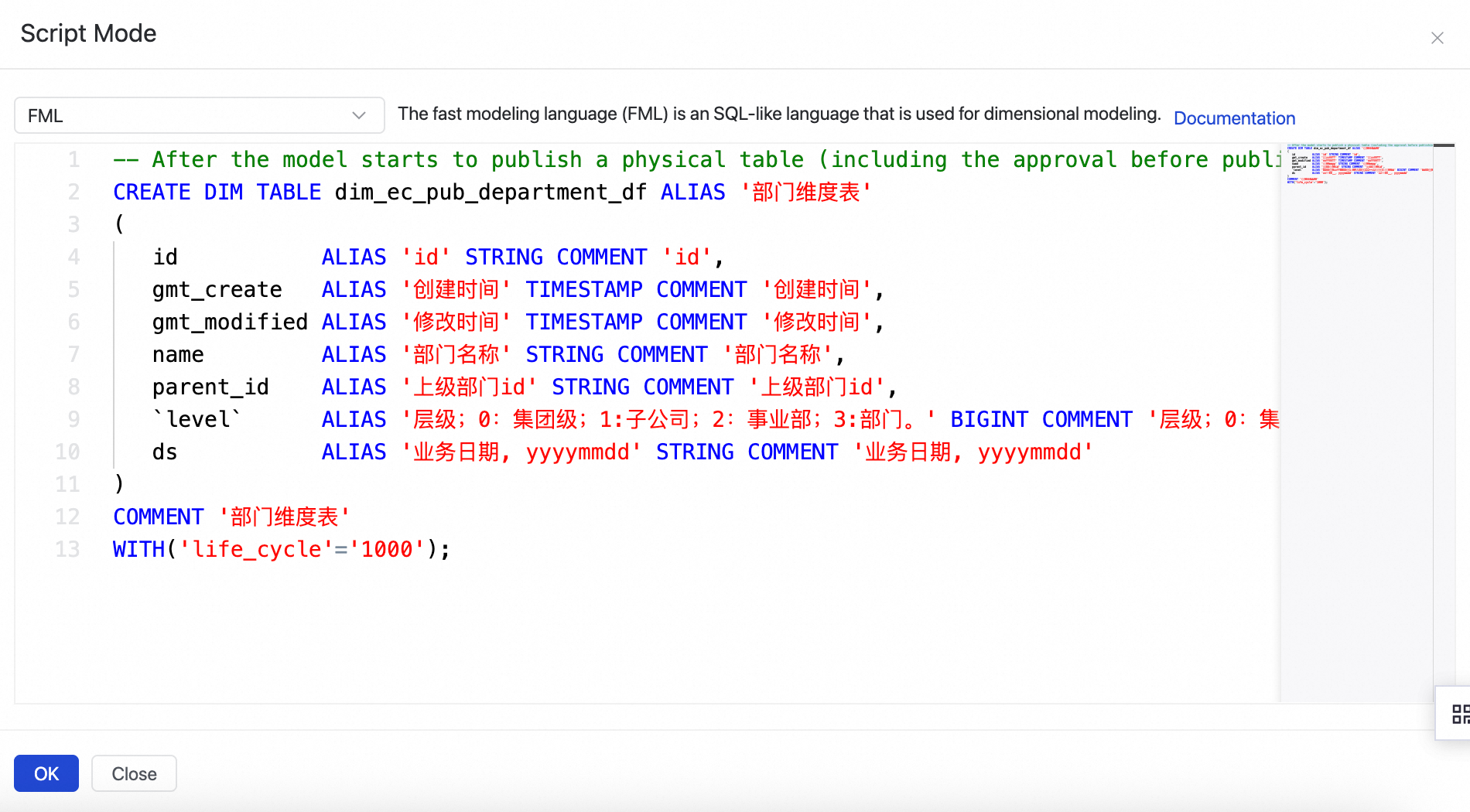
Set table field information
The fields required by the model have now been added. Set their Associated Field, Redundant Field, Associated Granularity/Metric.
-
Set field attributes.
By default, basic attributes such as Field Name, Type, Field Display Name, Description, Primary Key, Not Null, Measurement Unit, Actions are displayed. Click Field Display Settings in the upper-right corner of the added fields to choose which field attributes to display and modify them as needed.
-
Set the field's Field Standard to Associate.
to associate an added field with a field standard and standardize its allowed values and range.
Field Standard to Associate: Standardize data with the same meaning but different field names, including its allowed values and units of measurement.
-
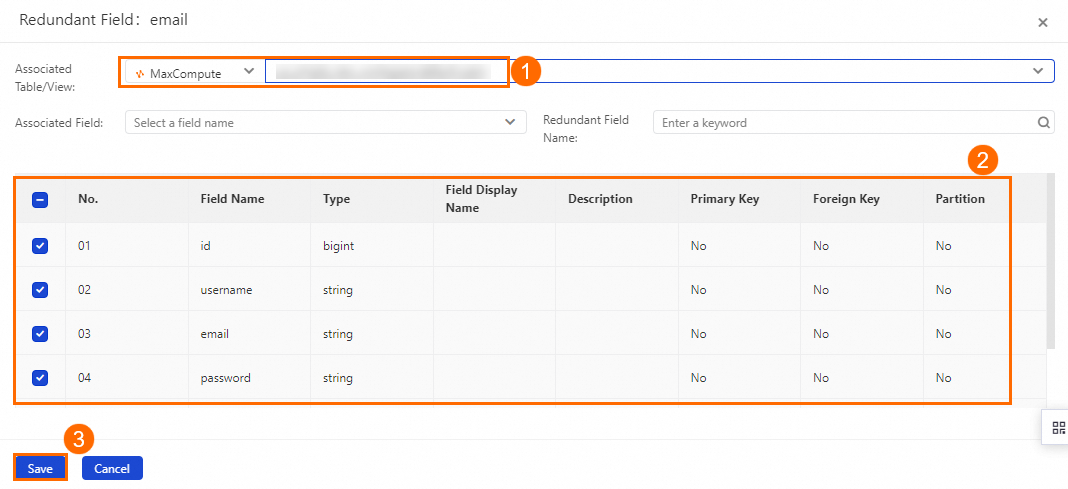
Set the field's Redundant Field.
In a traditional star schema, dimensions are stored in dimension tables and accessed through foreign keys in fact tables to reduce storage. In DataWorks Intelligent Data Modeling, frequently used fields, such as user IDs and common analysis dimensions, can instead be stored redundantly to improve downstream query efficiency, simplify data access, and reduce joins.
In the Actions column of an added field, click Redundant Field to set its associated field.
-
Set the field's Association Type.
For each field in an aggregate or application table, set its Association Type to specify the statistical type of its value. The options are Statistical Granularity, Derived/Composite Metric and Atomic Metric three types.
-
Statistical Granularity: Associate the field with a dimension table and one of its fields, such as product or merchant dimension.
-
Derived/Composite Metric: Specify a derived or composite metric whose statistical value the aggregate table field integrates, such as the order payment amount in Hema App over the last seven days.
-
Atomic Metric: Specify an atomic metric whose statistical value the aggregate table field integrates, such as order payment amount.
NoteFields imported from a table or added in code mode have no default association type. You can set one manually.
After setting the type, use Field Association in the upper-right corner of the field list to specify the associated object.
-
-
After configuring the settings, click Save.
Next steps
After creating the table, configure field management, relationships, partitions, and other settings, then publish the table to the appropriate environment. For more information, see: