DataWorks provides compliance management procedures for cross-border data transmission, including the procedure for requesting permissions on cross-border data transmission and the procedure for processing the requests. Different roles in DataWorks can be used to perform different operations on the Cross-border Data Transmission Self-assessment page. This topic describes the procedure for requesting permissions on cross-border data transmission and the procedure for processing the requests.
Background information
Different roles in DataWorks can be used to perform different operations on the Cross-border Data Transmission Self-assessment page. The following table describes the mappings between the roles and operations.
Role in DataWorks | Personnel involved in cross-border data transmission self-assessment | Page and operation | Role configuration |
Roles other than Safety Manager and Compliance Manager | Data developer | Click Create Application to create a cross-border data transmission request on the Cross-border Data Transmission Self-assessment page. | Choose to assign roles to RAM users. For more information, see Manage permissions on workspace-level services. |
Compliance Manager | Legal personnel | Process all cross-border data transmission requests against legal requirements within the current tenant on the Cross-border Data Transmission Self-assessment page. | Go to the Global Member Management page and assign the Compliance Manager role to RAM users. For more information, see Manage permissions on global-level services. |
Safety Manager | Compliance personnel | Process all cross-border data transmission requests against compliance requirements within the current tenant on the Cross-border Data Transmission Self-assessment page. | Go to the Global Member Management page and assign the Safety Manager role to RAM users. For more information, see Manage permissions on global-level services. |
Procedure overview
The following figure shows the procedure for requesting permissions on cross-border data transmission and the procedure for processing the requests.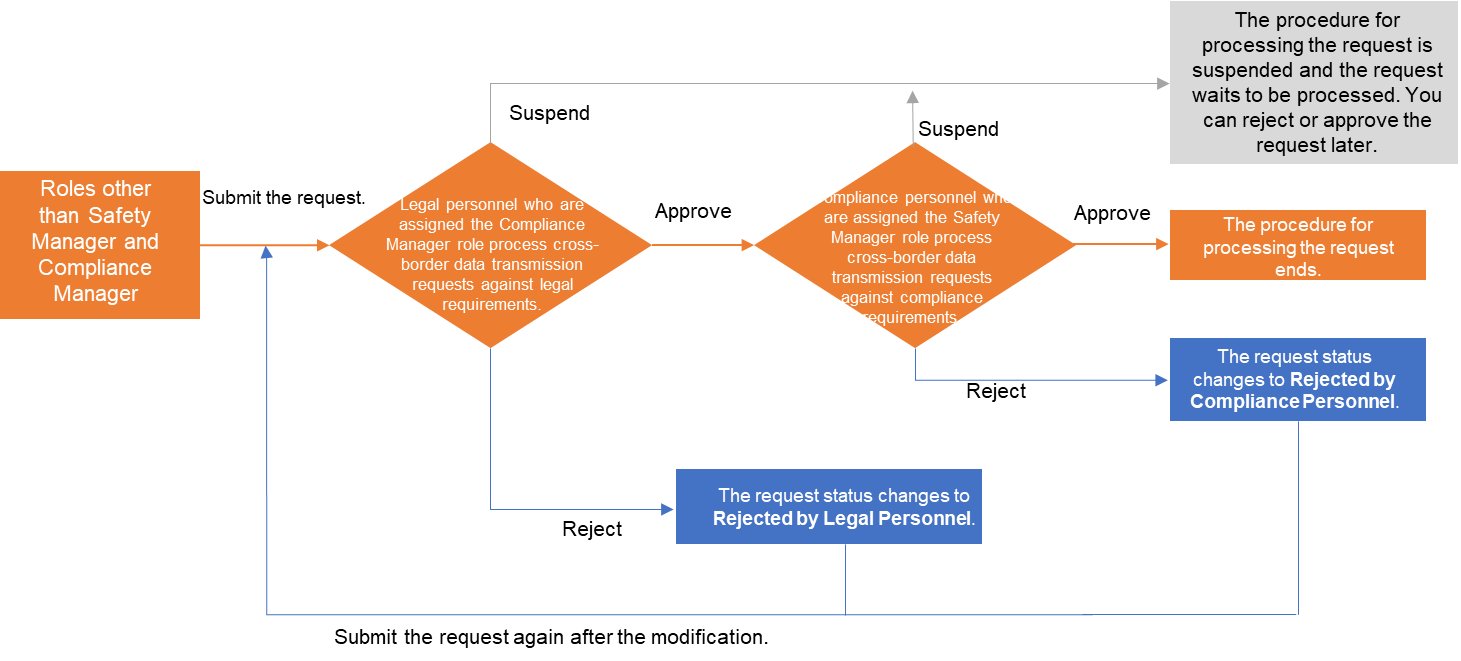
Limits
The cross-border data transmission self-assessment feature is in invitational preview. If you want to use this feature, you can submit a ticket to enable this feature.
Go to the Cross-border Data Transmission Self-assessment page
Different roles in DataWorks can be used to perform different operations on the Cross-border Data Transmission Self-assessment page.
Data developers who are assigned roles other than Safety Manager and Compliance Manager can submit a request for permissions on cross-border data transmission on the Cross-border Data Transmission Self-assessment page.
Legal personnel who are assigned the global-level role Compliance Manager can process cross-border data transmission requests against legal requirements.
Compliance personnel who are assigned the global-level role Safety Manager can process cross-border data transmission requests against compliance requirements.
Log on to the DataWorks console. In the left-side navigation pane, choose . On the page that appears, click Go to Security Center.
In the top navigation bar, click Compliance Check. The Cross-border Data Transmission Self-assessment page appears.
Request permissions on cross-border data transmission
You can assume roles other than Safety Manager and Compliance Manager as a data developer to submit a request for permissions on cross-border data transmission on the Cross-border Data Transmission Self-assessment page.
Submit a request for permissions on cross-border data transmission.
In the upper-right corner of the request list, click Create Application to go to the page on which you can specify information about the request. You can specify information such as the applicant, scenario description, cross-border data details, and cross-border node configurations.
Section
Parameter
Description
Cross-border Data Details
Cross-border Node ID
The ID of the Data Integration node for cross-border data transmission.
To obtain the node ID, perform the following operations: Go to the configuration tab of the node, click Properties in the right-side navigation pane, and then check the value of the Node ID parameter in the General section of the Properties tab. For more information, see Basic properties of a node.
Cross-border Data Node
The source table and destination table for cross-border data transmission. You must specify the table names in the
project_name.table_nameformat.Cross-border Node Configurations
Cross-border Data Transmission Node Type
The type of the node for cross-border data transmission. Only Offline Transmission is supported.
Basic Settings
The data synchronization method. You can select a data synchronization method based on the scheduling properties of the node for cross-border data transmission. Valid values: One-time Synchronization and Periodical Synchronization. For more information, see Scheduling properties of a node.
After you complete the configuration, click Submit. The request is submitted to the legal personnel who are assigned the global-level role Compliance Manager for processing.
If you want to exit from the current configuration page, click Save to save the configurations as a draft. If you want to resume the configuration, click View in the Actions column of the request to continue editing the request.
View the request.
On the Cross-border Data Transmission Self-assessment page, you can view submitted requests and the status of the requests. You can also click View in the Actions column of a request to go to the details page of the request. On the details page, you can edit the request, view the processing status of the request, and perform other operations.
Process cross-border data transmission requests
Only users who are assigned the Safety Manager or Compliance Manager role can process cross-border data transmission requests.
Process cross-border data transmission requests against legal requirements as a user who is assigned the global-level role Compliance Manager.
Go to the Cross-border Data Transmission Self-assessment page.
The Cross-border Data Transmission Self-assessment page displays all cross-border data transmission requests that need to be processed against legal requirements within the current tenant.
Click View in the Actions column of a request that is in the To Be Processed by Legal Personnel state to go to the details page of the request. On the details page, you can view the request information and process the request.
You can supplement legal provisions when you process the request. You can select a contract that is uploaded on the Manage contracts page from the Agreement drop-down list or click Create Contract in the drop-down list to create a contract. Then, you can approve, reject, or suspend the request.
If you click Pass, the request is approved and transferred to the compliance personnel who are assigned the global-level role Safety Manager for processing.
If you click Reject, the procedure for processing the request ends. The status of the request changes to Rejected by Legal Personnel in the request list.
If you click Suspend, the procedure for processing the request is suspended and the request waits to be processed. If you want to process the request later, you can click View in the Actions column of the request to reject or approve the request.
Process cross-border data transmission requests against compliance requirements as a user who is assigned the global-level role Safety Manager.
Go to the Cross-border Data Transmission Self-assessment page.
The Cross-border Data Transmission Self-assessment page displays all cross-border data transmission requests that need to be processed against compliance requirements within the current tenant.
Click View in the Actions column of a request that is in the To Be Processed by Compliance Personnel state to go to the details page of the request. On the details page, you can view the request information and process the request.
You can click Start Risk Check to enable the system to perform various checks on the request. For example, the system checks whether data or content is missing. After the checks are complete, you can approve, reject, or suspend the request.
If you click Pass, the request is approved and the procedure for processing the request ends.
If you click Reject, the procedure for processing the request ends. The status of the request changes to Rejected by Compliance Personnel in the request list.
If you click Suspend, the procedure for processing the request is suspended and the request waits to be processed. If you want to process the request later, you can click View in the Actions column of the request to reject or approve the request.
Manage contracts
Only the legal personnel who are assigned the global-level role Compliance Manager can manage contracts.
You can upload a contract on the Contract Management tab. This way, you can select the contract from the Agreement drop-down list if you want to supplement legal provisions.
On the Cross-border Data Transmission Self-assessment page, click the Contract Management tab.
In the upper-right corner of the tab that appears, click Create Contract.
In the Create Contract dialog box, you can specify a custom contract name and upload a local file.
Click OK. A contract record is added.
Manage the contract.
You can find the uploaded contract record in the contract list and perform the following operations to manage the contract:
Download: You can click the contract name in the contract list to download the contract.
Update: You can click Update in the Actions column of the contract to update the contract.
Delete: You can click Delete in the Actions column of the contract to delete the contract record.
NoteIf the contract is associated with a request, the contract record cannot be deleted.