This topic describes how to use the ods_user_info_d_spark and ods_raw_log_d_spark external tables created based on E-MapReduce (EMR) Spark SQL nodes to access the basic user information and website access logs of users that are synchronized to a private Object Storage Service (OSS) bucket, and then use other EMR Spark SQL nodes to process the synchronized data to obtain the desired user profile data. This topic helps you understand how to compute and analyze synchronized data by using Spark SQL to complete simple data processing for data warehouses.
Prerequisites
The required data is synchronized. For more information, see Synchronize data.
The
ods_user_info_d_sparkexternal table is created based on an EMR Spark SQL node and the external table can be used to access the basic user information synchronized to the private OSS bucket.The
ods_raw_log_d_sparkexternal table is created based on an EMR Spark SQL node and the external table can be used to access the website access logs of users synchronized to the private OSS bucket.
Precautions
EMR Serverless Spark workspaces do not support function registration. Therefore, you cannot register functions to split log information or convert IP addresses into regions. In this topic, the ods_raw_log_d_spark table is split by using a built-in Spark SQL function to generate the dwd_log_info_di_spark table for user profile analysis.
Objective
Process the ods_user_info_d_spark and ods_raw_log_d_spark external tables to generate a basic user profile table.
Process the
ods_raw_log_d_sparktable by using Spark SQL to generate a new log table nameddwd_log_info_di_spark.Join the
dwd_log_info_di_sparkandods_user_info_d_sparktables based on the uid field to generate an aggregate table nameddws_user_info_all_di_spark.Process the
dws_user_info_all_di_sparktable to generate a table namedads_user_info_1d_spark. The dws_user_info_all_di_spark table contains a large number of fields and a large amount of data. In this case, data consumption may require a long period of time to complete. Therefore, further data processing is required.
Step 1: Design a workflow
In the data synchronization phase, the basic user information and website access logs of users are synchronized. In the data processing phase, the dwd_log_info_di_spark node is added to split the log table to generate a new log table, and then the dws_user_info_all_di_spark node is added to join the new log table and the basic user information table to generate an aggregate table. Then, the ads_user_info_1d_spark node is added to further process the aggregate table to generate a basic user profile table.
Go to the DataStudio page.
Log on to the DataWorks console. In the top navigation bar, select the desired region. In the left-side navigation pane, choose . On the page that appears, select the desired workspace from the drop-down list and click Go to Data Development.
Create nodes for data processing. In the data synchronization phase, external tables are created based on EMR Spark SQL nodes to access the synchronized data stored in the private OSS bucket. In the data processing phase, the objective is to process the synchronized data to generate the basic user profile data.
Nodes at different levels and the work logic of the nodes
In the upper part of the workflow canvas, click Create Node to create the nodes described in the following table for data processing.
Node category
Node type
Node name
(Named after the output table)
Code logic
EMR
 EMR Spark SQL
dwd_log_info_di_spark
Split the ods_raw_log_d_spark table to generate a new log table for the subsequent join operation.
EMR
 EMR Spark SQL
dws_user_infor_all_di_spark
Join the basic user information table and the new log table to generate an aggregate table.
EMR
 EMR Spark SQL
ads_user_info_1d_spark
Further process the aggregate table to generate a basic user profile table.
Directed acyclic graph (DAG) in the workflow
Drag the nodes to the workflow canvas, and configure the dependencies between the nodes by drawing lines to design the workflow for data processing.

Step 2: Configure EMR Spark SQL nodes
After the workflow configuration is complete, you can use a Spark SQL function in EMR Spark SQL nodes to split the ods_raw_log_d_spark table to obtain a new log table. Then, you can join the new log table with the basic user information table to generate an aggregate table, and further cleanse and process the aggregate table to generate a user profile for each user.
Configure the dwd_log_info_di_spark node
On the configuration tab of the workflow, double-click the dwd_log_info_di_spark node. On the configuration tab of the node, enter the SQL code that processes the ods_raw_log_d_spark table and writes the processed data to the dwd_log_info_di_spark table.
Configure the node code.
Double-click the
dwd_log_info_di_sparknode to go to the configuration tab of the node. Write the following statements:-- Scenario: The SQL statements in the following sample code are Spark SQL statements. You can use a Spark SQL function to split data in the ods_raw_log_d_spark table that is loaded to Spark by using ##@@ to generate multiple fields, and then write the fields to the dwd_log_info_di_spark table. -- Note: -- DataWorks provides scheduling parameters that you can use to write daily incremental data to the corresponding partition of the destination table in the scheduling scenario. -- In actual development scenarios, you can define variables in the node code in the ${Variable name} format. Then, you can assign scheduling parameters as values to the variables on the Properties tab of the configuration tab of the node. This way, the values of scheduling parameters are dynamically replaced in the node code based on the configurations of the scheduling parameters in the scheduling scenario. CREATE TABLE IF NOT EXISTS dwd_log_info_di_spark ( ip STRING COMMENT 'The IP address', uid STRING COMMENT 'The user ID', tm STRING COMMENT 'The time in the yyyymmddhh:mi:ss format', status STRING COMMENT 'The status code that is returned by the server', bytes STRING COMMENT 'The number of bytes that are returned to the client', method STRING COMMENT'The request method', url STRING COMMENT 'url', protocol STRING COMMENT 'The protocol', referer STRING , device STRING, identity STRING ) PARTITIONED BY ( dt STRING ); ALTER TABLE dwd_log_info_di_spark ADD IF NOT EXISTS PARTITION (dt = '${bizdate}'); INSERT OVERWRITE TABLE dwd_log_info_di_spark PARTITION (dt='${bizdate}') SELECT ip, uid, tm, status, bytes, regexp_extract(request, '(^[^ ]+) .*', 1) AS method, regexp_extract(request, '^[^ ]+ (.*) [^ ]+$', 1) AS url, regexp_extract(request, '.* ([^ ]+$)', 1) AS protocol, regexp_extract(referer, '^[^/]+://([^/]+){1}', 1) AS referer, CASE WHEN lower(agent) RLIKE 'android' THEN 'android' WHEN lower(agent) RLIKE 'iphone' THEN 'iphone' WHEN lower(agent) RLIKE 'ipad' THEN 'ipad' WHEN lower(agent) RLIKE 'macintosh' THEN 'macintosh' WHEN lower(agent) RLIKE 'windows phone' THEN 'windows_phone' WHEN lower(agent) RLIKE 'windows' THEN 'windows_pc' ELSE 'unknown' END AS device, CASE WHEN lower(agent) RLIKE '(bot|spider|crawler|slurp)' THEN 'crawler' WHEN lower(agent) RLIKE 'feed' OR regexp_extract(request, '^[^ ]+ (.*) [^ ]+$', 1) RLIKE 'feed' THEN 'feed' WHEN lower(agent) NOT RLIKE '(bot|spider|crawler|feed|slurp)' AND agent RLIKE '^(Mozilla|Opera)' AND regexp_extract(request, '^[^ ]+ (.*) [^ ]+$', 1) NOT RLIKE 'feed' THEN 'user' ELSE 'unknown' END AS identity FROM ( SELECT SPLIT(col, '##@@')[0] AS ip, SPLIT(col, '##@@')[1] AS uid, SPLIT(col, '##@@')[2] AS tm, SPLIT(col, '##@@')[3] AS request, SPLIT(col, '##@@')[4] AS status, SPLIT(col, '##@@')[5] AS bytes, SPLIT(col, '##@@')[6] AS referer, SPLIT(col, '##@@')[7] AS agent FROM ods_raw_log_d_spark WHERE dt = '${bizdate}' ) a;Configure scheduling properties for the node.
Section
Screenshot
Add Parameter
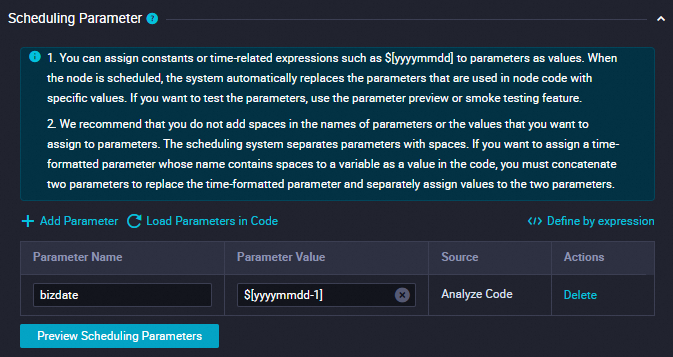
Click Add Parameter in the Scheduling Parameter section. In the row that appears in the table, you can specify a scheduling parameter and the value of the scheduling parameter.
Set Parameter Name to
bizdate.Set Parameter Value to
$[yyyymmdd-1].
For more information, see Configure scheduling parameters.
Dependencies
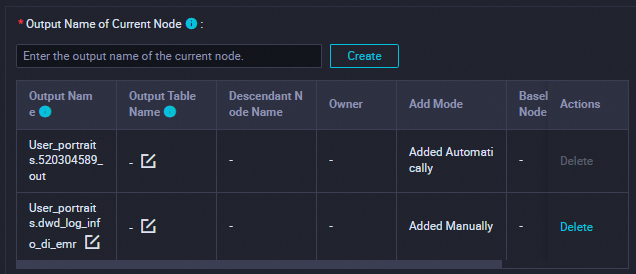
In this section, make sure that the output table is used as the output name of the current node.
The output table is named in the
workspacename.nodenameformat.For more information, see Configure scheduling dependencies.
 Note
NoteIn the Schedule section, set the Scheduling Cycle parameter to Day. You do not need to separately configure the Scheduled time parameter for the current node. The time when the current node is scheduled to run every day is determined by the scheduling time of the workshop_start_spark zero load node of the workflow. The current node is scheduled to run after 00:30 every day.
Save the configurations.
In this example, you can configure other required configuration items based on your business requirements. After the configuration is complete, click the
 icon in the top toolbar on the configuration tab of the node to save the node configurations.
 Verify the split result of the log table.
After the ancestor node and the current node are successfully run, click Ad Hoc Query in the left-side navigation pane of the DataStudio page. In the Ad Hoc Query pane, create an ad hoc query task of the EMR Spark SQL type and write SQL statements to check whether the table created by the current node is generated as expected.
-- You must update the partition filter condition to the data timestamp of your current operation. For example, if a node is scheduled to run on February 22, 2023, the data timestamp of the node is 20230221, which is one day earlier than the scheduling time of the node. SELECT * FROM dwd_log_info_di_spark WHERE dt ='The data timestamp';NoteIn the SQL statements in this topic, the scheduling parameter
${bizdate}is configured and the valueT-1is assigned to the scheduling parameter. In batch computing scenarios, bizdate indicates the date on which a business transaction is conducted, which is often referred to as the data timestamp. For example, if you collect statistical data on the turnover of the previous day on the current day, the previous day is the date on which the business transaction is conducted and represents the data timestamp.
Configure the dws_user_info_all_di_spark node
Join the dwd_log_info_di_spark and ods_user_info_d_spark tables based on the uid field to generate the dws_user_info_all_di_spark table.
Configure the node code.
Double-click the dws_user_info_all_di_spark node to go to the configuration tab of the node. On the configuration tab, write the following statements:
-- Scenario: The SQL statements in the following sample code are Spark SQL statements. You can join the dwd_log_info_di_spark and ods_user_info_d_spark tables based on the uid field and write data to the specified dt partition.
-- Note:
--      DataWorks provides scheduling parameters that you can use to write daily incremental data to the corresponding partition of the destination table in the scheduling scenario.
--      In actual development scenarios, you can define variables in the node code in the ${Variable name} format. Then, you can assign scheduling parameters as values to the variables on the Properties tab of the configuration tab of the node. This way, the values of scheduling parameters are dynamically replaced in the node code based on the configurations of the scheduling parameters in the scheduling scenario.
CREATE TABLE IF NOT EXISTS dws_user_info_all_di_spark (
    uid        STRING COMMENT 'The user ID',
    gender     STRING COMMENT 'The gender',
    age_range  STRING COMMENT 'The age range',
    zodiac     STRING COMMENT 'The zodiac sign',
    device     STRING COMMENT 'Terminal type',
    method     STRING COMMENT 'HTTP request type',
    url        STRING COMMENT 'url',
    `time`     STRING COMMENT 'The time in the yyyymmddhh:mi:ss format'
)
PARTITIONED BY (dt STRING);

-- Add a partition.
ALTER TABLE dws_user_info_all_di_spark ADD IF NOT EXISTS PARTITION (dt = '${bizdate}');

-- Insert data from the basic user information table and the new log table.
INSERT OVERWRITE TABLE dws_user_info_all_di_spark PARTITION (dt = '${bizdate}')
SELECT
    COALESCE(a.uid, b.uid) AS uid,
    b.gender AS gender,
    b.age_range AS age_range,
    b.zodiac AS zodiac,
    a.device AS device,
    a.method AS method,
    a.url AS url,
    a.tm
FROM
   dwd_log_info_di_spark as a
LEFT OUTER JOIN
    ods_user_info_d_spark as b
ON
    a.uid = b.uid ;
Configure scheduling properties for the node.
Section
Description
Screenshot
Add Parameter
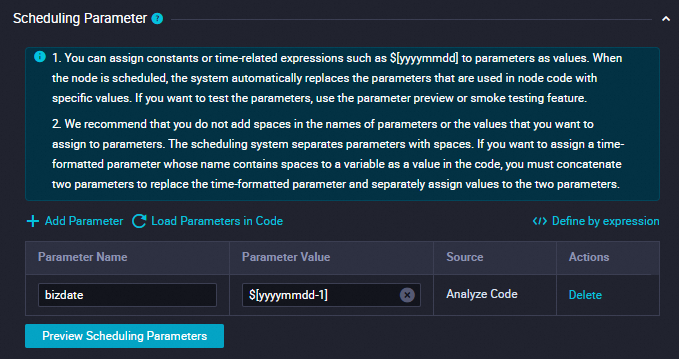
Click Add Parameter in the Scheduling Parameter section. In the row that appears in the table, you can specify a scheduling parameter and the value of the scheduling parameter.
Set Parameter Name to
bizdate.Set Parameter Value to
$[yyyymmdd-1].
For more information, see Configure scheduling parameters.
Dependencies
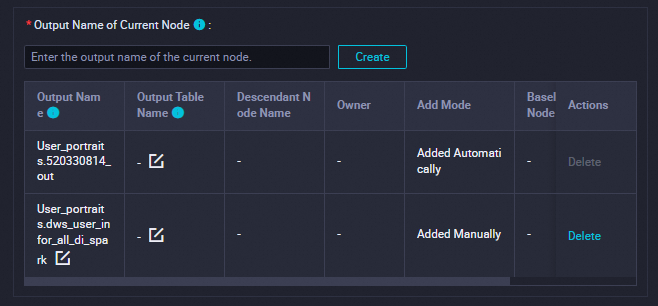
In this section, make sure that the output table is used as the output name of the current node.
The output table is named in the
workspacename.nodenameformat.For more information, see Configure scheduling dependencies.
 Note
NoteIn the Schedule section, set the Scheduling Cycle parameter to Day. You do not need to separately configure the Scheduled time parameter for the current node. The time when the current node is scheduled to run every day is determined by the scheduling time of the workshop_start_spark zero load node of the workflow. The current node is scheduled to run after 00:30 every day.
Save the configurations.
In this example, you can configure other required configuration items based on your business requirements. After the configuration is complete, click the
icon in the top toolbar on the configuration tab of the node to save the node configurations. Verify the data merge result.
After the ancestor nodes and the current node are successfully run, click Ad Hoc Query in the left-side navigation pane of the DataStudio page. In the Ad Hoc Query pane, create an ad hoc query task of the EMR Spark SQL type and write SQL statements to check whether the table created by the current node is generated as expected.
-- You must update the partition filter condition to the data timestamp of your current operation. For example, if a node is scheduled to run on August 8, 2024, the data timestamp of the node is 20240807, which is one day earlier than the scheduling time of the node. SELECT * FROM dws_user_info_all_di_spark WHERE dt ='The data timestamp';NoteIn the SQL statements in this topic, the scheduling parameter
${bizdate}is configured and the valueT-1is assigned to the scheduling parameter. In batch computing scenarios, bizdate indicates the date on which a business transaction is conducted, which is often referred to as the data timestamp. For example, if you collect statistical data on the turnover of the previous day on the current day, the previous day is the date on which the business transaction is conducted and represents the data timestamp.
Configure the ads_user_info_1d_spark node
Perform the maximum value and count calculations on the dws_user_info_all_di_spark table to generate the ads_user_info_1d_spark table as the basic user profile table for consumption.
Configure the node code.
Double-click the ads_user_info_1d_spark node to go to the configuration tab of the node. On the configuration tab, write the following statements:
-- Scenario: The SQL statements in the following sample code are Spark SQL statements. You can use a Spark SQL function to further process the dws_user_info_all_di_spark table in Spark SQL and write data to the ads_user_info_1d_spark table.
-- Note:
--      DataWorks provides scheduling parameters that you can use to write daily incremental data to the corresponding partition of the destination table in the scheduling scenario.
--      In actual development scenarios, you can define variables in the node code in the ${Variable name} format. Then, you can assign scheduling parameters as values to the variables on the Properties tab of the configuration tab of the node. This way, the values of scheduling parameters are dynamically replaced in the node code based on the configurations of the scheduling parameters in the scheduling scenario.
CREATE TABLE IF NOT EXISTS ads_user_info_1d_spark (
  uid STRING COMMENT 'The user ID',
  device STRING COMMENT 'The terminal type',
  pv BIGINT COMMENT 'pv',
  gender STRING COMMENT 'The gender',
  age_range STRING COMMENT 'The age range',
  zodiac STRING COMMENT 'The zodiac sign'
)
PARTITIONED BY (
  dt STRING
);
ALTER TABLE ads_user_info_1d_spark ADD IF NOT EXISTS PARTITION (dt='${bizdate}');
INSERT OVERWRITE TABLE ads_user_info_1d_spark PARTITION (dt='${bizdate}')
SELECT uid
  , MAX(device)
  , COUNT(0) AS pv
  , MAX(gender)
  , MAX(age_range)
  , MAX(zodiac)
FROM dws_user_info_all_di_spark
WHERE dt = '${bizdate}'
GROUP BY uid;
Configure scheduling properties for the node.
Section
Description
Screenshot
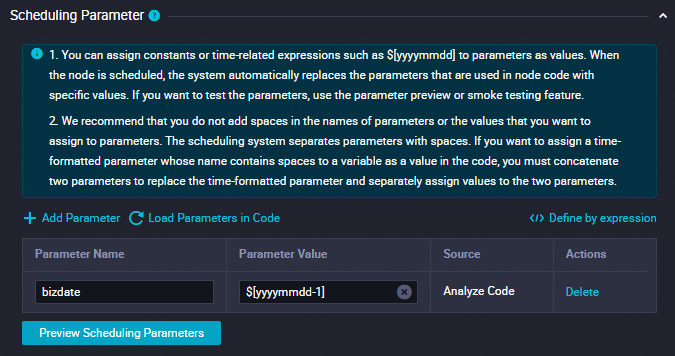
Add Parameter
Click Add Parameter in the Scheduling Parameter section. In the row that appears in the table, you can specify a scheduling parameter and the value of the scheduling parameter.
Set Parameter Name to
bizdate.Set Parameter Value to
$[yyyymmdd-1].
For more information, see Configure scheduling parameters.
Dependencies
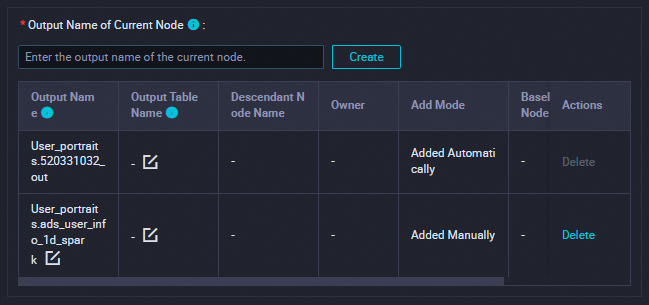
In this section, make sure that the output table is used as the output name of the current node.
The output table is named in the
workspacename.nodenameformat.For more information, see Configure scheduling dependencies.
 Note
NoteIn the Schedule section, set the Scheduling Cycle parameter to Day. You do not need to separately configure the Scheduled time parameter for the current node. The time when the current node is scheduled to run every day is determined by the scheduling time of the workshop_start_spark zero load node of the workflow. The current node is scheduled to run after 00:30 every day.
Save the configurations.
In this example, you can configure other required configuration items based on your business requirements. After the configuration is complete, click the
icon in the top toolbar on the configuration tab of the node to save the node configurations. Verify the result of the user profile table.
After the ancestor node and the current node are successfully run, click Ad Hoc Query in the left-side navigation pane of the DataStudio page. In the Ad Hoc Query pane, create an ad hoc query task of the EMR Spark SQL type and write SQL statements to check whether the table created by the current node is generated as expected.
-- You must update the partition filter condition to the data timestamp of your current operation. For example, if a node is scheduled to run on February 22, 2023, the data timestamp of the node is 20230221, which is one day earlier than the scheduling time of the node. SELECT * FROM ads_user_info_1d_spark WHERE dt ='The data timestamp';NoteIn the SQL statements in this topic, the scheduling parameter
${bizdate}is configured and the valueT-1is assigned to the scheduling parameter. In batch computing scenarios, bizdate indicates the date on which a business transaction is conducted, which is often referred to as the data timestamp. For example, if you collect statistical data on the turnover of the previous day on the current day, the previous day is the date on which the business transaction is conducted and represents the data timestamp.
Step 3: Commit the workflow
After you configure the workflow, test whether the workflow can be run as expected. If the test is successful, commit the workflow and wait for the workflow to be deployed.
On the configuration tab of the workflow, click the
 icon to run the workflow.
 If the
 icon appears next to all nodes in the workflow, click the
  icon to commit the workflow.
 In the Commit dialog box, select the nodes that you want to commit, enter a description, and then select Ignore I/O Inconsistency Alerts. Then, click Confirm.
After the workflow is committed, you can deploy the nodes in the workflow.
In the upper-right corner of the configuration tab of the workflow, click Deploy. The Create Deploy Task page appears.
Select the nodes that you want to deploy and click Deploy. In the Create Deploy Task dialog box, click Deploy.
Step 4: Run the nodes in the production environment
After you deploy the nodes on a day, the instances generated for the nodes can be scheduled to run on the next day. You can use the data backfill feature to backfill data for nodes in a workflow that is deployed. This allows you to check whether the nodes can be run in the production environment. For more information, see Backfill data and view data backfill instances (new version).
After you deploy the nodes, click Operation Center in the upper-right corner.
You can also click Operation Center in the top toolbar on the configuration tab of the workflow to go to the Operation Center page.
In the left-side navigation pane, choose . On the Auto Triggered Nodes page, find and click the workshop_start_spark zero load node. The DAG of the node appears.
Right-click the workshop_start_spark node and choose .
In the Backfill Data panel, select the nodes for which you want to backfill data, configure the Data Timestamp parameter, and then click Submit and Redirect. The page on which the data backfill instances are listed appears.
Click Refresh until all SQL nodes are successfully run.