The shape mapper maps data values to graphics in a widget. Graphics include vector and icon. This topic uses the Vector Scatter Layer of the Basic Flat Map 3.0 component as an example to show how to configure scatter shapes with the shape mapper.
To configure the scatter shape in the map widget, first select a scatter type. Available types include Vector and Symbol. For more information, see Shape mapper types. After you select a scatter type, configure the corresponding scatter shapes in the lower part of the configuration panel, such as Vector and Symbol. 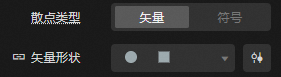
Scatter points of the Vector type support the Stroke effect. Scatter points of the Symbol type do not support the Stroke effect.
Configure shape mapping
Use one of the following methods to configure scatter shapes. In this example, Scatter Type is set to Vector.
-
Method 1: Click the
 icon on the left side of the Vector Shape configuration items to enable visual mapping. In this mode, shapes are not driven by data. Select a scatter graph from the shape drop-down list.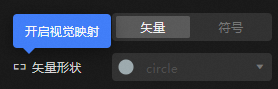
-
Method 2: Click the
 icon on the left side of the Vector Shape configuration items to Disable Visual Mapping. In this mode, shapes are driven by scatter data through the shape mapper. You can select multiple scatter graphs.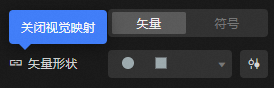
Description of the shape mapper function
|
Description |
Remarks |
|
Toggle configuration shape mapping when panel collapses |
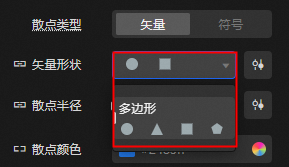
When the shape mapper is collapsed, click the drop-down list to open the shape template. The top row shows the current mapped shapes, and the rows below provide templates to choose from. Click a shape in the template to quickly switch the mapping. |
|
Panel expansion configuration mapping details |
When the shape mapper is expanded, it automatically reads data and maps shapes accordingly. Configure the mapping details as follows.
|
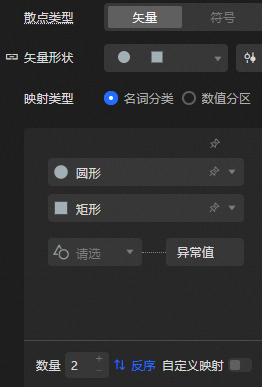
 icon to the right of a color in the template to pin that color value. Unpinned colors change when you switch templates.
  icon to sort the shape mappings in reverse order.
  icon to the left of a line map entry to delete the entire line map entry.
  icon below the shape mapping list to add a row of shape mapping entries.
 Shape Mapper Type
Shape mappers support two graphics mapping types: vector and symbol.
-
Vector: maps data to a vector polygon, such as a triangle, square, diamond, and hexagon.
-
Symbol: maps data to a symbol icon. You can use a built-in icon or provide a custom URL.