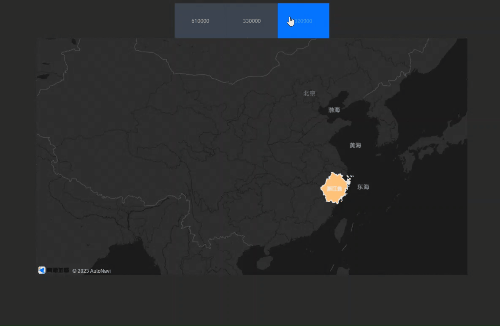
This topic explains how to pass dynamic parameters when requesting data interfaces, enabling filter interaction between the Tab List and the Choropleth Layer on a basic flat map.
Effect display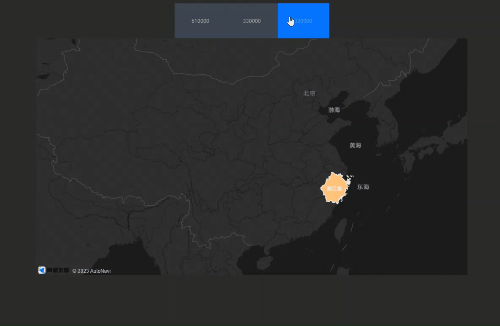
Procedure
-
Access the DataV console.
Select a data dashboard and click Edit to access the canvas editor.
Add both the Tab List and Basic Flat Map widgets to the canvas.
Click the Tab List widget and select the Data Source panel to modify static data.
[
  {
    "id": 1,
    "content": "610000"
  },
  {
    "id": 2,
    "content": "330000"
  },
  {
    "id": 3,
    "content": "320000"
  }
]
Navigate to the Global Variable tab, click Create Variable, and rename it to code.
Under the Basic Flat Map widget, click the Choropleth Layer sub-widget. In the Data Source panel, select the Geographic Boundary Geojson Data Interface, set the data source to API, and enter the URL.
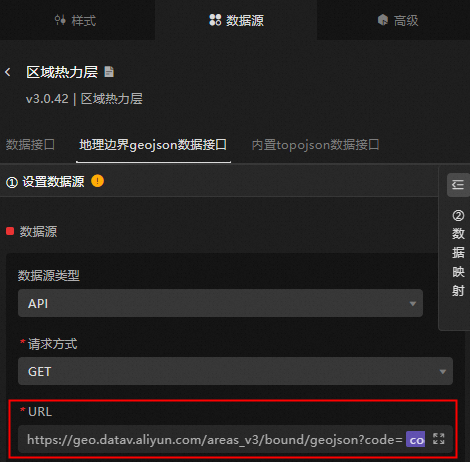
https://geo.datav.aliyun.com/areas_v3/bound/geojson?code=:code//Use the global variable code to replace ":code"Switch to the blueprint editor mode.
In the Logic Node tab, add the choropleth layer node, Tab list node, global variable node, and a serial data processing node to the main canvas.
Connect the nodes accordingly.
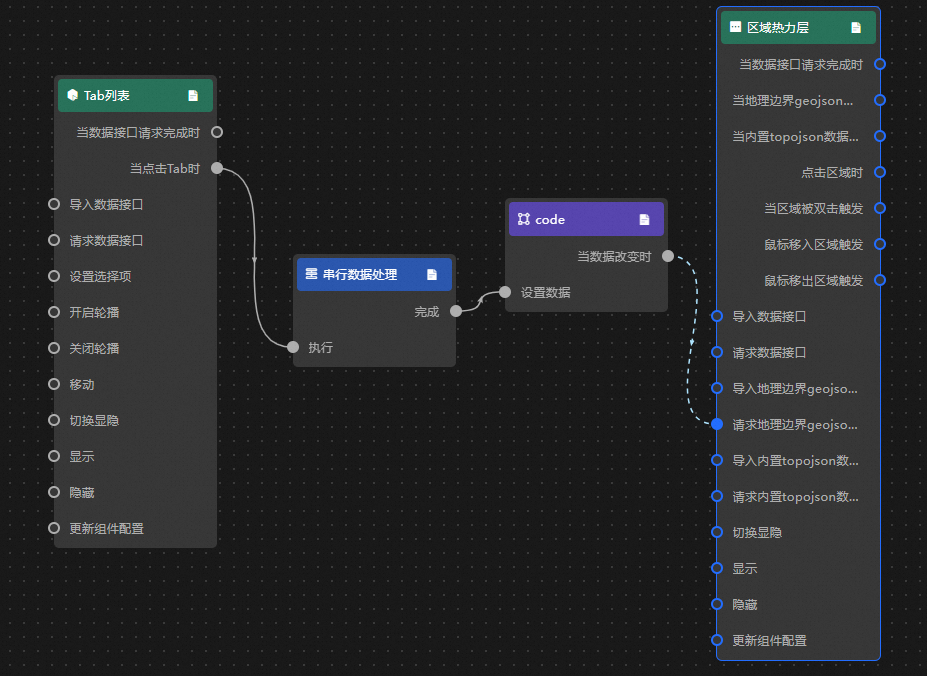
Set up the serial data processing node's method of operation.
return data.content;To preview the display results, click the Preview icon in the upper right corner.