Use global search in Blueprint Editor to find and run commands, add blueprint nodes, or locate nodes on the canvas.
Global search is available only in DataV 7.0. Use the new console to access this feature.
Prerequisites
-
You have logged on to the DataV console.
-
You have entered the Canvas Editor page.
Procedure
-
Click Search above the canvas to go to the Search panel. Click the blank space to exit.

-
Use one of the following prefixes to narrow your search:
-
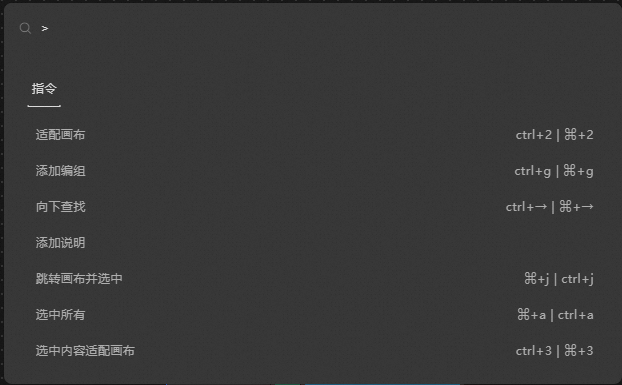
Enter > to search for commands such as Adapt to Canvas, Add Group, and Switch to Select Mode.
-
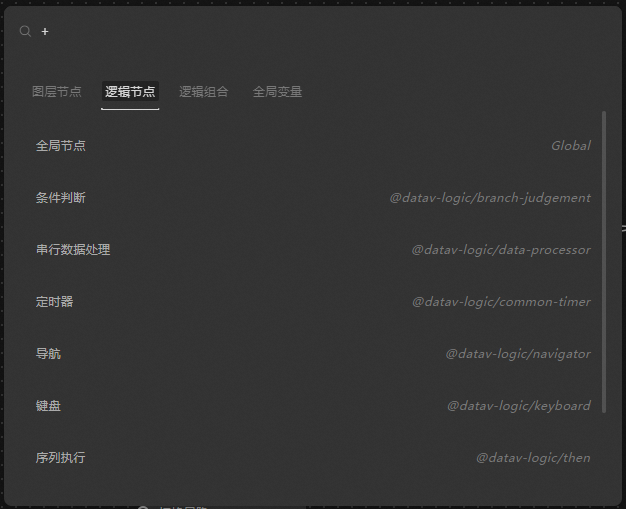
Enter + to search for blueprint nodes and click a result to add it to the main canvas.
-
Enter / to search for a node on the current blueprint page and click a result to locate it.
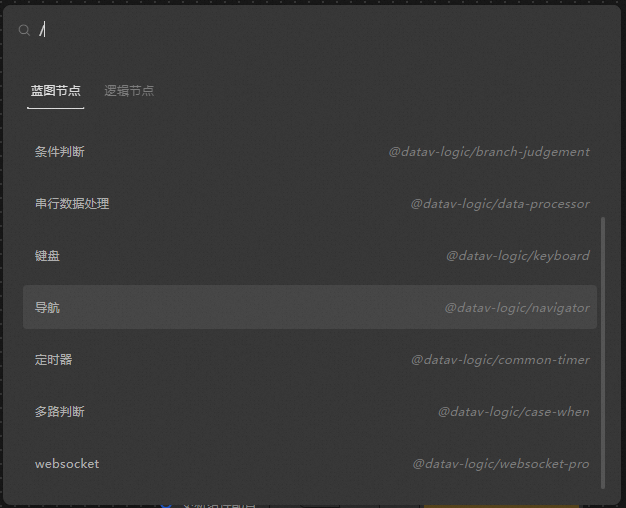
NoteSearch results are filtered by keyword. If the search term contains one or more of the prefix symbols listed above, matching results that include those symbols are also filtered out.
-