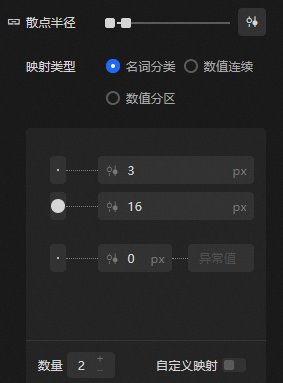
The dimension mapper adjusts the size of graphical elements based on data values. You can use the Range slider to define the size range. This example uses the scatter radius of the vector scatter layer in the Basic Plane Map 3.0 widget to show how to customize the mapping between data values and dimensions.
Configure dimension mapping
You can adjust the scatter point radius in the map subwidget by using one of the following methods.
-
Method 1: Click the
 icon on the left of the configuration item to turn off Scatter Radius. When you click the pointer to turn on Visual Mapping, the scatter size is not driven by data. You can adjust the scatter size by dragging the slider or entering a value.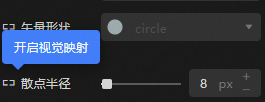
-
Method 2: Click the
 icon on the left of the configuration item to turn on Scatter Radius. When you click Turn off Visual Mapping in the Hover state, the scatter size is driven by the data. You can use the Range slider to configure the scatter size.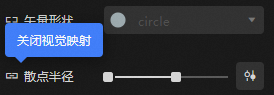
Dimension Mapper Function Description
|
Description |
Remarks |
|
Configuring Size Range Mapping When a Panel Collapses |
When the dimension mapper is collapsed, drag the left slider to set the size for the minimum value, and drag the right slider to set the size for the maximum value. Note
The system automatically calculates intermediate values and sizes based on the minimum and maximum values. |
|
Panel Expand Configuration Size Mapping Details |
When the dimension mapper is expanded, it automatically reads the data and maps graphic dimensions to data values. You can configure the following mapping details:
|