This topic describes how to arrange widgets in your visualization application. You can drag, scale, and rotate widgets, and use keyboard shortcuts.
Operation | Description |
Drag | Select one or more widgets, then click and hold the left mouse button to drag.
|
Scale | Select one or more widgets. Move your mouse pointer near the bounding box. When the scaling icon appears, click and hold the left mouse button to drag. |
Rotate | Select one or more widgets. Move your mouse pointer near a corner of the widget. When the rotate icon appears, click and hold the left mouse button to rotate the widget. |
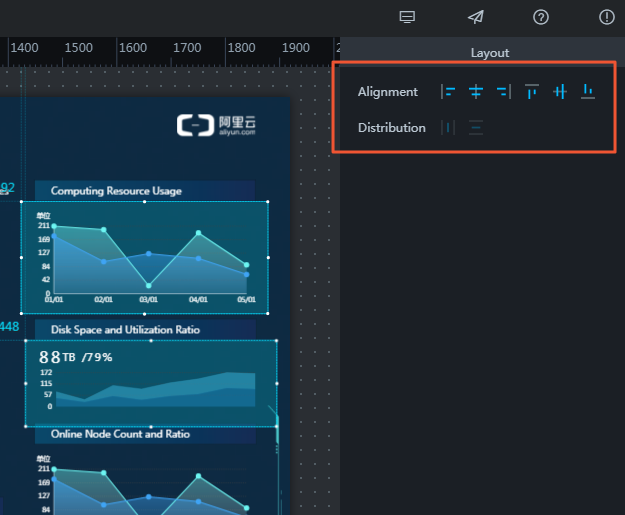
Align | Select multiple widgets. In the configuration panel on the right, click an Align or Distribute icon.
Alignment options include left, center horizontally, right, top, center vertically, and bottom. You can also distribute widgets automatically, either horizontally or vertically. |
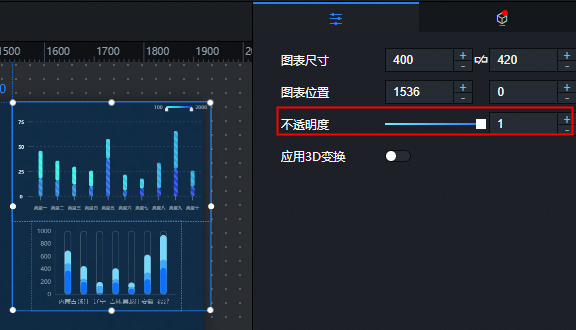
Set opacity | Select a single widget or a group of widgets. In the basic properties section at the top of the configuration panel on the right, change the opacity of the widget or group. Click the + or - icon next to Opacity, or enter a value in the input box. This feature lets visualization application designers freely deploy applications according to their product's visual requirements. |
Group widgets | For more information, see Group assets. |
Lock widgets | For more information, see Lock assets. |
Component Hiding | For more information, see Hide assets. |
Copy a component | For more information, see Copy assets. |
Delete widgets | For more information, see Delete assets. |
Context menu | In the visualization application canvas or the layer list, right-click a widget. From the menu that appears, perform operations such as Bring to Front, Send to Back, Bring Forward, Send Backward, Copy, and Delete. Note The Enterprise Edition and later versions provide more context menu features, such as grouping, ungrouping, locking, and hiding. |
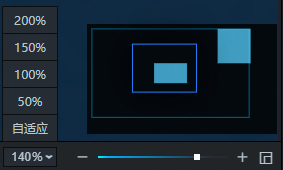
Thumbnail | DataV provides a thumbnail feature in the lower-right corner of the canvas. Use this feature to adjust the layout of your visualization application on the canvas.
Note This feature is available only in the Enterprise Edition and later. The Basic Edition does not support this feature. |
Keyboard shortcuts | Widget keyboard shortcuts:
|
 icon in the lower-right corner of the thumbnail to show or hide the thumbnail.