This topic describes the chart style and configuration panel of a flowchart.
Chart Style
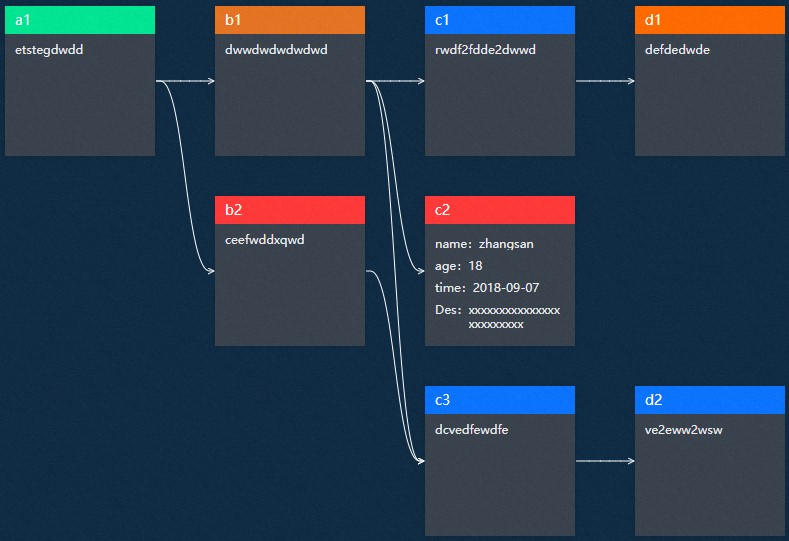
A flowchart is a component that represents the relationships between things in the form of nodes and lines. It supports custom styles of nodes and lines and can display complex process relationships in visual applications in the form of nodes and lines.
Settings Panel 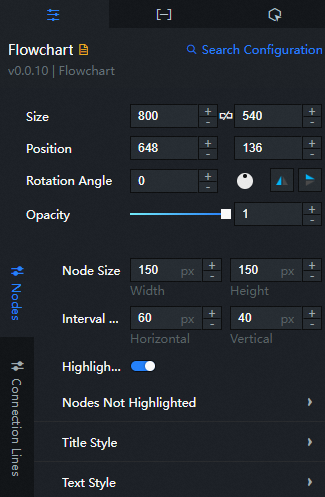
- Search for Configurations: In the right-side panel of Canvas Editor, click the Settings tab, and click Search for Configurations in the upper-right corner. Enter the required configuration item in the search box, and click the search icon to quickly locate the configuration item. Fuzzy match is supported. For more information, see Search for asset configurations.
- Size: indicates the size of a widget, including its pixel width and height. You can click the
 icon to proportionally adjust the width and height of a widget. After you click this icon again, you can adjust the width and height as needed.
 - Position: the position of a widget, which is indicated by pixel X and Y coordinates. X-coordinate indicates the pixel distance between the upper-left corner of the widget and the left border of the canvas. Y-coordinate indicates the pixel distance between the upper-left corner of the widget and the upper border of the canvas.
- Rotation Angle: the angle of a rotation that uses the center point of a widget as the rotation point. The unit is degrees (°). You can use one of the following methods to control the rotation angle of a widget:
- Directly enter the degrees in the Rotation Angle spin box or click the plus sign (+) or minus sign (-) to increase or decrease the value in the Rotation Angle spin box.
- Drag the black dot in the
 icon.
icon. - Click the
 icon to horizontally flip a widget.
 - Click the
 icon to vertically flip a widget.
- Opacity: the opacity of a widget. Valid values: 0 and 1. If this parameter is set to 0, the widget is hidden. If this parameter is set to 1, the widget is completely displayed. Default value: 1.
Node
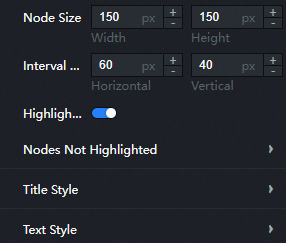
Node Size: Set the width and height of the flow node to control the size of the node. Unit: px by default.
Node Spacing: Set the spacing between process nodes. Default value: px.
Click Auto Highlight: If you turn on the switch, when you preview or publish a node, all process nodes related to the node are highlighted and all process nodes unrelated to the node are not highlighted. If you turn off the switch, the style of all nodes in the flow chart remains unchanged.
Non-Highlight Style: the style of the node that is not highlighted when the node is previewed or published. This option is available only if you turn on Auto Highlight.
Parameter
Description
Title
The background color and font color of the title within a non-highlighted node.
Text
The background color and font color of the text within a non-highlighted node.
Link line color (non-highlighted)
The color of non-highlighted connectors.
Title Style: the title style of the process node.
Parameter
Description
Text
The style of the title text, including the text font, text weight, font size, and color.
Row Height
The row height value of the title. Unit: px by default.
Alignment
The alignment of the title. Valid values: Left, Center, and Right.
Title Background
Click the
 or
or  icon on the right to add or remove a header background. Click the
  or
or  icon to configure the arrangement style of multiple title backgrounds. Click the
  icon to copy the currently selected title background configuration and add a title background with the same configuration.
 Status Name: the value of the status name in the background of the series title, which corresponds to the status field in the data panel.
Background Color: the background color of the title.
Text Style: the style of the text in the text box of the flow node.
Parameter
Description
Text
The style of the text in the text box, including the text font, text weight, font size, and color.
Row Height
The line height value of the text in the text box. Unit: px by default.
Background Color
The background color of the text box.
Type Text
The style of the text in the text box, including the font, weight, font size, and color of the text.
NoteWhen the content is displayed in two columns, this module sets the left type text.
Connection line
Parameter
Description
Connection Line Type
The type of connector in the flow chart. The type includes Bezier Curve, Line, and Right Angle.
Connection line color
The color of the connection line in the flowchart.
Data Panel
Configuration field description
Parameter | Description |
nodes | The description of the node, which contains the following fields:
|
edges | The description of the connection line, which contains the following fields:
|
| Parameter | Description |
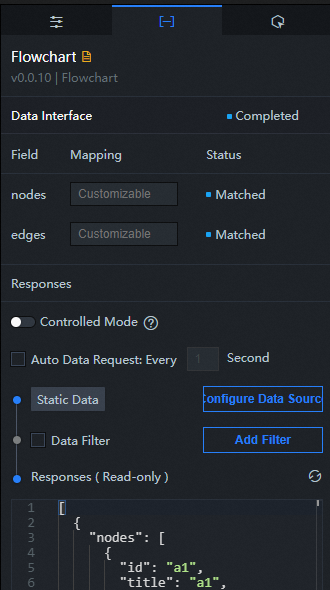
| Controlled Mode | If you turn on the switch, data is not requested when a widget is initialized. Data requests are triggered only based on callback IDs or the method configured in Blueprint Editor. If you turn off the switch, data requests are automatically triggered. By default, the switch is turned off. |
| Auto Data Request | After you select the Auto Data Request check box, you can enable dynamic polling, and manually specify the polling interval. If you do not select this check box, data is not automatically requested. You must manually refresh the page to request data or use Blueprint Editor or callback ID events to trigger data requests. |
| Data Source | In the right-side panel of Canvas Editor, click the Data tab. Click Set next to Static Data. In the Configure Datasource panel, select a data source from the Data Source Type drop-down list. Enter code for data query in the code editor, click Preview Data Response to preview the response of the data source, and then view the response. For more information, see Configure asset data. |
| Data Filter | If you select the Data Filter check box, you can convert the data structure, filter data, and perform simple calculations. If you click the plus sign (+) next to Add Filter, you can configure the script for the data filter in the editor that appears. For more information, see Use the data filter. |
| Data Response Result | The response to a data request. If the data source changes, you can click the  icon next to Data Response Result to view the data response in real time. icon next to Data Response Result to view the data response in real time. |
Interaction Panel 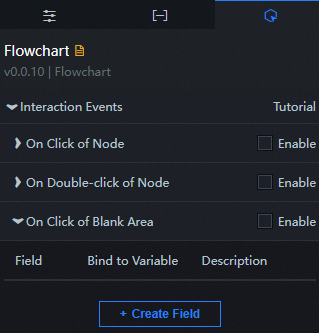
Interaction Event | Description |
When a node is clicked | Select Enable to enable the widget interaction feature. When a node on the flowchart is clicked, a data request is triggered, a callback value is thrown, and different data is dynamically loaded. By default, the id, width, height, title, content, and status values in the data are returned. For more information, see How to configure the callback ID of a sign board widget. |
When you double-click a node | Select Enable to enable the widget interaction feature. When you double-click a flowchart node, a data request is triggered, a callback value is thrown, and different data is dynamically loaded. By default, the id, width, height, title, content, and status values in the data are returned. For more information, see How to configure the callback ID of a sign board widget. |
When a blank area is clicked | Select Enable to enable the widget interaction feature. When you double-click a flowchart node, a data request is triggered, a callback value is thrown, and different data is dynamically loaded. By default, the id and width values in the data are returned. For more information, see Configure the callback ID of a ticker board component. |
Configure interactions in Blueprint Editor
- In Canvas Editor, right-click a widget in the Layer panel and select Add to Blueprint Editor.
- Click the
 icon in the upper-left corner of the page.
 In Blueprint Editor, click Flowchart in the Import Nodes pane. On the canvas, you can view the parameters that are described in the following figure.
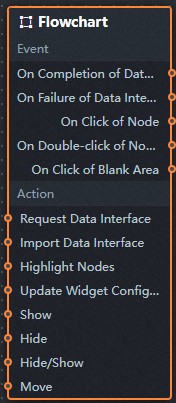
Event
Event
Description
When the interface description request is completed
The event is triggered with the processed JSON data after a data interface request is responded and processed by a filter. For more information about specific data examples, see the Data Response Result section of the Data tab in the right-side configuration panel of the canvas editor.
When the interface description request fails
The event that is returned when a data interface request fails (the request may be due to network problems or interface errors) and is processed by the filter. The event also throws the processed JSON data. For more information about specific data examples, see the Data Response Result section of the Data tab in the right-side configuration panel of the canvas editor.
When a node is clicked
The data of the current node is thrown when a node in the flowchart is clicked.
When you double-click a node
The data of the current node is thrown when a node in the flowchart is double-clicked.
When a blank area is clicked
Throws the data of the current node when the blank area of the flowchart is clicked.
Action
Policy Action
Description
Request API Description
This action is performed to request the server data again. The data sent by an upstream data processing node or layer node is used as a parameter. For example, if the API data source is
https://api.testand the data passed to the request data interface is{ id: '1'}, the final request interface ishttps://api.test?id=1.Import Interface Description
After data of a widget is processed in accordance with its drawing format, the widget is imported for redrawing. You do not need to request server data again. For more information about specific data examples, see the Data Response Result section of the Data tab in the right-side configuration panel of the canvas editor.
Update component configurations
Style configurations of widgets are dynamically updated. In the Configuration panel, click Copy Configuration to Clipboard to obtain the configuration data of the component. After that, change the style field for the data processing node in Blueprint Editor.
Display
The following example shows the widget.
return{
  "animationType": "",
  "animationDuration": 1000,
  "animationEasing": "linear"
}
Hide
The following example shows how to hide a widget:
return{
  "animationType": "",
  "animationDuration": 1000,
  "animationEasing": "linear"
}
Switch to the implicit state
The following example shows whether to show or hide a widget.
return {
  "animationIn": {
    "animationType": "",
    "animationDuration": 1000,
    "animationEasing": "linear"
  },
  "animationOut": {
    "animationType": "",
    "animationDuration": 1000,
    "animationEasing": "linear"
  }
}
Move
Move a widget to a specified location. The following example shows the reference data.
    return{
      // The positioning type. to indicates absolute positioning, whereas by indicates relative positioning. The default value is to.
        "positionType": "to",
      // The location, which is indicated by the x and y coordinates.
      "attr": {
        "x": 0,
        "y": 0
      },
      // The animation type.
      "animation": {
        "enable": false,
        // The duration in which animation is displayed.
        "animationDuration": 1000,
        // The animation curve, which can be set to linear|easeInOutQuad|easeInOutExpo.
        "animationEasing": "linear"
      }
    }