Add an ApsaraDB RDS for SQL Server data source to DataV over an internal network or the Internet.
Prerequisites
The RDS for SQLServer data source is prepared.Add a data source over an internal network
Log on to the DataV console.
On the My Data tab, select Data Source Management and click Add Data.
- Select RDS for SQLServer from the Type drop-down list.
- Select Intranet as the network type, then select the region of the target ApsaraDB RDS for PostgreSQL instance.
- Select a network type: VPC or classic network.
- VPC
- Turn on VPC to enter VPC mode.
- Enter database information.
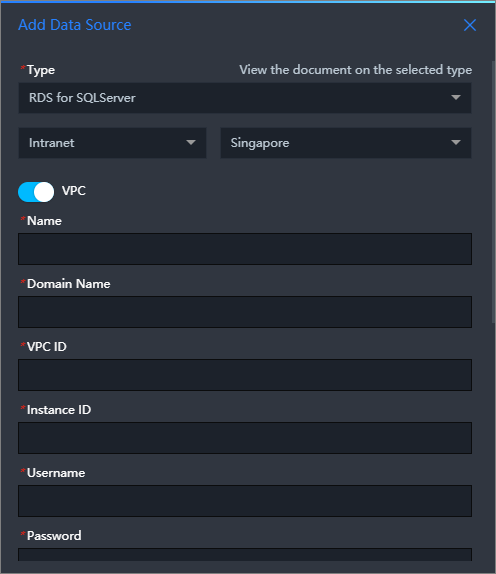
Parameter Description Name The data source display name. VPC ID The VPC ID of your RDS for SQLServer instance. In the ApsaraDB for RDS console, go to and find the VPC ID under Network Type. 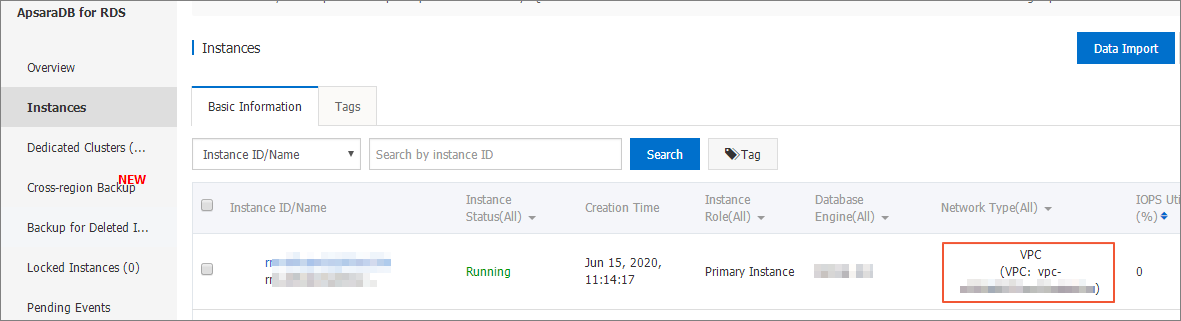
Instance ID The database instance ID in the VPC. Find the instance ID on the Instances page of the ApsaraDB for RDS console. Note The instance ID in the console may differ from the ID required for DataV VPC configuration. Use the DescribeDBInstanceAttribute API to obtain the correct ID, typically VpcCloudInstanceId or VpcInstanceId.SQL Server Version Optional. Select this if your SQL Server version is earlier than 2012. Domain The database connection URL. Important This is not a website URL or local IP address. It is the URL that the DataV server uses to access your database over the Internet or an internal network.Example internal network domain: rm-bpxxxxxxxxx33150.sqlserver.rds.aliyuncs.com. Find this on the Basic Information page in the ApsaraDB RDS console.
Port Number The database connection port. User Name The database username. Password The database password. Database The target database name. encrypt Enable this to use a Microsoft Azure SQL Server database as the data source. - DataV automatically tests the database connection.
- Classic Network
- Turn off VPC to enter classic network mode.
- Enter database information.
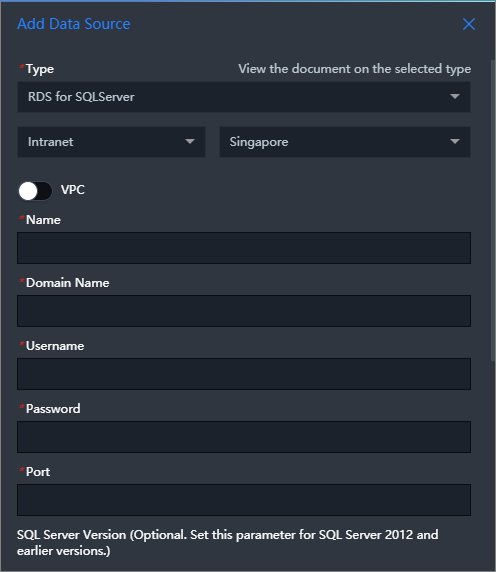
Parameter Description Name The data source display name. SQL Server Version Optional. Select this if your SQL Server version is earlier than 2012. Domain The database connection URL. Important This is not a website URL or local IP address. It is the URL that the DataV server uses to access your database over the Internet or an internal network.Example internal network domain: rm-bpxxxxxxxxx33150.sqlserver.rds.aliyuncs.com. Find this on the Basic Information page in the ApsaraDB RDS console.
Port Number The database connection port. User Name The database username. Password The database password. Database The target database name. encrypt Enable this to use a Microsoft Azure SQL Server database as the data source. - DataV automatically tests the database connection.
- VPC
- After the connectivity test is complete, click OK.
The data source appears in the data source list.
Add a data source over the Internet
Log on to the DataV console.
On the My Data tab, select Data Source Management and click Add Data.
- Select RDS for SQLServer from the Type drop-down list.
- Select Public Network as the network type.
- Enter database information.
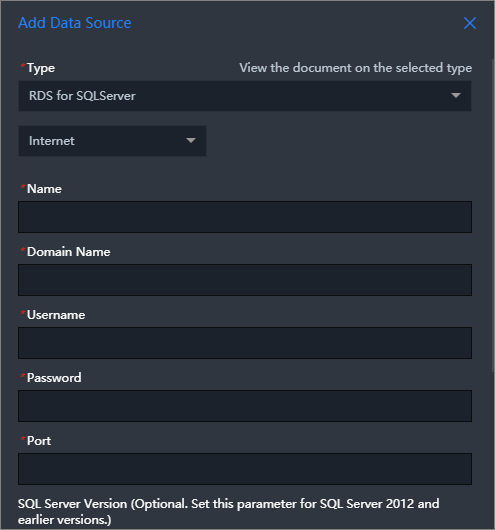
Parameter Description Name The data source display name. SQL Server Version Optional. Select this if your SQL Server version is earlier than 2012. Domain The database connection URL. Important This is not a website URL or local IP address. It is the URL that the DataV server uses to access your database over the Internet or an internal network.Example Internet domain: rm-bpxxxxxxxxxxxxdo.sqlserver.rds.aliyuncs.com. Find this on the Basic Information page in the RDS console.
Port Number The database connection port. User Name The database username. Password The database password. Database The target database name. encrypt Enable this to use a Microsoft Azure SQL Server database as the data source. DataV automatically tests the database connection.
- After the database passes the connectivity test, click OK.
The data source appears in the data source list.