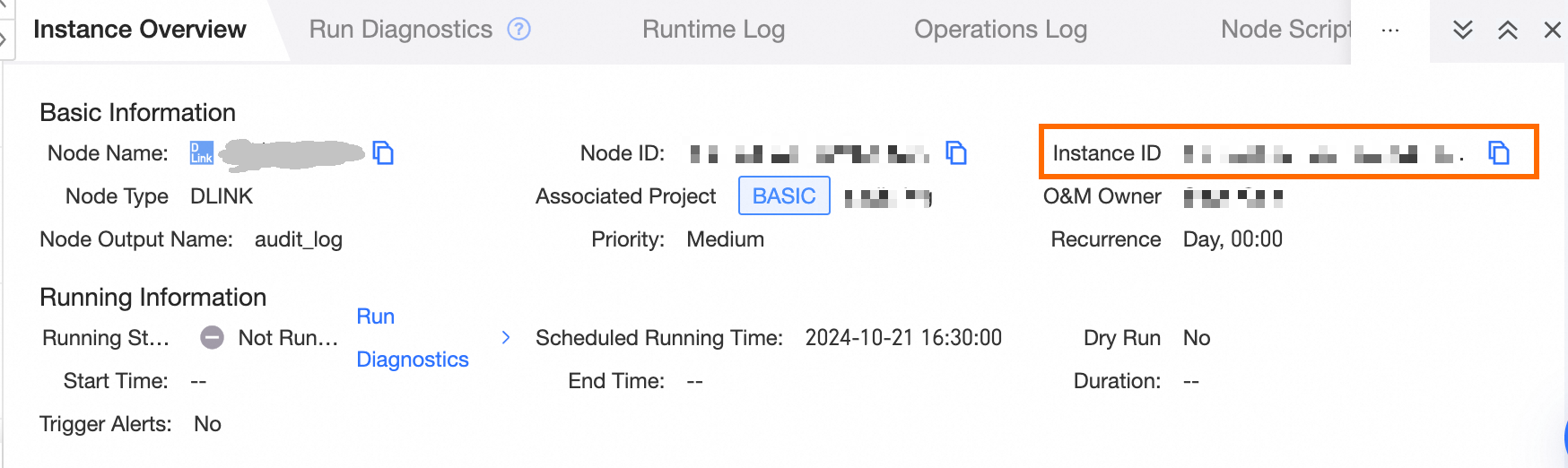
Dataphin enables the search and viewing of comprehensive operation log information for instances across all tenants, using either the instance ID or runtime ID. This facilitates a thorough understanding of instance operations and aids in the swift identification and resolution of issues. This topic outlines the process for accessing the full-link logs of instances.
Permission description
Viewing full-link instance logs is exclusively available to accounts with superuser or system administrator roles within the metadata warehouse tenant.
Full-link log entry
Sign in to the metadata warehouse tenant with an account holding superuser or system administrator privileges.
On the Dataphin home page, click Management Center from the top menu bar.
To access the Full-link Log page, follow the steps below:
Click System settings -> Full-link log.
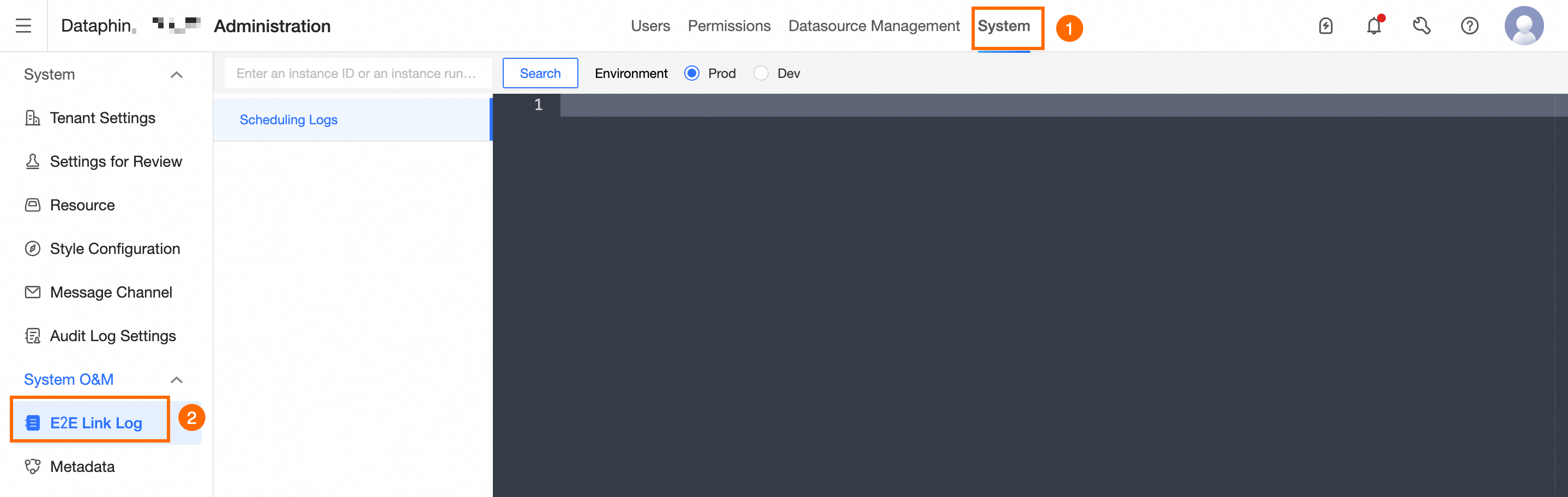
Introduction to the full-link log page
The full-link log page mainly consists of the search area, environment switch, schedule log, and log information area. You can view the full-link logs of instances according to the following instructions.
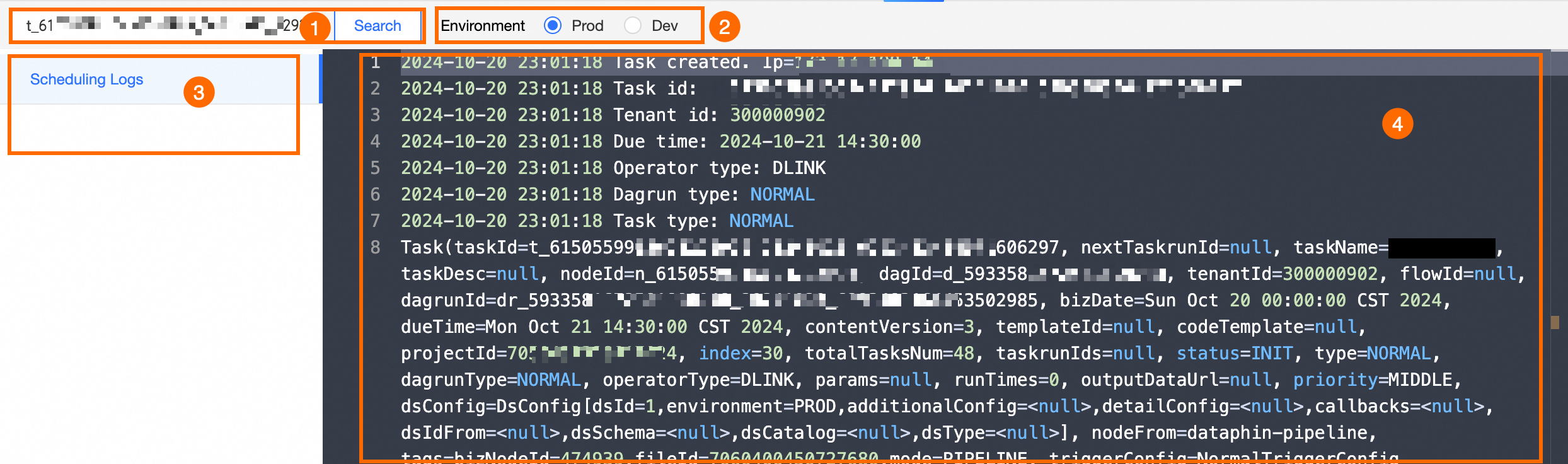
Area | Description |
①Search area | Supports searching for the corresponding instance full-link logs based on instance ID or instance runtime ID. You can view instance ID or instance runtime ID in the Operation Center.
|
②Environment switch | The default view is for the Prod environment logs. To view logs from the Dev environment, use the switch option. |
③Schedule log | Enter the instance ID or instance runtime ID and click Search to display the schedule log list. The ordinal number indicates the instance's run sequence. Detailed full-link log information for each run, including execution, vdm (task schedule), rs (resource schedule), and operator logs, can be reviewed based on the ordinal number. |
④Log information | This section displays the runtime log details for the instance. |