Scheduled backfill tasks automatically generate and run backfill instances on a configured schedule to backfill historical data. You can view task details, edit configurations, and perform batch operations from the Backfill Task page.
Access scheduled backfill tasks
-
In the top navigation bar of the Dataphin homepage, choose Develop > Task O&M.
-
In the navigation pane on the left, choose Task O&M > Backfill Task.
-
In the top navigation bar, select the production or development environment.
-
On the Backfill Task page, click the Scheduled tab.
The Scheduled tab
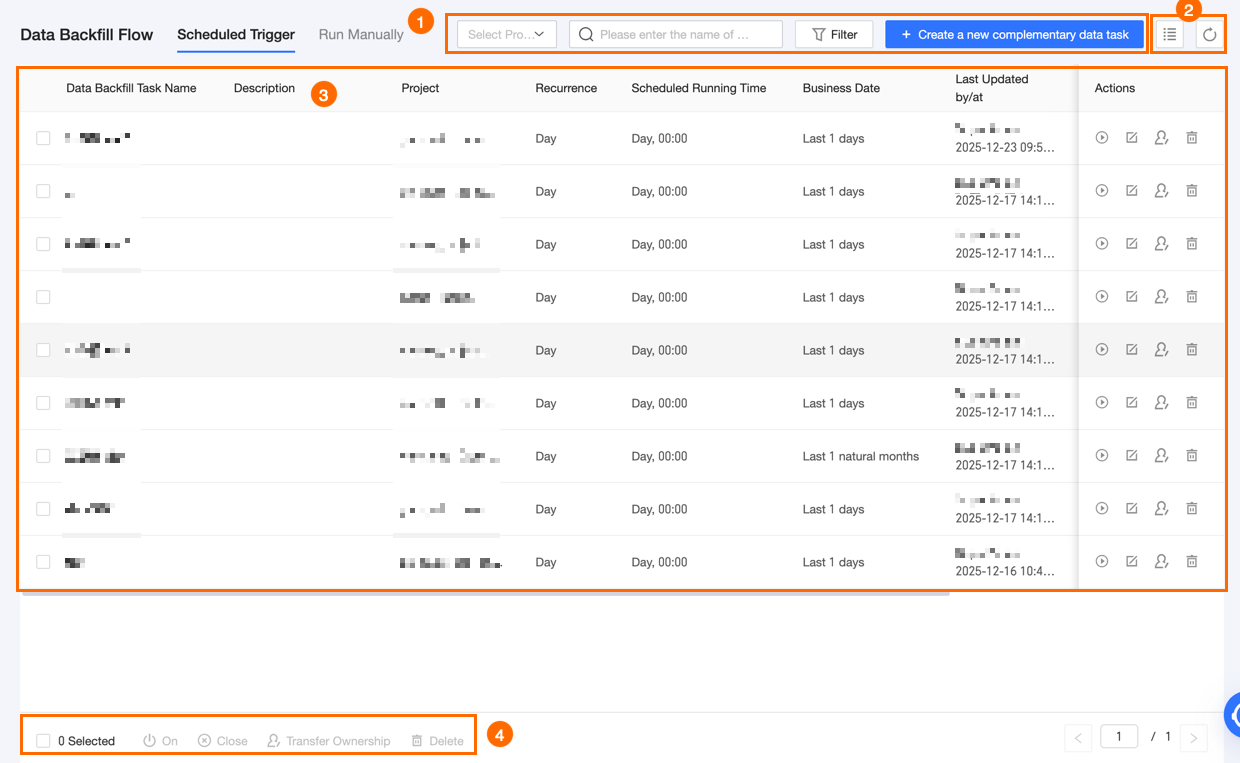
The Scheduled tab lists all scheduled backfill tasks and provides filtering, search, and batch management options.
|
Section |
Description |
|
① Filter and search area |
You can search and filter backfill tasks in this area.
|
|
② List operations |
|
|
③ Backfill task list |
The backfill task list shows details such as Backfill task name, Schedule period, Scheduled time (in the scheduling time zone), Business date, Last updated by/time, Owner, Status, Project, and Scheduling resource group. You can adjust column widths. These settings are saved in your browser and reset if you clear its history and cookies. Note
The backfill task list supports the following operations:
|
|
④ Batch operations area |
Select multiple backfill tasks to perform the following batch operations:
|
 icon to select the columns to display and adjust their order.
 icon to refresh the list.
 icon for the effective status to enable or disable the backfill task. When enabled, the task runs according to its configuration. When disabled, the task does not run.
 icon to run the task manually.