Manual-run backfill tasks run backfill instances to reprocess historical data. You can view, edit, delete, and change the owner of these tasks.
Access manual-run backfill tasks
-
In the top navigation bar on the Dataphin homepage, select Develop > O&M.
-
In the left navigation pane, select O&M > Backfill Task.
-
In the top navigation bar, select the Production or Development environment.
-
On the Backfill Task page, click the Manual Run tab.
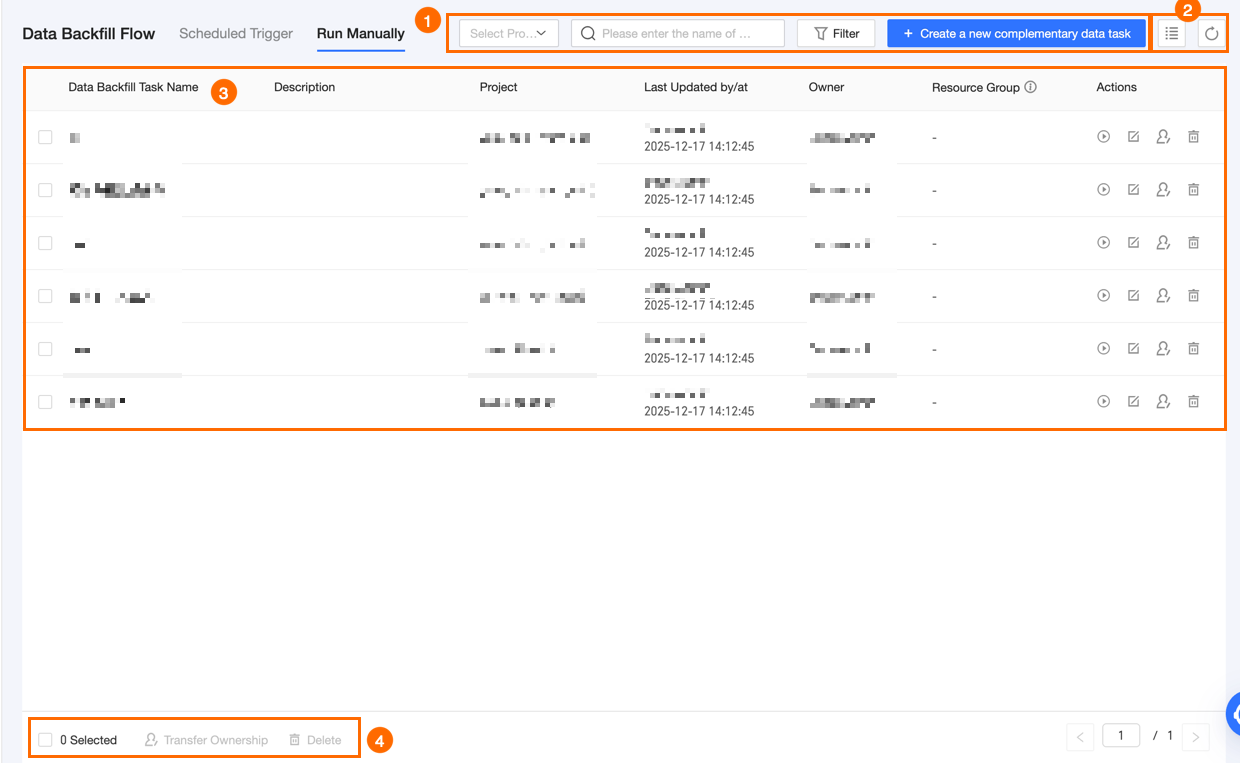
Manual-run backfill tasks page
The following areas are available on the manual-run backfill tasks page.
|
Area |
Description |
|
①Filter and function area |
You can use the following functions:
|
|
②List actions |
|
|
③Backfill task list |
Lists the backfill tasks you have created, including Backfill Task Name, Last Updated By/Time, Owner, Scheduling Resource Group, and Actions. You can adjust column widths. These adjustments are saved in your browser and reset if you clear the browser history and cookies. For more information, see Actions supported for manual-run backfill tasks. |
|
④Batch actions area |
Change the owner of multiple backfill tasks or delete them in a batch. For more information, see Actions supported for manual-run backfill tasks. |
 icon to select the columns to display and adjust their order.
 icon to refresh the current list.
Supported actions
|
Actions |
Description |
|
Run Manually |
Runs the backfill task immediately. |
|
Edit |
Opens the edit dialog box for the backfill task. |
|
Change Owner |
|
|
Delete |
|
 icon and select Change Owner. In the Change Owner dialog box, select a new owner. You can search for users by username.
 icon and select Delete. In the Delete Backfill Task dialog box, click OK.