The Dataphin metadata warehouse centrally manages business and compute engine metadata within the metadata warehouse tenant (OPS tenant). It is a Dataphin project that consists of periodic data integration nodes, SQL script nodes, and Shell nodes. Initializing the metadata warehouse involves configuring the compute engine type and setting up the required metadata. This topic describes how to initialize the metadata warehouse using MaxCompute as the compute engine.
Limits
Only accounts with the super administrator of the metadata warehouse tenant or system administrator role can initialize the system.
Keep the account and password for the super administrator of the metadata warehouse tenant or system administrator role secure. Exercise caution when you log on to the system with the super administrator of the metadata warehouse tenant account.
Procedure
-
In the top menu bar of the Dataphin home page, choose Management Hub > System Settings.
-
In the navigation pane on the left, choose System O&M > Metadata Warehouse Settings. On the Metadata Warehouse Settings page, click Start.
-
In the Select Initialization Engine Type step, select the MaxCompute engine type.
ImportantIf the metadata warehouse is already initialized, the engine type that was used for the last successful initialization is selected by default. If you switch to an incompatible compute engine, the administration features become unavailable.
-
Click Next.
-
On the parameter settings page, configure the parameters for the MaxCompute compute engine.
Parameter
Description
Endpoint
The Endpoint of the MaxCompute region where your Dataphin instance is located. For more information about MaxCompute Endpoints for different regions and network types, see MaxCompute Endpoint.
Project Name
The name of the MaxCompute project, not the DataWorks workspace.
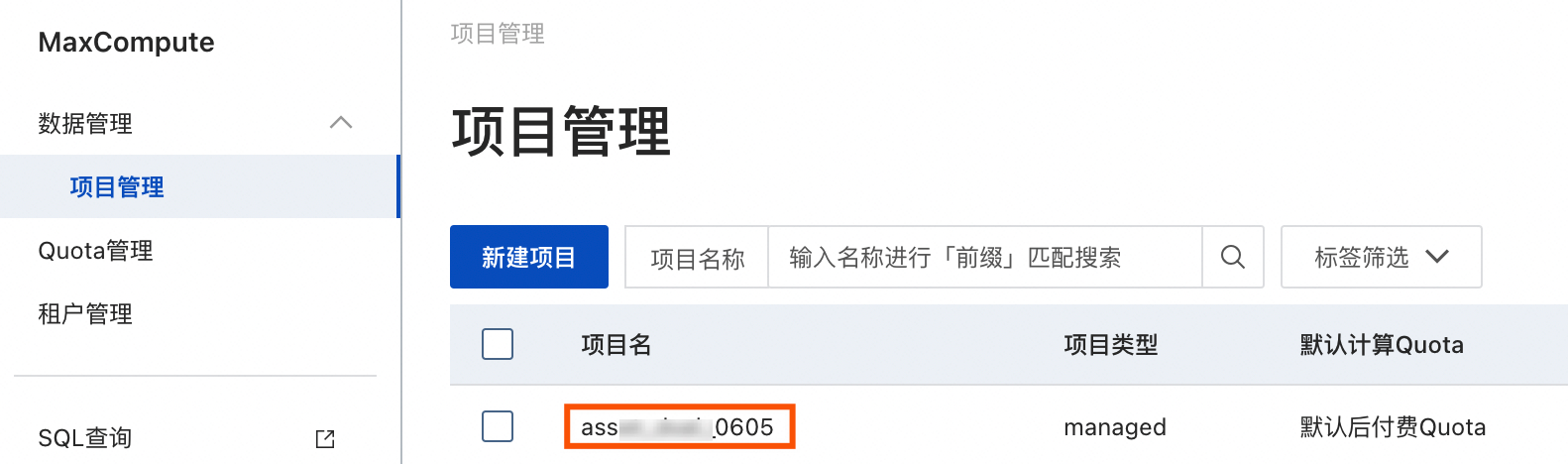
Log on to the MaxCompute console. After you switch the region in the upper-left corner, find the MaxCompute project name on the Project Management tab.
AccessKey ID and AccessKey secret
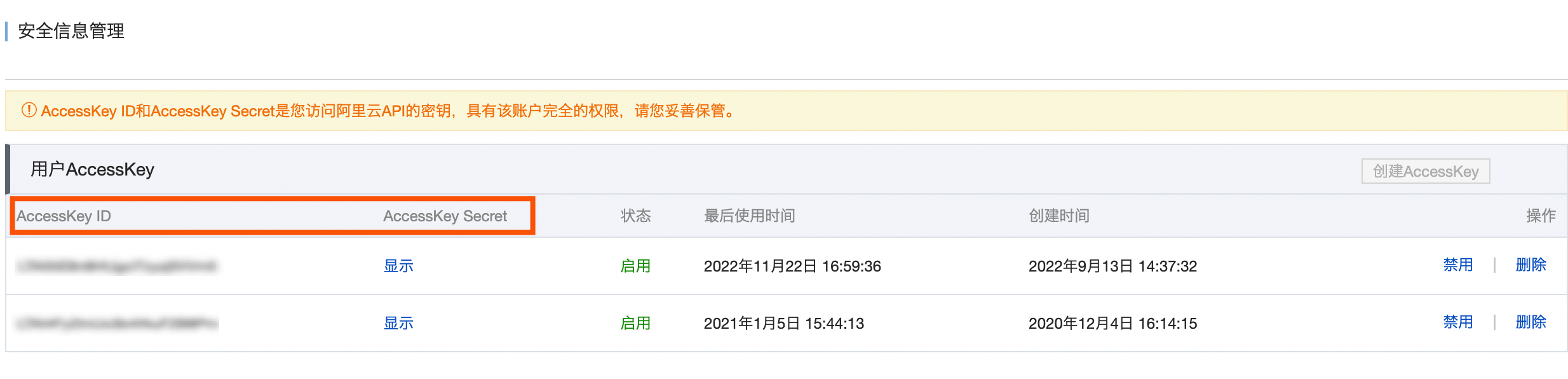
Enter the AccessKey ID and AccessKey secret of an account that can access the MaxCompute project.
Obtain the AccessKey ID and AccessKey secret on the User Information Management page.
-
For a successful connection between the Dataphin project and the MaxCompute project, enter the AccessKey of a MaxCompute project administrator.
-
To ensure correct metadata collection, do not change the AccessKey of the MaxCompute project.
RAM user name
When configuring the AccessKey ID and AccessKey secret of a RAM user, enter the RAM user's account name. Otherwise, some metadata warehouse features may be affected.
Metadata production project
The logical project for metadata production and processing. Set this parameter to dataphin_meta. When you re-initialize, do not change this name. Otherwise, the initialization fails.
-
-
Click Test Connection. After the connection test is successful, click Next.
-
On the initialization page, click Start.
NoteThe system initialization takes approximately 15 minutes.
-
When a success message appears, click Done.
What to do next
After initializing the metadata warehouse, set the compute engine for the Dataphin instance. When the metadata warehouse engine is set to MaxCompute, the business tenant engine can be set to any type of engine. For more information, see Compute settings.