Upload resource files such as JAR, JSON, and Python to Dataphin and reference them in compute tasks.
Create resources
-
On the Dataphin homepage, click Development in the top menu bar.
-
Open the New Resource dialog box:
Select Project (in Dev-Prod mode, also select the environment) > click Resource > click the
 icon.
icon. -
In the New Resource dialog box, set the parameters:
Parameter
Description
Type
Select the file Type: file (.xls, .xlsx, .doc, .docx, .txt, .csv), archive (.zip, .tgz, .tar.gz, .tar, .jar), jar, Python, cplus, and others.
-
file: Text files used for task data.
-
archive: Compressed packages used for task dependencies.
-
Python: Python files used as task dependencies.
-
cplus: C++ source files for registering UDFs in Impala tasks.
Name
Enter the resource Name. Rules:
-
Must be unique within the project and cannot start with a number.
-
Can contain numbers, letters, underscores (_), hyphens (-), and periods (.).
-
Must be 3 to 200 characters long.
Description
A brief description of the resource, up to 1000 characters.
Upload File
Upload File matching the selected Type.
Compute Type
Select where to upload the resource.
-
Compute engine: Uploads the resource to the project's compute engine (such as MaxCompute), typically for UDF creation. For JAR files, the system runs
add jar xxx.jar. -
No affiliated engine: Uploads the resource only to Dataphin. Suitable for file and archive types.
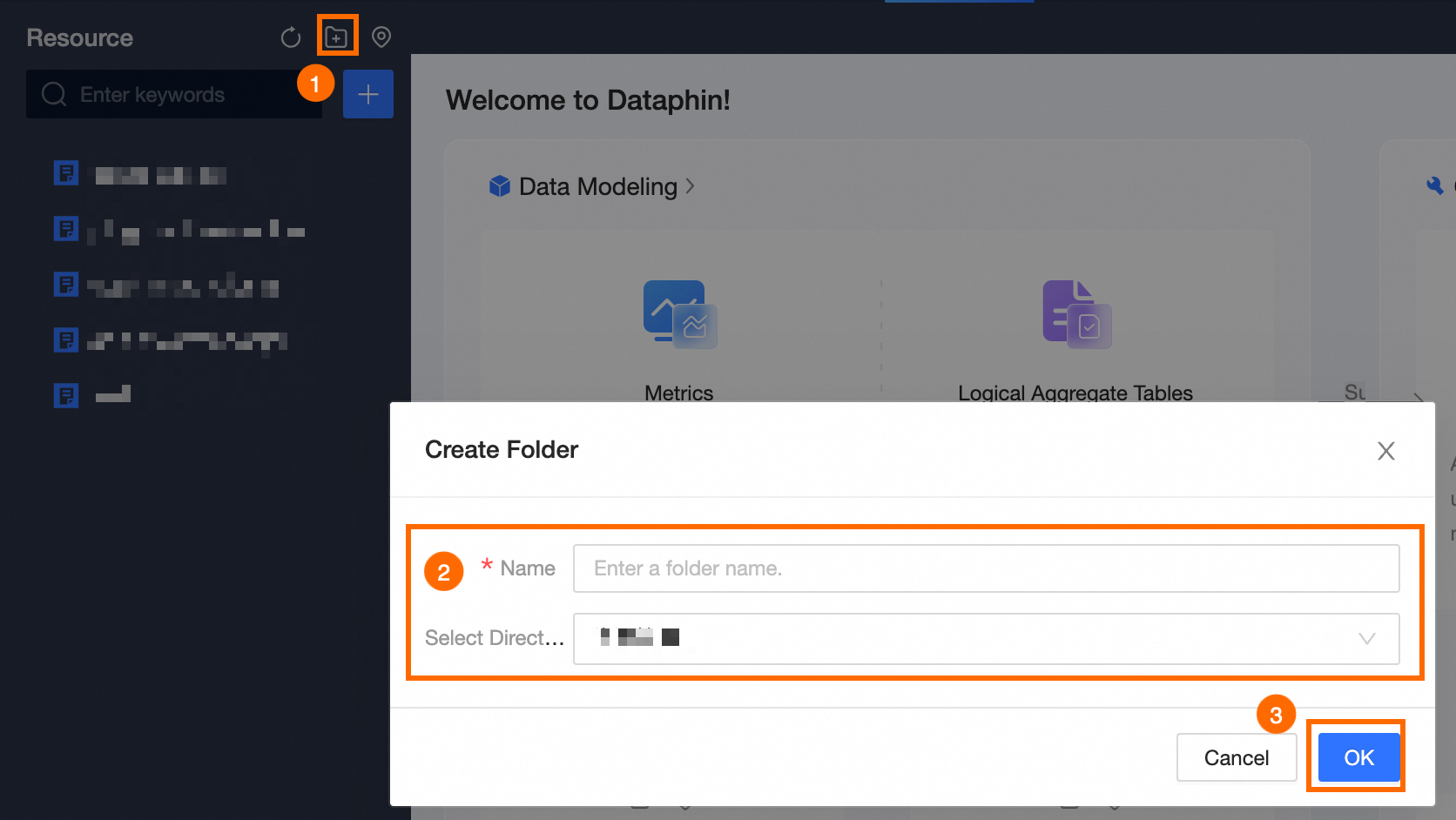
Select Directory
Select the storage directory. To create a directory, enter its name and select a location.
-
-
Click Submit.
-
In the Submit Remarks dialog box, enter remarks (up to 128 characters).
-
Click Confirm And Submit.
NoteIn Dev-Prod mode, you must publish resources to the production environment. Manage publishing tasks.
Reference resources
Reference methods
-
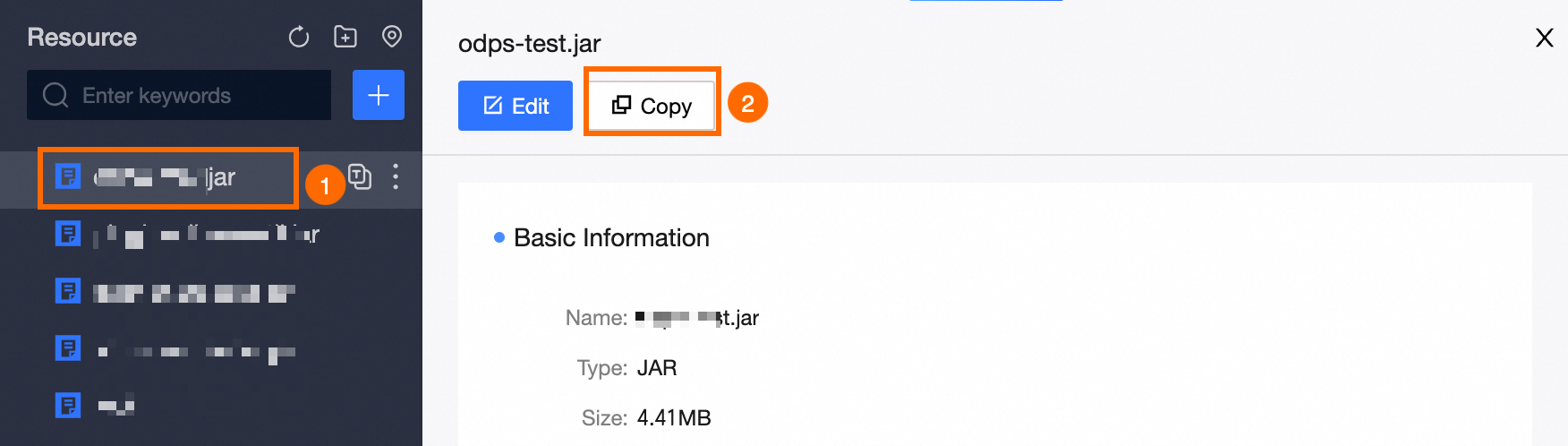
After uploading, copy the reference statement for use in compute tasks:
-
Or add
@resource_reference{"resource name"}directly in your compute task code.
How resource references work
@resource_reference{"resource name"} defines the resource file path as a variable. Example:
@resource_reference{"dataphin.xls"} # Reference dataphin.xls resource

# Import the xlrd module.
import xlrd
wb = xlrd.open_workbook('dataphince.xls') # Open excel
sh = wb.sheet_by_name('Sheet1') # Locate the worksheet by workbook

# Traverse excel and print all data
for i in range(sh.nrows):
    print(sh.row_values(i))
@resource_reference{"dataphin.xls"} is equivalent to dataphin.xls = "/path/to/dataphin.xls". Use dataphin.xls as the file path in your code.