Dataphin lets you configure a maintenance page. Before performing maintenance or an upgrade, enable this page to put the system into a maintenance state, which prevents users from performing any operations.
Background information
-
Only
system administratorsorsuper administratorscan enable or disable the maintenance state. -
Only
system administratorsorsuper administratorscan view the maintenance history.
Enable the maintenance state
-
Follow these steps to open the Maintenance/Upgrade configuration wizard.
Go to
 Settings icon > Start Maintenance/Upgrade.
-
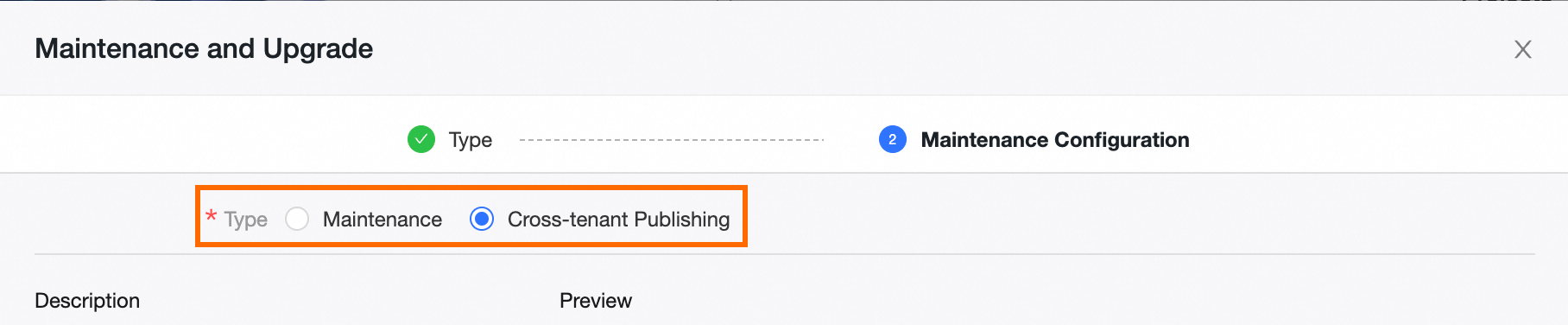
On the Maintenance and Upgrade configuration wizard page, in the Select Type step, select a maintenance type.
-
In this mode, the system enters a maintenance state, preventing users from accessing or operating the product. A super administrator can restore the system to its normal state at any time to resume access. We recommend this type for system upgrades or temporary security controls.
-
Cross-tenant Release: When this mode is enabled, cross- tenant release users can export a release file or publish objects from an imported release file. The following restrictions apply to all other users:
They can only access the Data Integration, Data Development, Task Release, Task O&M, SQL Query, Notebook, Asset Inventory, and Permission Management modules.
-
Data Integration:
-
Basic project: You cannot submit, take offline, or take offline and delete
integration tasks. You also cannot performoffline full-database migration. -
Dev-Prod project: The Prod environment of a Dev-Prod project has the same restrictions as a Basic project. In the Dev environment, you cannot publish
integration tasksor performoffline full-database migration.
-
-
Data Development:
-
Basic project:
-
For
dimension logic tables,fact logic tables,atomic metrics,business qualifiers,metrics, andsummary logic tables, the "save and submit", "take offline", and "take offline and delete" operations are not supported. -
In Table Management, you cannot create, edit, or delete
physical tables. -
For
computing tasksandsynchronization tasks, the "submit", "take offline", and "take offline and delete" operations are not supported. -
For
computing templates, the "submit" and "take offline and delete" operations are not supported. -
You cannot create, edit, or delete
resourcesorfunctions.
-
-
Dev-Prod project: The Prod environment of a Dev-Prod project has the same restrictions as a Basic project. In the Dev environment, the following operations are not supported:
-
For
dimension logic tables,fact logic tables,atomic metrics,business qualifiers,metrics, andsummary logic tables, the "take offline" and "take offline and delete" operations are not supported. -
For
computing templates, the "take offline and delete" operation is not supported. -
In
pending release records, you cannot perform single or batch releases. Inrelease records, you cannot republish.
-
-
-
Task O&M: You cannot take a
real-time instanceoffline. -
Analysis Platform: You cannot access
manual tables. You also cannot delete tables in My Analysis Platform Tables.
NoteAfter this mode is enabled, a super administrator can restore the system to its normal state, which removes the preceding restrictions.
-
-
-
Click OK and Next.
-
In the Maintenance Configuration step, configure the maintenance state.
Parameter
Description
Effective time
Select the start and end times for the maintenance or upgrade. You can select the current time or a future time, but not a past time. You can click Now to quickly select the current time.
The estimated end time is for notification purposes only. The system does not automatically stop the maintenance state when this time passes. You must stop it manually. For more information, see Stop the maintenance state.
Contact email
We recommend that you enter the contact information of a super administrator so that users can provide feedback.
Mobile number
-
Select I understand the impact of this operation and confirm that I want to start the in-tenant maintenance state for system maintenance or upgrade operations., and then click OK and Start.
Stop the maintenance state
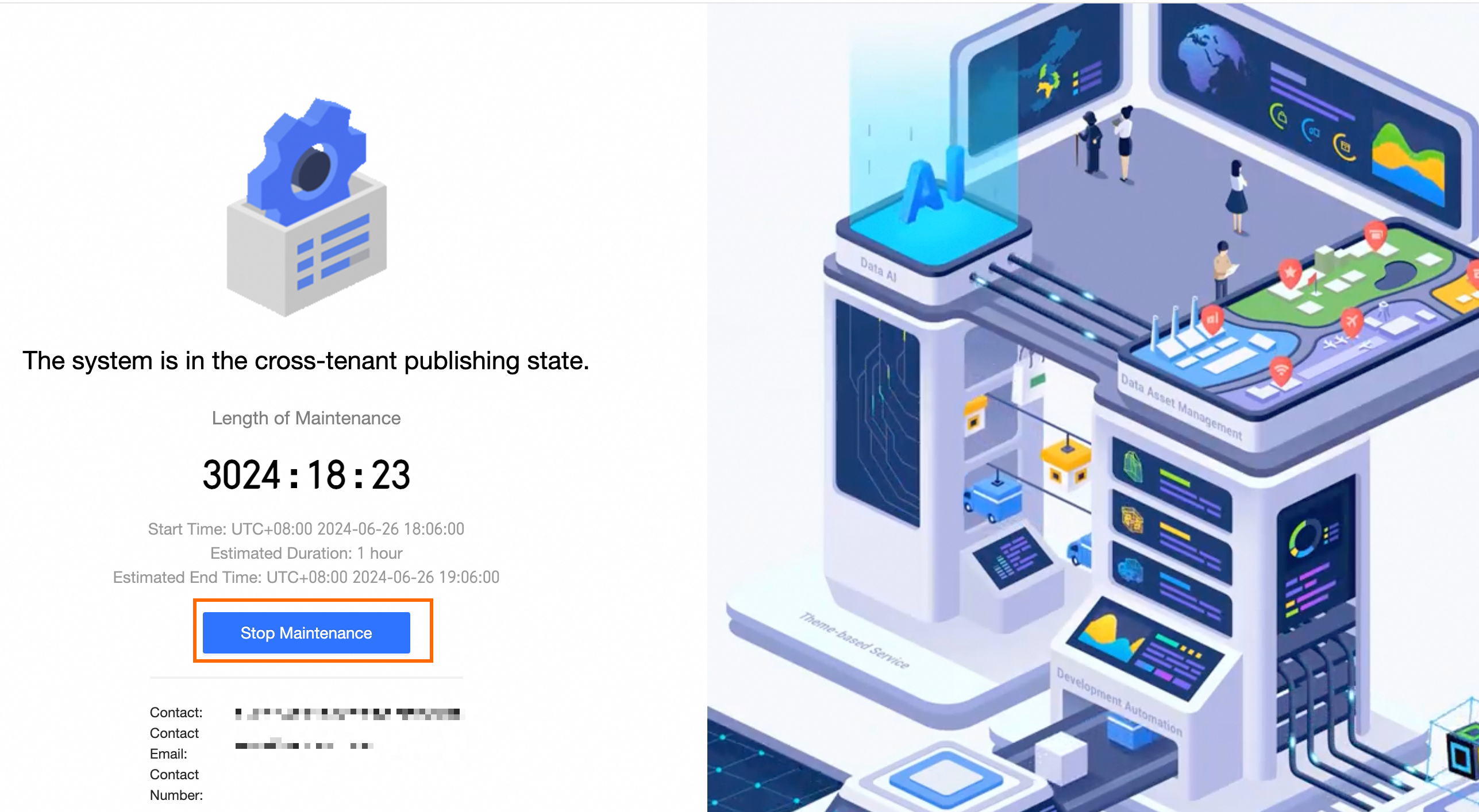
After completing maintenance or upgrade operations, a super administrator must access the Dataphin home page and click Stop Maintenance to end the maintenance state.
View maintenance history
-
Follow these steps to open the Maintenance/Upgrade History Operation Log dialog box.
Go to
Settings icon > View History.
-
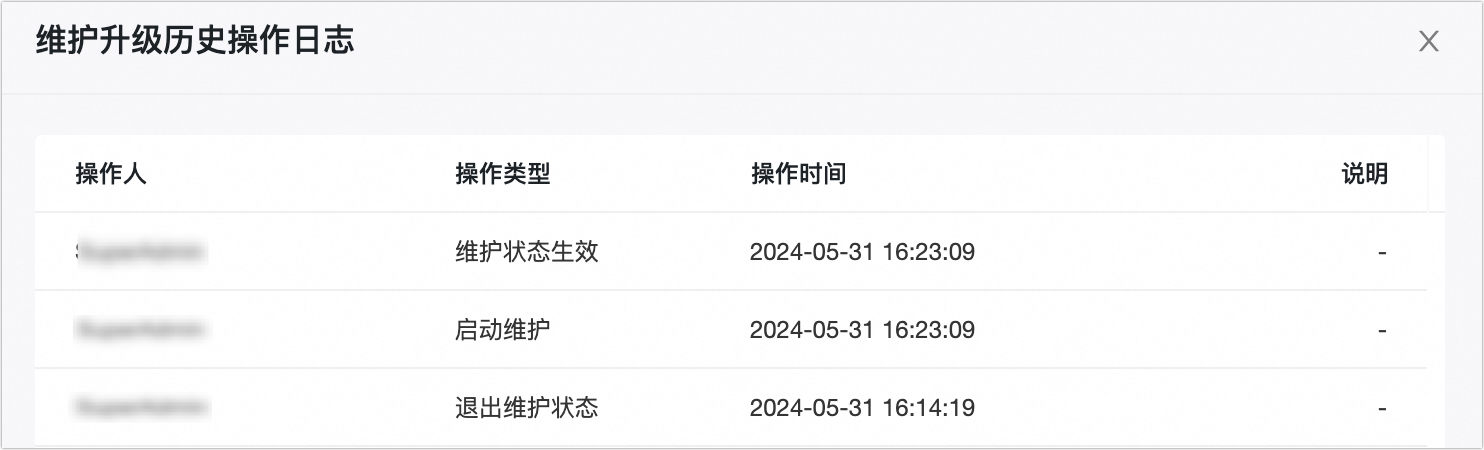
In the Maintenance/Upgrade History Operation Log dialog box, you can view the operator, operation type, operation time, and Description for historical maintenance events.