The shift schedule provides scheduling functions for personnel who receive and handle alert events. This topic describes how to create, view, edit, and delete shift schedules.
Background information
If the shift schedule is referenced by the offline computing, real-time computing, asset quality, or DataService Studio modules, the system does not support deletion.
Create a shift schedule
On the Dataphin home page, single click the
 icon in the upper right corner of the page.
Follow the instructions in the figure below to enter the Create Duty Schedule dialog box.

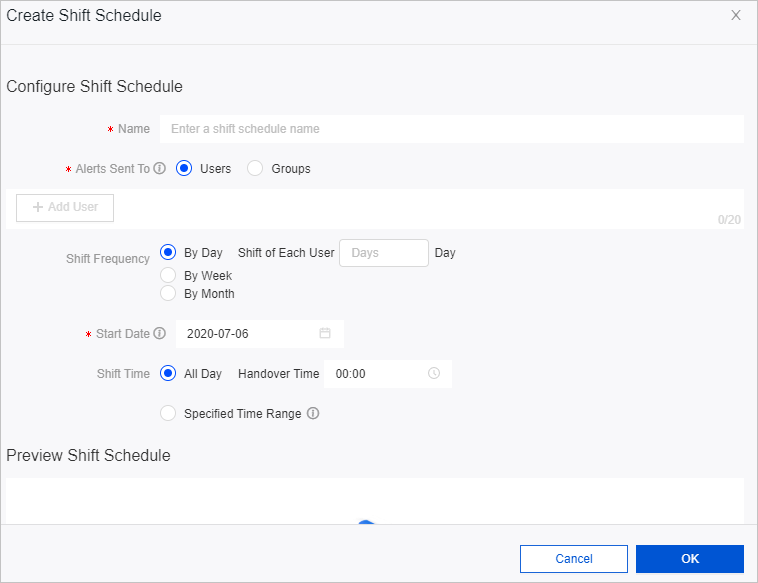
In the Create Task Shift Schedule dialog box, configure the parameters.
Parameter
Description
Shift Schedule Configuration
Shift Schedule Name
Enter the name of the shift schedule.
NoteShift Schedule Name cannot exceed 64 characters.
Shift Personnel
Select the shift mode and shift personnel.
The shift modes include Single-person Shift and Group Shift:
If you select Single-person Shift, single click Add Shift Personnel and select the shift personnel from the drop-down list. You can single click Add Shift Personnel multiple times to add multiple shift personnel to the shift schedule.
In the search box of the drop-down list, enter the member name keyword to quickly search for the member to be added.
NoteThe system supports adding up to 20 people.
When you select Group Shift, single click First Group and then Add Shift Personnel to select the shift personnel from the drop-down list. You can single click Add Shift Personnel multiple times to add multiple shift personnel to the first group.
If multiple groups need to take turns on duty, single click Add Group and then add shift personnel to the group.
If a group is not needed, hover the mouse over the display area of the group and single click the
 icon to delete the group.
NoteWhen selecting shift personnel, if the member name is followed by an
 icon, you need to supplement the contact information for the member. For more information, see Configure contact information for members and super administrators.
Shift Frequency
Select and configure the scheduling method. Shift Frequency includes:
By Day: Enter the number of days each group is on duty. The system supports setting up to 366 days.
By Week: Enter the number of weeks each group is on duty. The system supports setting up to 53 weeks.
By Month: Enter the number of months each group is on duty. The system supports setting up to 12 months.
Start Date
Select the start time of the shift. The Start Date defaults to the current day.
Effective Period
Configure the period during which the shift personnel enter the shift status. The Effective Period supports selecting All Day and Specified Period:
If you select All Day, you need to select the Handover Time.
If you select Specified Period, select the specified time period and the Non-duty Period Recipient. The Non-duty Period Recipient includes the Alert Object Owner and Specified User.
Shift Schedule Preview
Generate Preview
Single click Generate Preview to view the configured shift schedule. If the shift schedule is updated, single click Refresh Preview to update the data of the Shift Schedule Preview.
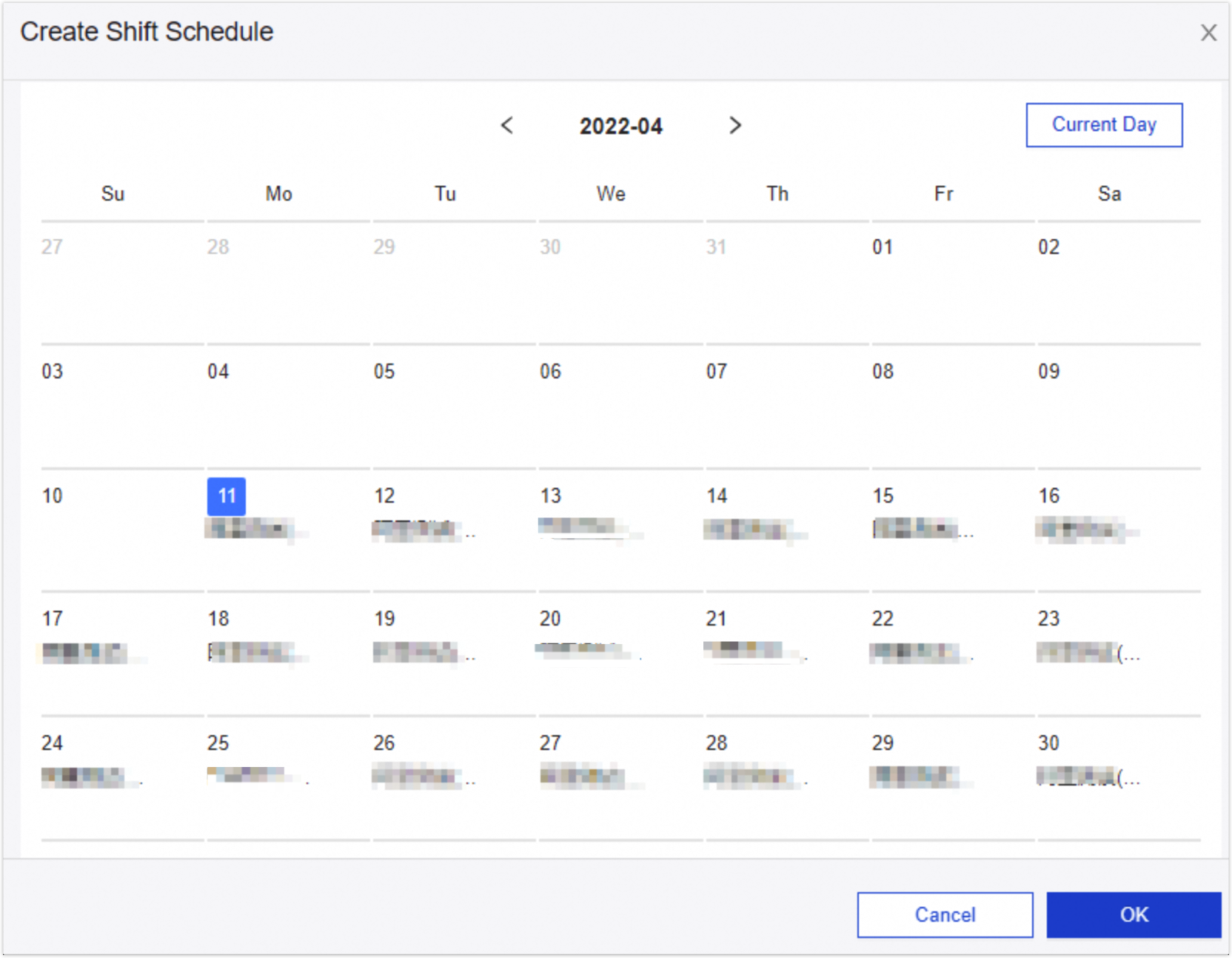
Single click OK to complete the creation of the shift schedule.
View shift schedule
On the Duty Schedule page, query the shift schedule.
You can quickly search for the shift schedule in the following ways:
Select Shift Period to filter the shift schedule.
In the search box, enter the shift schedule name or shift personnel name keyword to filter the shift schedule.
View shift schedule information.
The shift schedule information is as follows.
Parameter
Description
Duty Schedule
The name of the shift schedule.
Shift Personnel
The Shift Personnel of the shift schedule. Shift Personnel include Single-person Shift and Group Shift:
For a Single-person Shift, the personal account information is shown, with a default display limit of 32 Chinese characters. Beyond this limit, an ellipsis ... is used.
For a Group Shift, it displays both the number of groups and the number of members. To view the Group Details, hover over the
 icon.
icon.
Shift Frequency
The frequency of the shift rotations.
Start Date
The commencement date of the shift.
Effective Period
The time frame during which the shift personnel are on duty.
Non-effective Period Recipient
The designated recipient of alerts when shift personnel are off duty, such as the data object owner or a specified user.
Actions
Available Actions for the shift schedule include:
Click the Actions column
 icon to view detailed scheduling.
Click the Actions column's
 icon to edit the shift schedule.
Click the Actions column's
 icon to delete the shift schedule.
View scheduling details
On the Duty Schedule page, query the shift schedule.
You can quickly search for the shift schedule in the following ways:
Select Shift Period to filter the shift schedule.
In the search box, enter the shift schedule name or shift personnel name keyword to quickly filter the shift schedule.
Click the Actions column's
 icon of the desired shift schedule to view its scheduling details.
Edit shift schedule
On the Duty Schedule page, query the shift schedule.
You can quickly search for the shift schedule in the following ways:
Select Shift Period to filter the shift schedule.
In the search box, enter the shift schedule name or shift personnel name keyword to filter the shift schedule.
Click the Actions column's
 icon for the shift schedule you wish to edit.
Within the Edit Task Shift Schedule dialog box, set the parameters accordingly. For more information, see Create a shift schedule or .
NoteThe Shift Schedule Name cannot be modified.
Click OK to save the changes to the shift schedule.
Delete shift schedule
On the Duty Schedule page, query the shift schedule.
You can quickly search for the shift schedule in the following ways:
Select Shift Period to filter the shift schedule.
In the search box, enter the shift schedule name or shift personnel name keyword to quickly filter the shift schedule.
Click the Actions column for the shift schedule you intend to delete and click the
 icon.
icon.In the Prompt dialog box, click OK to confirm the deletion of the shift schedule.