Create an HDFS data source to enable Dataphin to read business data from or write data to HDFS.
Background information
An HDFS cluster consists of a NameNode and DataNodes in a master-worker mode:
-
The NameNode builds the namespace and manages file metadata.
-
The DataNode stores data and processes read and write operations of data blocks.
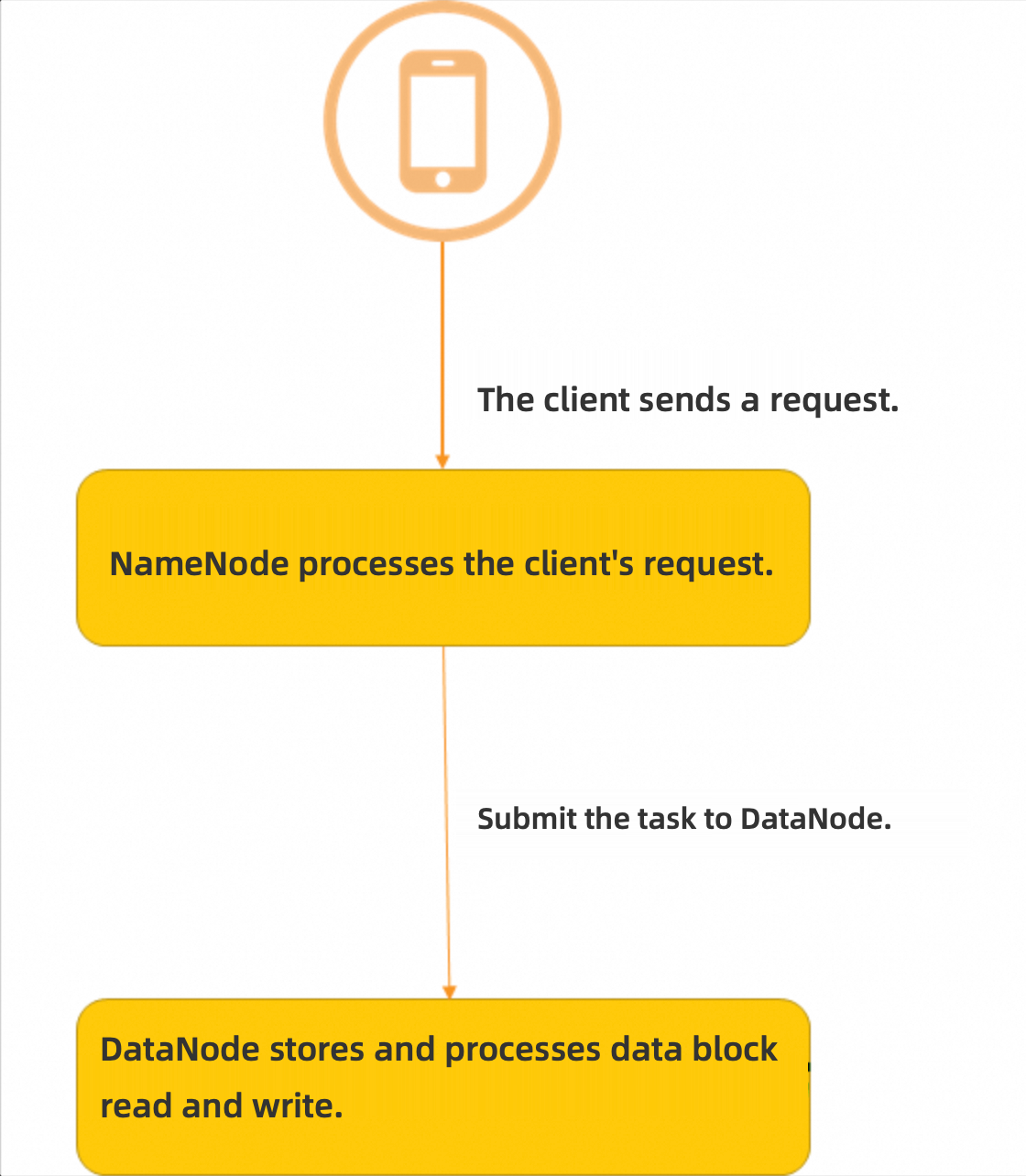
Before you can import business data from HDFS to Dataphin or export data from Dataphin to HDFS, you must create an HDFS data source. For more information, see HDFS official introduction.
Permission requirements
Only users who have a custom global role with the Create Data Source permission or have the super administrator, data source administrator, domain architect, or project administrator system role can create data sources.
Procedure
-
On the Dataphin homepage, click Management Center > Datasource Management in the top navigation bar.
-
On the Datasource page, click +Create Data Source.
-
On the Create Data Source page, select HDFS in the File section.
If you have recently used HDFS, you can also select HDFS in the Recently Used section. You can also enter HDFS keywords in the search box to quickly filter.
-
On the Create HDFS Data Source page, configure the connection parameters.
-
Configure the basic information of the data source.
Parameter
Description
Datasource Name
The name must meet the following requirements:
-
It can contain only Chinese characters, letters, digits, underscores (_), or hyphens (-).
-
It cannot exceed 64 characters in length.
Datasource Code
After you configure the data source code, you can reference tables in the data source in a Flink_SQL node using the
datasource code.table nameordatasource code.schema.table nameformat. To automatically access the data source in the corresponding environment, use the${datasource code}.tableor${datasource code}.schema.tablevariable format. For more information, see Develop a Dataphin data source table.ImportantThe data source code cannot be modified after it is configured.
You can preview data on the object details page in the asset directory and asset checklist only after the data source code is configured.
In Flink SQL, only MySQL, Hologres, MaxCompute, Oracle, StarRocks, Hive, SelectDB, and GaussDB data warehouse service (DWS) data sources are currently supported.
Version
Select the version of the data source. The following versions are supported:
-
CDH5.x HDFS
-
Alibaba Cloud EMR 3.x HDFS
-
CDH6.x HDFS 2.1.1
-
FusionInsight 8.x HDFS
-
CDP7.x HDFS
-
AsiaInfo DP5.x HDFS
-
Alibaba Cloud EMR 5.x HDFS
Data Source Description
A brief description of the data source. It cannot exceed 128 characters.
Data Source Configuration
Select the data source to configure:
-
If your business data source distinguishes between production and development data sources, select Production + Development Data Source.
-
If your business data source does not distinguish between production and development data sources, select Production Data Source.
Tag
Categorize data sources with tags. For information about how to create tags, see Manage data source tags.
-
-
Configure the connection parameters between the data source and Dataphin.
If you select Production + Development data source, configure the connection information for both. If you select Production data source, configure the connection information for the production data source only.
NoteProduction and development data sources are typically configured as separate sources to achieve environment isolation. However, Dataphin also supports configuring them as the same data source with identical parameter values.
Parameter
Description
NameNode
The hostname or IP address and port of the NameNode in the HDFS cluster.
Example:
host=192.168.*.1,webUiPort=,ipcPort=8020. In a CDH 5 environment, the default values forwebUiPortandIPCportare 50070 and 8020. Specify the ports as needed.NoteThe webUiPort is optional. Leaving it empty does not affect the HDFS data source.
Configuration File
Upload Hadoop configuration files, such as hdfs-site.xml and core-site.xml. These files can be exported from the Hadoop cluster.
Kerberos
Kerberos is an identity authentication protocol based on symmetric key technology.
If the Hadoop cluster uses Kerberos authentication, enable Kerberos and upload the Krb5 authentication file or configure the KDC Server address, Keytab File, and Principal:
-
Krb5 File: Upload the Krb5 file for Kerberos authentication.
-
KDC Server: The KDC server address for Kerberos authentication.
-
Keytab File: Upload the keytab file obtained from the HDFS server.
-
Principal: The Kerberos authentication username corresponding to the HDFS keytab file.
NoteYou can configure multiple KDC server addresses. Separate them with commas (
,). -
-
-
Select a Default Resource Group, which is used to run tasks related to the current data source, including database SQL, offline database migration, and data preview.
-
Click Test Connection or directly click OK to save and complete the creation of the HDFS data source.
When you click Test Connection, the system verifies connectivity between the data source and Dataphin. If you directly click OK, the system automatically tests the connection for all selected clusters. The data source can still be created even if all cluster connections fail.