Create an Aliyun HBase data source to enable Dataphin to read business data from or write data to Aliyun HBase.
Background information
Aliyun HBase, also known as ApsaraDB for HBase, is a low-cost, highly scalable, and cloud-intelligent NoSQL database compatible with standard HBase access protocols. It provides core capabilities such as low-cost storage, high-throughput scalability, and intelligent data processing. It also offers enterprise capabilities such as PB-scale storage, high concurrency, second-level scaling, millisecond response, cross-data center high availability, fully managed service, and global distribution.
To connect ApsaraDB for HBase to Dataphin for data development, create an Aliyun HBase data source. For more information about ApsaraDB for HBase, see What is ApsaraDB for HBase.
Permissions
Only custom global roles with the Create Data Source permission and system roles such as super administrator, data source administrator, domain architect, and project administrator can create data sources.
Procedure
-
On the Dataphin homepage, click Management Center > Datasource Management in the top navigation bar.
-
On the Datasource page, click +Create Data Source.
-
In the Create Data Source page, select Aliyun HBase from the NoSQL section.
If you have recently used Aliyun HBase, you can also select it from the Recently Used section. You can also quickly search for Aliyun HBase by entering keywords in the search box.
-
On the Create Aliyun HBase Data Source page, configure the connection parameters.
-
Configure the basic information of the data source.
Parameter
Description
Datasource Name
The name must meet the following requirements:
-
It can contain only Chinese characters, letters, digits, underscores (_), and hyphens (-).
-
It cannot exceed 64 characters in length.
Datasource Code
After you configure the data source code, you can reference tables in the data source in Flink_SQL tasks by using the format
data source code.table nameordata source code.schema.table name. If you need to automatically access the data source in the corresponding environment based on the current environment, use the variable format${data source code}.tableor${data source code}.schema.table. For more information, see Dataphin data source table development method.ImportantThe data source code cannot be modified after it is configured.
You can preview data on the object details page in the asset directory and asset checklist only after the data source code is configured.
In Flink SQL, only MySQL, Hologres, MaxCompute, Oracle, StarRocks, Hive, SelectDB, and GaussDB data warehouse service (DWS) data sources are currently supported.
Data Source Description
A brief description of the data source. It cannot exceed 128 characters.
Data Source Configuration
Select the data source to be configured:
-
If the business data source distinguishes between production and development data sources, select Production + Development Data Source.
-
If the business data source does not distinguish between production and development data sources, select Production Data Source.
Tag
Categorize data sources by assigning tags. For information about how to create tags, see Manage data source tags.
-
-
Configure the connection parameters between the data source and Dataphin.
If you selected Production + Development Data Source, the configuration page appears as shown below. If you selected Production Data Source, only the production data source configuration is displayed.
NoteWe recommend that you configure separate data sources for production and development to isolate environments and reduce the impact of the development data source on the production data source. However, Dataphin also supports using the same data source with identical parameter values for both.
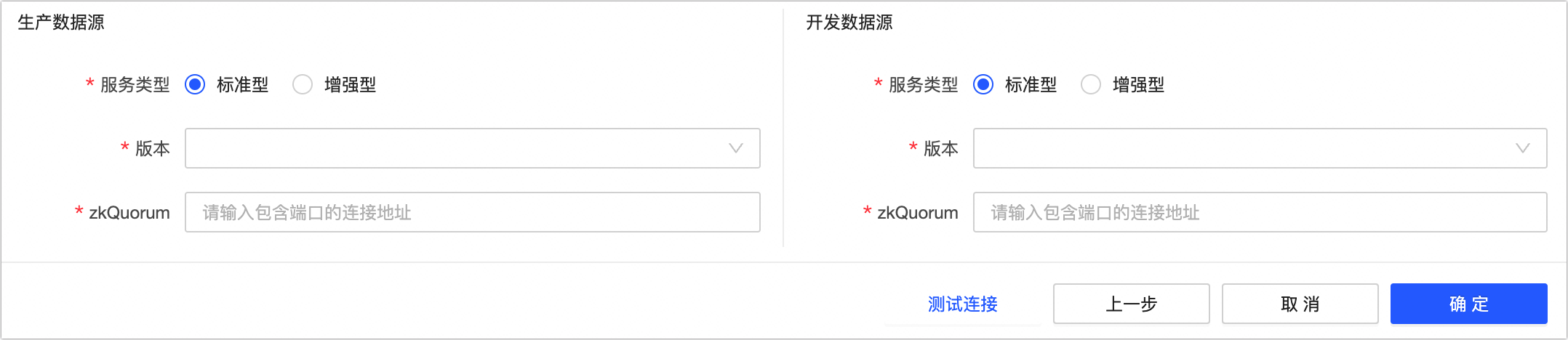
Parameter
Description
Service Type
Select the service type that matches your HBase data source.
Version
Select the major version number of your Alibaba Cloud HBase instance. You can check the major version number on the Database Connection page in the Alibaba Cloud HBase console.
zkQuorum
Enter the connection address of your Alibaba Cloud HBase instance. We recommend using the VPC connection address. You can find the address on the Database Connection page in the Alibaba Cloud HBase console.
-
-
Select a Default Resource Group, which is used to run tasks related to the current data source, including database SQL, offline database migration, and data preview.
-
Click Test Connection or directly click OK to save and complete the creation of the Aliyun HBase data source.
Clicking Test Connection verifies connectivity between the data source and Dataphin. If you click OK directly, the system tests the connection for all selected clusters automatically. The data source is created even if all clusters fail the connection test.