Batch import or export valid and invalid mappings by using Excel files to reduce manual effort and improve configuration efficiency.
Permissions
-
Super administrators, data standard administrators, and data standard owners can batch import valid and invalid mappings for the data standards that they manage. They can also view the details of import records.
-
All users can export mappings and download the exported files.
Import Mappings
Valid Mappings
-
On the Dataphin home page, from the top menu bar, choose Administration > Standard.
-
In the navigation pane on the left, choose Landing Assessment > Mapping. On the Mapping page, click the Valid Mapping tab.
-
On the Valid Mapping page, click Batch Import/Export in the upper-right corner, and then choose Batch Import Mappings.
-
In the Batch Import Valid Mappings dialog box, configure the parameters.
Parameter
Description
STEP 1 Download configuration template
If you do not have a template, click the file name or the download
 icon to download the .xlsx file. If you already have a template, upload the configuration file and import it.
STEP 2 Upload configuration file
-
When filling out the template, follow the specifications for each column. During the import process, the system verifies name uniqueness and input validity.
-
Only .xlsx files with a single worksheet are supported. If the file type is inconsistent or contains multiple worksheets, the import fails. If you modify column names, adjust column order, or delete columns, parsing fails, and the import cannot proceed.
-
Header row: Displays column names and instructions. A red asterisk (*) indicates a required field.
-
Asset Type: If it is an in-domain asset, select a supported object type from the drop-down list: physical table, logical dimension table, logical fact table, logical aggregate table, physical view, logical view, or logical tag table. If it is an externally registered asset, enter a custom asset type.
-
Storage Type: If it is an in-domain asset, select the compute engine type of the current tenant. If it is a global table, select the source data source type. If it is an externally registered asset, select Other.
-
Asset Name: Enter a custom name. For physical tables, physical views, real-time metadata tables, and image tables, add a project name prefix. For logical tables and logical views, add a business segment name prefix. For externally registered tables, enter the GUID.
-
Object Type: Select from the drop-down list. If it is an externally registered asset, select Other.
-
Object Name: Enter a custom field name or metric name. For externally registered tables, enter the GUID.
-
Data Standard Code: Enter a custom code. The system identifies the data standard based on this code.
-
Data Standard Name: Optional. This field is not used to identify the data standard.
-
Name input is case-insensitive. The system automatically matches names based on whether the asset's system is case-sensitive.
STEP 3 Update policy
If the mappings imported in this batch conflict with existing mappings in the Valid Mappings or Invalid Mappings list, the system applies the configured update policy.
-
If an object with a mapped standard already exists in the valid mappings list, you can retain the valid mapping and append this manually added mapping.
-
If the uploaded mapping already exists in the invalid mappings list, you can choose to set the invalid mapping as valid or retain the invalid mapping and skip the update.
-
-
On the current page, wait for the import to complete and then view the import details. Alternatively, you can close the configuration dialog box. To view the details later, open the Batch Operation Records dialog box.
If the import includes failed records, view the error messages and download the failed records from the import details. Fix the records based on the error messages and re-import them. If records are skipped due to the conflict resolution policy, the system provides the reason.
Parameter
Description
Import Result
View import progress and running time information.
Error Records
-
Displays mapping records that failed validation and could not be imported, including the Row Number, Storage Type, Object, Standard Name, Standard Code, and Error Message corresponding to each record in the original file.
-
You can click Download Abnormal Records to download the corresponding original records as a file, then modify them according to the error prompts and re-import them.
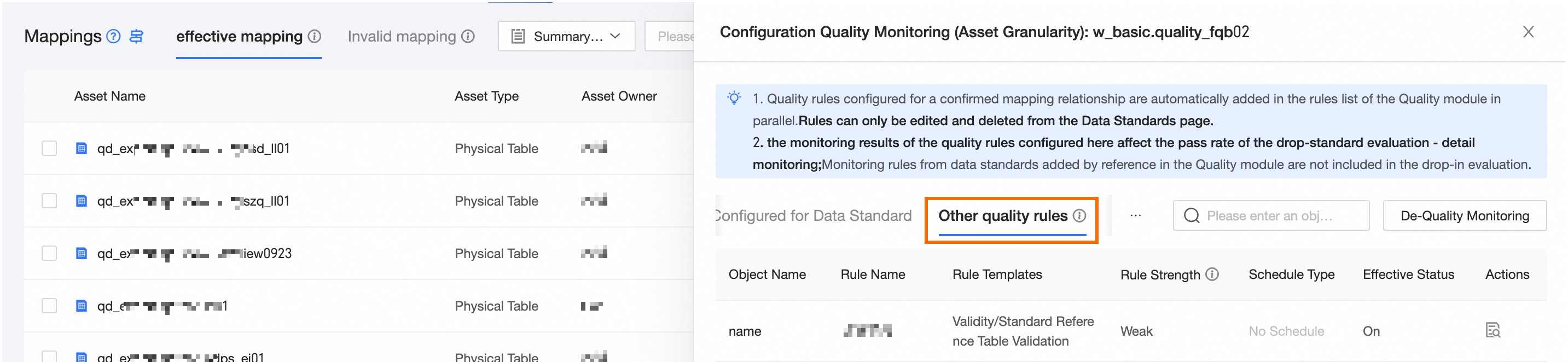
Execution Log
View and copy the execution log of the import process.
After the import is complete, you can close the dialog box. Closing the dialog box does not stop the import task. To view historical import records, click Batch Operation Records on the Valid Mapping page.
-
Invalid Mapping Relationship
-
On the Dataphin home page, from the top menu bar, choose Administration > Standard.
-
In the navigation pane on the left, choose Landing Assessment > Mapping. On the Mapping page, click the Invalid Mapping tab.
-
On the Invalid Mapping page, click Batch Import/Export in the upper-right corner, and then choose Batch Import Invalid Mappings.
-
In the Batch Import Invalid Mappings dialog box, configure the parameters.
Parameter
Description
STEP 1 Download configuration template
If you do not have a template, click the file name or the download
icon to download the .xlsx file. If you already have a template, upload the configuration file and import it.STEP 2 Upload configuration file
-
When filling out the template, follow the specifications for each column. During the import process, the system verifies name uniqueness and input validity.
-
Only .xlsx files with a single worksheet are supported. If the file type is inconsistent or contains multiple worksheets, the import fails. If you modify column names, adjust column order, or delete columns, parsing fails, and the import cannot proceed.
-
Header row: Displays column names and instructions. A red asterisk (*) indicates a required field.
-
Asset Type: If it is an in-domain asset, select a supported object type from the drop-down list: physical table, logical dimension table, logical fact table, logical aggregate table, physical view, logical view, or logical tag table. If it is an externally registered asset, enter a custom asset type.
-
Storage Type: If it is an in-domain asset, select the compute engine type of the current tenant. If it is a global table, select the source data source type. If it is an externally registered asset, select Other.
-
Asset Name: Enter a custom name. For physical tables, physical views, real-time metadata tables, and image tables, add a project name prefix. For logical tables and logical views, add a business segment name prefix. For externally registered tables, enter the GUID.
-
Object Type: Select from the drop-down list. If it is an externally registered asset, select Other.
-
Object Name: Enter a custom field name or metric name. For externally registered tables, enter the GUID.
-
Data Standard Code: Enter a custom code. The system identifies the data standard based on this code.
-
Data Standard Name: Optional. This field is not used to identify the data standard.
-
Name input is case-insensitive. The system automatically matches names based on whether the asset's system is case-sensitive.
-
-
On the current page, wait for the import to complete and then view the import details. Alternatively, you can close the configuration dialog box. To view the details later, open the Batch Operation Records dialog box.
If the import includes failed records, view the error messages and download the failed records from the import details. Fix the records based on the error messages and re-import them. If records are skipped due to the conflict resolution policy, the system provides the reason.
Parameter
Description
Import Result
View import progress and running time information.
Error Records
-
Displays the mapping records that failed validation and could not be imported, including the Line Number, Object, Standard Name, Standard Encoding, and Error Message for each record in the original file.
-
You can click Download Abnormal Records to download the corresponding original records as a file, modify the records based on the error messages, and re-import them.
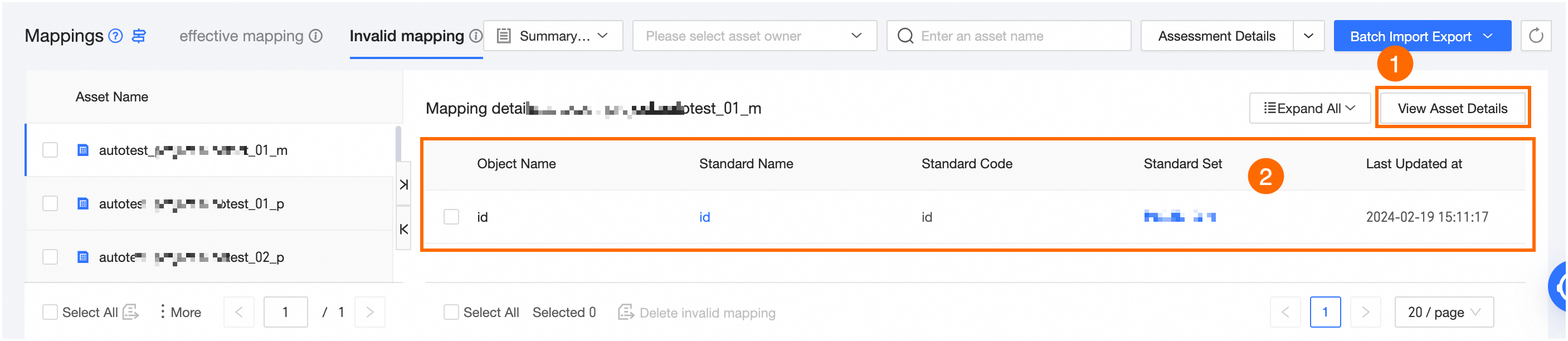
Execution Log
View and copy the execution log of the import process.
After the import is complete, you can close the import configuration dialog box. Closing the dialog box does not stop the import task. To view the import results, click Batch Operation Records on the Invalid Mapping page and select the historical import record that you want to view.
-
Export Mappings
-
On the Valid Mapping or Invalid Mapping tab, click Batch Import/Export in the upper-right corner, and then choose Batch Export Mappings.
-
In the Batch Export Mappings dialog box, select an export scope.
Export Scope: Select the scope of valid or invalid mappings to export. You can export all mappings, or filter by data segment and project to export mappings for specific asset objects.
Note-
You must select at least one scope.
-
You can export a maximum of 1 million mappings at a time.
-
-
Click OK to start the export task. You can view the export information and download the exported file from the Batch Operation Records dialog box.
Batch Operation Records for Mappings
A maximum of 1,000 batch import records are retained for 30 days.
-
On the Valid Mapping or Invalid Mapping tab, click Batch Import/Export in the upper-right corner, and then choose Batch Operation Records.
-
In the Batch Operation Records for Mappings dialog box, you can view the import and export records for mappings.
-
Batch Import: Displays batch import records for mappings, including the ordinal number, creator, status, creation time, and end time. Click the View icon in the Actions column to view import details.
-
Batch Export: Displays batch export records for mappings, including the ordinal number, creator, status, export scope, creation time, and end time. Click the Download icon in the Actions column to download the exported file to your computer.
Note-
Exported valid and invalid mapping files are stored for 7 days. After this period, you cannot download them.
-
You can only download files for successfully exported records.
-
-