Alert Events centralizes alerts from Batch Processing, Real-time Computing, Stream Pipeline, Baseline Monitoring, Data Quality, and Data Service. View, filter, and handle alert events from a single page.
View alert events
-
Click the Alert
 icon in the upper-right corner to open Alert Center.
-
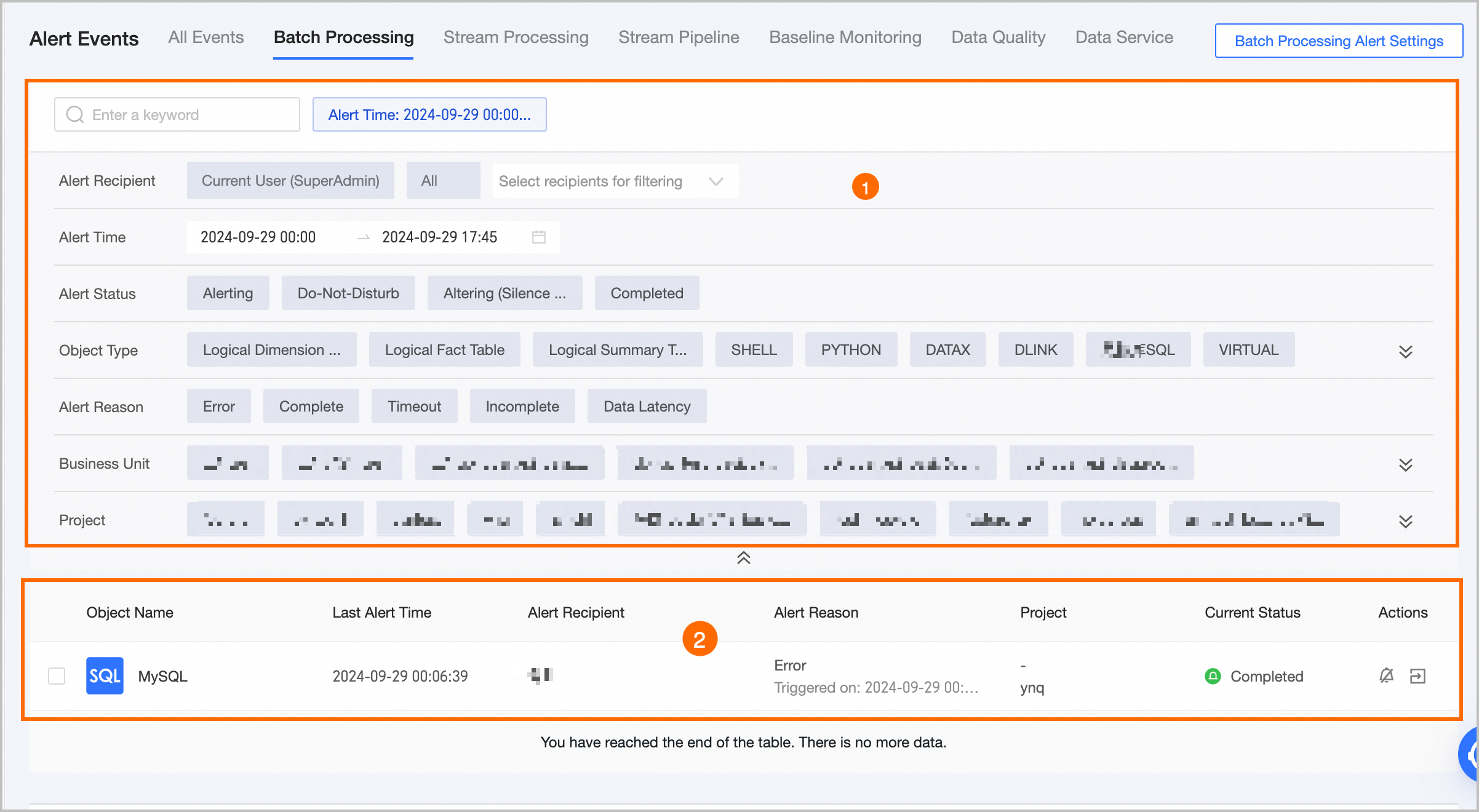
On the Alert Event page, click a module tab (Batch Processing, Real-time Computing, Stream Pipeline, Baseline Monitoring, Data Quality, or Data Service) to view its alert events. All tabs share the same layout. The following example shows Batch Processing.
Area
Description
① Filter and search area
Search by keywords such as alert object name, or filter by Alert Recipient, Alert Date, Alert Status, File Format, Alert Reason, Business Unit, or Project.
-
Alert Recipient: Filter by Me (superadmin), All, alert object owner, on-call schedule, or custom user.
-
Alert Time: Select an alert time within the last month.
② Alert event list
Lists alert events with object name, last alert time, recipient, reason, project, and status. You can set an alert to Do-Not-Disturb or Handle Alert.
-
Alert Reason: Each event has one alert rule. Reasons vary by module:
-
Batch Processing: Includes Error, Complete, Timeout, and Incomplete.
-
Data Quality: Includes Table Rule Violation, Field Rule Violation, and Custom Rule Violation.
-
Data Service: Includes Abnormal average response time, Abnormal number of calls, Abnormal error rate, and Abnormal offline percentage.
-
Real-time Computing: Includes Excessive service latency, TPS out of range, Failure rate exceeds configured ratio, Data retention exceeds configuration, and Backpressure duration exceeds configuration.
Supported metrics vary by compute engine:
-
Blink only: Backpressure duration exceeds configuration is not supported.
-
Open source Flink only: Excessive service latency and Data retention exceeds configuration are not supported.
-
Both Blink and open source Flink: all metrics are supported.
-
-
Real-time Computing includes alerts for Excessive Service Latency and Failures Exceeding The Configured Ratio.
-
-
Current Status: Values: Completed, Alerting, Do-Not-Disturb, and Alerting (Cool-down Period).
-
Completed: The alert has ended.
-
Alerting: Frequent alerting is enabled and the alert is still active.
-
Do-Not-Disturb: Available for events in Alerting or Completed state. Sets status to Do-Not-Disturb and silences notifications.
-
Alerting (Cool-down Period): Based on system-specific alert logic. For example, Data Service collects metrics every second but alerts at 5-minute minimum intervals.
-
-
View alert events: Click the name of an alert object to view its details. For more information, see View the details of an alert event.
-
Do-Not-Disturb: Set unimportant alert objects to the Do-Not-Disturb state. For more information, see Set an alert event to Do-Not-Disturb.
-
Handle an alert: Click the Handle
 icon next to an event, or click an Object Name and then click Handle on the Alert Event Details page. You are redirected to the task page to resolve the event.
-
View the details of an alert event
On the All Events page, click an Object Name to open Alert Event Details. This page shows the object type, source system, alert reason, frequency, first and last alert times, alert count, recipients, and notification method. You can set Do-Not-Disturb, handle the alert, or click related links.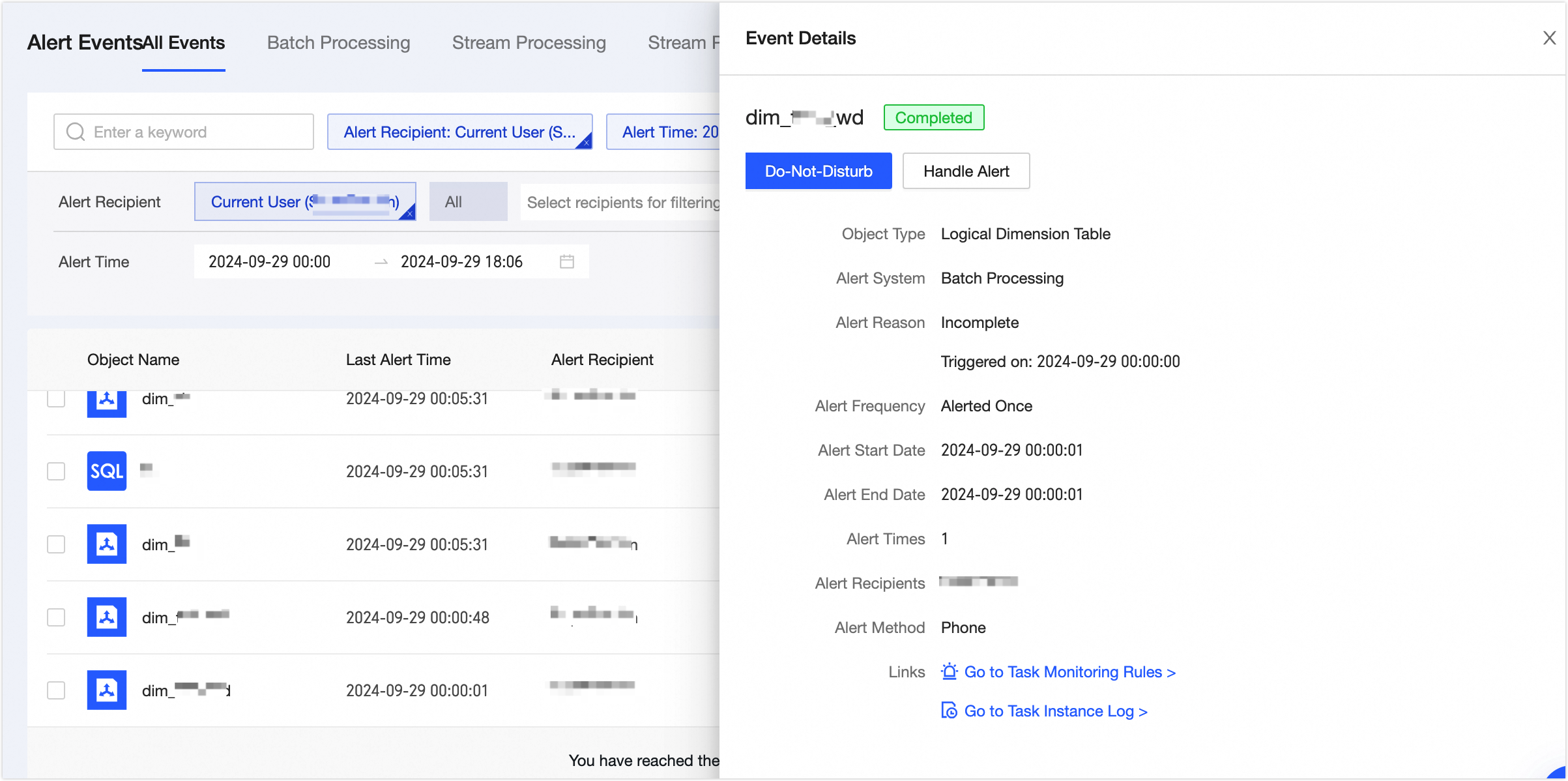
Set an alert event to Do-Not-Disturb
Set unimportant alert objects to Do-Not-Disturb to silence notifications. Only events in Alerting or Completed state support this action.
-
Click the Do-Not-Disturb
 icon next to the event, or click an Object Name and then click Do-Not-Disturb on the Alert Event Details page.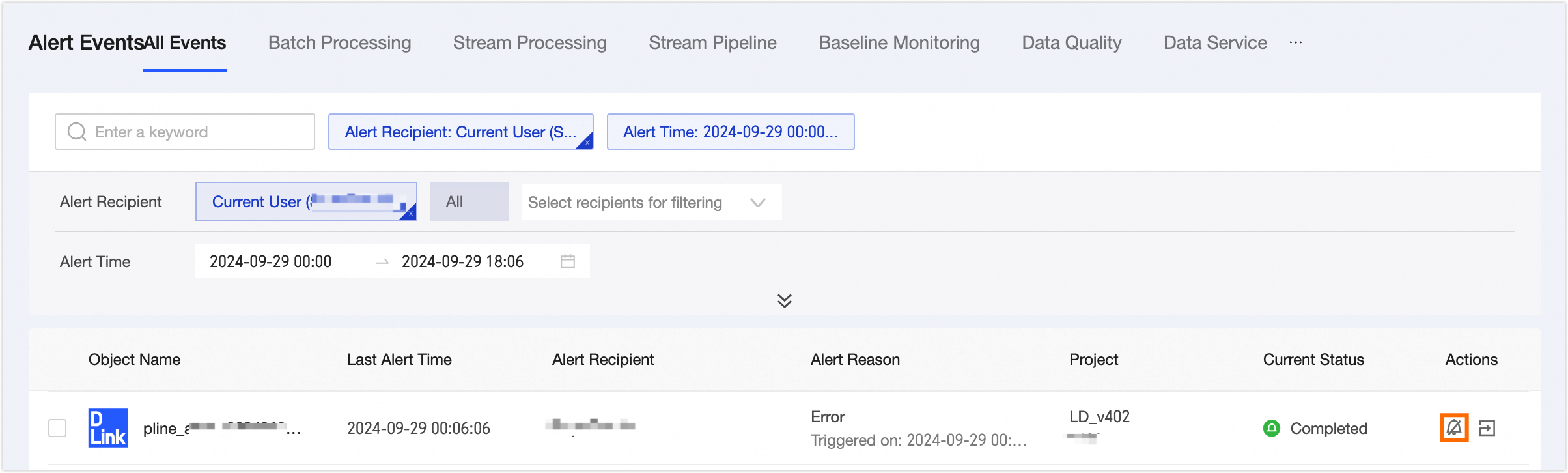
-
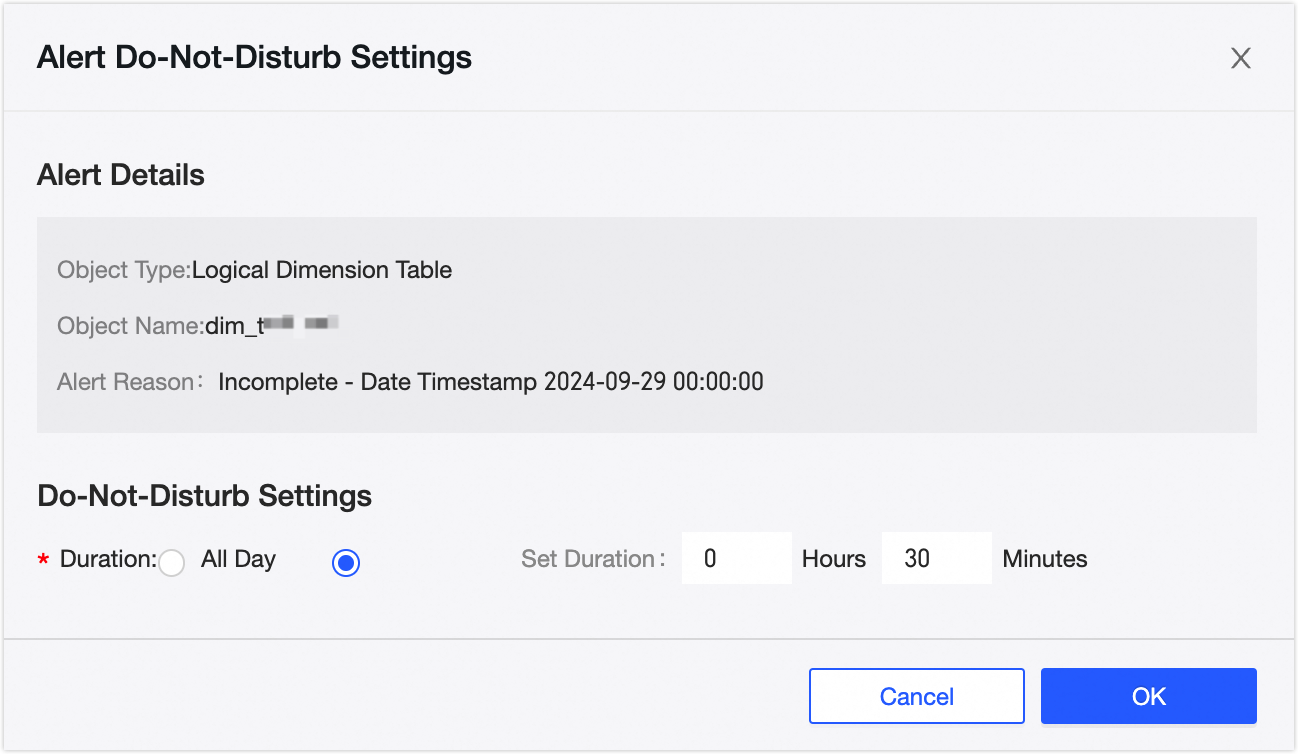
In the Alert Do-Not-Disturb dialog box, set the Do-Not-Disturb Duration. Select All Day or enter a Specified Duration.
-
Click OK.
The status of the alert event changes from Alerting or Completed to Do-Not-Disturb.