Perform data backfill for the logical dimension tables, logical fact tables, logical aggregate tables, and pipeline tasks created in this tutorial.
Background information
You need to backfill the product table, customer table, and order table integration tasks, along with the detail and aggregate tables dim_customer, dim_products, fct_order_buy_di, and dws_all. The backfill procedure is the same for integration tasks and logical tables. The following examples use the customer table integration and the dim_products logical table.
Data backfill for integration tasks
-
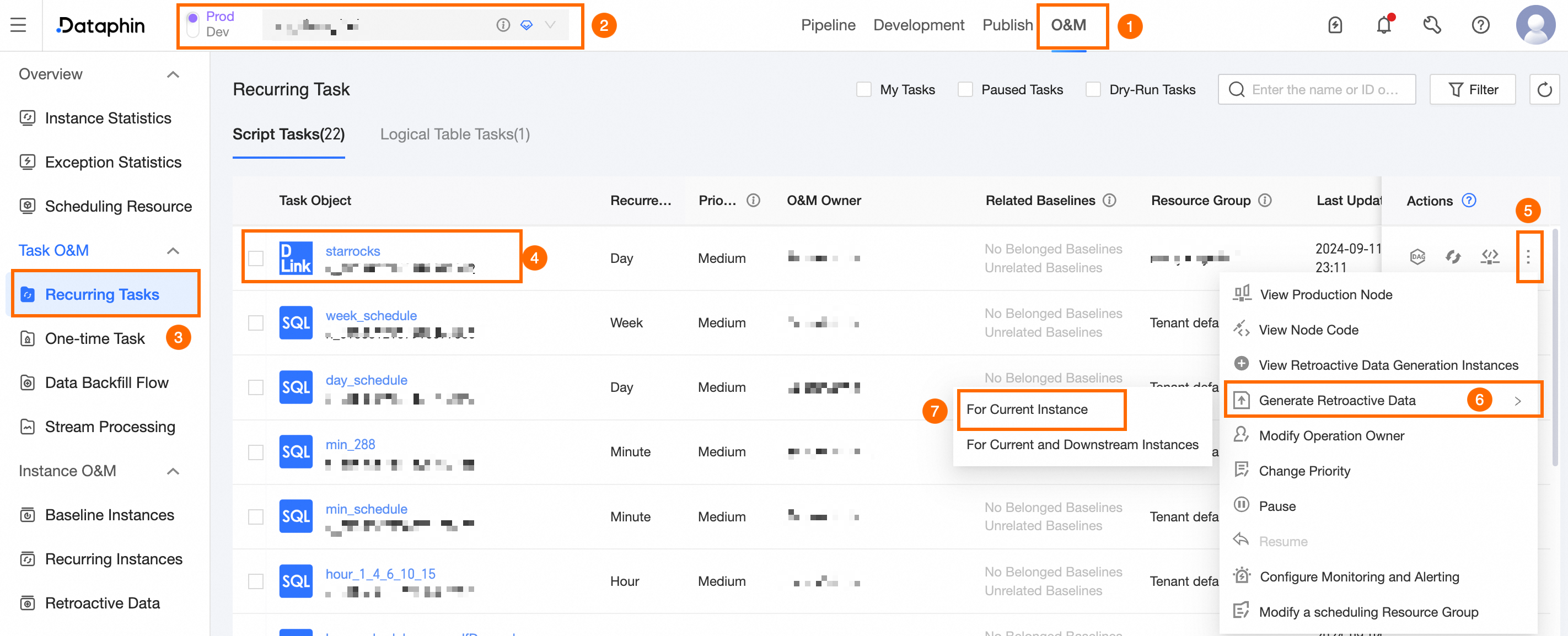
Navigate to the Dataphin home page and click Development in the top menu bar.
-
As shown in the following figure, select Product Table Integration for data backfill.
-
In the Data Backfill - Current Task dialog box, configure the following parameters:
Parameter
Description
Data Backfill Instance Name
Use the default configuration.
Runtime
Choose Run Immediately.
Data Timestamp
Select By Interval and keep the default configuration for the interval.
Concurrent Running Groups
The default is 1 group.
Data Backfill Order
Select Ascending Data Timestamp.
Skip Execution For Corresponding Instances
Choose Normal Operation.
Dry-run For Corresponding Instances
Choose Normal Operation.
-
Click OK.
-
Check the runtime results of the data backfill instance.
-
In the left-side navigation pane, select Data Backfill Instances.
-
Runtime information appears under Submitted Instances.
-
Data backfill for logical table tasks
-
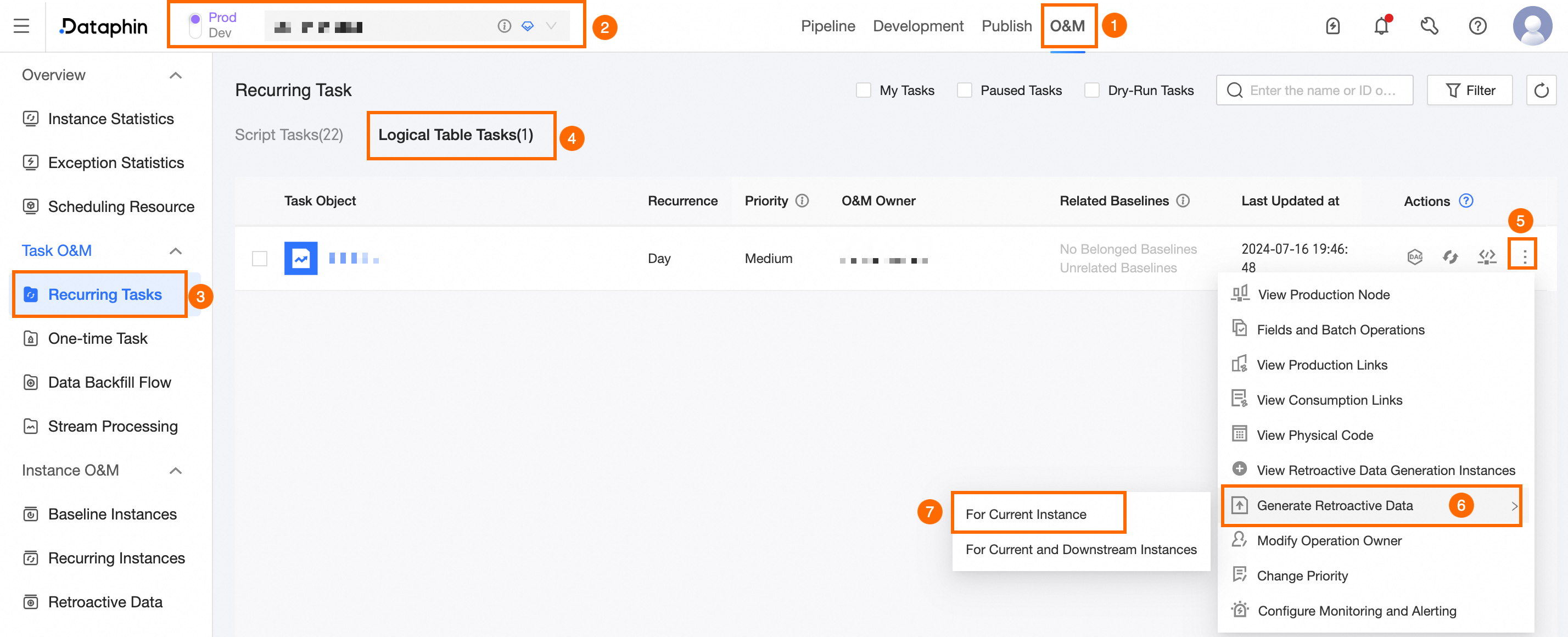
On the Dataphin home page, click Development in the top menu bar.
-
As shown in the following figure, select the dim_products task for data backfill.
-
In the Data Backfill - Current Task dialog box, configure the following parameters:
Parameter
Description
Data Backfill Instance Name
Use the default configuration.
Select Field
Choose Entire Table to backfill all metrics in the current aggregate table.
Runtime
Choose Run Immediately.
Data Timestamp
Select By Interval and keep the default configuration for the interval.
Concurrent Running Groups
The default is 1 group.
Data Backfill Order
Choose Ascending Data Timestamp.
Skip Execution For Corresponding Instances
Choose Normal Operation.
Dry-run For Corresponding Instances
Choose Normal Operation.
-
Check the runtime results of the data backfill instance.
-
In the left-side navigation pane, select Data Backfill Instances.
-
Runtime information appears under Submitted Instances.
-