This document describes how to install and configure a Data Transport device. It covers device specifications, port layout, physical installation, hardware connections, IP address settings, and network connectivity checks.
Device introduction
Device diagram
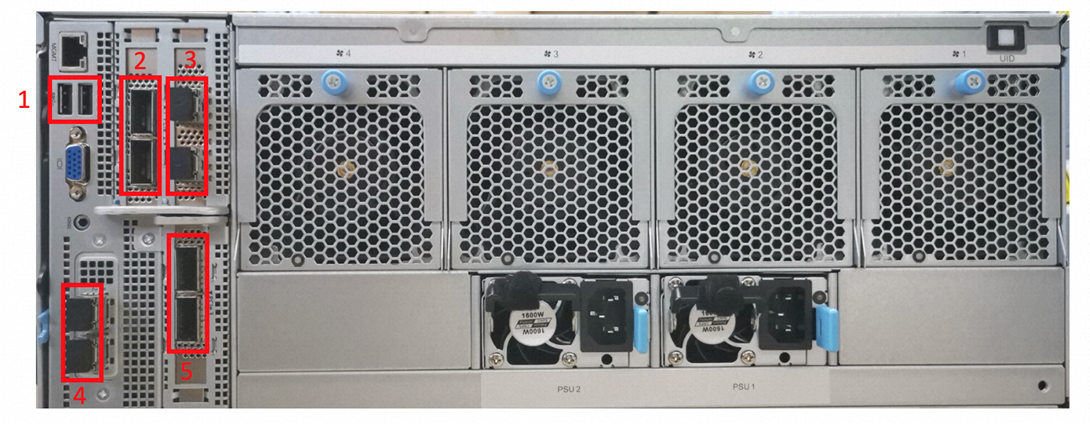
Dimensions and power
Height × Width × Depth: 175 mm × 447 mm × 826 mm (excluding protrusions)
Device power: 1600 W (dual power supplies)
Panels and ports
The rear panel of the Data Transport device has four 40 Gbps optical ports, four 25 Gbps optical ports that are backward compatible with 10 Gbps optical transceiver modules, two USB
ports, and two Chinese-standard power cables.
No.
Description
①
USB-A port
②
40 Gbps optical port
③
25 Gbps optical port. It is backward compatible with 10 Gbps optical transceiver modules.
④
25 Gbps optical port. It is backward compatible with 10 Gbps optical transceiver modules.
⑤
40 Gbps optical port
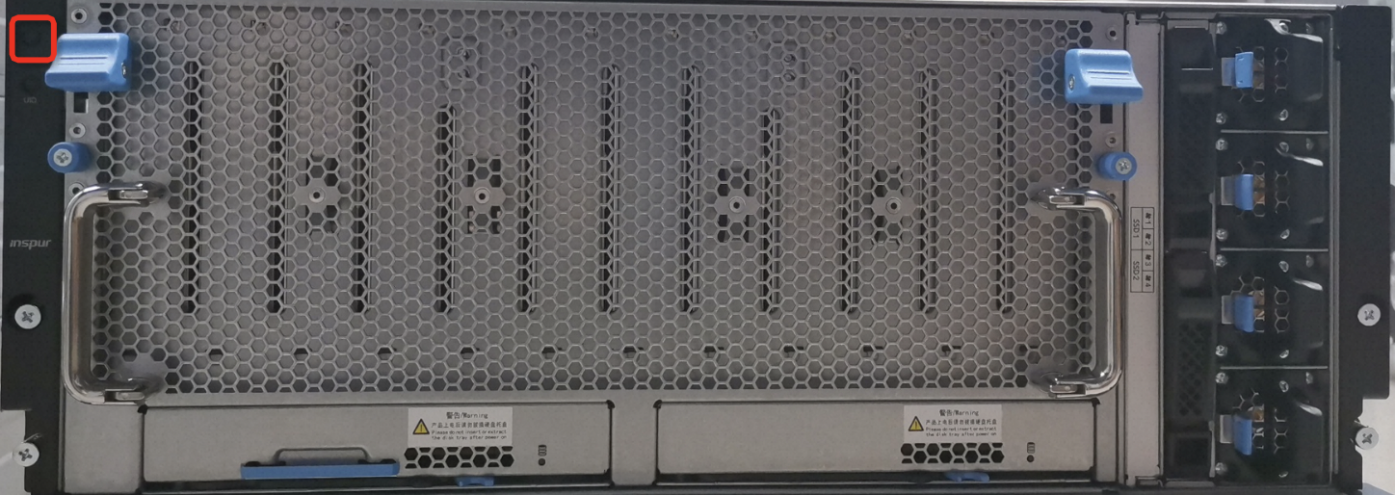
The power button is located on the upper-left corner of the front panel.
Step 1: Rack the hardware
Unpack and inspect the device.
When you receive the Data Transport device, inspect the package contents. The accessories include four 25 Gbps optical transceiver modules and two Chinese-standard power cables. Confirm that all items are present and check for any severe damage. If the device is damaged, contact Alibaba Cloud support immediately.
Connect the device.
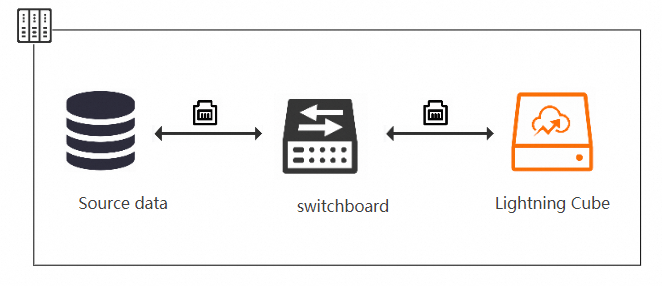
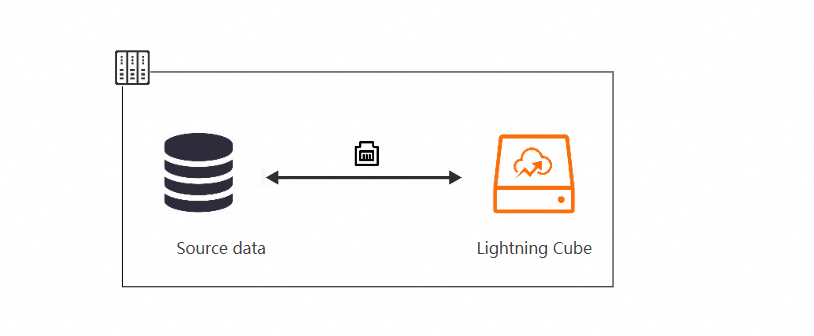
Depending on your on-site conditions, select an appropriate optical port. You can use an optical fiber cable or an active optical cable (AOC) to connect the Data Transport device to a network switch or directly to the source device.
After connecting the power cables, press the power button on the device. The device takes about 3 to 5 minutes to start up.
After you complete the connections, power on the device and check its operating status.
Connection methods
The Data Transport device supports the following two connection methods:
Connection through a network switch
Direct connection with an Ethernet cable
Step 2: Configure the IP address for the device's network port
Connect a monitor, mouse, and keyboard to the Data Transport device.
Contact Alibaba Cloud support to obtain the username and password required to log on.
Procedure
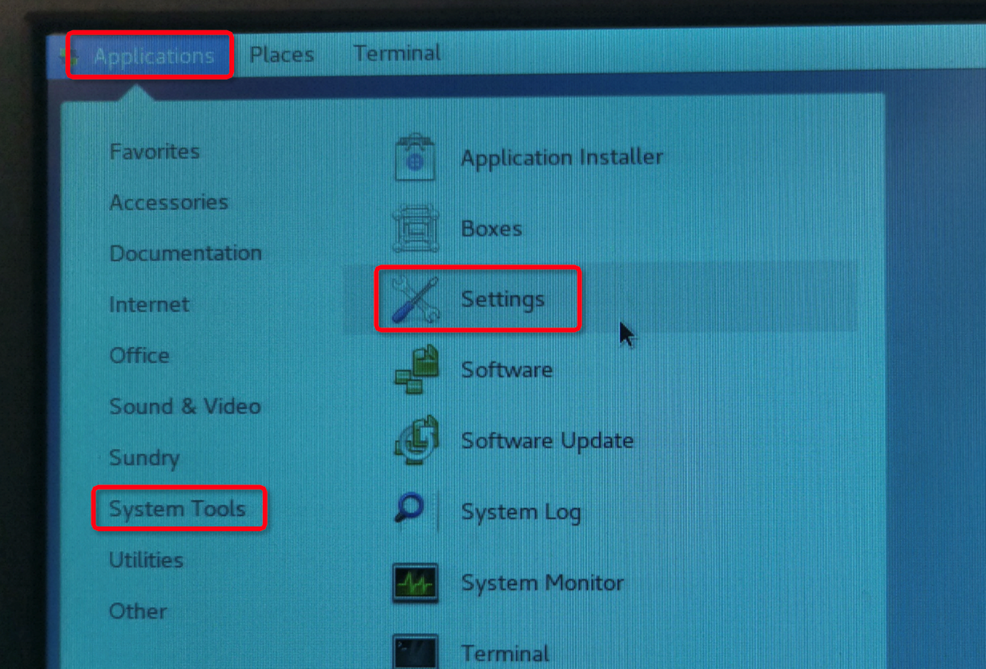
a. Go to Applications > System Tools > Settings.
b. Select Network. 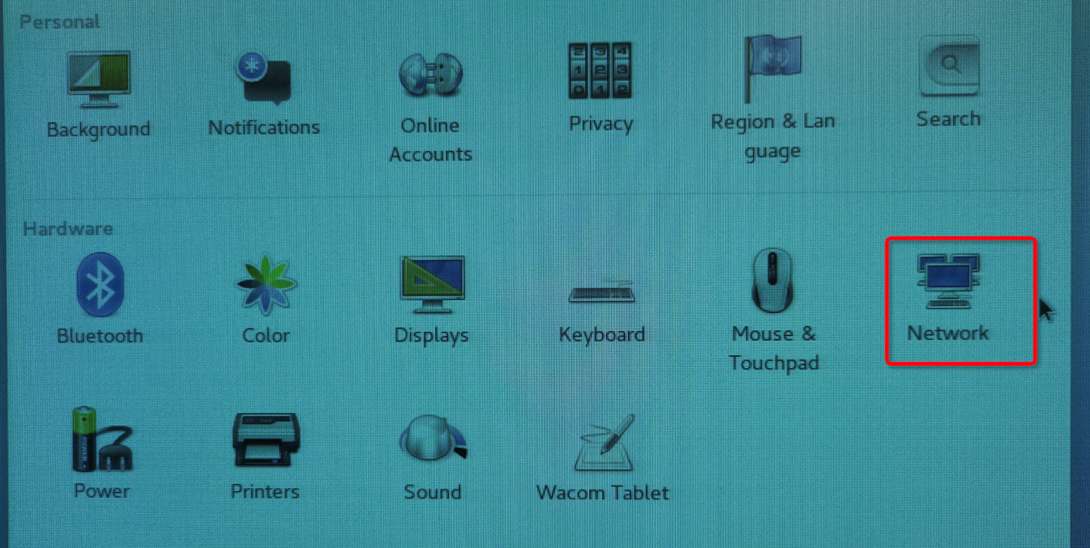
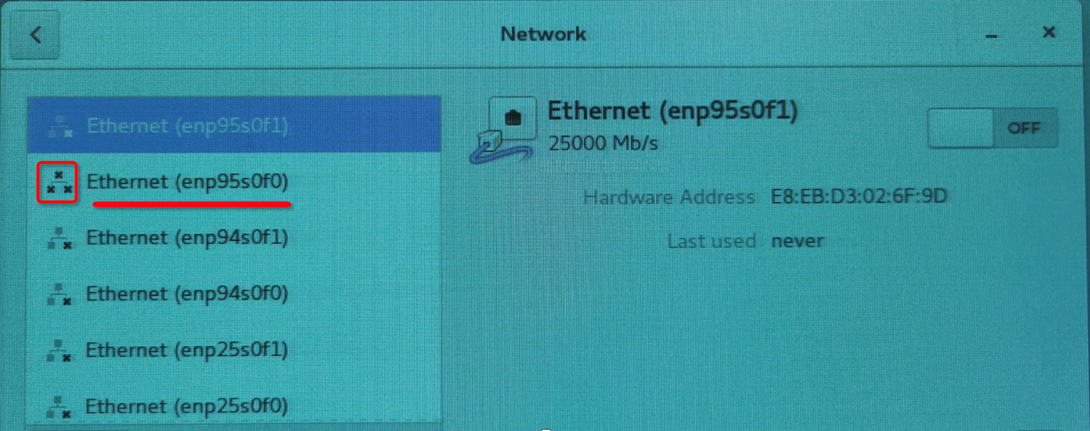
c. View the connected optical ports.
An icon with three black × symbols indicates that the optical port is connected. An icon with one black × and two gray squares indicates that the port is not connected. In the following figure, the enp95s0f0 port is connected. (The figure is for demonstration only. Use the actual port name during configuration.)
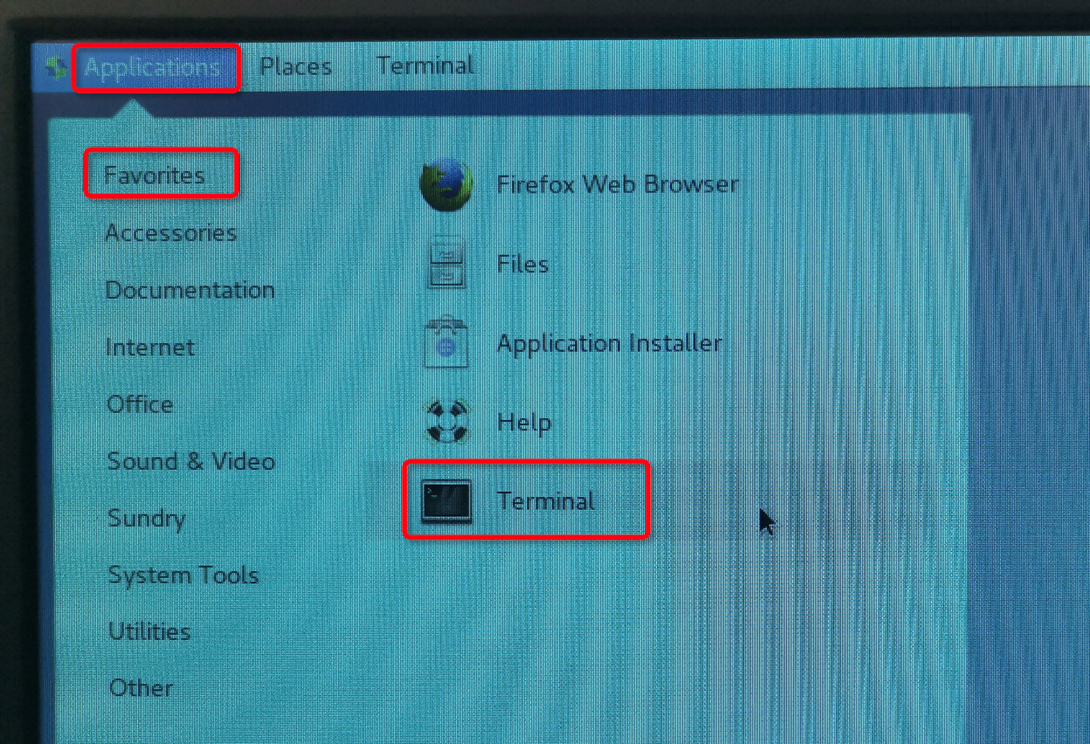
d. Go to Applications > Favorites > Terminal.
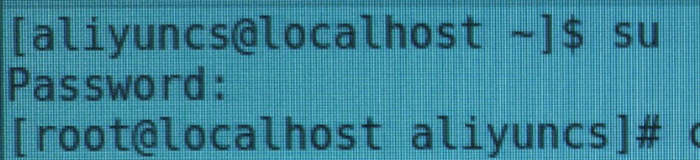
e. Enter su and then enter the password to switch to the root user.
f. Run cd /etc/sysconfig/network-scripts/ to navigate to the directory that contains the optical port configuration files.
If you cannot find the corresponding network port configuration file, use the graphical user interface (GUI). Go to Applications > System Tools > Settings > Network to configure the connected network port. Select the manual mode, and then configure the service IP address, subnet mask, and gateway. After you apply the settings, the corresponding network port configuration file is generated.
Open the configuration file for the connected optical port on the Data Transport device. In the file, confirm or modify the following parameters:
Parameter
Description
BOOTPROTO
Set the value to static.
ONBOOT
Set the value to yes.
IPADDR
The service IP address. Example: 10.10.1.2
NETMASK
The subnet mask. Example: 255.255.255.0
GATEWAY
The gateway. Example: 10.10.1.1
Run the
service network restartcommand to restart the network service. If the command returns OK, the service has restarted successfully.