This topic describes how to use Cloud Enterprise Network (CEN) to enable Elastic Compute Service (ECS) instances in multiple virtual private clouds (VPCs) to access a Cloud Storage Gateway (CSG) instance.
Background information
Cloud Storage Gateway (CSG) is a storage service that seamlessly integrates your on-premises applications, infrastructure, and data with Alibaba Cloud. CSG connects your existing storage applications and workloads to Alibaba Cloud's storage and compute services by using virtual appliances. These appliances are compatible with industry-standard storage protocols and can be deployed in your data center or on Alibaba Cloud.
A common architecture for large-scale deployments on Alibaba Cloud connects multiple virtual private clouds (VPCs) to support large-scale ECS clusters. Previously, CSG versions 1.0.31 and earlier allowed connections from ECS instances only within a single VPC. Starting from version 1.0.32, CSG supports multiple VPC CIDR blocks, including 192.168.0.0/16, 172.16.0.0/12, and 10.0.0.0/8.
This topic shows how to configure CEN and security groups to allow ECS instances from three interconnected VPCs to access a single CSG instance.
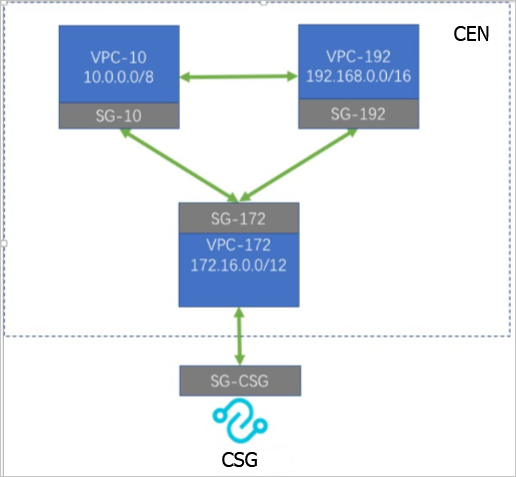
-
SG stands for security group.
-
VPC stands for virtual private cloud. The CIDR blocks, such as 172.16.0.0/12, define the IP address ranges of the VPCs.
Configure CEN
-
Log on to the CEN console.
-
Create a CEN instance. For more information, see Step 2: Create a CEN instance.
-
Attach network instances. For more information, see Step 3: Attach network instances.
Attach the three VPCs to the same CEN instance.
Configure security group rules
Configure the security group for the CSG instance to allow access from all resources in the CEN. In this example, you must configure security groups SG-10 and SG-192.
-
Log on to the ECS console.
-
In the left-side navigation pane, choose . Find the target security group and click {value}.
-
On the Security Group Details page, on the Access Rules tab, select a direction for the rule, and then click Add Rule or {value}. In the rule settings, select a protocol, enter the port, and specify the authorization object.
-
For Protocol Type, select All ICMP (IPv4). For more information about other parameters, see Add a security group rule.
If you use Active Directory (AD), add security group rules to allow traffic on TCP and UDP ports 53 and 636.
This configuration allows ECS instances in your CEN to use the NFS, SMB, and iSCSI protocols through CSG to connect to Object Storage Service (OSS). This simplifies tasks such as storage expansion, cross-region sharing, data distribution, adapting legacy applications, and backup archiving and migration. For more information, see CSG use cases.
Use the CSG instance
- File gateway
- For Linux clients, see Access an NFS share.
- For Windows clients, see Access an SMB share.
- Block gateway
- For Linux clients, see Use volumes on a Linux system.
- For Windows clients, see Use volumes on a Windows system.