By default, when you create a LoadBalancer Service in an Alibaba Cloud Container Compute Service (ACS) cluster, the cloud controller manager (CCM) automatically creates a new Server Load Balancer (SLB) instance. If you already have an SLB instance you want to reuse — for example, a monthly subscription instance or one with a fixed IP address — you can bind it to the Service instead.
After the Service is created, you can access it from outside the cluster using the domain name of the SLB instance or the <IP:Service port> endpoint, and from within the cluster using the <Service name:Service port> endpoint.
This topic walks you through deploying an NGINX application and exposing it through an existing Internet-facing Classic Load Balancer (CLB) instance.
Prerequisites
Before you begin, ensure that you have:
-
An SLB instance in the SLB console. The instance must be in the same region as your ACS cluster.
This topic uses an existing Internet-facing CLB instance. If you don't have one, create a CLB instance first.
Considerations
Reuse limits
-
Only SLB instances created in the SLB console can be reused. SLB instances automatically created by CCM, and the SLB instance used by the API server, cannot be reused.
-
To reuse an internal-facing SLB instance, the instance and the cluster must be in the same virtual private cloud (VPC).
-
The network type of the SLB instance must match the Service's connection type:
-
Internet access (
service.beta.kubernetes.io/alibaba-cloud-loadbalancer-address-type: "internet") — the SLB instance must be Internet-facing. -
Internal access (
service.beta.kubernetes.io/alibaba-cloud-loadbalancer-address-type: "intranet") — the SLB instance must be internal-facing.
-
-
You cannot change the SLB instance bound to a LoadBalancer Service after the Service is created. To switch to a different SLB instance, delete the Service and create a new one.
Limits when multiple Services share one SLB instance
-
Each Service must use a different listener port on the shared SLB instance.
-
If two Services in different clusters share one SLB instance, the Services must have different names and be in different namespaces.
CCM behavior
-
CCM only manages SLB instances for Services with
type: LoadBalancer. Other Service types are not affected. -
Changing a Service from `LoadBalancer` to another type causes CCM to delete the SLB configuration. The application becomes unreachable via the SLB instance.
-
CCM uses a declarative API and continuously reconciles the SLB configuration to match your Service spec. If you set
service.beta.kubernetes.io/alibaba-cloud-loadbalancer-force-override-listeners: "true", any manual changes you make to listeners in the SLB console will be overwritten.ImportantDo not manually modify configurations of a CCM-managed SLB instance in the SLB console. Changes may be overwritten, making the Service inaccessible.
SLB resource quotas
CCM automatically manages ECS instances, backend server groups, and listeners based on your Service configuration. The following default limits apply:
| Resource | Default limit |
|---|---|
| SLB instances per account | 60 |
| Backend server groups per ECS instance | 50 |
| Backend servers per SLB instance | 200 |
| Listeners per SLB instance | 50 |
To increase a quota, go to Quota Center. For the full list of SLB limits, see CLB limits and NLB limits. To check your current SLB quotas, go to the Quota Center page in the SLB console.
Step 1: Deploy an application
Use kubectl to deploy the example NGINX application.
-
Create
my-nginx.yamlwith the following content:apiVersion: apps/v1 kind: Deployment metadata: name: my-nginx labels: app: nginx spec: replicas: 3 selector: matchLabels: app: nginx # Must match the selector in the Service template: metadata: labels: app: nginx spec: containers: - name: nginx image: registry.cn-hangzhou.aliyuncs.com/acs-sample/nginx:latest ports: - containerPort: 80 -
Deploy the application:
kubectl apply -f my-nginx.yaml -
Verify all three replicas are running:
kubectl get deployment my-nginxExpected output:
NAME       READY   UP-TO-DATE   AVAILABLE   AGE
my-nginx   3/3     3            3           50s
Step 2: Expose the application using an existing SLB instance
Choose either the ACS console or kubectl.
Use the console
-
Log on to the ACS console and click Clusters in the left-side navigation pane.
-
Click the ID of your cluster. In the left-side navigation pane, choose Network > Services.
-
Click Create in the upper-left part of the Services page.
-
In the Create Service dialog box, configure the following parameters:
Parameter Description Example value Name Name of the Service my-nginx-svcType Service type and SLB binding Service Type: SLB / SLB Type: CLB / Select Resource: Use Existing Resource / Overwrite Existing Listeners: selected Backend The workload to associate with this Service Click +Reference Workload Label and select my-nginx (sets app: nginx)Port Mapping Map the Service port to the container port Service Port: 80 / Container Port: 80 / Protocol: TCP Annotations SLB configuration via annotations Billing method: service.beta.kubernetes.io/alibaba-cloud-loadbalancer-charge-type=paybybandwidth/ Max bandwidth:service.beta.kubernetes.io/alibaba-cloud-loadbalancer-bandwidth=2(2 Mbit/s)Label Labels to identify the Service None -
Click OK. The Service appears on the Services page.
-
Copy the IP address from the External IP column to access the application. In this example, the external IP is
39.106.XX.XX:80.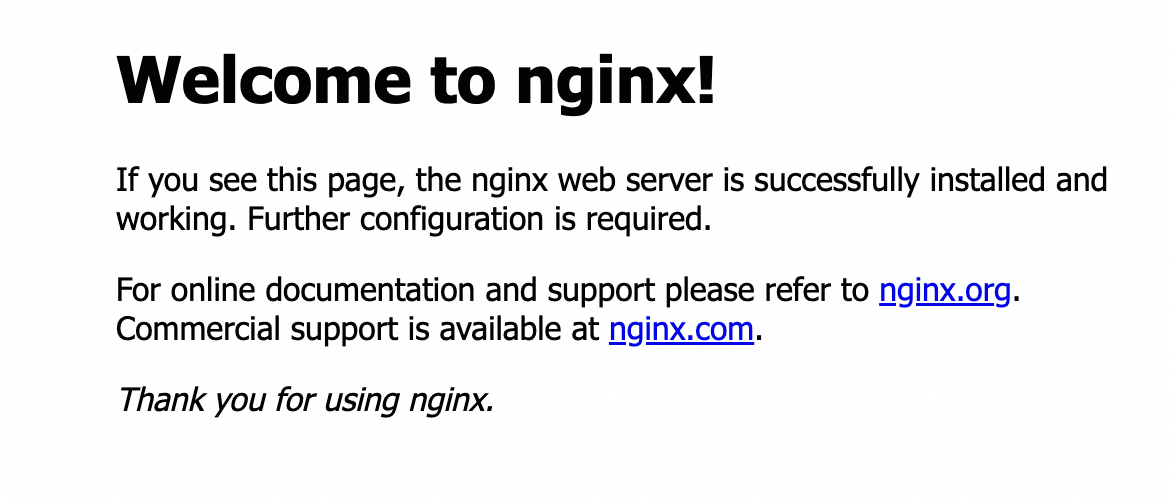
Use kubectl
Use the service.beta.kubernetes.io/alibaba-cloud-loadbalancer-id annotation to bind the Service to your existing SLB instance.
-
Create
my-nginx-svc.yamlwith the following content. Replace${YOUR_LB_ID}with your CLB instance ID from the SLB console:-
alibaba-cloud-loadbalancer-id: Binds the Service to your existing SLB instance instead of creating a new one. -
alicloud-loadbalancer-force-override-listeners: 'true': Allows CCM to create or overwrite listeners on the SLB instance. Set this totruewhen the SLB instance has no existing listeners for this Service. For more information, see Use annotations to configure CLB instances.
apiVersion: v1
kind: Service
metadata:
  annotations:
    service.beta.kubernetes.io/alibaba-cloud-loadbalancer-id: ${YOUR_LB_ID}
    service.beta.kubernetes.io/alicloud-loadbalancer-force-override-listeners: 'true'
  labels:
    app: nginx
  name: my-nginx-svc
  namespace: default
spec:
  ports:
  - port: 80
    protocol: TCP
    targetPort: 80
  selector:
    app: nginx          # Must match the matchLabels value in my-nginx.yaml
  type: LoadBalancer
Key annotations:
-
-
Create the Service:
kubectl apply -f my-nginx-svc.yaml -
Verify the Service is running and has an external IP:
kubectl get svc my-nginx-svcExpected output:
NAME TYPE CLUSTER-IP EXTERNAL-IP PORT(S) AGE my-nginx-svc LoadBalancer 172.21.5.82 39.106.XX.XX 80/TCP 5m -
Access the application using the external IP:
curl 39.106.XX.XXExpected output:
<!DOCTYPE html>
<html>
<head>
<title>Welcome to nginx!</title>
<style>
    body {
        width: 35em;
        margin: 0 auto;
        font-family: Tahoma, Verdana, Arial, sans-serif;
    }
</style>
</head>
<body>
<h1>Welcome to nginx!</h1>
<p>If you see this page, the nginx web server is successfully installed and
working. Further configuration is required.</p>

<p>For online documentation and support please refer to
<a href="http://nginx.org/">nginx.org</a>.<br/>
Commercial support is available at
<a href="http://nginx.com/">nginx.com</a>.</p>

<p><em>Thank you for using nginx.</em></p>
</body>
</html>