Combining Knative with Horizontal Pod Autoscaler (HPA) gives your applications autoscaling based on resource load. Knative already scales based on request volume, but adding the HPA autoscaling extension lets you further fine-tune scaling behavior based on more metrics, such as CPU utilization and memory utilization.
Prerequisites
-
Knative is deployed in your cluster. For more information, see Deploy Knative in an ACK cluster.
A kubectl client is connected to the ACK cluster. For more information, see Connect to an ACK cluster using kubectl.
-
To view Knative Service monitoring data on the Knative monitoring dashboard, Knative must be connected to Managed Service for Prometheus. For more information, see View the Knative service monitoring dashboard.
Step 1: Deploy a Knative Service
-
Log on to the ACK console. In the left navigation pane, click Clusters.
-
On the Clusters page, click the name of your cluster. In the left navigation pane, click .
-
On the Knative page, click the Services tab, set Namespace to default, click Create from Template, paste the following YAML sample into the template, and then click Create.
The following sample configuration creates a Service named
helloworld-go-hpa.apiVersion: serving.knative.dev/v1 kind: Service metadata: name: helloworld-go-hpa # Knative Service name. spec: template: metadata: labels: app: helloworld-go-hpa annotations: autoscaling.knative.dev/class: "hpa.autoscaling.knative.dev" # Specifies HPA as the autoscaling extension. autoscaling.knative.dev/metric: "cpu" # HPA scaling metric. Valid values: cpu and memory. This example uses cpu. autoscaling.knative.dev/target: "30" # The threshold for the HPA CPU metric. Knative HPA adjusts the number of replicas based on this threshold. autoscaling.knative.dev/minScale: "1" # The minimum number of instances for the elastic policy. autoscaling.knative.dev/maxScale: "4" # The maximum number of instances for the elastic policy. spec: containers: - image: registry.cn-hangzhou.aliyuncs.com/knative-sample/autoscale-go:v1024 resources: requests: cpu: '200m' -
Run the following command to check whether the Service is running properly.
kubectl get ksvcExpected output:
NAME URL LATESTCREATED LATESTREADY READY REASON helloworld-go-hpa http://helloworld-go-hpa.default.example.com helloworld-go-hpa-00001 helloworld-go-hpa-00001 TrueREADYcolumn showsTrue, which indicates that the Knative Service is running properly.
Step 2: Enable CPU-based autoscaling
-
Install the Hey load testing tool.
For more information about the Hey load testing tool, see Hey.
-
Run the following command to perform a load test by sending requests to the Service at 100 queries per second (QPS) for 60 seconds.
NoteReplace
121.XX.XX.10with the IP address or domain name of the gateway.hey -z 60s -q 100 -host "helloworld-go-hpa.default.example.com" "http://121.XX.XX.10?prime=40000000" # 121.199.XXX.XXX is the IP address or domain name of the gateway.While the load test is running, run the following command to view Pod scaling in real time.
kubectl get pods --watchExpected Pod scaling output:
NAME                                                     READY   STATUS    RESTARTS   AGE
# The Pod is running and its containers are ready.
helloworld-go-hpa-00001-deployment-67cc8f979b-fxfl5      2/2     Running   0          101m
# Pod count scales out to 4, and the status is 0/2 Pending, which means that the containers are waiting to be scheduled and allocated resources.
helloworld-go-hpa-00001-deployment-67cc8f979b-kv6rj      0/2     Pending   0          0s
helloworld-go-hpa-00001-deployment-67cc8f979b-fxq85      0/2     Pending   0          0s
helloworld-go-hpa-00001-deployment-67cc8f979b-kv6rj      0/2     Pending   0          0s
helloworld-go-hpa-00001-deployment-67cc8f979b-fxq85      0/2     Pending   0          0s
# 4 Pods change to a status of 0/2 ContainerCreating, which indicates that the containers are being created.
helloworld-go-hpa-00001-deployment-67cc8f979b-kv6rj      0/2     ContainerCreating   0          0s
helloworld-go-hpa-00001-deployment-67cc8f979b-fxq85      0/2     ContainerCreating   0          0s
helloworld-go-hpa-00001-deployment-67cc8f979b-kv6rj      0/2     ContainerCreating   0          0s
helloworld-go-hpa-00001-deployment-67cc8f979b-fxq85      0/2     ContainerCreating   0          0s
# 4 Pods change to statuses of 1/2 Running and 2/2 Running, which indicates that one or both containers are created and running.
helloworld-go-hpa-00001-deployment-67cc8f979b-kv6rj      1/2     Running             0          1s
helloworld-go-hpa-00001-deployment-67cc8f979b-kv6rj      2/2     Running             0          1s
helloworld-go-hpa-00001-deployment-67cc8f979b-fxq85      1/2     Running             0          1s
helloworld-go-hpa-00001-deployment-67cc8f979b-fxq85      2/2     Running             0          1s
The output shows that Knative can scale automatically based on requests. When the system load increases and more Pods are required to handle requests, the number of Pods scales out from the initial 1 to 4 to increase the processing capacity and throughput of the system.
(Optional) Step 3: View the Knative monitoring dashboard
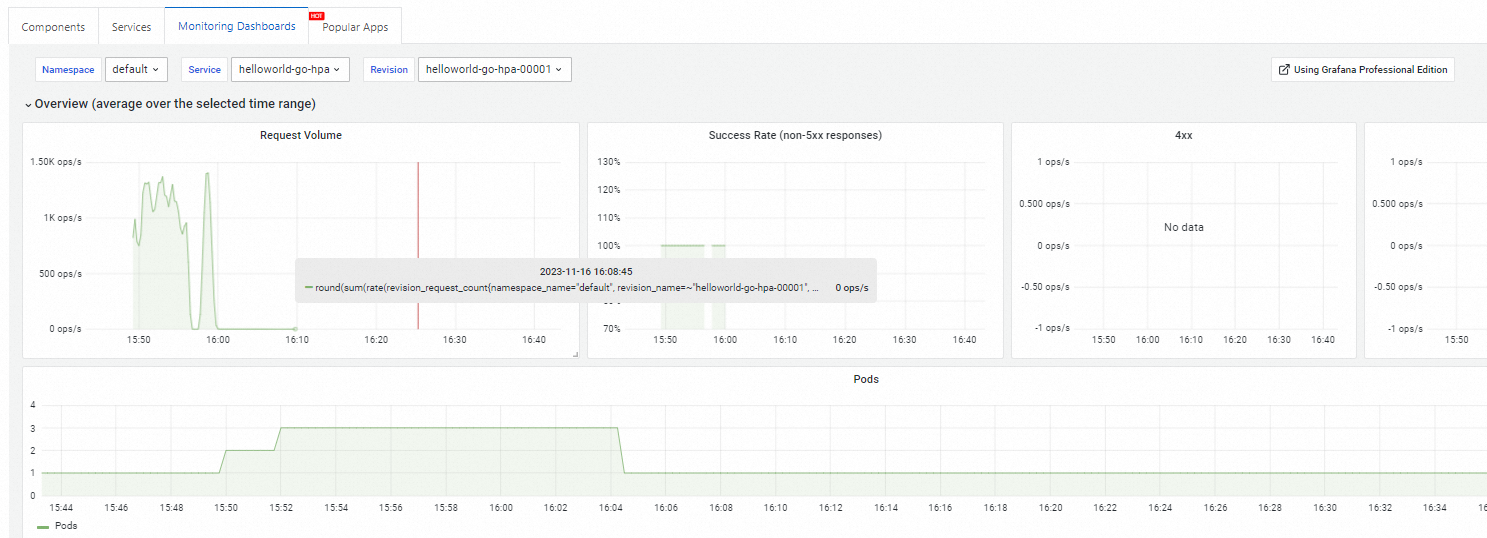
Knative provides out-of-the-box observability. On the Knative page, click the Monitoring Dashboards tab to view the monitoring data of the Service. For more information about the monitoring dashboard, see View the Knative service monitoring dashboard.
References
-
Alibaba Cloud Knative implements Serverless standards by integrating container building (or functions), workload management (dynamic scaling), and an event model. For more information about Alibaba Cloud Knative, see Knative.
-
To learn more about the features of Alibaba Cloud Knative, see Comparison of Alibaba Cloud Knative and open-source Knative.