Alibaba Cloud Compute Nest provides a quick deployment solution for Qwen3 series models, allowing you to privately deploy Qwen3 series models such as Qwen3-235B and Qwen3-32B in minutes. You need to only specify parameters to obtain inference experience of enterprise-exclusive models, without the need to deploy the standard model deployment environment or cloud resource orchestration. This topic describes how to quickly deploy Qwen3 series models in Compute Nest.
What is Qwen3?
Qwen3 is the latest large language model in the Tongyi Qianwen series, built on a trillion-parameter architecture that deeply integrates multi-modal data and reinforcement learning technology. Qwen3 has excellent natural language understanding and generation capabilities, supports both Chinese and English along with multiple programming languages for interaction, and can efficiently complete complex tasks, such as text creation, logical inference, and code generation.
Billing
You can use Compute Nest free of charge. You are charged when you use Alibaba Cloud resources that used to deploy services:
Instance types of GPU-accelerated instances that you select
Elastic block storage
Public bandwidth
You can select either pay-as-you-go or subscription billing method based on your business requirements. For detailed billing rules and prices, see Billable items and Billing methods.
RAM account permissions
Deploying service instances requires your Resource Access Management (RAM) account to access and create Alibaba Cloud resources. The following table describes the required permissions that you grant to the RAM user before creating service instances.
Policy name | Description |
AliyunECSFullAccess | Permission to manage Elastic Compute Service (ECS) |
AliyunVPCFullAccess | Permission to manage virtual private clouds (VPCs) |
AliyunROSFullAccess | Permission to manage Resource Orchestration Service (ROS) |
AliyunComputeNestUserFullAccess | Permission to manage Compute Nest user-side operations |
Procedure
Click LLM Inference Service-ECS to go to the instance creation page.
On the Create Service Instance page, configure the service instance information. The following table describes key parameters that you specify. You can configure other parameters based on your business requirements.
Parameter
Description
Select Template
Select one ecs.
Model Type
Select Qwen.
Model Name
Select Qwen3-32B. Valid values: Qwen3-235B-A22B, Qwen3-32B, and Qwen3-8B.
Instance Type
Select ecs.gn7i-8x.16xlarge. To deploy the Qwen3-235B-A22B model, select the ecs.ebmgn8v.48xlarge instance type by submitting a ticket.
Select open or close public network
Specify whether to enable the Internet connectivity. Set this parameter to true in the performance testing scenario.
Click Next: Confirm Order. Confirm information in the Service Instance Information and Price Preview sections, then click Create Now.
NoteThe creation time varies based on the model.
Test the service instance.
Go to the Compute Nest - Service Instance page and click the service instance that you created.
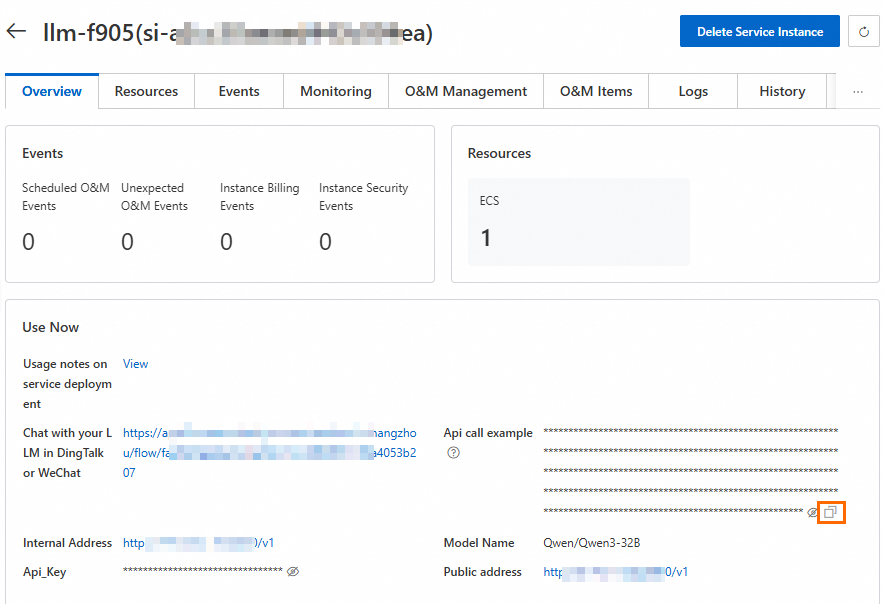
On the Overview tab, in the Use Now section, copy the Api Call Example.
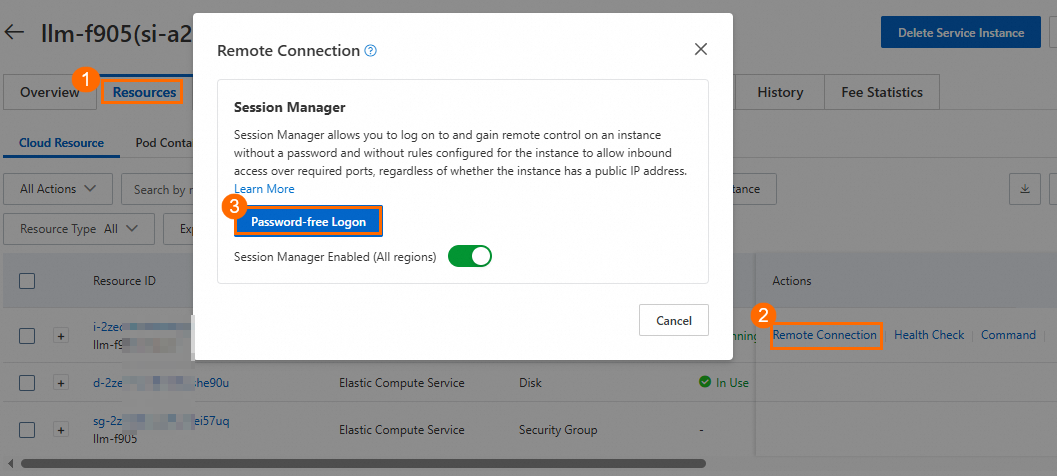
On the Resources tab, click Remote Connection in the Actions column to connect to the ECS instance. In the dialog box that appears, click Password-free Logon to log on to the ECS instance.
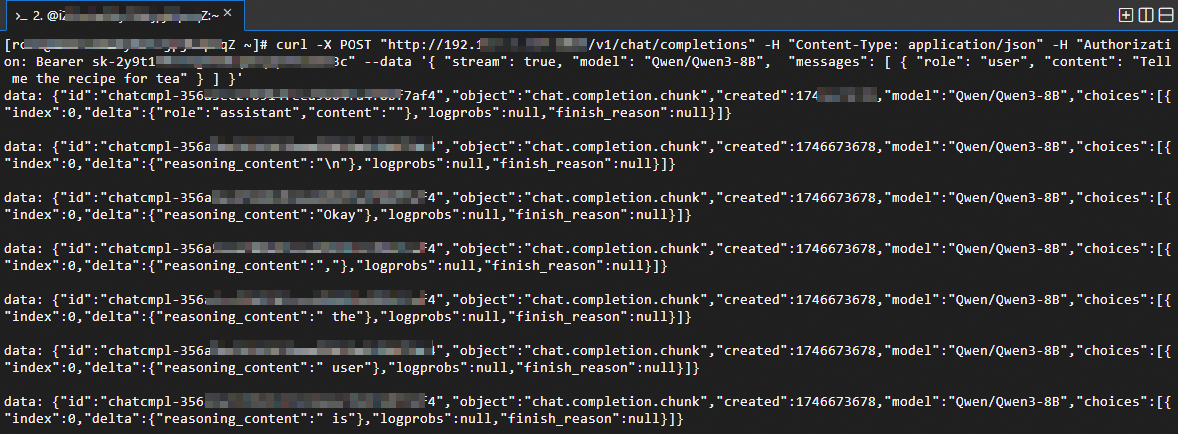
Paste the sample API call content and press the Enter key.
The streaming response is returned, as shown in the following figure.
 Note
NoteIf you do not want the streaming response, you can change
streamin the sample API call content tofalse. If your request is complex, non-streaming output may take an extended period of time.
Other operations
Query model deployment parameters
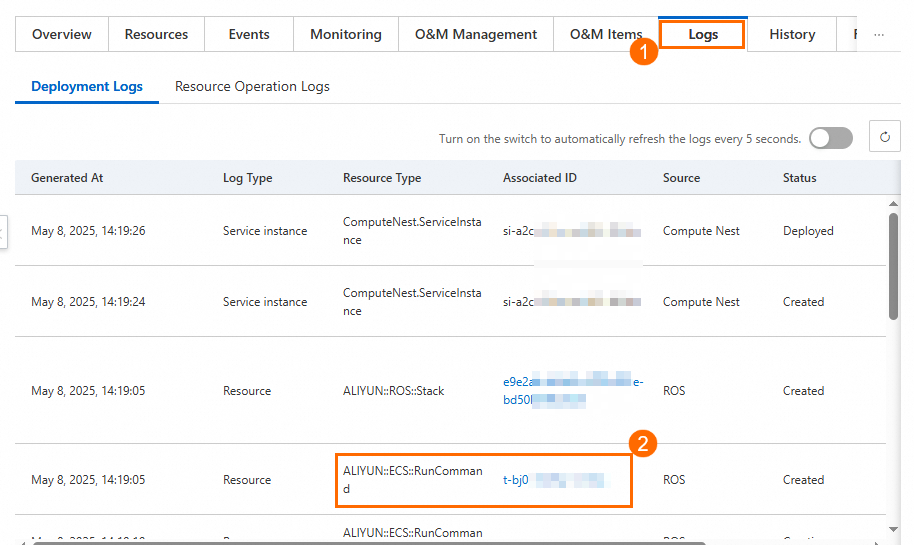
On the Logs tab, find ALIYUN::ECS::RunCommand in the Resource Type column, copy and click the Associated ID to go to the ECS Cloud Assistant page.
On the Command Execution Result tab of the ECS Cloud Assistant page, paste the associated ID and click the search icon.
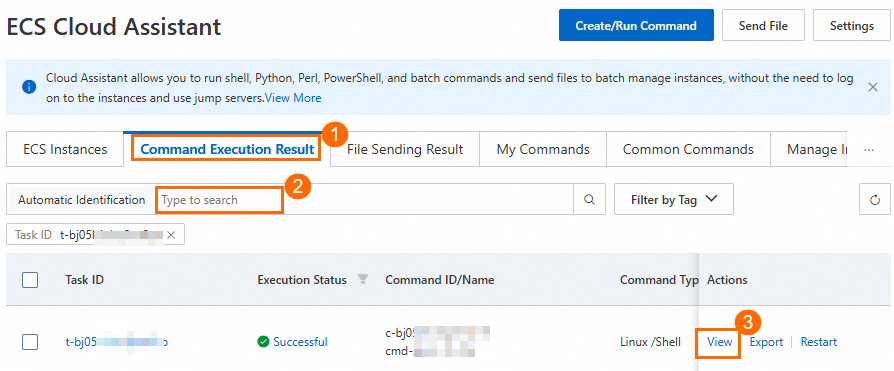
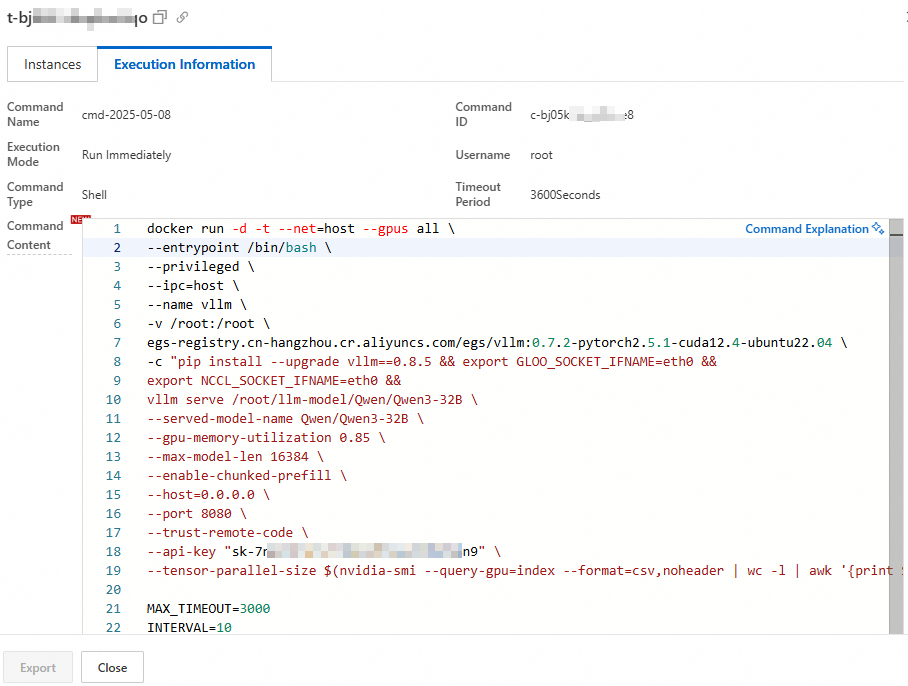
Click View in the Actions column. On the Execution Information tab, view model deployment parameters in the Command Content section.
Deploy models with custom parameters
To deploy models by specifying custom parameters, perform the following steps to modify and redeploy the service instance:
On the Resources tab, click Remote Connection to connect to the ECS instance. In the dialog boxt that appears, click Password-free Logon to log on to the ECS instance.
Stop the model service.
WarningStopping the service causes business interruptions. We recommend that you perform this operation during non-peak business hours.
sudo docker stop vllm
sudo docker rm vllm
Obtain, modify, and run the model deployment command.
In this example, reference scripts for virtual large language model (vLLM) and SGlang are provided. You can refer to the comments to modify the scripts that you want to run.
NoteRedeployment takes about 10 minutes.
vLLM
sudo docker run -d -t --net=host \
 --gpus all \ # Allow the container to access all available GPU devices
 --entrypoint /bin/bash \
 --privileged \
 --ipc=host \
 --name vllm \ # Give the container an easy-to-recognize name vllm
 -v /root:/root \ Mount the host's /root directory to the container's /root for data sharing
 egs-registry.cn-hangzhou.cr.aliyuncs.com/egs/vllm:0.7.2-pytorch2.5.1-cuda12.4-ubuntu22.04 \
 -c "pip install --upgrade vllm==0.8.2 && # Customize version, such as pip install vllm==0.7.1
 export GLOO_SOCKET_IFNAME=eth0 && # Environment variable required for VPC network communication, do not delete or modify
 export NCCL_SOCKET_IFNAME=eth0 && # Environment variable required for VPC network communication, do not delete or modify
 vllm serve /root/llm-model/${ModelName} \  # Use service to start the model
 --served-model-name ${ModelName} \  # Specify the model name used in the service
 --gpu-memory-utilization 0.98 \ # GPU utilization rate, too high may cause OOM in other processes. Valid values: 0 and 1.
 --max-model-len ${MaxModelLen} \ # Maximum model length, value range depends on the model itself.
 --enable-chunked-prefill \
 --host=0.0.0.0 \
 --port 8080 \
 --trust-remote-code \
 --api-key "${VLLM_API_KEY}" \ # Optional, set API key, can be removed if not needed.
 --tensor-parallel-size $(nvidia-smi --query-gpu=index --format=csv,noheader | wc -l | awk '{print $1}')" # Number of GPUs to use, default is all GPUs.
SGlang
 #Download public image containing SGlang
 sudo docker pull egs-registry.cn-hangzhou.cr.aliyuncs.com/egs/vllm:0.7.2-sglang0.4.3.post2-pytorch2.5-cuda12.4-20250224

 sudo docker run -d -t --net=host \
 --gpus all \ # Allow the container to access all available GPU devices
 --entrypoint /bin/bash \
 --privileged \
 --ipc=host \
 --name llm-server \
 -v /root:/root \
 egs-registry.cn-hangzhou.cr.aliyuncs.com/egs/vllm:0.7.2-sglang0.4.3.post2-pytorch2.5-cuda12.4-20250224 \
 -c "pip install sglang==0.4.3 && # Customize version
 export GLOO_SOCKET_IFNAME=eth0 && # Environment variable required for VPC network communication, do not delete or modify
 export NCCL_SOCKET_IFNAME=eth0 && # Environment variable required for VPC network communication, do not delete or modify
 python3 -m sglang.launch_server \
 --model-path /root/llm-model/${ModelName} \ # Use service to start the model
 --served-model-name ${ModelName} \ # Specify the model name used in the service
 --tp $(nvidia-smi --query-gpu=index --format=csv,noheader | wc -l | awk '{print $1}')" \ # Number of GPUs to use, default is all GPUs.
 --trust-remote-code \
 --host 0.0.0.0 \
 --port 8080 \
 --mem-fraction-static 0.9 # GPU utilization rate, too high may cause OOM in other processes. Valid values: 0 and 1.
Sample successful request.
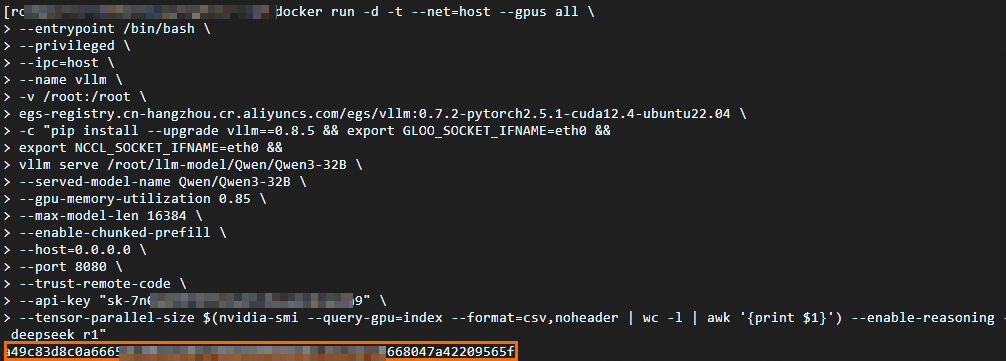
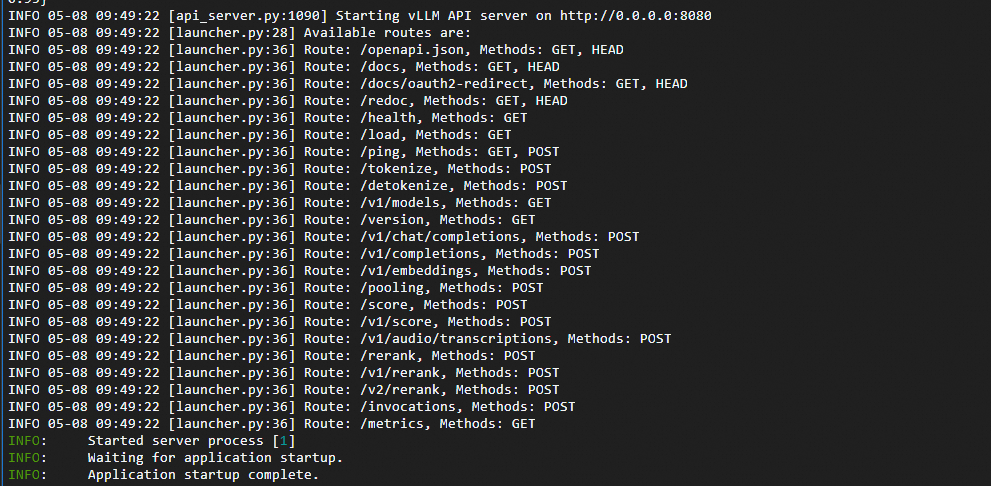
Check whether the model service runs as expected. If the result as shown in the following figure is returned, the model service is successfully redeployed.
sudo docker ps
sudo docker logs vllm
Performance test examples
Qwen3-235B-A22B stress test
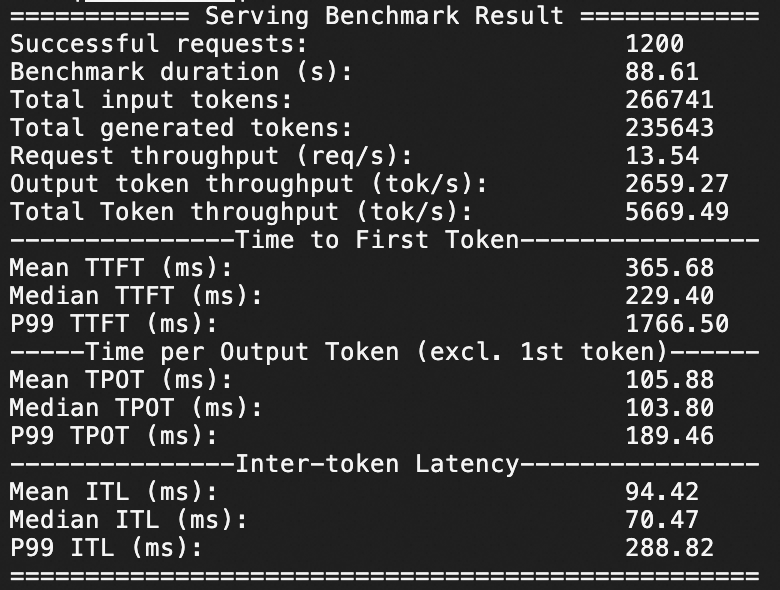
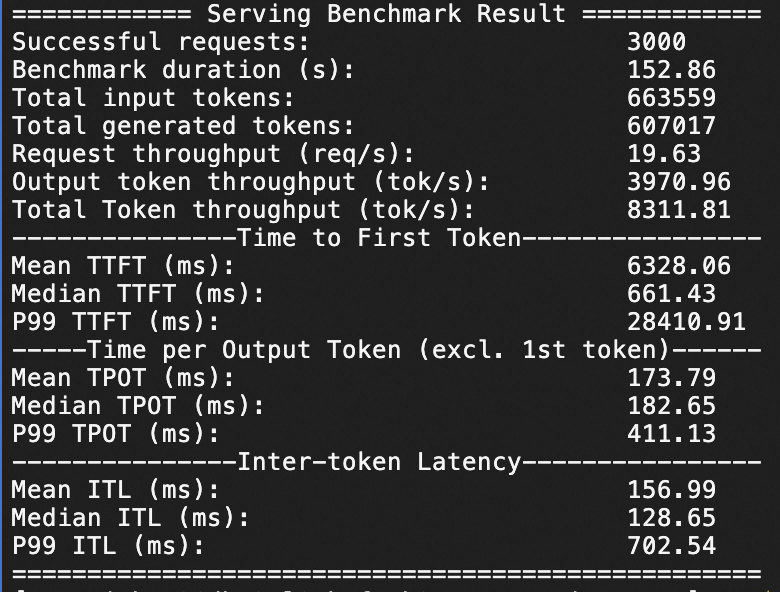
In this example, you test the inference response performance of the Qwen3-235B-A22B model service on the instance of the ecs.ebmgn8v.48xlarge instance type with 20 and 50 queries per second (QPS). The stress test lasts 1 minute.
Test in which QPS is set to 20 and a number of 1,200 requests are sent within 1 minute
Test in which QPS is set to 50 and a number of 3,000 requests are sent within 1 minute
Qwen3-32B stress test
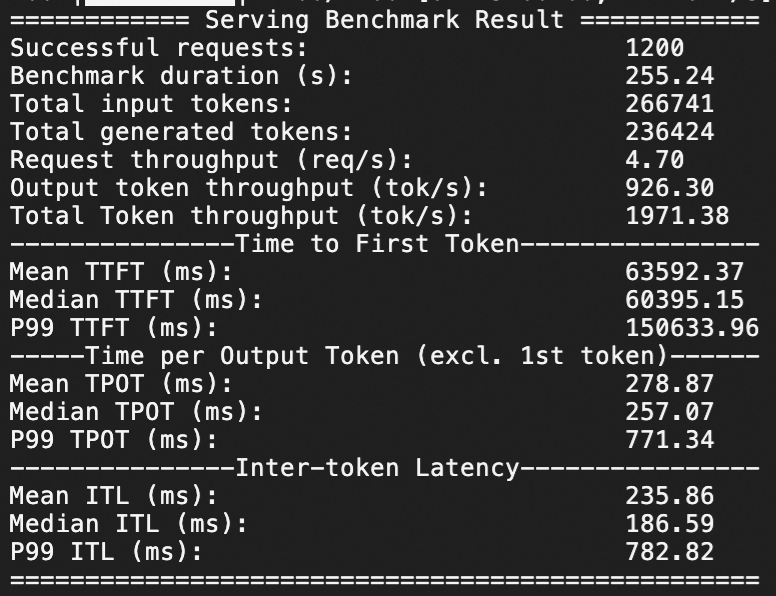
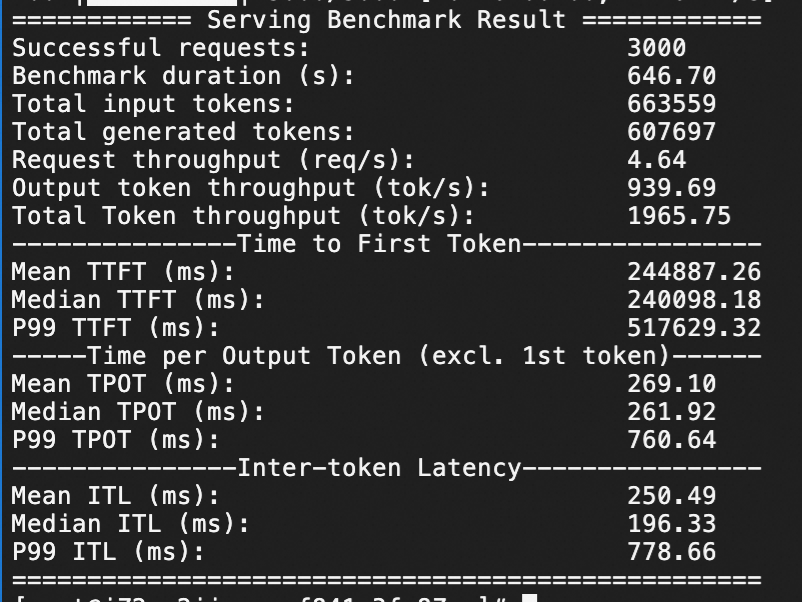
In this example, you test the inference response performance of the Qwen3-32B model service on the instance of the ecs.gn7i-8x.16xlarge instance type with 20 and 50 QPS. The stress test lasts 1 minute.
Test in which QPS is set to 20 and a number of 1,200 requests are sent within 1 minute
Test in which QPS is set to 50 and a number of 3,000 requests are sent within 1 minute
For information about the stress test process, see Stress testing process description.