Real User Monitoring (RUM) provides comprehensive mobile application monitoring, including real-time tracking of performance, crashes, and unresponsiveness. Learn how to integrate the RUM SDK with your Android application.
Create an application
Log on to the Cloud Monitor 2.0 console, select the target workspace, and then click Integration Center in the left-side navigation pane.
In the frontend application section, click the Android card. Enter an application name, configure other parameters as needed, and then click Create Application.
NoteThe application name must be unique.
After the application is created, the integration code appears at the bottom of the page, containing key information such as your AppID and ConfigAddress.
You can later find your application on the page. To view the integration code again, go to the application details page and navigate to the page.
Integrate the SDK
Supported versions
Android 7.0 and later.
Maven automatic integration (recommended)
Add the Maven online dependency in the build.gradle configuration script of your Android Studio project to import the latest version of the SDK.
We recommend that you obtain the latest SDK version from: SDK release notes.
Add the plugin dependency in the
build.gradleconfiguration script in the root directory of your project.buildscript { repositories { mavenLocal() google() mavenCentral() gradlePluginPortal() } dependencies { // Import the ARMS RUM plugin dependency for Alibaba Cloud classpath "com.aliyun.rum:alibabacloud-android-rum-plugin:2.3.2" } }Enable the plugin and add SDK dependencies in the
build.gradleconfiguration script for the App module of your project.// Enable the ARMS RUM plugin for Alibaba Cloud apply plugin: "com.aliyun.rum" dependencies { // Import the ARMS RUM SDK for Alibaba Cloud implementation("com.aliyun.rum:alibabacloud-android-rum-sdk:2.3.2") }
Manual integration
Download and extract the SDK
Download the SDK and extract the .zip file. The extracted contents include:
libsfolder: contains the required JAR packages and JNI librariesrepofolder: contains the required pluginsassetsfolder: does not contain required resource files
Configure the project
Copy the
repofolder to the root directory of your project.Copy the
libsfolder to the App Module directory.Copy the files in
libs/assetsto theApp/src/assetsdirectory.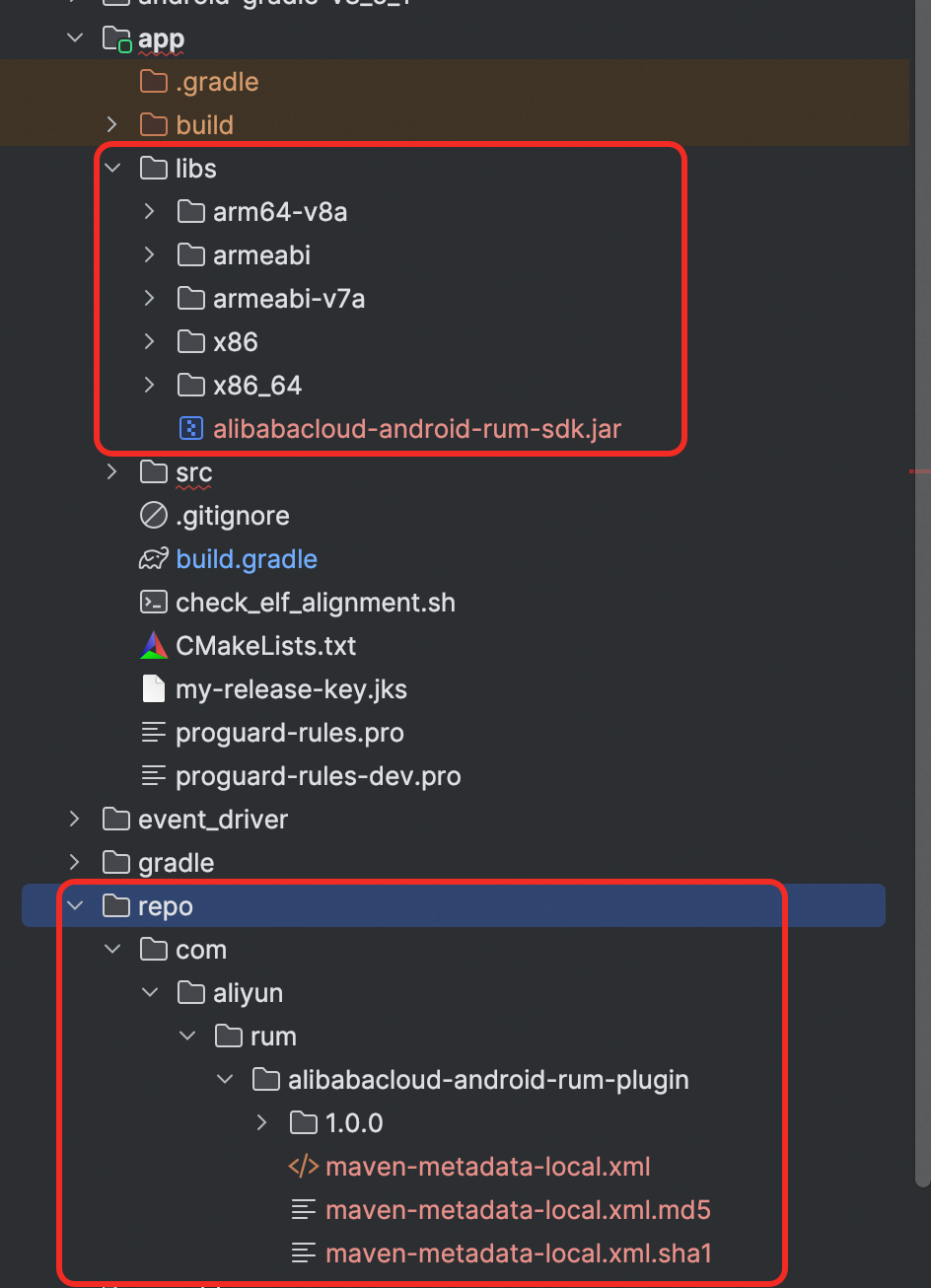
Open the
build.gradle(Gradle 7.0 and earlier) orsettings.gradle(Gradle 7.0 and later) file in the root directory of your project, and add the following Maven configuration in therepositoriesblock:build.gradle
buildscript {
    repositories {
        maven {
            url uri('./repo')
        }
        //... other configurations
    }
}

allprojects {
    repositories {
        maven {
            url uri('./repo')
        }
        //... other configurations
    }
}

//... other configurations
settings.gradle
Add the Maven repository configuration to both the
pluginManagementanddependencyResolutionManagementblocks.pluginManagement { repositories { maven { url uri('./repo') } //... other configurations } } dependencyResolutionManagement { repositoriesMode.set(RepositoriesMode.FAIL_ON_PROJECT_REPOS) repositories { maven { url uri('./repo') } //... other configurations } } //... other configurationsIn the
build.gradlefile in the root directory of your project, add the classpath configuration:// Independent of Gradle version, add the following buildscript { dependencies { classpath "com.aliyun.rum:alibabacloud-android-rum-plugin:2.3.2" } } //... other configurationsOpen the
build.gradlefile in the App Module and import the AlibabaCloudRUM plugin and dependencies:apply plugin: "com.aliyun.rum" //... other configurations android { //... other configurations sourceSets { main { jniLibs.srcDirs = ['libs'] } } //... other configurations } dependencies { implementation files('libs/alibabacloud-android-rum-sdk.jar') //... other configurations }
Configure plugins
In the build.gradle file in the App Module directory of your project, add plugin configuration as needed:
AlibabacloudRumExt {
    // Exclude packages that do not need instrumentation
    excludePackages = [
        "com.example.internal",      // Exclude internal implementation packages
        "com.myapp.debug",           // Exclude debug-related packages
        "com.thirdparty.analytics"   // Exclude third-party analytics SDKs
    ]
}
//... other configurations
After you update the plugin configuration, delete the historical cache for the changes to take effect. Run the following commands to delete the cache:
./gradlew --stop
find "$HOME/.gradle/caches" \
-type d \
( -name "transforms" -o -name "transforms-*" ) \
-prune \
-exec rm -rf -- {} +
Upload symbol files (optional)
Symbol files are used to restore crash stacks that have been obfuscated or stripped of symbols. The plugin supports uploading the following files:
The Java/Kotlin obfuscation mapping file
mapping.txtNative unstripped debug symbol files (
.so)
The autoUploadMap and autoUploadNativeDebugSymbol both default to false. Integrating the plugin alone does not upload any symbol files. Only when you explicitly set the corresponding configuration item to true does the plugin register an upload task for the corresponding files. After the assemble or bundle build task of the corresponding variant runs successfully, the plugin automatically uploads the files.
Add the following configuration to the build.gradle file of the App Module:
AlibabacloudRumExt {
    // RUM application information
    workspace = "<your workspace>"
    serviceId = "<your serviceId>"
    regionId = "cn-hangzhou"

    // Optional: If you do not use the Alibaba Cloud default credential chain,
    // configure the access credential here.
    // accessKeyId and accessKeySecret must be configured together.
    // Inject them through a secure method such as environment variables.
    // accessKeyId = System.getenv("ALIBABA_CLOUD_ACCESS_KEY_ID")
    // accessKeySecret = System.getenv("ALIBABA_CLOUD_ACCESS_KEY_SECRET")

    // Optional: Upload the Java/Kotlin obfuscation mapping file. Default: false
    autoUploadMap = true

    // Optional: Upload Native unstripped debug symbol files. Default: false
    autoUploadNativeDebugSymbol = true

    // Optional: If the plugin cannot find Native symbol files in the default AGP
    // directories, specify the file or directory here.
    // nativeLibPath = "/path/to/unstripped/native/libs"
}
You can enable only one of the upload switches based on the requirements of your application. After you enable a switch, for example when you run ./gradlew :app:assembleRelease or ./gradlew :app:bundleRelease, the plugin runs the uploadReleaseRumSymbols task after the build succeeds.
The following table describes the configuration items.
Configuration item | Default value | Description |
|
| Specifies whether to upload the |
|
| Specifies whether to upload unstripped |
| Empty | The workspace to which the RUM application belongs. Required when upload is enabled. |
| Empty | The service ID of the RUM application. Required when upload is enabled. |
| Empty | The region to which the RUM application belongs. |
| Empty | The path of the Native symbol file or directory. If not configured, the plugin searches the default output directories of AGP, CMake, and ndkBuild. |
|
| When set to |
| Empty | Optional static access credentials. Both must be configured together. If not configured, the Alibaba Cloud default credential chain is used. |
Configure access credentials
The upload task requires an Alibaba Cloud access credential. The following two configuration methods are supported:
Use the Alibaba Cloud default credential chain (recommended)
You do not need to configure
accessKeyIdandaccessKeySecretinAlibabacloudRumExt. The plugin supports obtaining the credential from a RAM role, an OIDC role, a CLI/Profile configuration, or environment variables. The following example shows how to use environment variables:export ALIBABA_CLOUD_ACCESS_KEY_ID="<your accessKeyId>" export ALIBABA_CLOUD_ACCESS_KEY_SECRET="<your accessKeySecret>"Explicitly configure the credentials in
AlibabacloudRumExtIf the default credential chain is unavailable in your build environment, configure
accessKeyIdandaccessKeySecretin the extension. Both parameters must be configured together. We recommend that you inject them from environment variables or Gradle properties:AlibabacloudRumExt { workspace = "<your workspace>" serviceId = "<your serviceId>" regionId = "cn-hangzhou" accessKeyId = System.getenv("ALIBABA_CLOUD_ACCESS_KEY_ID") accessKeySecret = System.getenv("ALIBABA_CLOUD_ACCESS_KEY_SECRET") autoUploadMap = true autoUploadNativeDebugSymbol = true }Do not write AccessKey pairs in plaintext in
build.gradlefiles or commit them to code repositories.
Least privilege requirements
The plugin calls the GetRumSymbolFileParams operation of Cloud Monitor to obtain the symbol file upload parameters. The RAM identity used for the upload (for example, the RAM user to which the AccessKey belongs, or the RAM role or OIDC role obtained through the default credential chain) must have at least the following permission:
{
  "Version": "1",
  "Statement": [
    {
      "Effect": "Allow",
      "Action": "cms:GetRumSymbolFileParams",
      "Resource": "*"
    }
  ]
}
Before you enable upload, make sure that all of the following conditions are met:
The app has
versionNameorversionCodeconfigured. The version of uploaded files stays consistent with the app version of the current build variant.The build environment can access the Cloud Monitor OpenAPI and the OSS upload address returned by the operation.
When you upload
mapping.txt, obfuscation is enabled for the current build variant. When you upload Native symbol files, provide unstripped.sofiles that contain a GNU ELF Build ID.
Configure permissions
The ARMS RUM SDK for Alibaba Cloud requires the following permissions from the host app. Make sure the following permissions are included:
<!-- Required -->
<uses-permission android:name="android.permission.INTERNET"/>
<uses-permission android:name="android.permission.ACCESS_NETWORK_STATE"/>
<!-- Optional -->
<uses-permission android:name="android.permission.READ_PHONE_STATE"/>
<uses-permission android:name="android.permission.READ_BASIC_PHONE_STATE"/>
<uses-permission android:name="android.permission.WRITE_EXTERNAL_STORAGE"/>
<uses-permission android:name="android.permission.READ_EXTERNAL_STORAGE"/>
Configure obfuscation
If your app uses ProGuard obfuscation, add the following configuration:
-keep public class com.alibabacloud.rum.** { *; }
-dontwarn com.alibabacloud.rum.**

-optimizations !code/simplification/*,!field/*,!class/merging/*,!method/propagation/*,!class/unboxing/enum,!code/allocation/variable
Initialize the SDK
Add the following code at the beginning of the onCreate function of your custom Application class.
Synchronous startup
import com.alibabacloud.rum.AlibabaCloudRum;

public class YourApplication extends Application {
  @Override
  public void onCreate() {
    super.onCreate();
    // SDK version >= 2.0.0
    AlibabaCloudRum.withServiceId("") // ServiceId obtained when you created the RUM application
          .withWorkspace("") // Workspace obtained when you created the RUM application
          .withEndpoint("") // Endpoint obtained when you created the RUM application
          .start(getApplicationContext());

    // SDK version < 2.0.0
    AlibabaCloudRum.withAppID("<your appid>") // AppID obtained when you created the RUM application
        .withConfigAddress("<your config address>") // ConfigAddress obtained when you created the RUM application
        .start(getApplicationContext());
  }
}
Asynchronous startup
SDK version >= 2.2.9 supports asynchronous startup.
When using asynchronous startup, the SDK startup process does not block the host app. However, data generated before the SDK starts may not be collected.
import com.alibabacloud.rum.AlibabaCloudRum;

public class YourApplication extends Application {
  @Override
  public void onCreate() {
    super.onCreate();

    // SDK version >= 2.2.9
    AlibabaCloudRum.withServiceId("") // ServiceId obtained when you created the RUM application
      .withWorkspace("") // Workspace obtained when you created the RUM application
      .withEndpoint("") // Endpoint obtained when you created the RUM application
      .start(getApplicationContext(), true);
  }
}
Verify the integration
Launch the APK application with the integrated SDK, and view the Android Studio Logcat logs. Search for the AlibabaCloudRUM keyword (or filter by the AlibabaCloudRUM tag). If the following log appears, the SDK is successfully integrated and data collection has started.
