Managed Service for Prometheus provides HTTP API endpoints to integrate Prometheus monitoring data into your self-managed Grafana instance, or retrieve monitoring data through the Prometheus API for custom development.
Before you begin
You have created a Prometheus instance.
Step 1: Get the HTTP API endpoint
Log on to the Cloud Monitor 2.0 console, and select a workspace. In the left navigation pane, choose .
-
On the Instance List page, find the target instance and click Settings in the Actions column.
-
On the Settings tab, copy the public or internal network HTTP API endpoint.
The page displays the public and internal HTTP API endpoints. You can also generate an authentication token to secure data reads.
-
(Optional, V1 instances only) To improve data read security for a V1 Prometheus instance in Grafana, click Generate Token to obtain an authentication token for the instance.
Important-
V1 instances: After you generate an authentication token, you must configure it when you add the data source in Grafana. Otherwise, you cannot read monitoring data from the Prometheus instance.
-
V2 instances: By default, you must use an AccessKey ID and an AccessKey Secret to access data. The RAM user associated with the AccessKey ID must be granted the AliyunPrometheusMetricReadAccess or AliyunCloudMonitorFullAccess system role.
-
Step 2: Integrate with self-managed Grafana
-
Configure a data source in Grafana.
-
Log on to your local Grafana system as an administrator.
-
In the upper-left corner of the page, click the
 icon.
icon. -
In the left-side navigation pane, choose .
NoteOnly administrators can view this menu.
-
On the Data Sources tab, click + Add new data source.
-
On the Add data source page, select Prometheus.
-
On the Settings tab, enter a custom name in the Name field. In the Prometheus server URL field, paste the HTTP API endpoint from Step 1.
-
Configure security settings.
V2 instances
Enable Basic auth. Set User to your AccessKey ID and Password to your AccessKey Secret.
V1 instances (Optional)
Click + Add header. In the Custom HTTP Headers section, click +Add header, set Header to Authorization, and set Value to the authentication token that you obtained in Step 1: Obtain the HTTP API address.
-
-
At the bottom of the page, click Save & Test.
-
Verify the result.
-
Log on to your local Grafana system.
-
In the upper-left corner of the page, click the
icon, and then choose Dashboards in the left-side navigation pane. -
On the Dashboards page, click New in the upper-right corner and select New dashboard from the drop-down menu.
-
Click + Add visualization.
-
On the Select data source page, select the data source that you created.
-
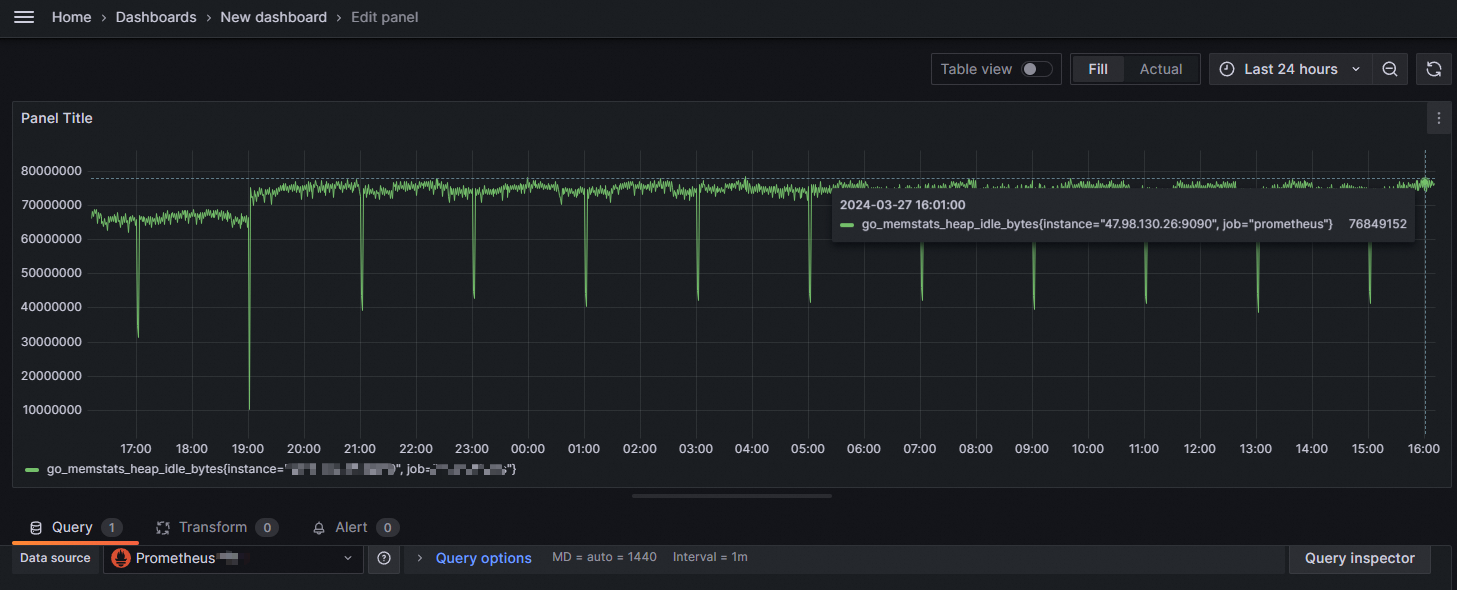
On the Edit Panel page, select the Query tab. For query A, enter a metric name in the Metrics field and values in the Label filters field. Then, click Run queries.
If a chart for the specified metric is displayed, the configuration is successful. Otherwise, verify that the API endpoint and authentication token are correct, and that the data source contains Prometheus monitoring data.
-
Step 3: Retrieve Prometheus data
The following example shows how to retrieve Prometheus monitoring data. For more information, see the open source Prometheus HTTP API documentation.
V2 instances
GET {HTTP API}/api/v1/query
Accept: application/json
Content-Type: application/json
Authorization: Basic <base64-encoded-username:password>
{
  "query":"arms_prometheus_target_interval_length_seconds_sum",
  "time":"1635302655",
  "timeout":"1000"
}-
Replace
{HTTP API}with the HTTP API endpoint that you obtained in Step 1. -
Replace
usernameandpasswordwith your AccessKey ID and AccessKey Secret, respectively.
V1 instances
GET {HTTP API}/api/v1/query
Accept: application/json
Content-Type: application/json
Authorization: {Token}
{
  "query":"arms_prometheus_target_interval_length_seconds_sum",
  "time":"1635302655",
  "timeout":"1000"
}Replace {HTTP API} and {Token} with the HTTP API endpoint and authentication token from Step 1.
Sample response: