Large Language Model (LLM) observability enables you to observe AgentScope applications using a Python probe. The Python probe is a proprietary observability collection probe developed by Alibaba Cloud that implements automatic instrumentation based on OpenTelemetry standards. This topic describes how to integrate AgentScope applications with Cloud Monitor 2.0 to help you monitor the real-time operational status of your AI applications.
Framework Introduction
AgentScope is an open-source, multi-agent application development framework from Alibaba Cloud. It provides various agent types, such as ReActAgent, and built-in model adapters for services such as DashScope and OpenAI. It also supports tool calling, memory management, and multi-agent collaboration.
After integration, the following capabilities are automatically monitored:
Agent execution traces
LLM calls, including token usage and the input/output content of model calls
Tool calling traces, including the call details for each tool in the toolkit
ReAct steps, including the observation of actions in each loop iteration
Integration methods
Integrate with Container Service for Kubernetes (ACK) and Container Compute Service (ACS)
Step 1: Install the agent integration assistant (ack-onepilot)
-
Log on to the ACK console. On the Clusters page, click the name of the cluster.
In the left-side navigation pane, click add-ons. Then, in the upper-right corner, search for ack-onepilot.
On the ack-onepilot card, click Install. Configure the parameters. Use the default values unless otherwise required. Click Confirm.
NoteEnsure that the ack-onepilot component version is 5.1.1 or later. The current version appears in step 3. If you have an earlier version installed, repeat steps 1 and 2, then click Upgrade in step 3.
Step 2: Modify configuration to enable AI application monitoring
Log on to the Container Service console or the . In the left navigation pane, select Clusters.
On the Clusters page, click the name of your destination cluster. In the left navigation pane, choose .
Switch to the appropriate namespace, locate the workload to monitor, click the More icon
 in the Actions column on the far right, and then click Edit YAML in the dialog box.
In the YAML file, add the following
labelsunder spec > template > metadata. After adding them, click Update.labels: aliyun.com/app-language: python # Required for Python applications. Indicates this is a Python application. armsPilotAutoEnable: 'on' armsPilotCreateAppName: "deployment-name" # Display name of the application in ARMS armsPilotAppWorkspace: "workspace" # Replace with your current workspace name. If not specified, the default workspace is used.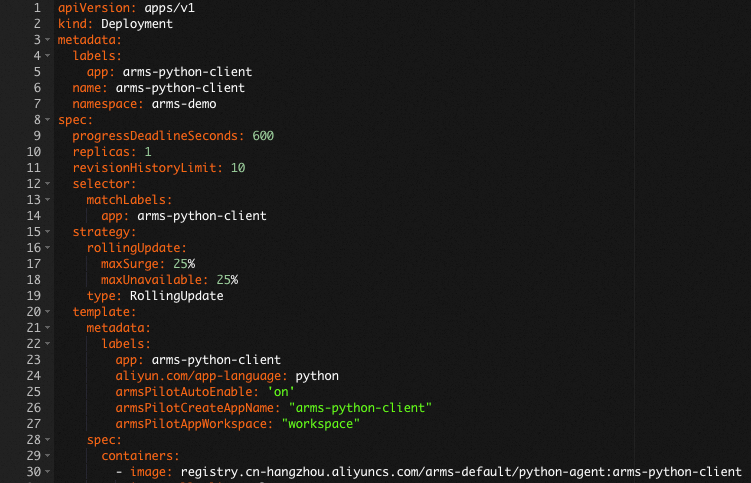
Manually integrate the agent
Step 1: Download the agent installer aliyun-bootstrap
Download the agent installer from the PyPI repository.
pip3 install aliyun-bootstrapStep 2: Configure environment variables
You must manually add the following environment variables for your Python application:
# Method 1: Add environment variables for all processes in the current shell.
export ARMS_APP_NAME=<your-app-name>        # Specifies a custom name for your application.
export ARMS_WORKSPACE=<your-workspace-name> # Specifies the workspace to which data is reported.
export ARMS_REGION_ID=<your-region-id>      # Specifies the Region ID of your workspace.
export ARMS_LICENSE_KEY=<your-license-key>  # Specifies the license key for authentication.
# Method 2: Add environment variables for a specific process.
ARMS_APP_NAME=<your-app-name> ARMS_WORKSPACE=<your-workspace-name> ARMS_REGION_ID=<your-region-id> ARMS_LICENSE_KEY=<your-license-key> aliyun-instrument <your-app-file>.pyTo obtain the license key, see the authToken field in the response of the GetApplicationObservability API operation.
(Optional) Docker installation reference
For Docker environments, modify your Dockerfile based on the following example.
# Add environment variables
ENV ARMS_APP_NAME={your-app-name}
ENV ARMS_REGION_ID={your-region-id}
ENV ARMS_LICENSE_KEY={your-license-key}
ENV ARMS_WORKSPACE={your-workspace-name}

## Add your original Dockerfile commands here
Step 3: Use aliyun-bootstrap to install the Python agent
To speed up installation, run the following command to configure the mirror repository first.
pip config set global.index-url https://mirrors.aliyun.com/pypi/simple/ && pip config set install.trusted-host mirrors.aliyun.comInstall the agent.
aliyun-bootstrap -a install
Step 4: Start the application
Start the application using the ARMS Python agent
aliyun-instrument python app.pySample Code
import asyncio
import os
from agentscope.agent import ReActAgent
from agentscope.formatter import DashScopeChatFormatter
from agentscope.message import Msg, TextBlock
from agentscope.model import DashScopeChatModel
from agentscope.tool import Toolkit, ToolResponse

def get_weather(city: str) -> ToolResponse:
    weather_data = {
        "Beijing": "Sunny 25°C",
        "Shanghai": "Cloudy 22°C",
        "Hangzhou": "Light rain 20°C",
    }
    result = weather_data.get(city, f"{city}: No weather data available")
    return ToolResponse(content=[TextBlock(type="text", text=result)])

def search_info(keyword: str) -> ToolResponse:
    info = {
        "West Lake": "West Lake in Hangzhou is a famous freshwater lake, UNESCO World Heritage",
        "Great Wall": "Ancient Chinese defensive structure, UNESCO World Heritage",
    }
    result = info.get(keyword, f"No information found for '{keyword}'")
    return ToolResponse(content=[TextBlock(type="text", text=result)])

async def main():
    model = DashScopeChatModel(
        model_name=os.environ.get("MODEL_NAME", "qwen-plus"),
        api_key=os.environ.get("DASHSCOPE_API_KEY"),
    )
    toolkit = Toolkit()
    toolkit.register_tool_function(get_weather)
    toolkit.register_tool_function(search_info)
    agent = ReActAgent(
        name="TravelAgent",
        sys_prompt="You are a travel assistant. Use tools to query weather and travel info.",
        model=model,
        formatter=DashScopeChatFormatter(),
        toolkit=toolkit,
        max_iters=5,
    )
    msg = Msg(
        name="user",
        content="What's the weather in Hangzhou today? Is West Lake worth visiting?",
        role="user",
    )
    result = await agent(msg)
    print(result.content)

asyncio.run(main())
View Monitoring Details
Log on to the Cloud Monitor 2.0 console. Select the target workspace. In the navigation pane on the left, choose .
On the AI Application List page, you can view the connected applications. Click an Application Name to view detailed monitoring data for the application.
On the AI Application Observability page, click an application name to open the details page. The details page shows the call chain of the application, with overview information such as the trace ID, start time, total duration, and total tokens. The timing diagram shows the complete agent call chain:
invoke_agent(AGENT type, 4.59s total duration)react step(STEP type) ->chat qwen-plus(LLM type, with input and output tokens)execute_tool(TOOL type, such asget_weatherandsearch_info)
You can filter spans by type: AGENT, STEP, LLM, and TOOL.
Click a span to view its details in the panel on the right. For an LLM span, Input Messages shows the system prompt and the user question, and Output Messages shows the model response together with the tool_call details.