If multiple resources in your Alibaba Cloud account trigger the same alert rule within a single cycle, Cloud Monitor consolidates the notifications to reduce alert fatigue and resource usage. After the initial alert, subsequent consolidated notifications are sent at one-minute intervals.
Notification methods
Notification consolidation applies to email and DingTalk chatbot notifications. Each consolidated email or message displays details for up to 20 resources.
Threshold alert rule for an application group
Example: Create an alert rule namedtest_cpu_alarm to monitor the(Agent) Host.cpu.total (Recommended) metric for ECS instances in thetestGroup application group. Alert notifications are sent to theAlarm_Group alert contact group viaemail, and DingTalk chatbot. Before you begin, create thetestGroup application group and theAlarm_Group alert contact group.
-
Log on to the Cloud Monitor console.
-
In the left-side navigation pane, click Application Groups.
-
On the Application Groups tab, click the application group name testGroup.
-
In the left-side navigation pane of the target application group, click Alert Rule.
-
Click Create Alert Rule.
-
In the Create Alert Rule panel, set Product to Elastic Compute Service (ECS).
-
Click Add Rule, configure the alert rule for the ECS instances, and then click OK.
Parameter
Example
Rule name
test_cpu_alarm
Metric
(Agent) Host.cpu.total (Recommended)
Threshold
>=10%
Alert level
Info
Notification methods
Email+DingTalk chatbot
-
Set Alert Contact Group to Alarm_Group and click OK.
After you configure the alert rule, if multiple resources trigger the alert within the same cycle, notifications are automatically consolidated. The content varies by notification method:
-
Email
-
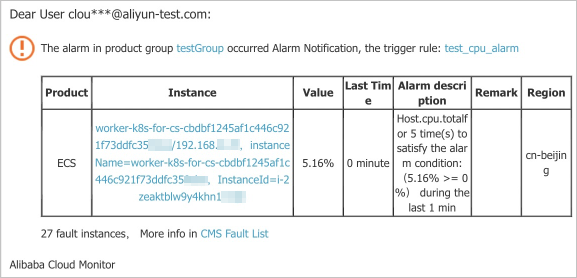
The first alert notification contains the alert details for the first resource in the application group.
-
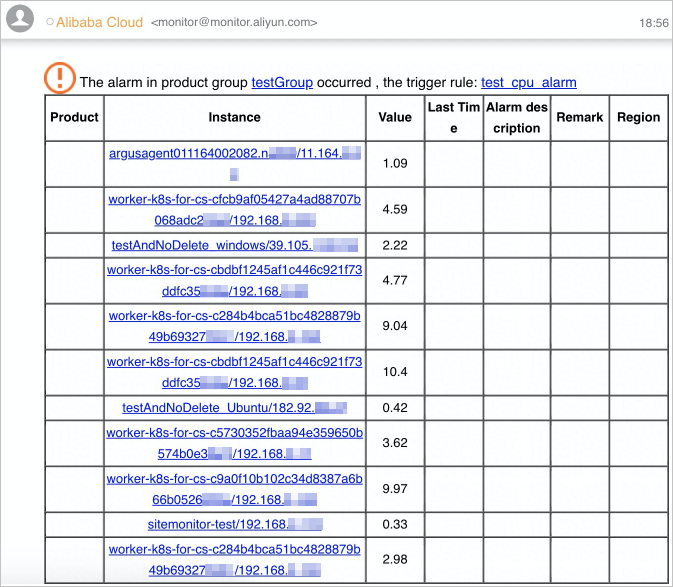
After one minute, Cloud Monitor consolidates alerts for other resources. The consolidated email displays details for a maximum of 20 resources.
-
-
DingTalk chatbot
-
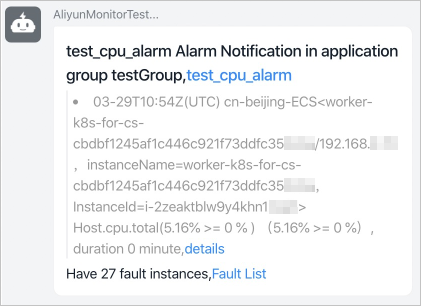
The first alert notification contains the alert details for the first resource in the application group.
-
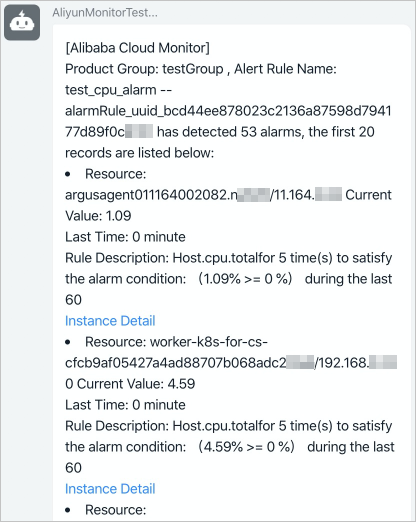
After one minute, Cloud Monitor consolidates alerts for other resources. The consolidated DingTalk chatbot message displays details for a maximum of 20 resources.
-
-
Threshold alert rule for all resources
Example: Create an alert rule namedtest_cpu_alarm to monitor the(Agent) Host.cpu.total (Recommended) metric for all ECS resources. Alert notifications are sent to theAlarm_Group alert contact group viaemail, and DingTalk chatbot.
-
Log on to the Cloud Monitor console.
-
In the left-side navigation pane, choose .
-
On the Alert Rules page, click Create Alert Rule.
-
In the Create Alert Rule panel, configure an alert rule and notification method for the specified metric of all ECS resources.
Parameter
Example
Product
ECS
Resource range
All Resources
Rule name
test_cpu_alarm
Metric
Instance dimension / (Agent)cpu.total
Cycle
1 minute
Threshold
Maximum >= 10%
Consecutive cycles
5
Alert level
Warn
Notification methods
Email+DingTalk chatbot
Alert contact group
Alarm_Group
-
Click Confirm.
After you configure the alert rule, if multiple resources trigger the alert within the same cycle, notifications are automatically consolidated. The content varies by notification method:
-
Email
-
The first alert notification contains the alert details for the first resource in the application group.
-
After one minute, Cloud Monitor consolidates alerts for other resources. The consolidated email displays details for a maximum of 20 resources.
-
-
DingTalk chatbot
-
The first alert notification contains the alert details for the first resource in the application group.
-
After one minute, Cloud Monitor consolidates alerts for other resources. The consolidated DingTalk chatbot message displays details for a maximum of 20 resources.
-
-