Add a Lark chatbot webhook URL to an alert contact and configure an alert rule so that the contact receives alert notifications in a Lark group when the rule is triggered.
Prerequisites
An alert contact is created. For more information, see Create an alert contact or contact group.
Step 1: Create a Lark chatbot
The following steps use Lark for PC as an example.
-
Start Lark for PC and go to the Lark group to which the alert contact belongs.
-
Click the
 icon in the lower-right corner.
 -
Click Add Bot.
-
Click Add next to Custom Bot.
-
Enter a name for the bot, such as "Cloud Monitor alert notification", and then click Add.
-
Click Copy to copy the webhook URL.
-
Select Custom Keywords and add the following keywords: Cloud Monitor, Cloud Service, Monitor, ECS, and Alert.
-
Click Finish.
Step 2: Add the Lark chatbot webhook URL to the alert contact
Add the webhook URL that you copied in Step 1 to the alert contact.
-
Log on to the Cloud Monitor console.
-
In the left-side navigation pane, choose .
-
On the Alert Contacts tab, find the target alert contact and click Edit in the Actions column.
-
In the Set Alert Contact panel, enter the webhook URL of the Lark chatbot.
To test connectivity to the callback URL:
-
Click Test, located directly to the right of the callback URL.
In the WebHook Test panel, check the HTTP status code and test result details to verify connectivity.
NoteYou can also set the Test Template Type: and Language:. Then click Test again to view updated test results.
-
Click Close.
-
-
After you verify the information, click Confirm.
Step 3: Create an alert contact group
Add the alert contact to a contact group so that the group can be associated with alert rules.
-
Log on to the Cloud Monitor console.
-
In the left-side navigation pane, choose .
-
Click the Alert Contact Group tab.
-
On the Alert Contact Group tab, click Create Alert Contact Group.
-
In the Create Alert Contact Group panel, enter a name for the alert contact group and select the target alert contact.
-
Click Confirm.
Step 4: Create an alert rule
Configure an alert condition for resource metrics and specify the alert contact group.
See Create an alert rule for more information.
Step 5: View alert notifications
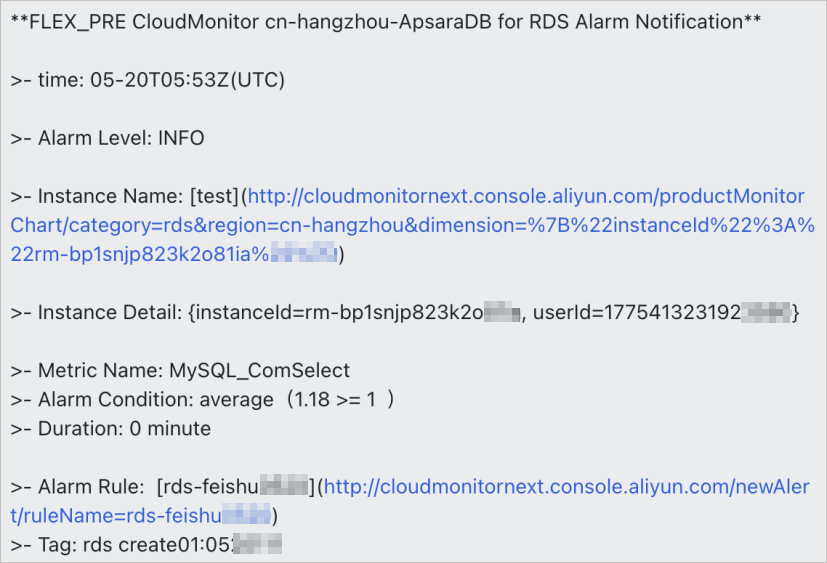
When a metric value triggers an alert rule, the Lark group receives a notification similar to the following example.