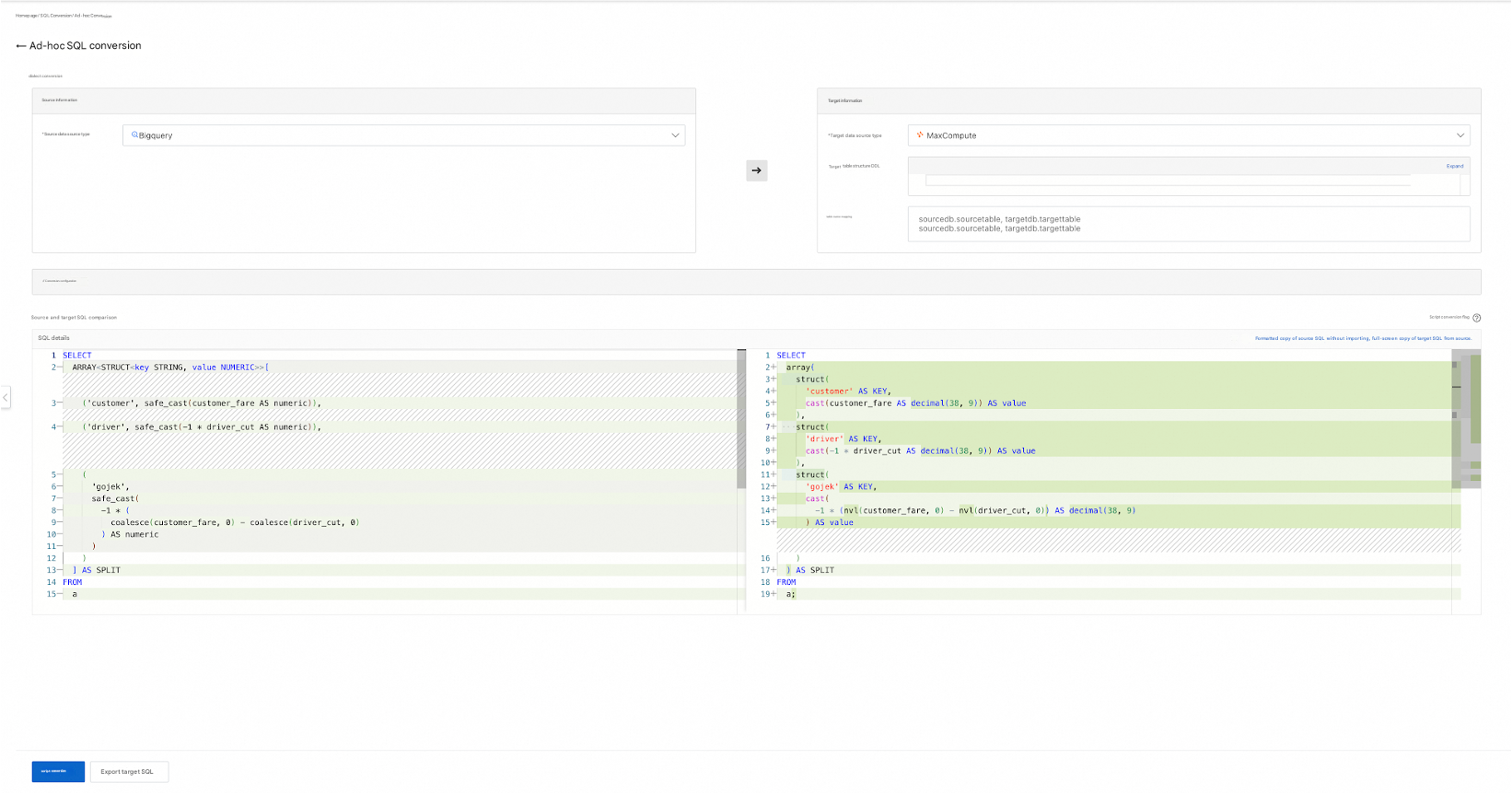
The Aliyun SQL Migration Tool (ASMT) converts SQL jobs from various source big data products, such as Online Analytical Processing (OLAP) and data warehouses, to SQL that is compatible with Alibaba Cloud compute engines. This includes handling Data Definition Language (DDL), Data Manipulation Language (DML), and Data Query Language (DQL). The tool also detects table lineage in SQL jobs to provide optimization recommendations for DDL generation on specific target compute engines. This makes migrating big data platforms to the cloud simple and efficient. For migration scenarios with critical SQL syntax incompatibilities, the tool highlights these issues to assist with manual intervention.
1. Batch conversion
1.1. Create a DDL conversion job
In the navigation pane on the left, choose Job Migration > SQL Conversion. Click the DDL tab.
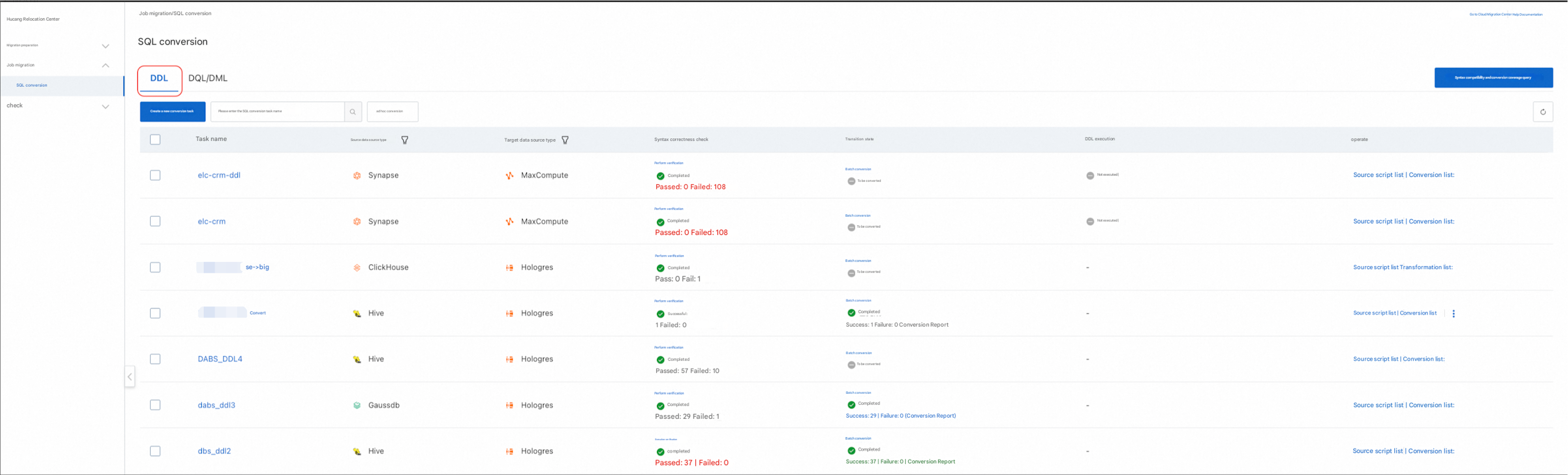
Click Create Conversion Job.
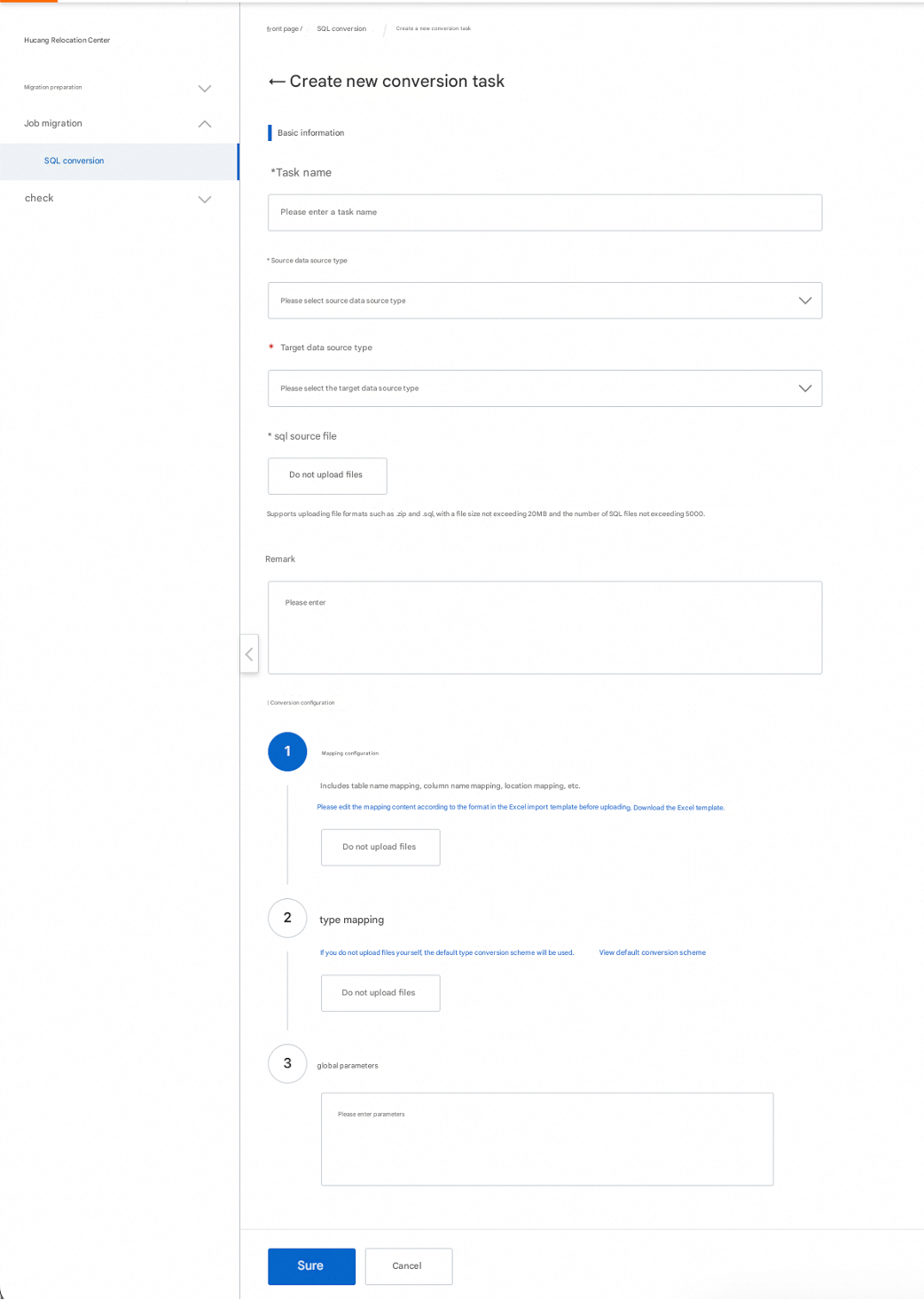
Parameter | Description |
Job Name | The name of the SQL conversion job. |
Source Data Source Type | For more information, see the SQL conversion compatibility matrix. |
Target Data Source Type | For more information, see the SQL conversion compatibility matrix. |
Source SQL File | Upload the source SQL file. Supports .ZIP and .SQL files. The file size cannot exceed 20 MB, and the number of SQL files should not exceed 5,000. |
Conversion Configuration - Table Name Mapping | Fill in the mapping between source and target table names. |
Type Mapping | Lets you customize data type conversion solutions. No configuration is required if you do not have special business needs. |
Global Parameters | enable_rewrite_select_item_alias_with_quote=true|false Forces quotes around aliases. This is mainly for Hologres as a target to maintain case sensitivity consistent with the source. enableDeltaTable=true|false When the target is MaxCompute, this determines whether to convert to a standard table or a DeltaTable. |
1.2. Create a DQL/DML conversion job
In the navigation pane on the left, choose Job Migration > SQL Conversion. Click the DQL/DML tab.
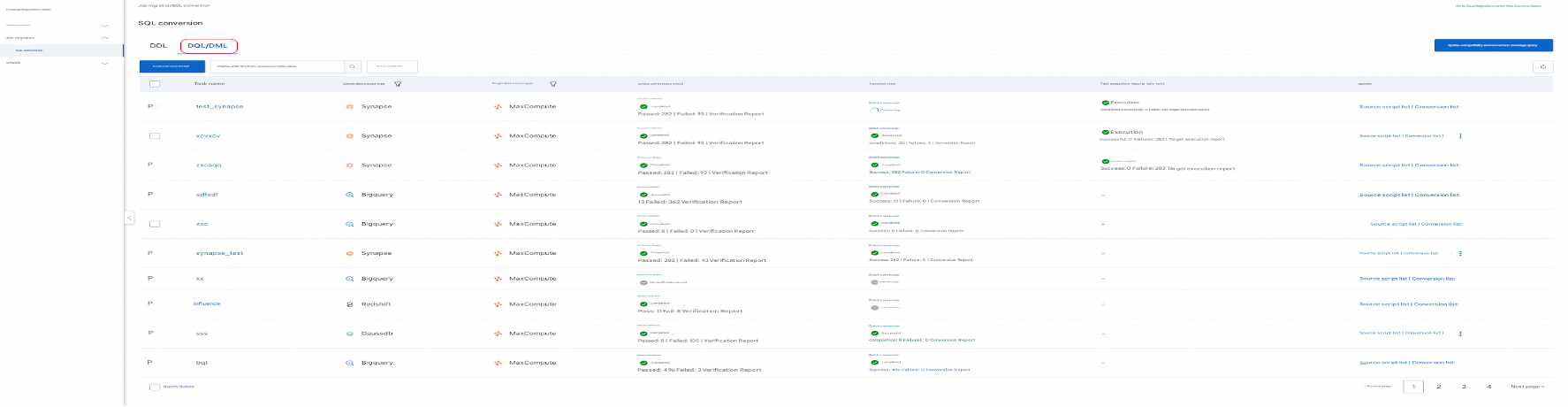
Click Create Conversion Job.
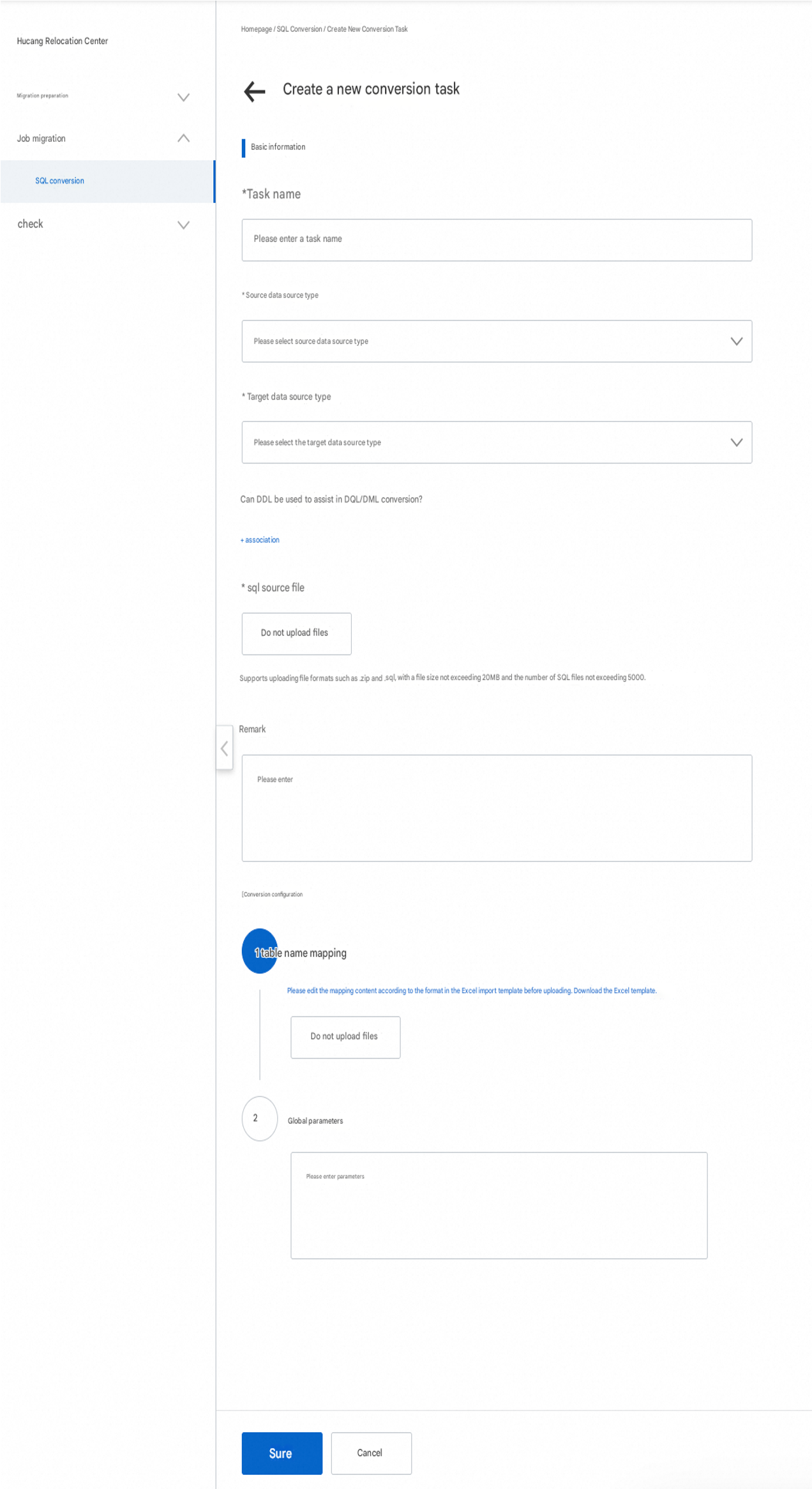
Parameter | Description |
Job Name | The name of the SQL conversion job. |
Source Data Source Type | For more information, see the SQL conversion compatibility matrix. |
Target Data Source Type | For more information, see the SQL conversion compatibility matrix. |
Source SQL File | Upload the source SQL file. The supported formats are .ZIP and .SQL. The file size cannot exceed 20 MB, and the number of SQL files cannot exceed 5,000. |
Associate DDL to Assist DQL/DML Conversion | Upload the target DDL file. Associating the DDL (table schema metadata) when you convert DQL/DML improves conversion accuracy. For example, this helps better handle implicit conversion issues. |
Conversion Configuration - Table Name Mapping | Specify the mapping between source and target table names. |
2. Syntax validation
2.1. Run validation
After you create an SQL conversion job, you must validate its syntax. The conversion can run only after the SQL passes validation by the SQL Parser. This process is the same for DDL, DML, and DQL.
1. In the conversion job list, click Run Validation for the job.
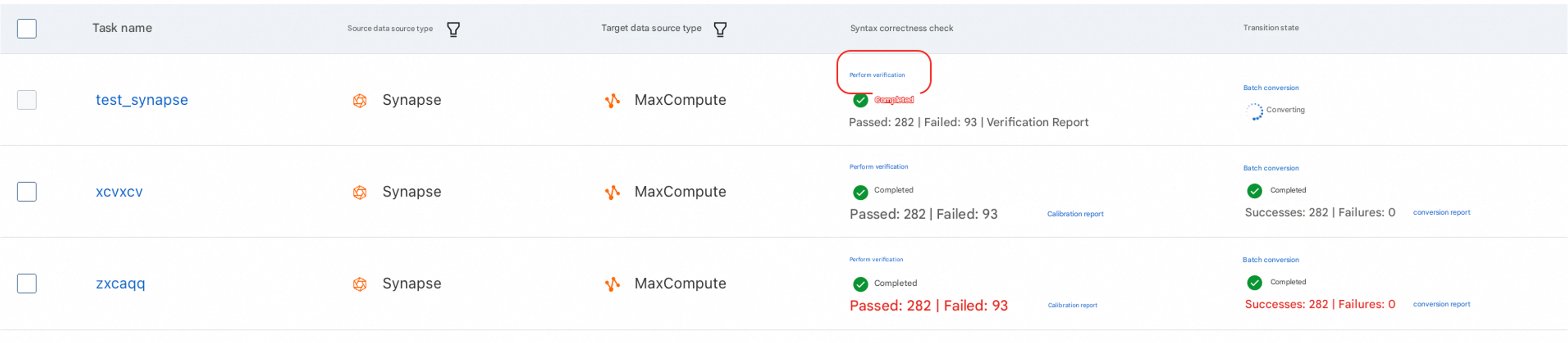
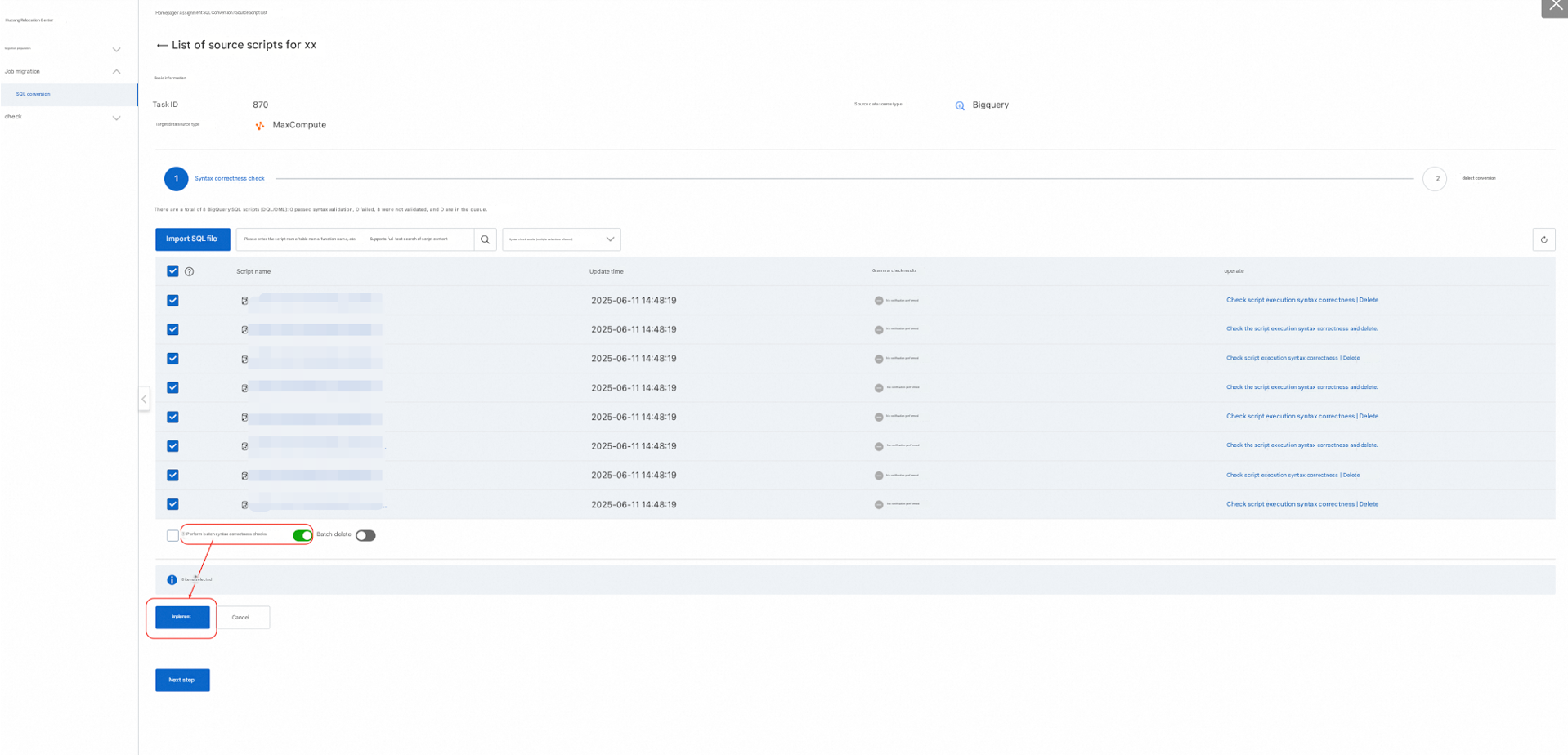
2. Alternatively, you can use the batch validation feature on the Source Script List page.
Entry point:

Batch validation:
You can add more SQL files for conversion on this page.
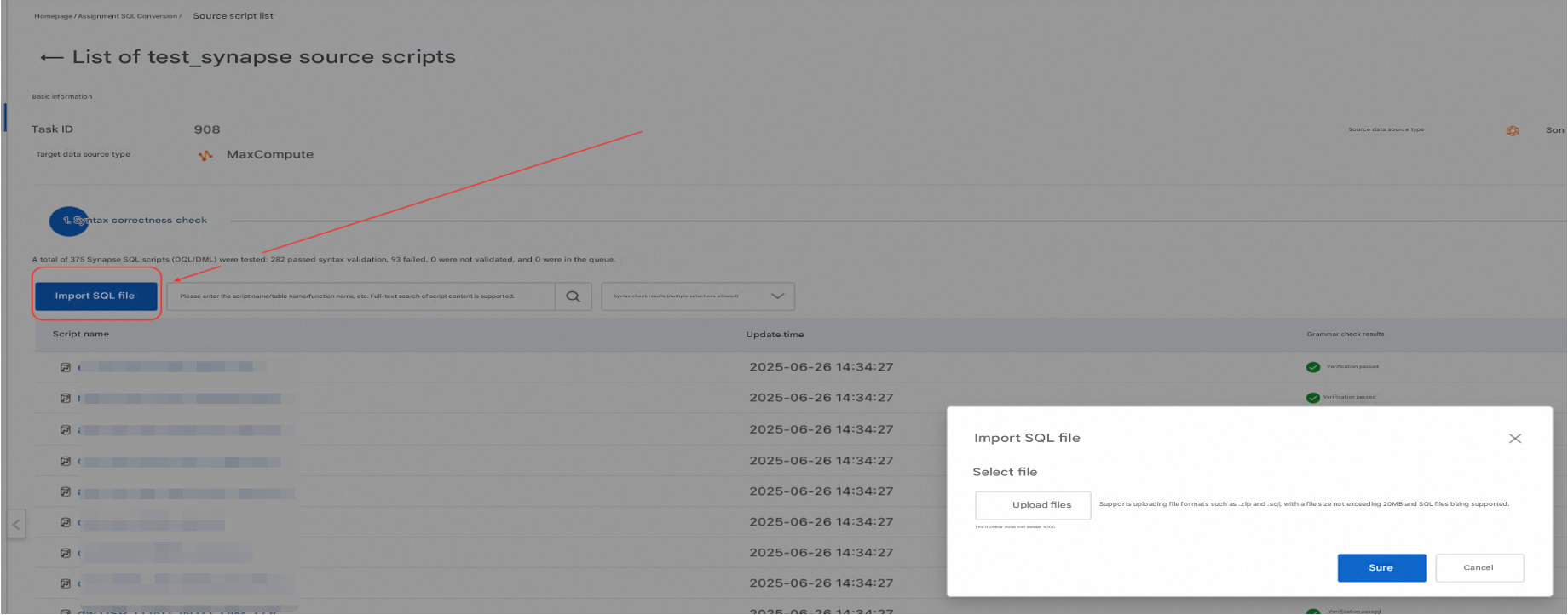
2.2. Validation report
Syntax and function scan results
After the syntax validation is successful, the tool generates a conversion support report. This report shows the number of functions scanned from the SQL files and indicates whether they are supported for conversion, as shown in the following figure:
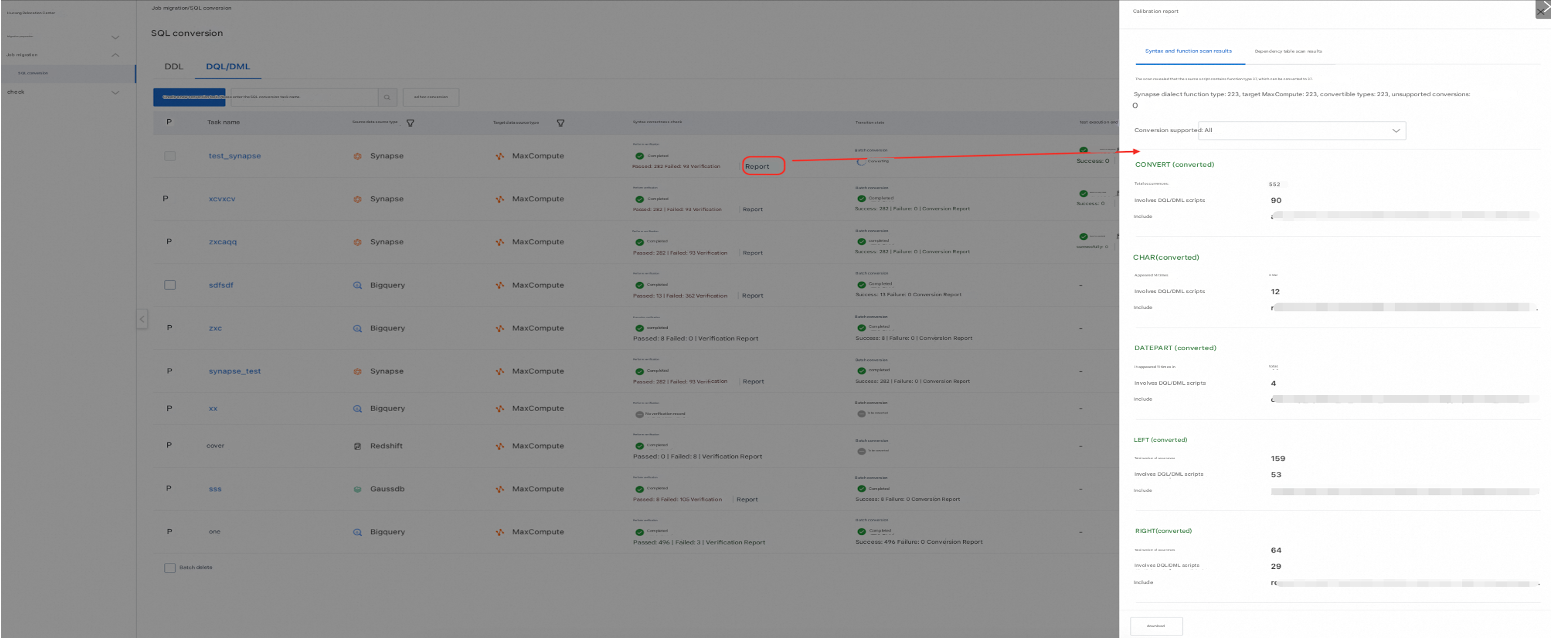
You can download and export the report from the lower-left corner.
Dependent table scan results
The tool analyzes the SQL and lists the input tables for each SQL script, as shown in the following figure:
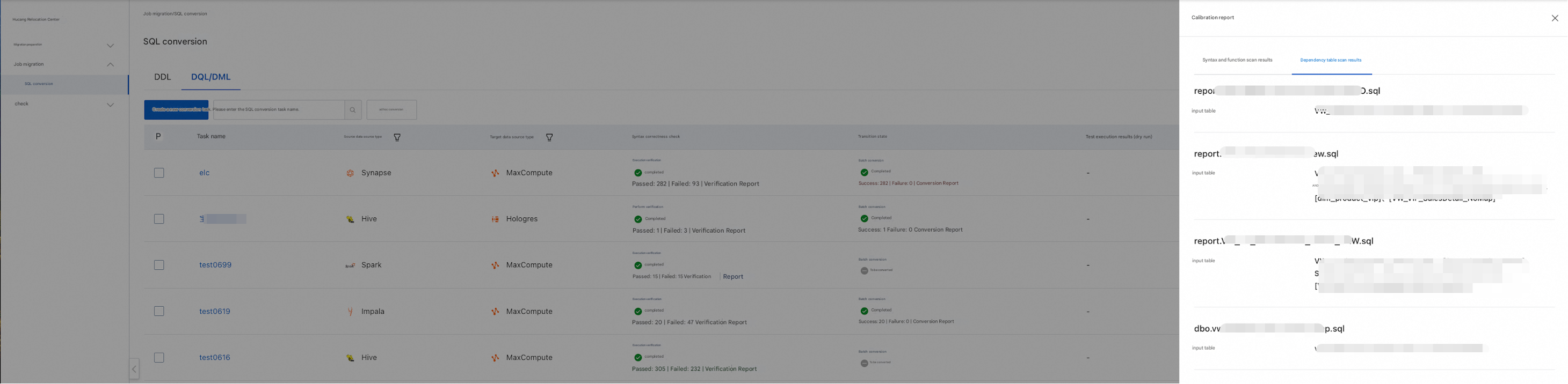
You can download and export the report from the lower-left corner.
3. SQL conversion
3.1. Run conversion
After an SQL conversion job passes syntax validation by the SQL Parser, you can run the batch SQL conversion. This process is the same for DDL, DML, and DQL.
1. In the conversion job list, click Batch Convert for the job.
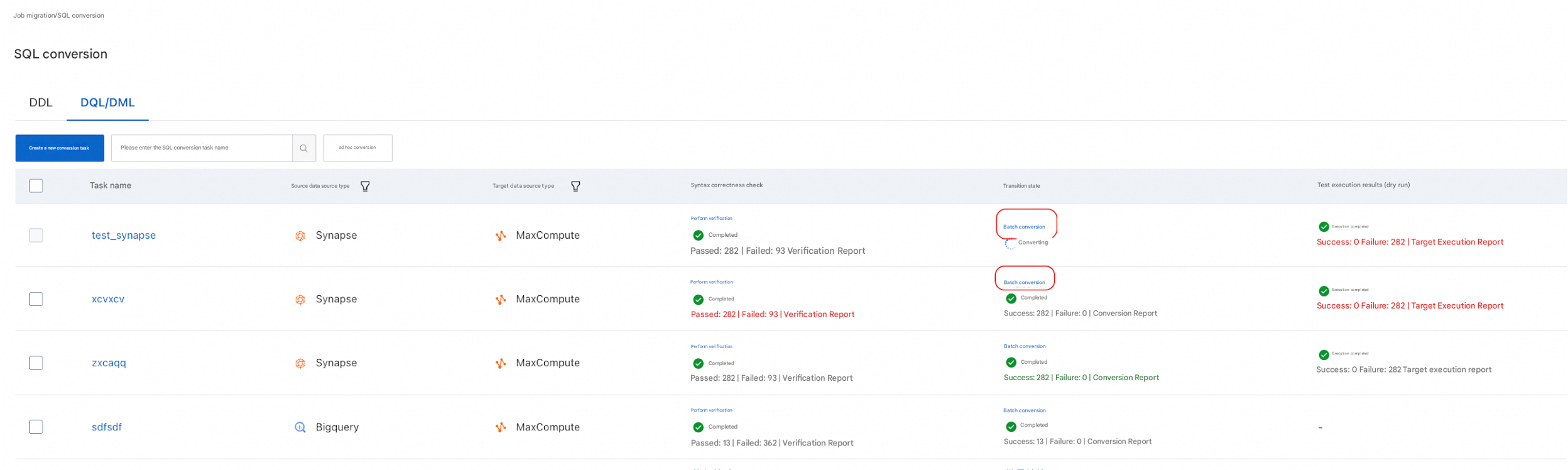
2. You can also perform batch validation in the Source Script List-Next/Transform List.
In the conversion job list, click Source Script List on the right.
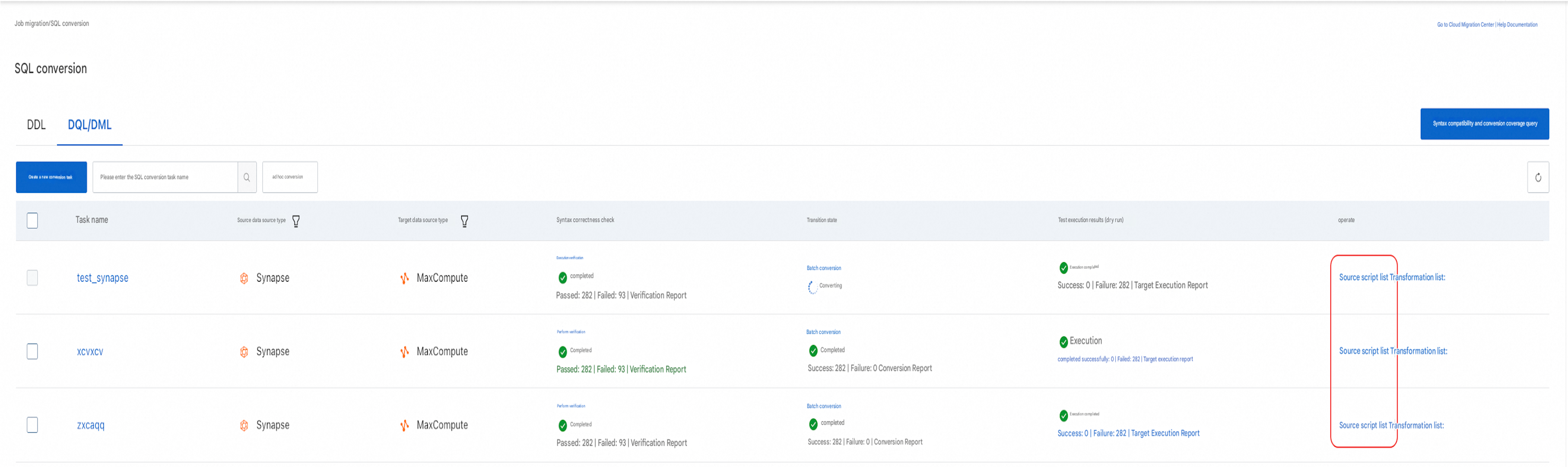
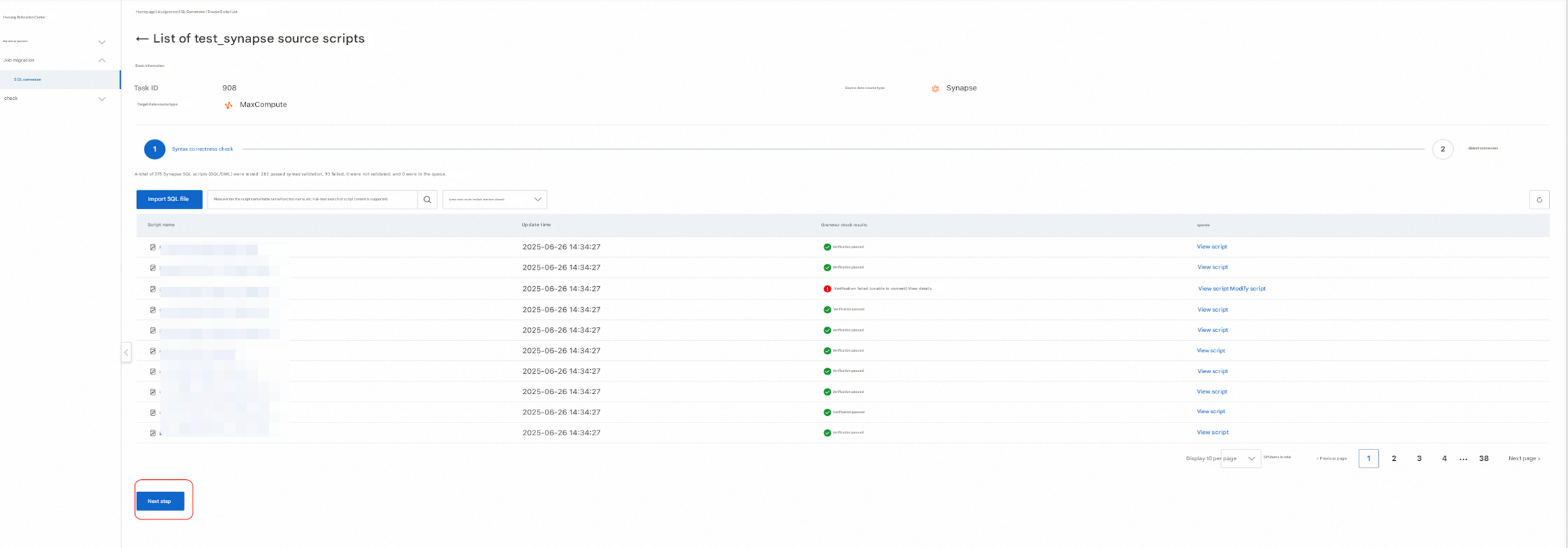
On the Source Script List page, confirm that the syntax validation is successful, and then click Next in the lower-left corner.
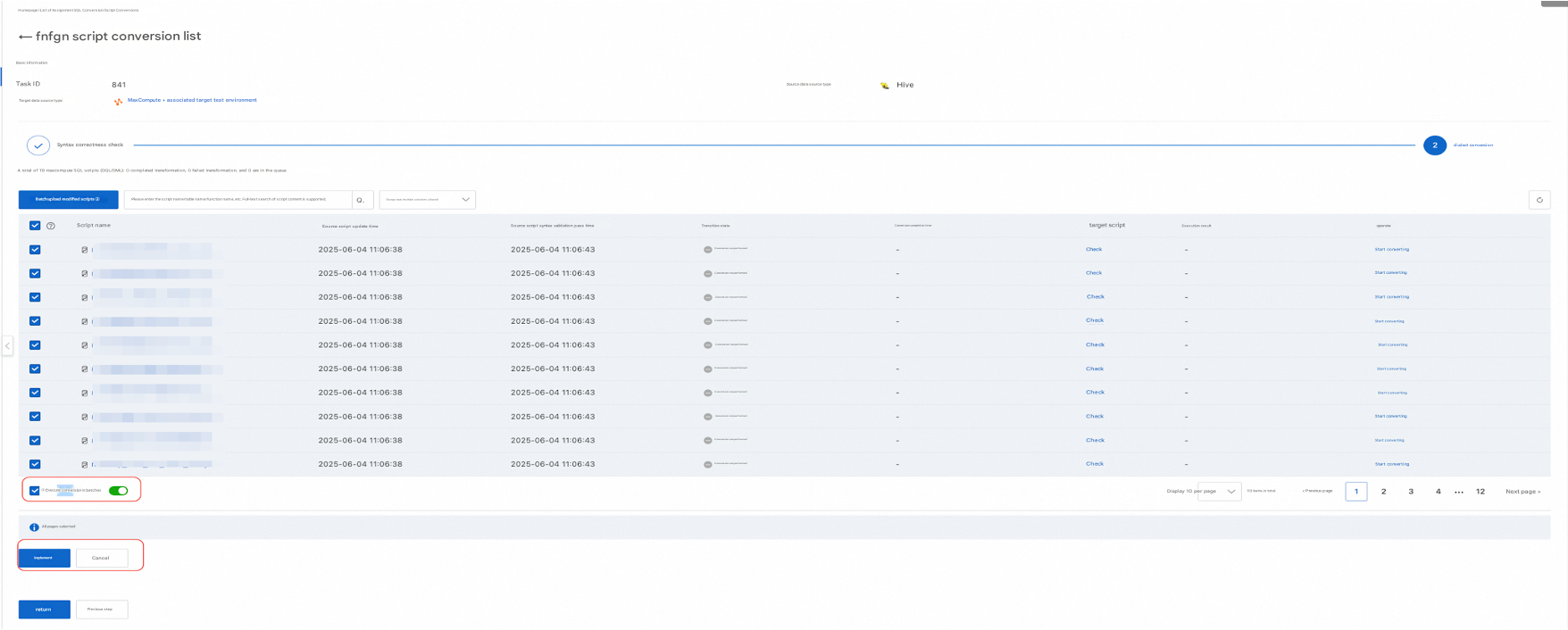
Navigate to the Script Conversion List page and click Run Batch Conversion.
3.2. Conversion report
After the conversion is complete, the tool generates a conversion report. This report shows which functions and SQL nodes were converted in the SQL files, how many scripts were affected, and which specific scripts were involved.
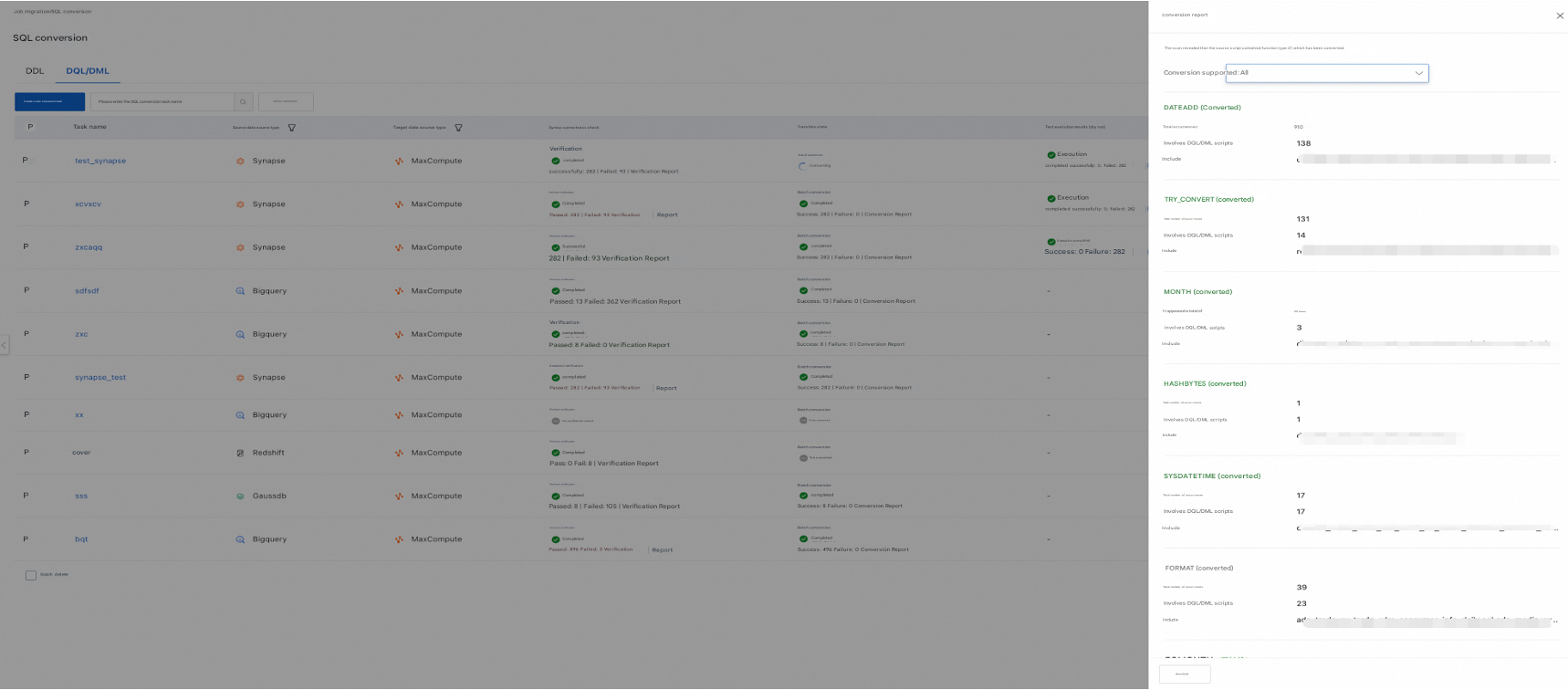
You can download and export the report from the lower-left corner.
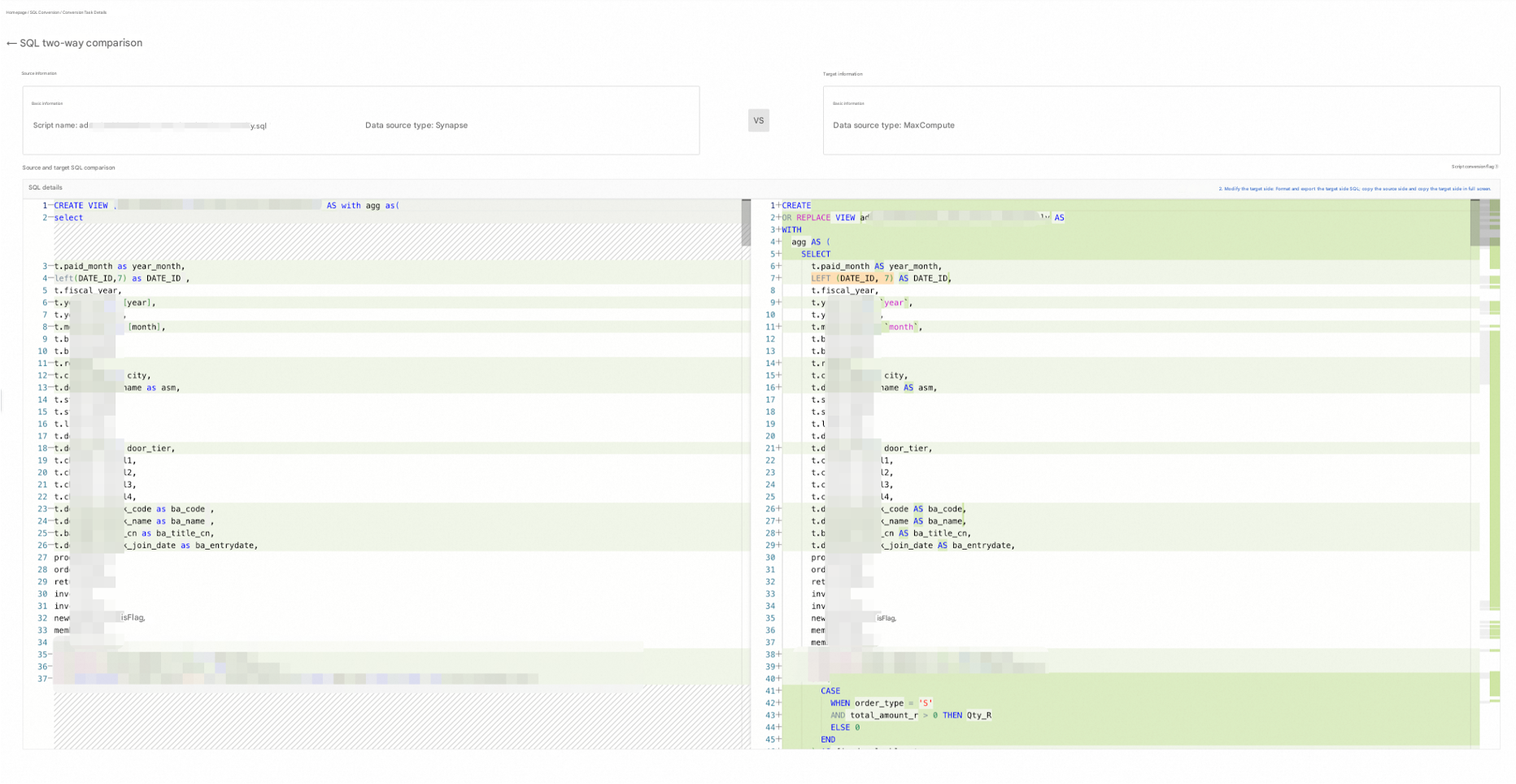
3.3. Side-by-side comparison after conversion
Navigate to the Script Conversion List page and click View Side-by-Side SQL.
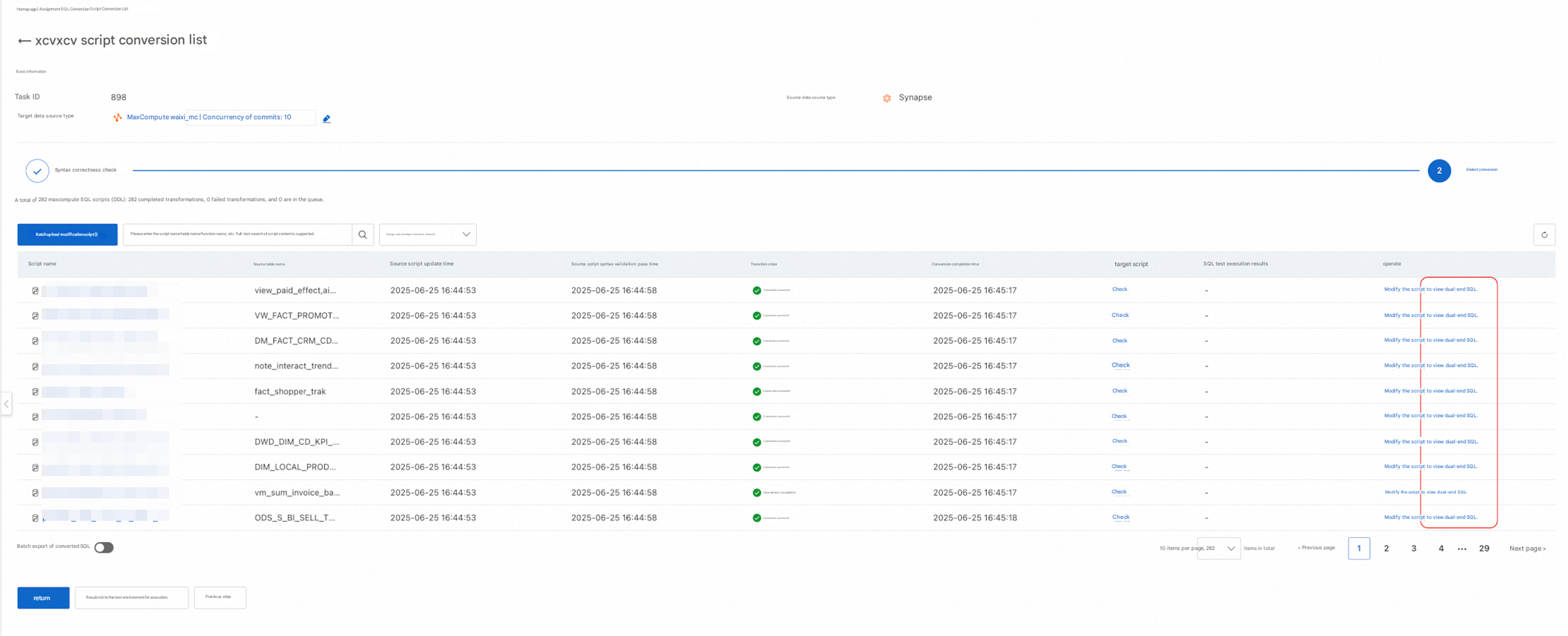
The side-by-side comparison of the SQL before and after the conversion is shown in the following figure:
4. Ad hoc conversion
The entry point is as follows:
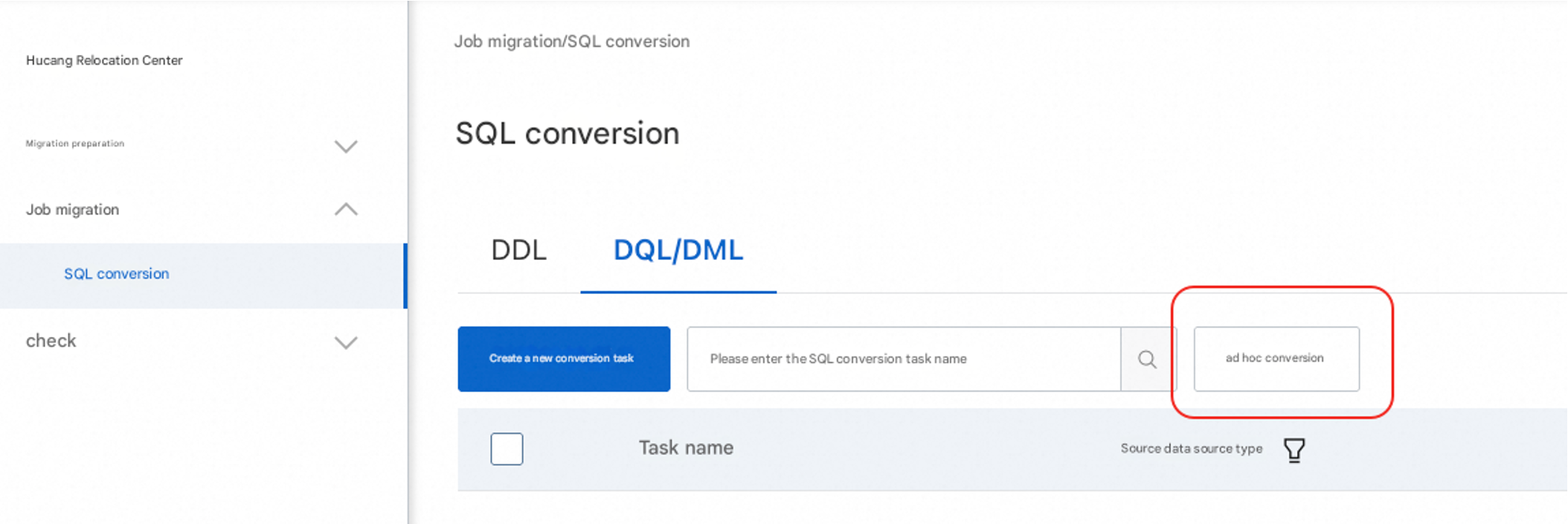 The process is the same for DDL.
DDL ad hoc conversion page:
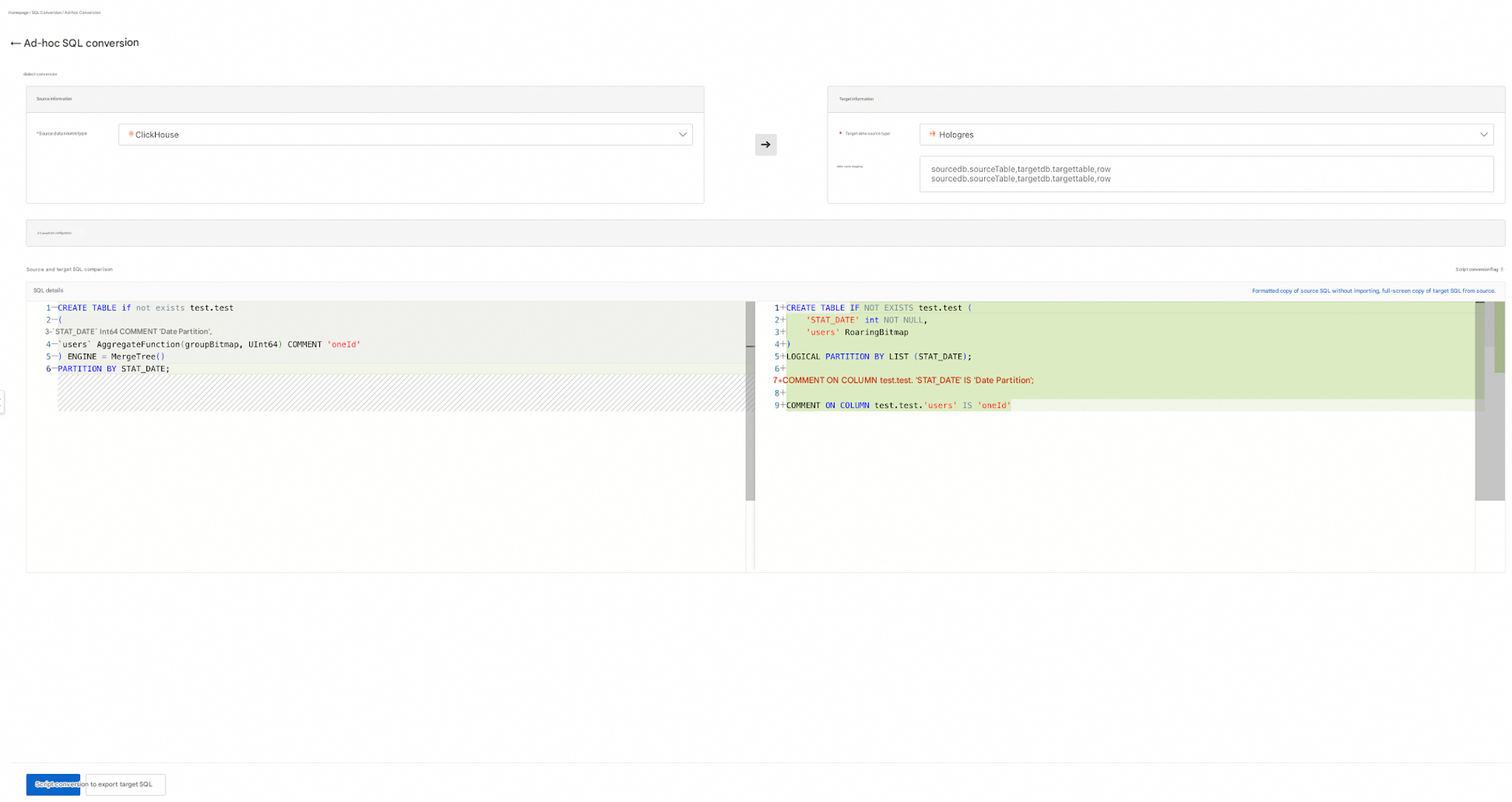
DQL/DML ad hoc conversion page: