The security group check feature of Cloud Firewall helps you manage your security groups more securely and efficiently by identifying and remediating potential risks in their rules. The security group check feature supports both basic security groups and enterprise security groups.
Security group check items
The following table lists the security group check items. You can enable or disable check items based on your business requirements. You cannot modify check items.
Check item | Security risk | Remediation |
Remote O&M port exposure for Linux | Port 22 allows access from any IP address, exposing the associated Linux servers to brute-force attacks. | We recommend that you deny public access to port 22 on the Security Group page of the ECS console. If your business requires access to port 22, we recommend restricting the public IP addresses that can access this port or using Bastionhost for remote O&M. For more information, see What is Bastionhost. In addition, on the Prevention Configuration page of the Cloud Firewall console, enable threat intelligence and basic protection. |
Remote O&M port exposure for Windows | Port 3389 allows access from any IP address, exposing the associated Windows servers to brute-force attacks. | We recommend that you deny public access to port 3389 on the Security Group page of the ECS console. If your business requires access to port 3389, we recommend restricting the public IP addresses that can access this port or using Bastionhost for remote O&M. For more information, see What is Bastionhost. In addition, on the Prevention Configuration page of the Cloud Firewall console, enable threat intelligence and basic protection. |
Remote O&M port exposure for DB2 | Port 50000 allows access from any IP address, exposing the associated DB2 databases to brute-force attacks. | We recommend that you deny public access to port 50000 on the Security Group page of the ECS console. In addition, on the Prevention Configuration page of the Cloud Firewall console, enable threat intelligence and basic protection. |
Excessive number of security groups for an ECS instance | Associating an ECS instance with three or more security groups complicates maintenance and increases the risk of misconfiguration. | We recommend associating an ECS instance with two or fewer security groups. For more information, see Security group overview. In addition, on the Prevention Configuration page of the Cloud Firewall console, enable threat intelligence and basic protection. |
Remote O&M port exposure for Elasticsearch | Ports 9200 and 9300 allow access from any IP address, exposing the associated Elasticsearch clusters to brute-force attacks. | We recommend that you deny public access to ports 9200 and 9300 on the Security Group page of the ECS console. In addition, on the Prevention Configuration page of the Cloud Firewall console, enable threat intelligence and basic protection. |
Remote O&M port exposure for Hadoop YARN | Port 8088 allows access from any IP address, exposing the associated Hadoop YARN clusters to brute-force attacks. | We recommend that you deny public access to port 8088 on the Security Group page of the ECS console. In addition, on the Prevention Configuration page of the Cloud Firewall console, enable threat intelligence and basic protection. |
Remote O&M port exposure for Hadoop | Ports 50070 and 50030 allow access from any IP address, exposing the associated Hadoop clusters to brute-force attacks. | We recommend that you deny public access to ports 50070 and 50030 on the Security Groups page of the ECS console. In addition, on the Prevention Configuration page of the Cloud Firewall console, enable threat intelligence and basic protection. |
Remote O&M port exposure for MongoDB | Port 27017 allows access from any IP address, exposing the associated MongoDB databases to brute-force attacks. | We recommend that you deny public access to port 27017 on the Security Group page of the ECS console. In addition, on the Prevention Configuration page of the Cloud Firewall console, enable threat intelligence and basic protection. |
Remote O&M port exposure for MySQL | Port 3306 allows access from any IP address, exposing the associated MySQL databases to brute-force attacks. | We recommend that you deny public access to port 3306 on the Security Group page of the ECS console. In addition, on the Prevention Configuration page of the Cloud Firewall console, enable threat intelligence and basic protection. |
Remote O&M port exposure for Oracle | Port 1521 allows access from any IP address, exposing the associated Oracle databases to brute-force attacks. | We recommend that you deny public access to port 1521 on the Security Group page of the ECS console. In addition, on the Prevention Configuration page of the Cloud Firewall console, enable threat intelligence and basic protection. |
Remote O&M port exposure for PostgreSQL | Port 5432 allows access from any IP address, exposing the associated PostgreSQL databases to brute-force attacks. | We recommend that you deny public access to port 5432 on the Security Groups page of the ECS console. In addition, on the Prevention Configuration page of the Cloud Firewall console, enable threat intelligence and basic protection. |
Remote O&M port exposure for Redis | Port 6379 allows access from any IP address, exposing the associated Redis databases to brute-force attacks. | We recommend that you deny public access to port 6379 on the Security Group page of the ECS console. In addition, on the Protection Configuration page of the Cloud Firewall console, enable threat intelligence and basic protection. |
Remote O&M port exposure for SQL Server | Port 1433 allows access from any IP address, exposing the associated SQL Server databases to brute-force attacks. | We recommend that you deny public access to port 1433 on the Security Group page of the ECS console. In addition, on the Prevention Configuration page of the Cloud Firewall console, enable threat intelligence and basic protection. |
Remote O&M port exposure for Spark | Port 6066 allows access from any IP address, exposing the associated Spark clusters to brute-force attacks. | We recommend that you deny public access to port 6066 on the Security Group page of the ECS console. In addition, on the Prevention Configuration page of the Cloud Firewall console, enable threat intelligence and basic protection. |
Remote O&M port exposure for Splunk | Ports 8089 and 8090 allow access from any IP address, exposing the associated Splunk instances to brute-force attacks. | We recommend that you deny public access to ports 8089 and 8090 on the Security Group page of the ECS console. In addition, on the Prevention Configuration page of the Cloud Firewall console, enable threat intelligence and basic protection. |
Overly permissive source IP address range | A security group rule that allows inbound traffic from any IP address to any port poses a high intrusion risk to the associated servers. | We recommend that you open only the ports required for your business and restrict the source IP address range. In addition, on the Prevention Configuration page of the Cloud Firewall console, enable threat intelligence and basic protection. |
Check security group risks
Log on to the Cloud Firewall console.
In the left-side navigation pane, choose .
On the Security Group Optimizer page, click Obtain Latest Check Results.
The check may take 1 to 5 minutes to complete.
NoteThe security group check performs a static analysis of security group rules. The results may not cover all potential port-related risks. To view a complete report and understand the actual port exposure, go to the Internet Exposure page.

View check results
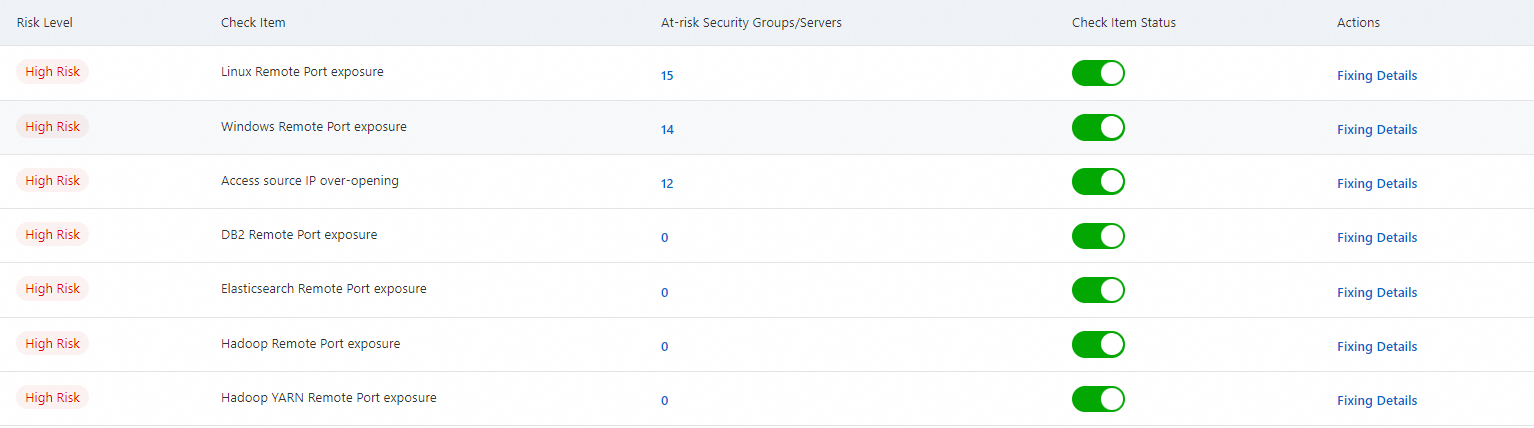
In the Check Result Details section, review the detected security group risks. The details include Risk Level, Check Item, At-risk Security Groups/Servers, and Check Item Status. A high risk level indicates that a security group allows inbound traffic from any IP address to any port. This configuration poses a significant intrusion risk to the associated servers.
You can enable or disable a check item by changing its Check Item Status. The check excludes disabled items.
Remediate high-risk items
Find the check item you want to address and click Fixing Details in the Actions column.
Alternatively, click the number in the At-risk Security Groups/Servers column. A value greater than 0 indicates a high-risk finding that requires immediate attention. This action takes you to the Security group remediation details page.
On the Security group remediation details page, find the security group to fix and click Fix in Security Group in the Actions column.
You can also click the security group ID link in the At-risk Security Group ID/Name column to open the Security Group page of the ECS console and modify the risky security group rules.
WarningImproperly configured security group rules can cause serious security incidents. The Security group remediation details page provides Fixing Suggestions for at-risk security groups. We recommend following these Fixing Suggestions to modify the risky security group rules as soon as possible.
