To continue using your existing backup data after an OS reinstall or MAC address change, you must reinstall the Local File Backup client with its original activation code.
Procedure
-
Obtain the activation code of the original client
Navigate to the Protected On-premises File Sources tab on the Local File Backup page. Find the original client and click View Details in the Actions column. On the client details page, click to get its activation code.
ImportantThe activation code expires. If the code expires before you activate the client, refresh the page to obtain a new code and try again.
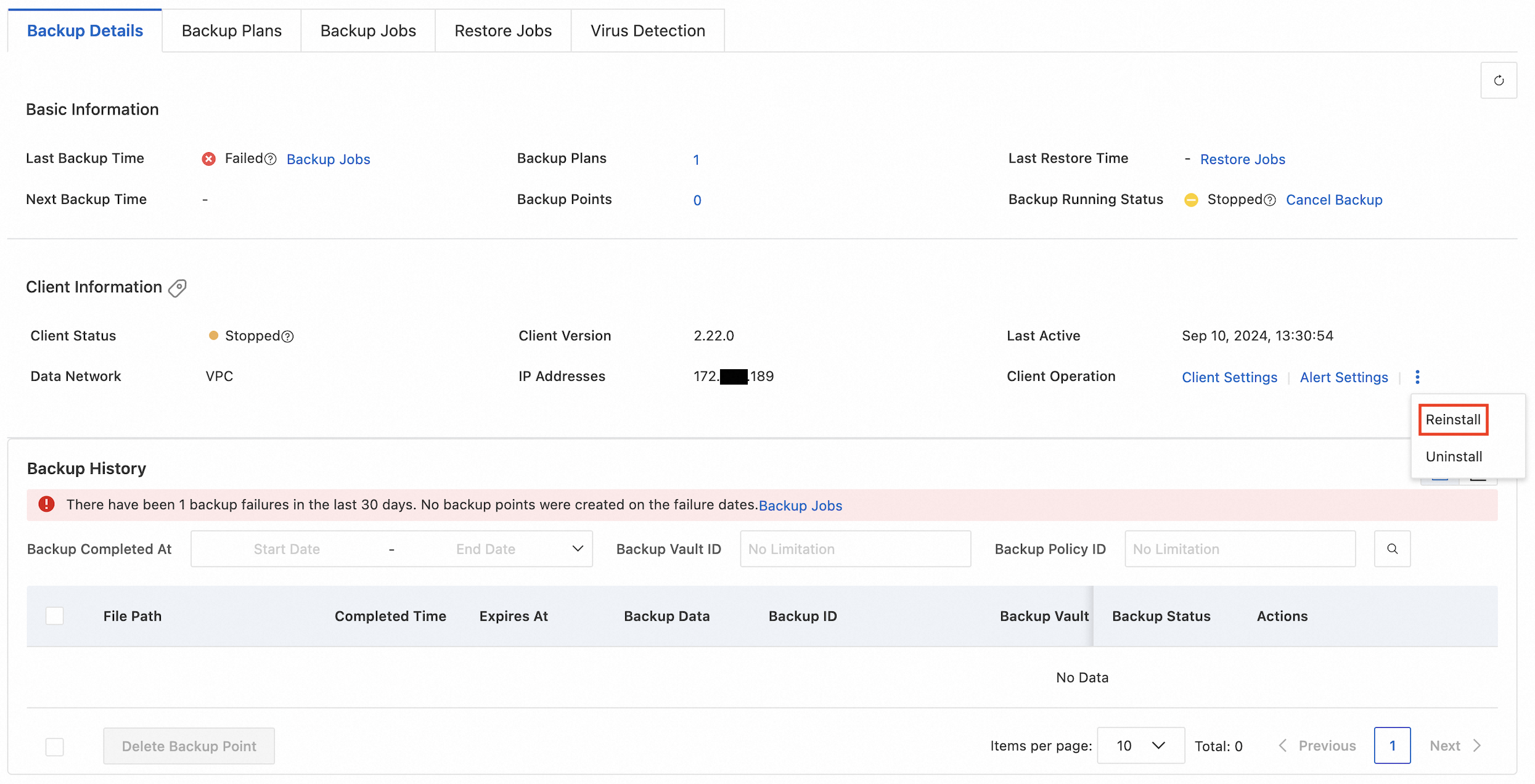
-
Use the original client's activation code to install the new client
Return to the Local File Backup page, switch to the On-premises File Data Source tab, and click Add Data Source.
NoteAlternatively, in the Local File Backup Guide section at the top of the page, click Add Local File Data Source.
If this guide section is not visible, click Show Guide in the upper-right corner to expand it.
-
For Windows systems: In the dialog box that appears, click the Windows tab, and then click Windows (64-bit) to download the client installer. During installation, enter the original client's activation code.
-
For Linux systems: In the dialog box that appears, click the Linux tab and copy the activation command for your network environment, such as a public network or a VPN/dedicated line. Replace the placeholder activation code in the command with the original client's activation code, and then run the command on your server.
For detailed installation steps, see Install the backup client.
-
FAQ
If you use a new activation code to add the client, two records may appear in the console.

To resolve this, stop the client service and reactivate the client using the original activation code. To do this, follow these steps:
-
Stop the client service: Perform the corresponding operation based on the operating system.
-
For Linux systems: Run the
systemctl stop hbrclientcommand. -
For Windows systems: Run
services.mscto open Services. Find and stop the Cloud Backup service.
-
-
Delete the new client and its backup data: On the Protected On-premises File Sources tab of the Local File Backup page, find the client record that was created with the new activation code. Click View Details in its Actions column. On the client details page, click ┇ > Uninstall.
ImportantAfter you delete the backup, the client and its backup data are deleted and cannot be recovered.
Activate the original client and complete a backup to ensure data is available before you delete the new client's backup data.
-
Reactivate the client: On the Protected On-premises File Sources tab of the Local File Backup page, find the original client and click View Details in its Actions column. On the client details page, click to get the activation command. Run the command on your server to reactivate the client.