This topic introduces the ECS File Backup Essential Edition of Cloud Backup.
Feature overview
Introduction
ECS File Backup Essential Edition is a new feature of Cloud Backup that provides basic backup and recovery capabilities for ECS files. It supports one-click activation and requires no configuration. It automatically performs daily backups, and you can recover files that are accidentally deleted within 30 days. You are billed based on the total capacity of the Block Storage attached to your backed-up ECS instances. Each account receives a long-term free quota of 100 GiB for block storage backup. This feature is suitable for small and medium-sized enterprises (SMEs) or developers. Use it to easily retrieve data in the event of accidental deletion or modification and prevent business interruptions.
Benefits
One-click activation with no configuration
After you activate the service, no configuration is required. Cloud Backup automatically backs up files and folders on the ECS instance based on a policy of one backup per day with a 30-day retention period.
Backup lock for tamper-proofing and deletion prevention
Backup points cannot be manually deleted or altered, which protects them from ransomware. This ensures the recoverability of your backup data.
File-level recovery
Restore individual files for more granular data protection.
Restore data to the source or a different ECS instance
Restore backup data to the source ECS instance or another ECS instance. If the source ECS instance is accidentally deleted, you can still restore the data to another instance.
Easy budget estimation
Billing is based on the block storage capacity attached to the ECS instance, which makes the cost clear and predictable. You do not need to consider factors such as file changes or storage usage.
Use cases
This feature is designed for basic backup needs for important files on an ECS instance that require minimal O&M. For example, you have a website hosted on an ECS instance. You need to recover files, such as images, if they are accidentally deleted or modified, or if the ECS instance is deleted.
How it works
Cloud Backup backs up data by automatically deploying a Terms on an ECS instance. The client relies on Cloud Assistant for installation and management. You must ensure that the Cloud Assistant Agent is pre-installed or manually installed on the ECS instance.
With ECS File Backup Essential Edition, you do not need to manage the client deployment. When you activate backups, the client is automatically installed in a fixed directory on the ECS instance. When you cancel backups, Cloud Backup automatically uninstalls the client. If you pause backups, the client is retained. The client installation directories are as follows:
Linux installation path:
/opt/alibabacloud/hbrclientWindows installation path:
C:\Program Files\Aliyun Hybrid Backup Service Client
The backup process uses a forever-incremental mechanism. The first backup is a full backup. Subsequent backups upload only the changed data. A complete backup point is then synthesized in the cloud. The client performs data deduplication and compression to minimize network traffic. By default, backup jobs run automatically every day between 00:00 and 06:00 (UTC+8). You can also change the daily backup time.
Usage notes
ECS File Backup Essential Edition is available in the following regions: China (Hangzhou), China (Shanghai), China (Shenzhen), China (Heyuan), China (Guangzhou), China (Chengdu), China (Qingdao), China (Beijing), China (Zhangjiakou), China (Hohhot), China (Ulanqab), China (Hong Kong), Malaysia (Kuala Lumpur), Philippines (Manila), Indonesia (Jakarta), Thailand (Bangkok), Japan (Tokyo), South Korea (Seoul), Singapore, Germany (Frankfurt), UK (London), SAU (Riyadh - Partner Region), UAE (Dubai), US (Virginia), and US (Silicon Valley).
Each ECS instance can use only one of the following methods to back up its files: ECS File Backup Essential Edition, ECS Backup Essential Edition, or File Backup.
ECS instances that use a 32-bit operating system or are in a classic network are not supported.
Only data on block storage attached to an ECS instance can be backed up. Externally mounted network storage, such as NAS, ossfs, and GlusterFS, is not supported.
ECS File Backup Essential Edition is not currently covered by the Cloud Backup Service Level Agreement.
This feature depends on the Cloud Assistant service. For ECS instances purchased before December 1, 2017, you must manually install the Cloud Assistant Agent.
If you are using this service for the first time, you must create and authorize the AliyunServiceRoleForHbrEcsBackup service-linked role. Follow the prompts on the page to do this.
You cannot restore data from a backup point to an ECS instance that is in the Stopped state.
To ensure normal business operations, Cloud Backup limits the backup speed by default to avoid consuming excessive resources on the ECS instance. If the amount of file data on a single ECS instance exceeds a specific value, the daily backup may not be completed within 24 hours. In this case, subsequent backups are skipped to prioritize the completion of the ongoing backup job. The file data limits for a single ECS instance are as follows:
High backup execution priority: 2 TB
Low backup execution priority: 600 GB
If your data volume exceeds these limits, you may have fewer than 30 daily backup versions. To ensure that daily backups are successful, contact Cloud Backup online technical support.
Backed-up directories: ECS File Backup Essential Edition backs up only user data. System directories and temporary system files are not backed up. The excluded directories vary based on the operating system:
Windows: Excludes all directories named
Windows\,python27\,Program Files (x86)\,Program Files\,ProgramData\,Boot\,$RECYCLE.BIN\,System Volume Information\,Users\Administrator\NTUSER.DAT,pagefile.sys, andUsers\Administrator\ntuser.dat.LOG1.Linux: Excludes the
/bin/,/usr/bin/,/sbin/,/boot/,/proc/,/sys/,/srv/,/lib/,/selinux/,/usr/sbin/,/run/,/lib32/,/lib64/, and/lost+found/directories.
Database file backup: ECS File Backup Essential Edition reads file content using the file system's read/write interface and writes the content to a backup vault. Database files are usually locked and continuously modified by the main database process. Therefore, attempts to read these files may fail. Even if a file is read successfully, the backup may be inconsistent because the data is continuously modified. This can make the database unrecoverable. For this reason, do not use ECS File Backup Essential Edition for database files. Instead, use ECS Database Backup.
View backup overview
Go to the Cloud Backup console and select a region at the top of the page. View the number of backed-up ECS instances, the backed-up block storage capacity, and the number of ECS instances that are not backed up in the current region. You can also view the total number of backed-up ECS instances and the total backed-up block storage capacity across all regions. The total backed-up block storage capacity across all regions is the basis for billing, excluding the 100 GiB free quota.

For a description of the metrics, see the following table.
Metric | Description | Example |
Backed-up ECS instances | The total number of ECS instances that have backup versions. This includes released instances that still have backup versions. It does not include instances for which backup is activated but no backup versions exist. | You have 12 running ECS instances in the current region. 5 have ECS File Backup Essential Edition activated and have backup versions. 3 have it activated but do not have backup versions yet. 4 do not have it activated. You will see:
The 3 instances that are activated but do not have backup versions yet are counted as 'Un-backed-up ECS instances'. After backup versions are generated, they are automatically counted as 'Backed-up ECS instances'. You will then see:
If you have released ECS instances that still have backup versions for recovery, these instances are also counted as 'Backed-up ECS instances'. Their corresponding block storage capacity is also included in 'Backed-up block storage capacity'. |
Backed-up block storage capacity | The total capacity of block storage disks attached to the backed-up ECS instances. If no activated ECS instances have backup versions, this value is 0. In the all-regions view, the backed-up block storage capacity shows the used free quota and remaining free quota separately. The capacity that exceeds the free quota is displayed as billable capacity. | |
Un-backed-up ECS instances | The total number of existing ECS instances that do not have backup versions (only unreleased instances are counted). This includes instances for which backup is activated but no backup versions have been generated (for example, just activated, backup keeps failing, or backup versions expired due to paused backups). |
Backup and recovery
Create an ECS file backup
Before you start a backup, you must activate the Cloud Backup service and ensure that your ECS instance is supported. For more information, see Usage notes. The process includes selecting the instance to back up, configuring backup parameters, and starting an automatic backup job.
If you attach a new disk to an ECS instance while a backup job is running, whether the data on the new disk is included in that day's backup version depends on the stage of the backup job when the disk was attached. Similarly, if you detach a disk from an ECS instance during a backup job, whether the data on that disk is included in the backup version depends on the stage of the job when the disk was detached.
Go to the Cloud Backup console. At the top of the page, select the region where your ECS instance resides.
Click Add ECS with No Backup and configure the backup parameters.
ECS to Be Backed-up: Select the ECS instance to back up.
Start Time: By default, a time between 00:00 and 06:00 is automatically selected. To set a specific time, select Specified Time and then select a time.
Advanced Settings: By default, Cloud Backup performs low-priority backups and retains at least one backup version. Modify these settings as needed.
Backup Priority: Select Low (up to 10 MB/s throughput, 1 vCPU core) or High (up to 30 MB/s throughput, up to 2 vCPU cores).
Keep At Least One Backup Version: Enable this option to ensure that Cloud Backup always retains at least one backup version. Otherwise, all backup points are deleted after their 30-day retention period expires.
Click OK to complete the configuration.
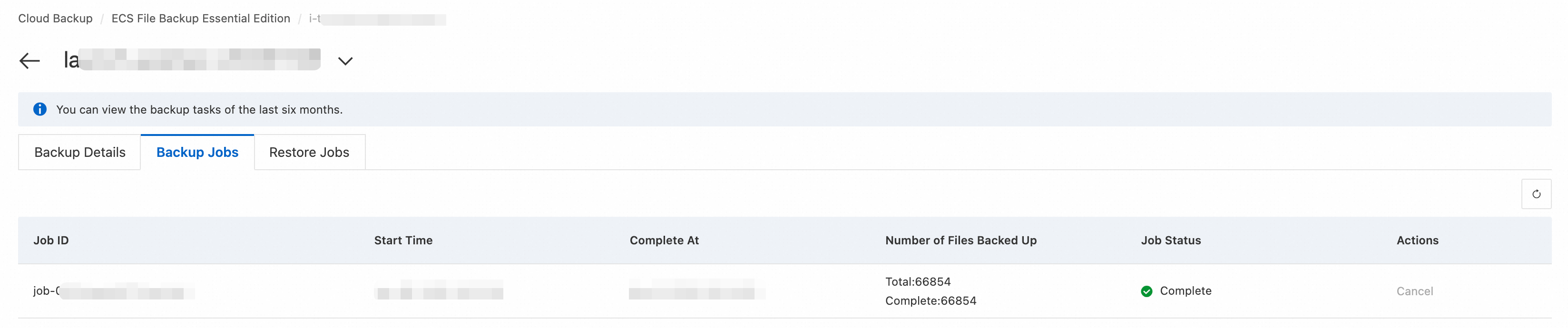
Cloud Backup automatically backs up files on an ECS instance daily based on the backup configuration. View the backup progress for the target instance in the Cloud Backup console under . When the Job Status changes to Complete, a backup version is created.
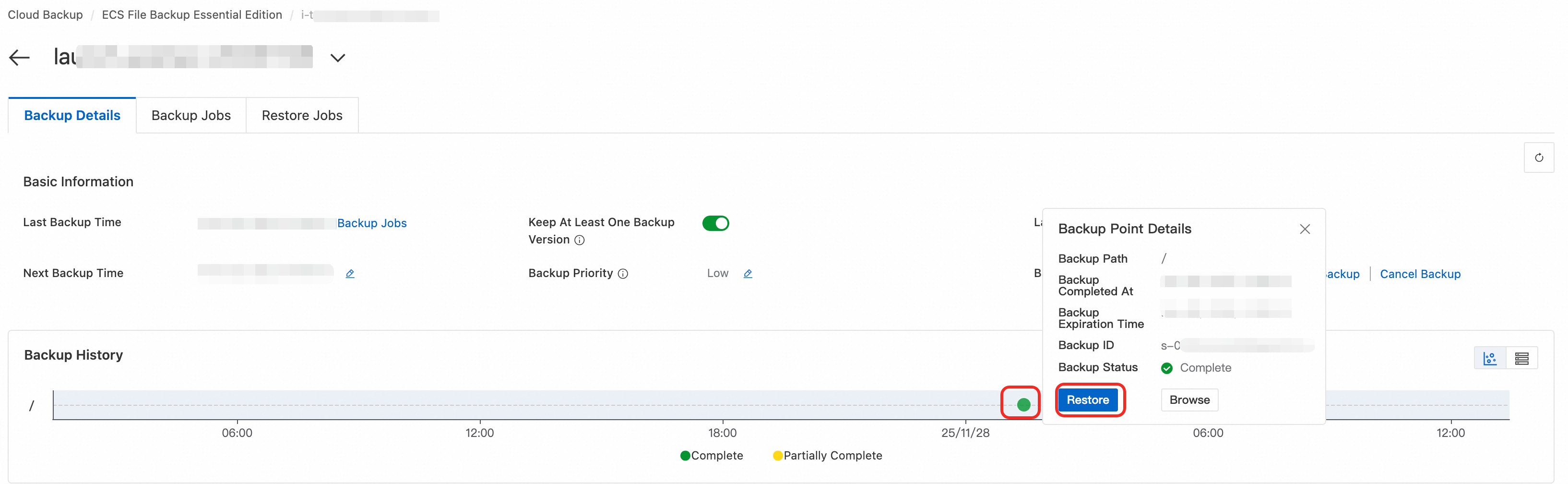
A backup version is a collection of multiple backup points from a specific time. For example, if an ECS file system has two partitions, C and D, a backup of the ECS instance generates one backup version that contains two backup points: one for partition C and one for partition D. When you restore files, you must select a specific backup point for partition C or D, which are indicated by the green dots in the backup history, to perform a file-level or folder-level recovery.
Restore ECS files
Restore files from a historical backup point to a specified path on the source instance or another ECS instance. Choose to restore all files or filter for specific files to restore.
Go to the Cloud Backup console and click View Details for the target ECS instance.
In the Backup History, click a backup point.
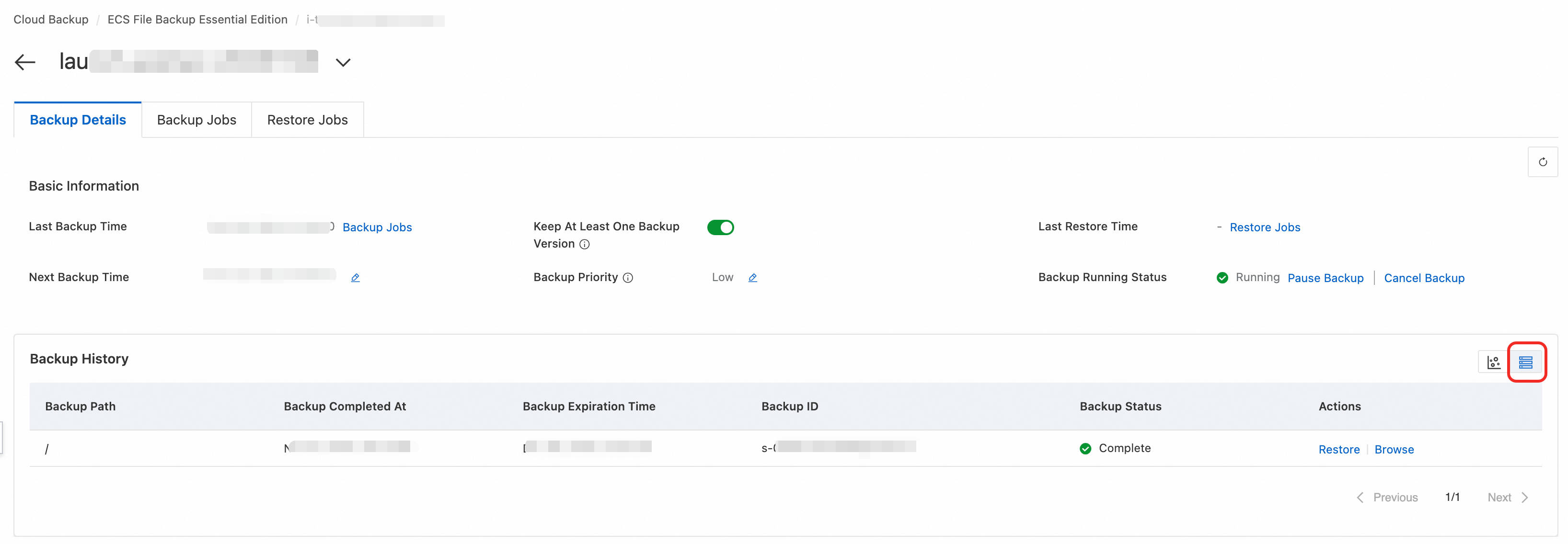
Click the icon to the right of the backup history to switch to the list view.
Click Restore and configure the following restore parameters.
Restore Item: By default, All Files is selected. You can also select Include Specified Files to include only specific files in the restoration, or Exclude Specified Files to exclude specific files from the restoration.
NoteIf a specified directory for a restore operation contains no files in the backup point (the data volume is 0), Cloud Backup creates a restore job but does not perform the restore operation.
Restore Destination: By default, the Original ECS is selected. You can also select another ECS instance that is not in the Stopped state in the same region.
Restore Path: By default, files are restored to the Original Path. If you select Other Path, the destination path must exist on the destination instance. Otherwise, the restore job will fail.
If a file with the same name exists in the restore path: By default, Skip This File is selected. You can also select Overwrite the file in the restore path. This operation overwrites the existing file. Use this option with caution.
Click OK to start the restore.
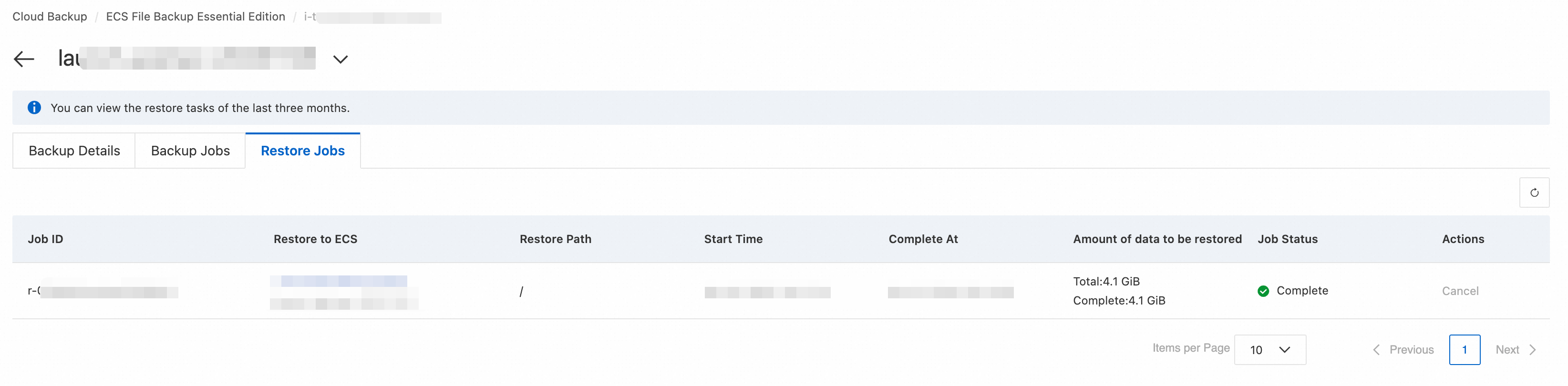
The system executes the restore job based on the restore configuration. View the restore progress for the destination instance in the Cloud Backup console by navigating to . When the Job Status is Complete, the restore is complete.
Backup running statuses
Backup running status | Description |
Not Activated | ECS File Backup Basic is not activated for this ECS instance. |
Preparing | ECS File Backup Basic is activated for this ECS instance. The backup client is being installed. The installation typically completes within 5 minutes. |
Preparation Failed | The backup client failed to install. View the error details in the console. |
Ready | The backup client is installed. The system is waiting for the first backup job to start. |
Running | The backup status is normal. The system is waiting for the next backup job to run. |
Running (Backing Up) | The backup status is normal and a backup job is in progress. |
Paused | The backup job is paused. Backup data is retained and expires automatically after the 30-day retention period. Existing backup versions still can be used to recover data. |
Stopped | The ECS instance cannot be found, so the backup job is automatically stopped. Backup data is retained and expires automatically after the 30-day retention period. Existing backup versions still can be used to recover data. |
Browse backup files
View the list of backed-up files in a specific backup point.
Go to the Cloud Backup console and click View Details to the right of the target ECS instance.
In the Backup History section, click a backup point.
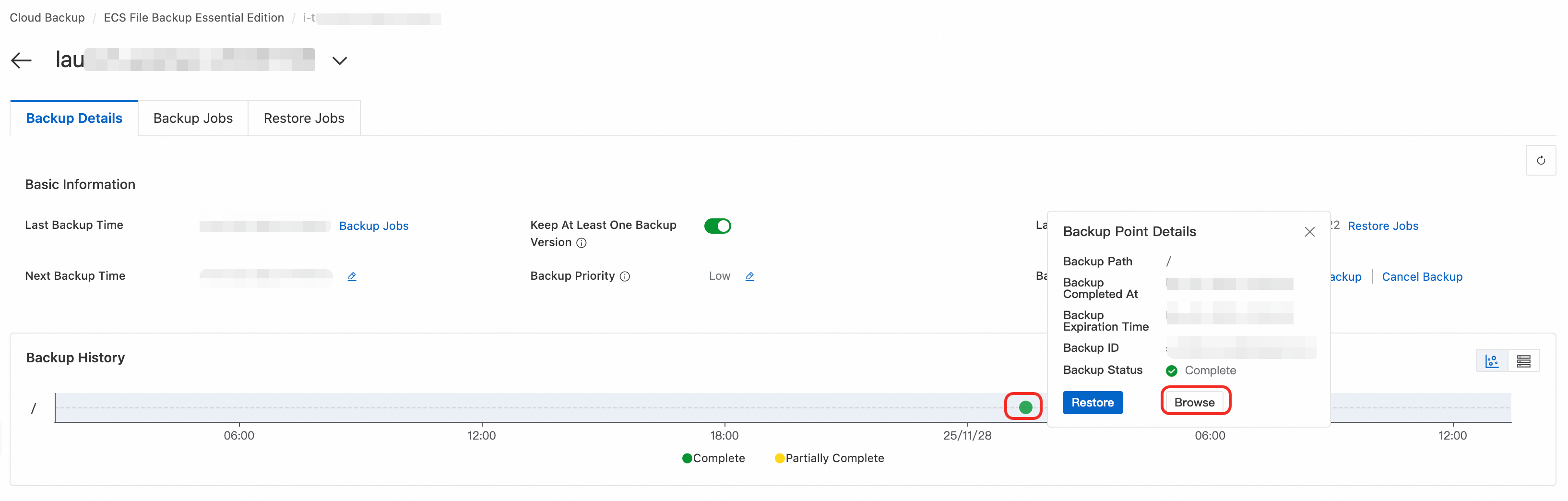
Click the icon to the right of the backup history to switch to the list view.
Click Browse to view the backed-up files.
Cancel a backup or restore job
To cancel a backup or restore job, perform the following steps in the Cloud Backup console.
Cancel a single backup job
At the top of the page, select the region where the target ECS instance resides.
In the Actions column, click View Details and then switch to the Backup Jobs tab.
To cancel a running job, click Cancel. In the dialog box that appears, click OK.
Cancel a single restore job
At the top of the page, select the region where the target ECS instance resides.
In the Actions column, click View Details, and then switch to the Restore Jobs tab.
To cancel a job that is in progress, click Cancel. In the dialog box that appears, click OK.
Modify backup configurations
To modify backup configurations, perform the following steps in the Cloud Backup console.
Operation | Description |
Pause or resume backups |
|
Cancel backups | Warning When you cancel backups for an ECS instance, Cloud Backup deletes all backup points for that instance, stops billing, and removes the instance from the backup list.
|
Disable or enable Keep at Least One Backup Version | Important
|
Increase or decrease backup execution priority | The configuration change takes effect when the next backup job runs.
|
Modify the next backup time |
|
Apply in production
Backup priority: In a production environment, set different priorities based on the purpose of the ECS instance. For critical business instances, use a low backup priority to reduce the impact on business performance. For non-critical business instances, use a high backup priority to shorten the backup window and avoid conflicts with peak business hours.
Retain at least one backup version: Enable Keep At Least One Backup Version to avoid the risk of having no backup versions available for recovery because of issues such as paused backups or accidental operations. For more information, see Enable Retain at least one backup version.
ImportantBecause ECS File Backup Essential Edition is billed based on the block storage capacity attached to ECS instances that have backup versions, if you enable Keep at Least One Backup Version for an ECS instance, that instance always retains at least one backup version, even if you pause backups, and billing for that instance continues.
Disabling backups: This operation deletes all historical backup versions, and they cannot be restored. Before you proceed, make sure that you no longer need the data. Before you upgrade to a different backup plan, make sure that the new plan has completed at least one successful backup.
Failure alert: When a backup fails, the system automatically sends alert emails, and internal messages to the Alibaba Cloud account. Confirm these alerts promptly and see ECS File Backup Essential Edition issues for troubleshooting information.
Billing
Billing method: Charges are calculated based on the total capacity of block storage attached to your backed-up ECS instances, which are instances with one or more backup versions. The charges are not affected by the actual volume of file data on the instances. In other words, even if your ECS instance is newly created and contains only a small amount of data, Cloud Backup charges you based on the block storage capacity if you have activated ECS File Backup Essential Edition and a backup version is generated. The service uses a pay-as-you-go model with daily billing. Billing starts after the first backup version is created. You can also purchase resource plans to offset your pay-as-you-go fees.
Free quota: The Alibaba Cloud account and its RAM users share a free quota of 100 GiB across all regions. You are charged for usage that exceeds the free quota.
Cost calculation: The daily fee is calculated based on the total block storage capacity attached to the ECS instance when the latest backup version was created before 00:00 (UTC+8). If a daily backup is skipped because the data volume is too large, you are still charged based on the capacity of the latest valid backup version.