ApsaraDB for ClickHouse provides the zero-ETL data integration feature to synchronize data from RDS MySQL to ApsaraDB for ClickHouse without building or maintaining data synchronization pipelines. The feature is free of charge and reduces data transfer and O&M costs.
Overview
Businesses often manage operational data distributed across various systems.
ETL (Extract, Transform, Load) consolidates data from upstream business systems into a data warehouse for analysis.
Traditional ETL workflows present the following challenges:
-
High resource costs: Different data sources often require different ETL tools, and building these pipelines incurs additional costs.
-
High system complexity: Maintaining ETL tools increases operational complexity and distracts from application development.
-
Data latency: Periodic batch updates common in ETL can delay analysis in near-real-time scenarios.
To address these issues, Alibaba Cloud provides a zero-ETL feature that automatically builds data pipelines between online transactional processing (OLTP) systems and online analytical processing (OLAP) data warehouses. It extracts, transforms, and loads data automatically, providing a one-stop solution that integrates transaction processing with data analytics so you can focus on analysis.
Benefits
-
Easy to use: Select the source data and the destination instance, and the system automatically creates a real-time data pipeline. No need to build or maintain complex ETL pipelines, so you can focus on application development.
-
Zero cost: The zero-ETL pipeline is free of charge. You can analyze upstream data in the data warehouse at no extra cost.
-
Multi-source aggregation: Synchronize data from multiple instances to a single ApsaraDB for ClickHouse instance in real time to build a comprehensive analytical view.
NoteIf you synchronize data from multiple instances to a single ApsaraDB for ClickHouse instance, the synchronization objects in different tasks cannot overlap.
Supported pipeline
ApsaraDB RDS for MySQL to ApsaraDB for ClickHouse
Billing
The zero-ETL synchronization pipeline is free of charge.
Prerequisites
-
The ApsaraDB for ClickHouse cluster and the RDS for MySQL instance are located in the same region.
-
Create database accounts for the source ApsaraDB RDS for MySQL instance and the destination database. For more information, see Create an account for an ApsaraDB RDS for MySQL instance and Create an account for an ApsaraDB for ClickHouse cluster.
Limitations
|
Type |
Description |
|
Limitations on ApsaraDB RDS for MySQL |
|
|
Other limitations |
Time-type data in ApsaraDB for ClickHouse has range limitations. If the time data in RDS MySQL is outside this range, the time synchronized to ApsaraDB for ClickHouse will be incorrect. For information about the range limitations, see Time information. |
Usage notes
-
Notes on creating zero-ETL pipelines
If the number of zero-ETL links for an ApsaraDB for ClickHouse cluster reaches the limit, you cannot create new links. You can use DTS to create a synchronization link, or delete unused zero-ETL links. The limits are as follows:
-
The maximum number of links in an Enterprise Edition cluster is calculated by using the formula
[Lower limit of cluster CCU / 8]and rounding up the result. For example, if a cluster has a lower CCU limit of 22 and an upper CCU limit of 36, the calculation uses the lower limit of 22. The result is22 / 8 = 2.75, which is rounded up to 3. This means you can create a maximum of 3 zero-ETL links. -
Maximum links for a Community Edition cluster:
[Total number of cluster cores / 8]. The result is rounded up. For example, for a cluster with two 8-core 32 GB nodes, the total number of CPU cores is8*2=16. The maximum number of links is calculated as16/8=2. This means you can create a maximum of 2 zero-ETL links.
-
-
Notes on synchronization tasks
If the DDL statements of the source RDS MySQL instance do not follow standard MySQL syntax, the synchronization task may fail or data may be lost.
-
The number of databases to be synchronized does not exceed the limit of ApsaraDB for ClickHouse, which is 256.
-
The names of the databases, tables, and columns to be synchronized comply with the naming conventions of ApsaraDB for ClickHouse. For more information about the conventions, see Object naming conventions.
-
If you synchronize one or more tables instead of the entire database, do not use tools like pt-online-schema-change to perform online DDL operations on the synchronization objects in the source database. Otherwise, the synchronization will fail.
Before synchronizing data, evaluate the performance of the source and destination databases. We recommend that you perform data synchronization during off-peak hours. Otherwise, initial full data synchronization will consume read and write resources of the source and destination databases, which may increase database loads.
-
During the schema synchronization phase, the zero-ETL feature adds the
_sign,_is_deleted, and_versionfields to the destination tables. -
If the destination is an ApsaraDB for ClickHouse Community-Compatible Edition cluster, seamless integration creates a local table and a distributed table for the destination.
-
The name of the distributed table is the same as the name of the source table.
-
The name of a local table is
<distributed_table_name>+_local.
-
Data type mappings
Because MySQL and ApsaraDB for ClickHouse clusters support different data types, a one-to-one mapping is not possible. When DTS performs initial schema synchronization, it maps data types based on the types supported by the destination database. For more information, see Data type mappings for initial schema synchronization.
Preparations
Create a service-linked role and grant the required permissions to a RAM user.
-
Create the AliyunServiceRoleForClickHouseZeroETL service-linked role.
NoteThe system automatically creates the AliyunServiceRoleForClickHouseZeroETL service-linked role. If a dialog box prompts you to create this role manually during configuration, you can ignore it.
-
Grant permissions to a RAM user.
A RAM user requires the following three permissions to create a zero-ETL pipeline. For information about how to grant permissions to a RAM user, see Manage RAM user permissions.
-
Permission for the source ApsaraDB RDS for MySQL instance: AliyunRDSFullAccess
-
Permission for the destination ApsaraDB for ClickHouse cluster: AliyunClickHouseFullAccess
-
Permission for DTS: The following code provides the custom policy script for DTS. For information about how to create a custom policy, see Create a custom permission policy.
{
    "Version": "1",
    "Statement": [
        {
            "Action": "dts:*",
            "Resource": "*",
            "Effect": "Allow"
        },
        {
            "Action": "ram:PassRole",
            "Resource": "*",
            "Effect": "Allow",
            "Condition": {
                "StringEquals": {
                    "acs:Service": "dts.aliyuncs.com"
                }
            }
        }
    ]
}
-
Synchronize data
Step 1: Go to the Zero-ETL page
-
Log on to the ApsaraDB for ClickHouse console. In the top-left corner, select the region where your destination cluster is located.
-
On the Clusters page, select Clusters of Community-compatible Edition, and click the target cluster ID.
-
In the left navigation bar, click Zero-ETL.
Step 2: Create and start the zero-ETL task
Click Create Zero-ETL Task to open the Create Zero-ETL Task page.
Enter the Task Name and complete the following configurations.
-
Configure the source and destination databases.
Configure the source and destination databases with the following parameters, and then click Test Connectivity and Proceed.
Source database
Parameter
Description
Database Type
Only ApsaraDB RDS for MySQL is supported.
Access Method
Only Alibaba Cloud instance is supported.
Instance Region
Select the region of the source instance.
RDS Instance ID
The ID of the ApsaraDB RDS for MySQL instance.
Database Account
The database account of the ApsaraDB RDS for MySQL instance.
Database Account
The password for the database account of the ApsaraDB RDS for MySQL instance.
Encryption
Select Non-encrypted or SSL-encrypted based on your requirements. If you select SSL-encrypted, you must first enable SSL encryption for the RDS MySQL instance. For more information, see Use a cloud certificate to quickly enable SSL encryption.
Destination database
Parameter
Description
Database Type
ClickHouse
Access Method
Only Alibaba Cloud instance is supported.
Instance Region
The region of the destination cluster.
Cluster ID
The ID of the destination cluster.
Cluster Type
The type of the cluster. Valid values: Community-Compatible Edition and Enterprise Edition.
Database Account
The database account of the destination cluster.
Database Password
The password for the database account of the destination cluster.
-
Configure zero-ETL.
In the Source Objects box, select the objects to synchronize, and then click
 to move them to the Selected Objects box. Click Next: Configure Database and Table Fields.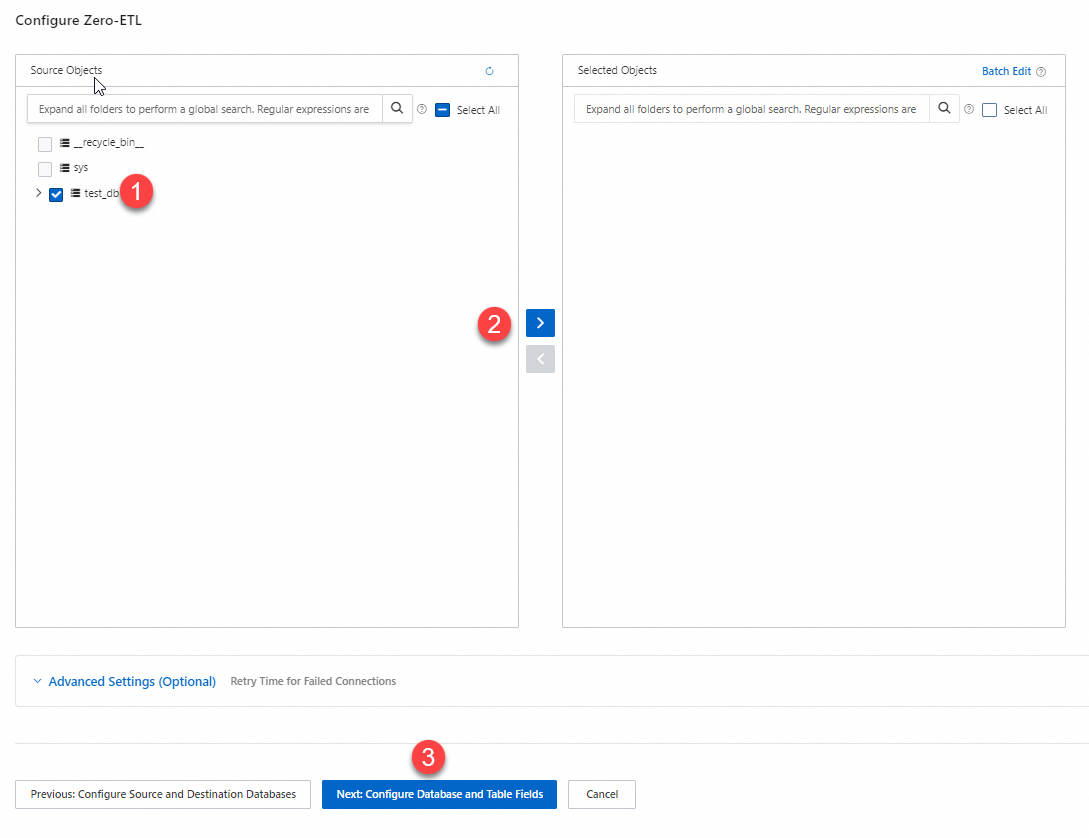
-
Configure database and table fields.
On the Configure Zero-ETL page, configure the Type, Primary Key Column, Sort Key, Distribution Key, and Partition Key of the table to be synchronized in the destination database.
Note-
By default, the page displays information about undefined tables. You can make modifications after setting the Definition Status to All.
-
The Primary Key Column and Sort Key can be composite keys. This means you can select multiple fields from the corresponding drop-down lists for the Primary Key Column or Sort Key. You must select one or more columns from the Primary Key Column to use as the Partition Key. You can select only one field for the Distribution Key. For more information about the primary key column, sort key, and partition key, see CREATE TABLE.
-
The Partition Key is optional, but it cannot be a nullable field. Otherwise, the synchronization task will fail.
-
-
Save the task.
After you configure the database table fields, click Next: Save Task Settings and Precheck.
NoteAfter this operation, the task is saved, regardless of whether the precheck passes.
-
Precheck and start the task.
When the Success Rate is 100%, click Start to start the Zero-ETL task.
On the Zero-ETL page, you can view the ID/Name, Source/Destination, and Status of the target Zero-ETL task.
If the precheck fails, adjust the source and destination databases based on the failure information. Then, find the task on the Zero-ETL page, modify it, and run the precheck again. After the precheck is successful, you can start the task.
Monitor zero-ETL tasks
You can monitor zero-ETL tasks using the following methods. Configure alerts or event subscriptions to receive timely updates on task status. If a task becomes abnormal, use active monitoring to troubleshoot the issue.
|
Monitoring method |
Benefit |
Limitation |
Actions |
|
Active monitoring |
Provides a comprehensive view of task status, including synchronization performance, details, and logs. |
Does not actively notify you when a zero-ETL task becomes abnormal. |
|
|
Alert monitoring |
CloudMonitor automatically sends alert notifications based on alert rules, helping you promptly identify and handle abnormal monitoring data. |
Monitors only the synchronization latency (in milliseconds) of zero-ETL tasks. |
Monitor synchronization latency by using CloudMonitor alerts |
|
Event subscription |
When a system event for a zero-ETL task meets the alert conditions, CloudMonitor automatically sends an alert notification, keeping you informed about task failures and recoveries. |
Monitors only the failure and recovery of zero-ETL tasks. |
Monitor in the console
-
Log on to the ApsaraDB for ClickHouse console. In the top-left corner, select the region where your destination cluster is located.
-
On the Clusters page, select Clusters of Community-compatible Edition, and click the target cluster ID.
-
In the left navigation bar, click Zero-ETL.
-
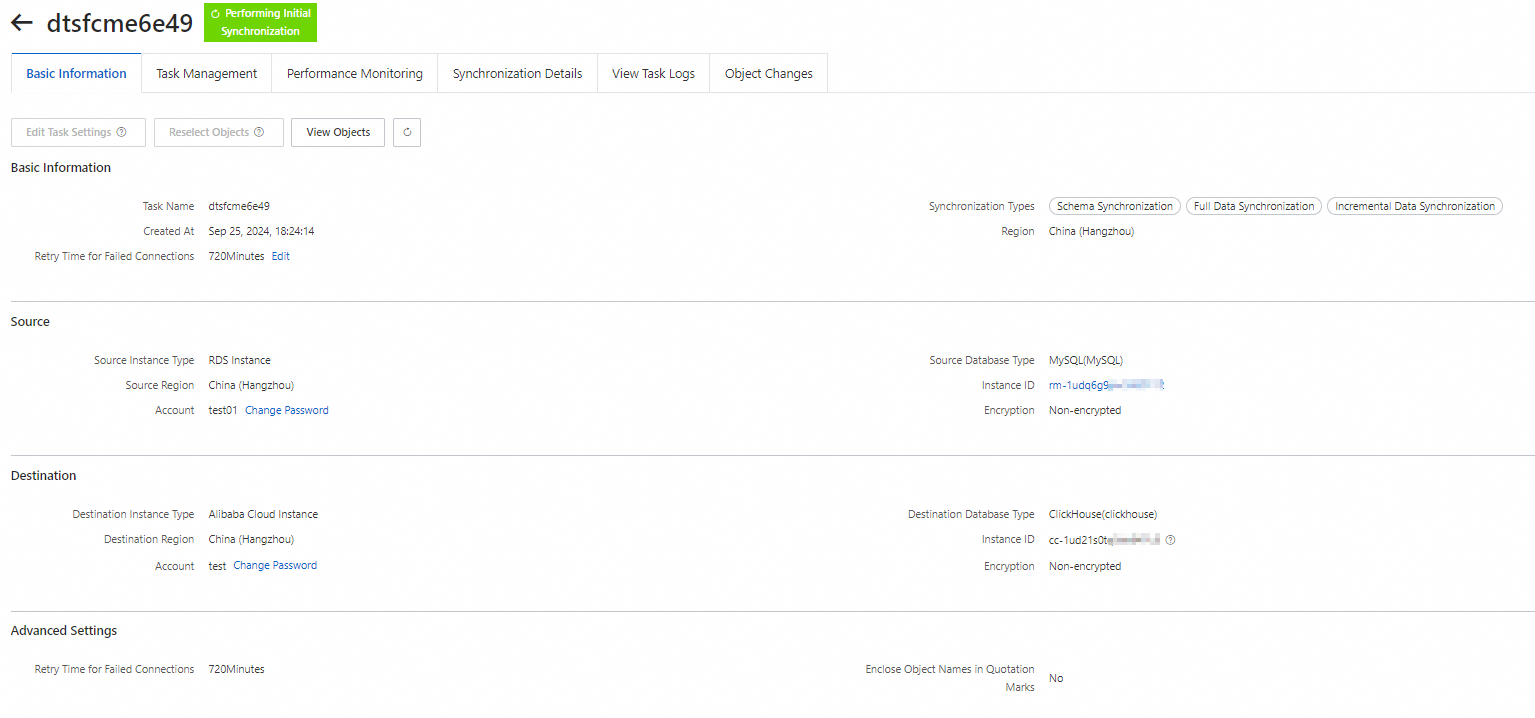
Click Task Details in the Actions column of the target task.
On the task details page, you can view comprehensive information and monitor the task.
CloudMonitor latency alerts
Create alert rules in CloudMonitor to monitor zero-ETL latency. When a metric meets the alert conditions, CloudMonitor automatically sends an alert notification.
Step 1: Create a zero-ETL latency alert
For information about how to create a zero-ETL latency alert, see Use the CloudMonitor console. When you create the alert, make sure to set the following parameters.
|
Parameter |
Description |
|
Product |
Select Clickhouse - ZeroETL Latency. |
|
Metric |
Select Synchronization Latency. |
Step 2: View cluster latency
-
Log on to CloudMonitor.
-
In the Clickhouse - ZeroETL Latency list, click Monitoring Charts in the Actions column of the target cluster to view the cluster synchronization latency.
CloudMonitor event subscription
To monitor the recovery and failure of zero-ETL tasks and receive timely notifications, subscribe to the relevant events.
For information about how to subscribe to Zero-ETL events, see Manage event subscriptions. When you create a subscription policy, make sure to set the following parameters.
|
Event |
Parameter |
Description |
|
Zero-ETL task failure |
Subscription type |
Select System Event. |
|
Product |
Select ApsaraDB for ClickHouse. |
|
|
Event type |
Select Abnormal. |
|
|
Event name |
Select ZeroETL task abnormal. |
|
|
Zero-ETL task recovery |
Subscription type |
Select System Event. |
|
Product |
Select ApsaraDB for ClickHouse. |
|
|
Event type |
Select Restore. |
|
|
Event name |
Select ZeroETLTaskRestore. |
FAQ
Q: After using Zero-ETL to synchronize data to ApsaraDB for ClickHouse, why is the data volume in the destination database larger than that in the source database?
Cause: When you perform an UPDATE or DELETE operation on the source, ApsaraDB for ClickHouse writes a new row and uses the _sign, _is_deleted, and _version fields to mark these operations. As a result, the destination database has more rows than the source database.
Solution: When querying, use _sign or _is_deleted conditions to filter out deleted data based on the version. Also, add FINAL after the table name to deduplicate records. For more information about field identifiers, see Field information.
Q: After using Zero-ETL to synchronize data to ApsaraDB for ClickHouse, why does a local table appear in the destination database?
If the destination is an ApsaraDB for ClickHouse Community-Compatible Edition cluster, seamless integration creates a local table and a distributed table for the destination.
-
The name of the distributed table is the same as the name of the source table.
-
The name of a local table is
<distributed_table_name>+_local.