WhatsApp voice calls provide businesses with a direct way to communicate with end users. Compared to traditional business messages, voice calls build trust and connection through voice interaction. This creates a more efficient and intuitive experience, which is useful for resolving urgent issues or discussing complex services.
Prerequisites
You must implement server-side support for the Web Real-Time Communication (WebRTC) protocol to handle signaling and coordinate the connection process.
You must reach a messaging limit of at least 1,000 messages per day. WhatsApp dynamically assesses your actual messaging level.
You must enable the voice call feature in the Chat App Message Service console.
The business-initiated call is not supported for WhatsApp numbers in the following countries or regions: United States, Canada, Türkiye, Egypt, Vietnam, and Nigeria.
Enable voice calls
The voice call feature is disabled by default. You can enable it as follows:
Log on to the Chat App Message Service console.
In the left navigation pane, click Channel Management. Find the channel and click its Channel ID or Manage in the Actions column. Then, click WABA Management.
In the Phone Number Management section, find the target Business Number. In the Voice Call column, click Settings. In the dialog box that appears, enable WhatsApp voice calls.
Only numbers with a Connected status can be configured for voice calls.
Configure voice calls
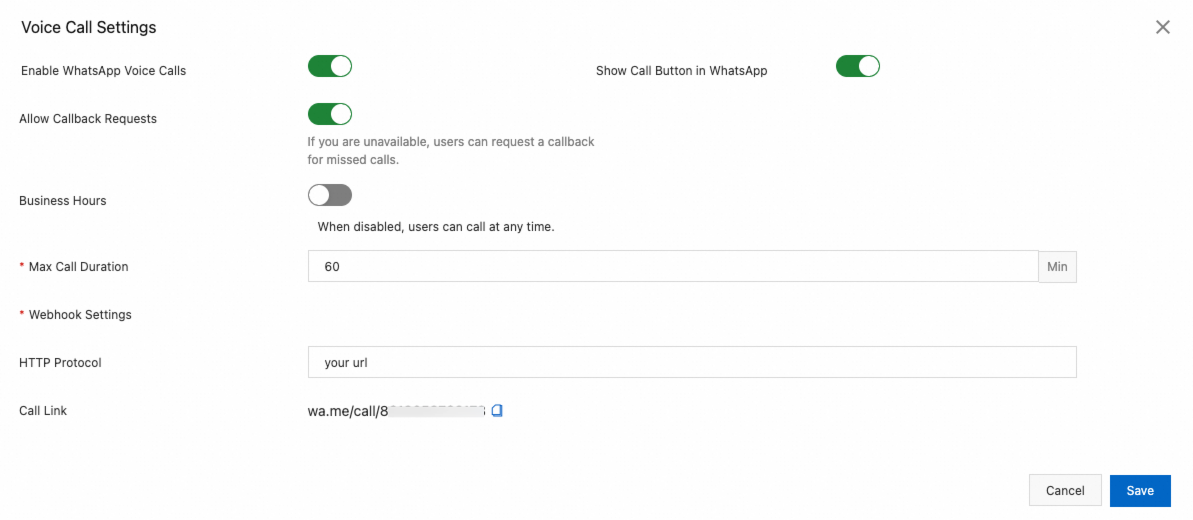
In the Voice Call Settings dialog box that appears, configure the settings as needed. The features are explained as follows:
Enable WhatsApp Voice Calls: A toggle that enables or disables WhatsApp voice calls for your business.
Show Call Button in WhatsApp: Enabled by default. When enabled, a voice call icon appears in the WhatsApp message dialog box. End users can click the icon to call your business.
Allow Callback Requests: Configure whether to prompt WhatsApp users for permission to call them back after they call your business.
Business Hours: Optional and disabled by default. If disabled, users can make calls at any time. If enabled, you can specify business hours. Calls placed outside of business hours will not connect. You can also define non-business hours for holidays.
Max Call Duration: Specify the maximum duration for a single call in minutes. The call ends automatically when this duration is reached.
Webhook Settings: You can set an HTTP webhook URL to receive call-related status updates.
Call Link: Click to start a voice call.
Create message templates with voice call buttons
Request call permission
Requesting call permission means that your business must obtain authorization from an end user before calling them. You can send a permission request using a message template or within a customer service chat window.
The template creation process is the same as for regular templates. On the Template Design page, click the Request Call Permission button, which is mutually exclusive with all other buttons except for the Call with WhatsApp button.
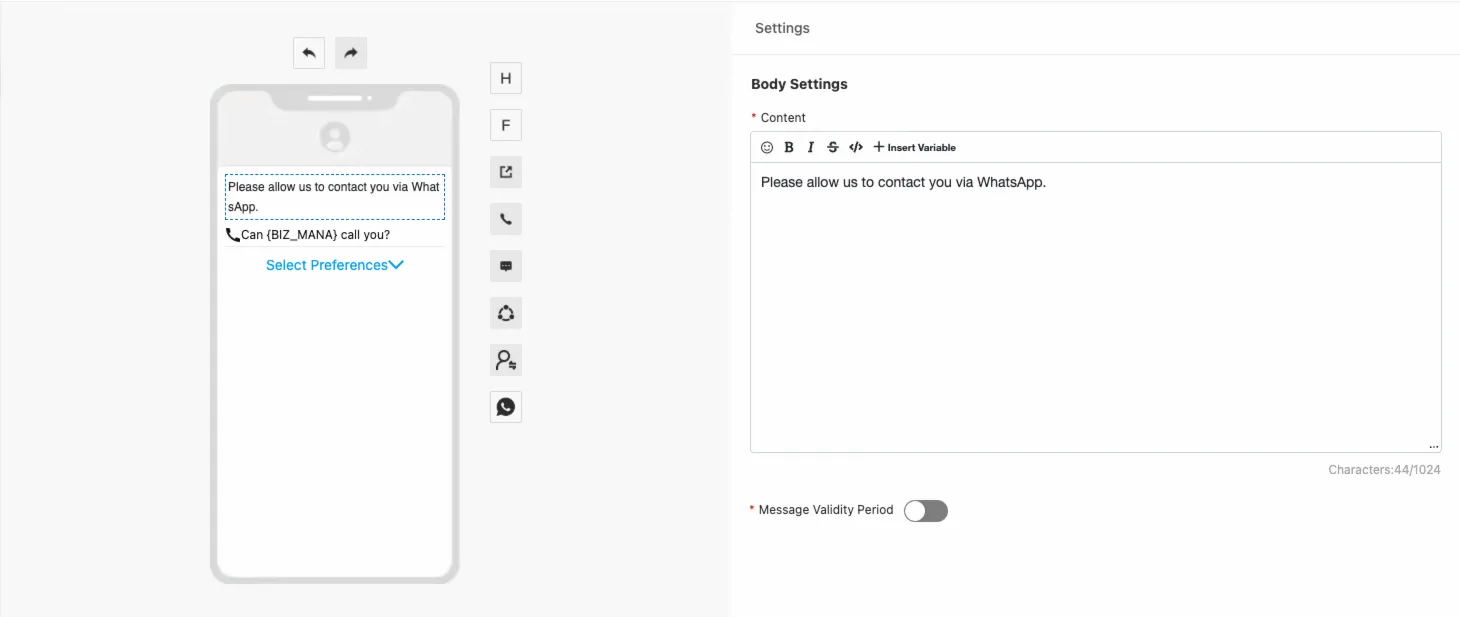
Call with WhatsApp
The process for adding a Call with WhatsApp button is the same as for requesting call permission. After creating a message template with a call button, you can send messages to WhatsApp users to invite them to call your business.
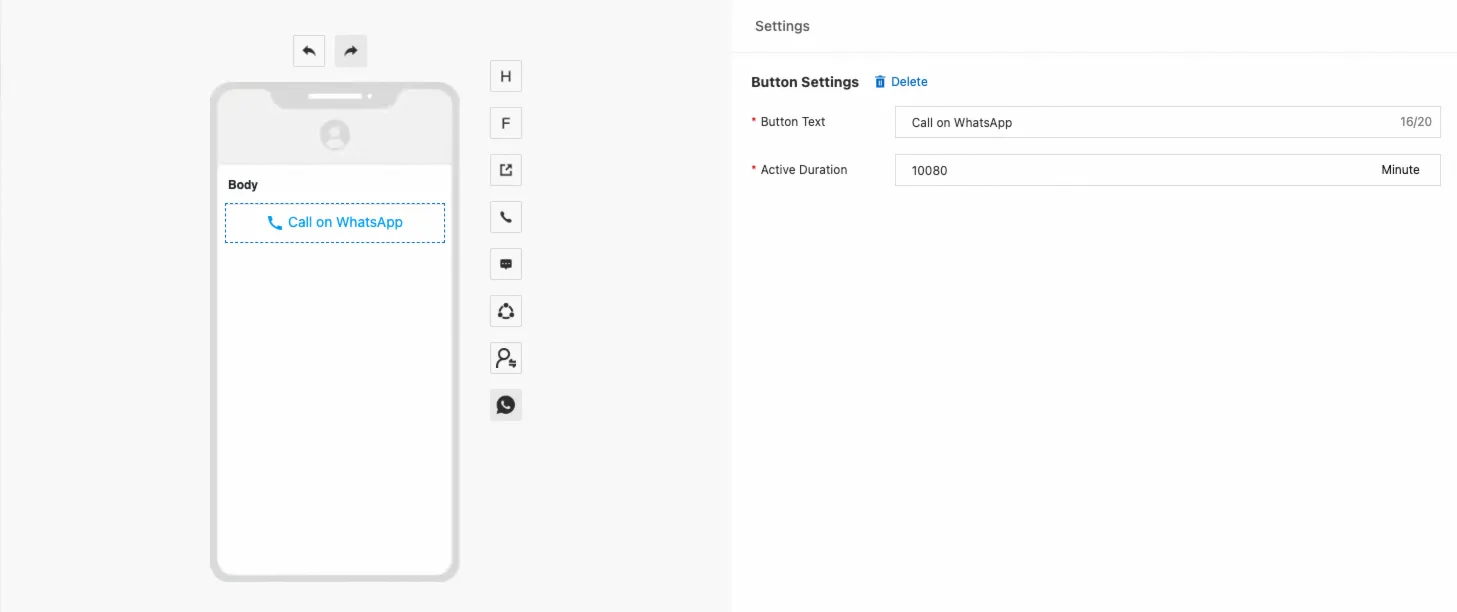
Button Text: The text that is displayed on the button to the end user.
Active Duration: The period during which users can click the button to contact your business on WhatsApp. Enter a positive integer from 1 to 43,200.
API reference
CreateChatappTemplate: Creates a message template.