This tutorial shows you how to use Chat Flow in Chat App Message Service to build a multi-channel delivery workflow for one-time password (OTP) messages.
Background
As of the end of 2023, WhatsApp has over 2 billion active users across nearly 200 countries and regions. Because its account system is based on phone numbers, WhatsApp is an effective channel for reaching users. As a result, many businesses prioritize WhatsApp when sending one-time password (OTP) messages, notifications, and marketing campaigns to their global users.
However, businesses with a global user base often find that relying solely on WhatsApp for OTP delivery yields unsatisfactory results.
There are two core reasons for this:
First, while OTPs, notifications, and marketing messages are all sent via channels like SMS, email, or instant messaging apps, they differ fundamentally in purpose, content, and user expectations. The purpose of an OTP is to complete an identity verification, usually within one minute. This requires a higher standard for message accuracy and timeliness, and the criteria for successful delivery are very simple.
Second, while WhatsApp is popular globally, its penetration rate varies significantly by country. The preferred instant messaging app also differs by country. This variance means that WhatsApp is not the primary choice for users in some countries, which negatively affects OTP message delivery.
Consequently, when serving a global user base, a single-channel approach using only WhatsApp will inevitably fall short. To overcome this, businesses must "meet users where they are" by covering all mainstream communication channels. But how do you identify the country for a massive list of phone numbers and then route messages through multiple channels accordingly?
Solution
Use Chat Flow in Alibaba Cloud Chat App Message Service to quickly identify phone number regions and send messages across multiple channels.
Chat App Message Service is a powerful messaging engine from Alibaba Cloud that helps enterprises reach users effectively. It enables easy integration with global messaging platforms like WhatsApp, Viber, Messenger, and Instagram, enhancing user engagement with rich message types. To simplify setup, the service includes the built-in Chat Flow tool. It allows any employee to quickly build interactive workflows using a low-code approach.
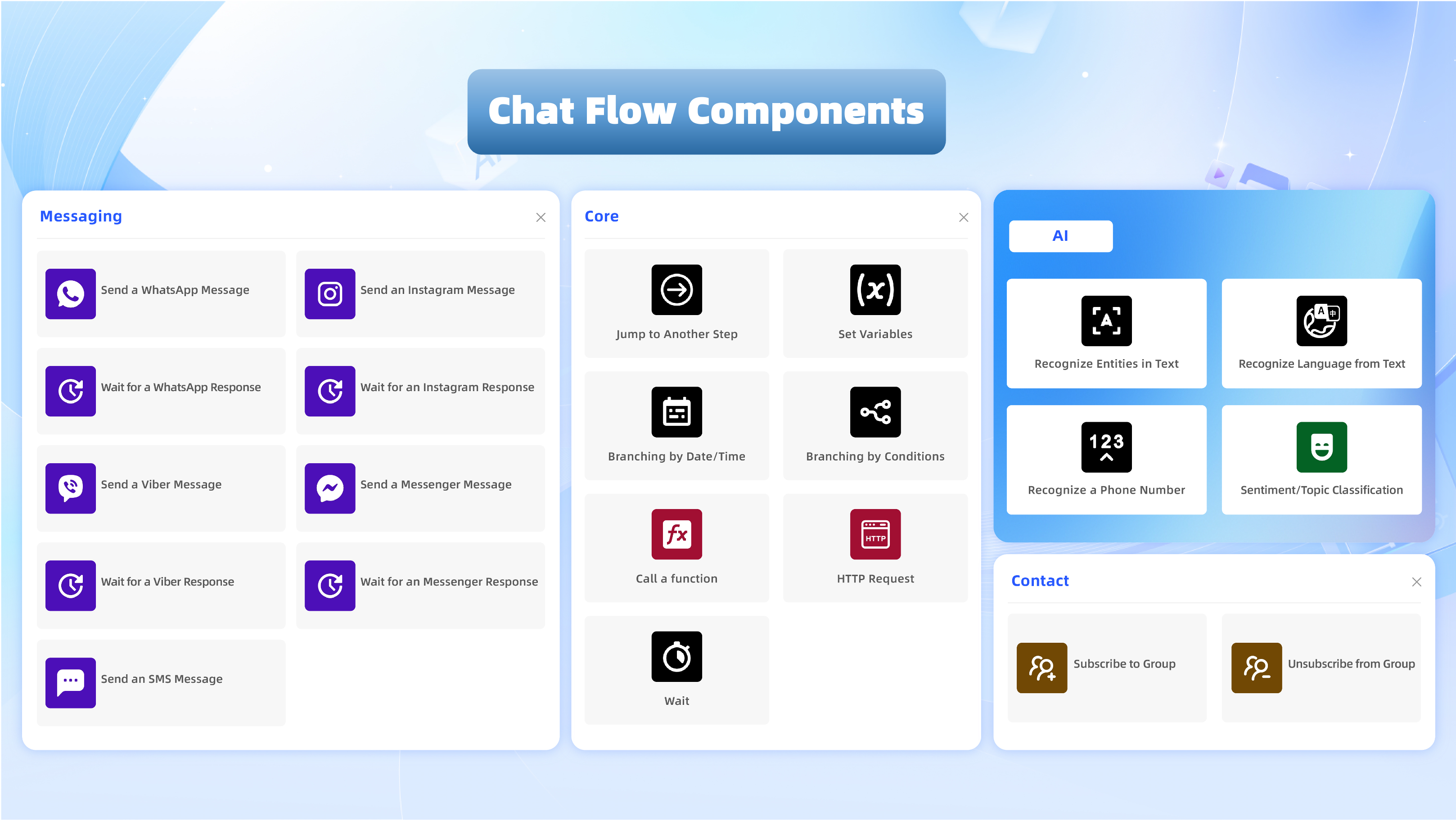
Chat Flow presents a large visual canvas. On the left, you will find a wide range of components, including message components, flow control components, AI components, and marketing components. You can drag and drop these components onto the canvas and, with simple configuration, build chat flows or quickly assemble a workflow that matches your business process.
The features in Chat Flow fall into four main categories: the channel dock, flow dock, AI dock, and marketing dock. For details, see Chat Flow Features.
Chat Flow has five key strengths: it is easy to use, easy to maintain, highly flexible, deeply integrated, and widely applicable. For details, see Chat Flow Highlights.
Procedure
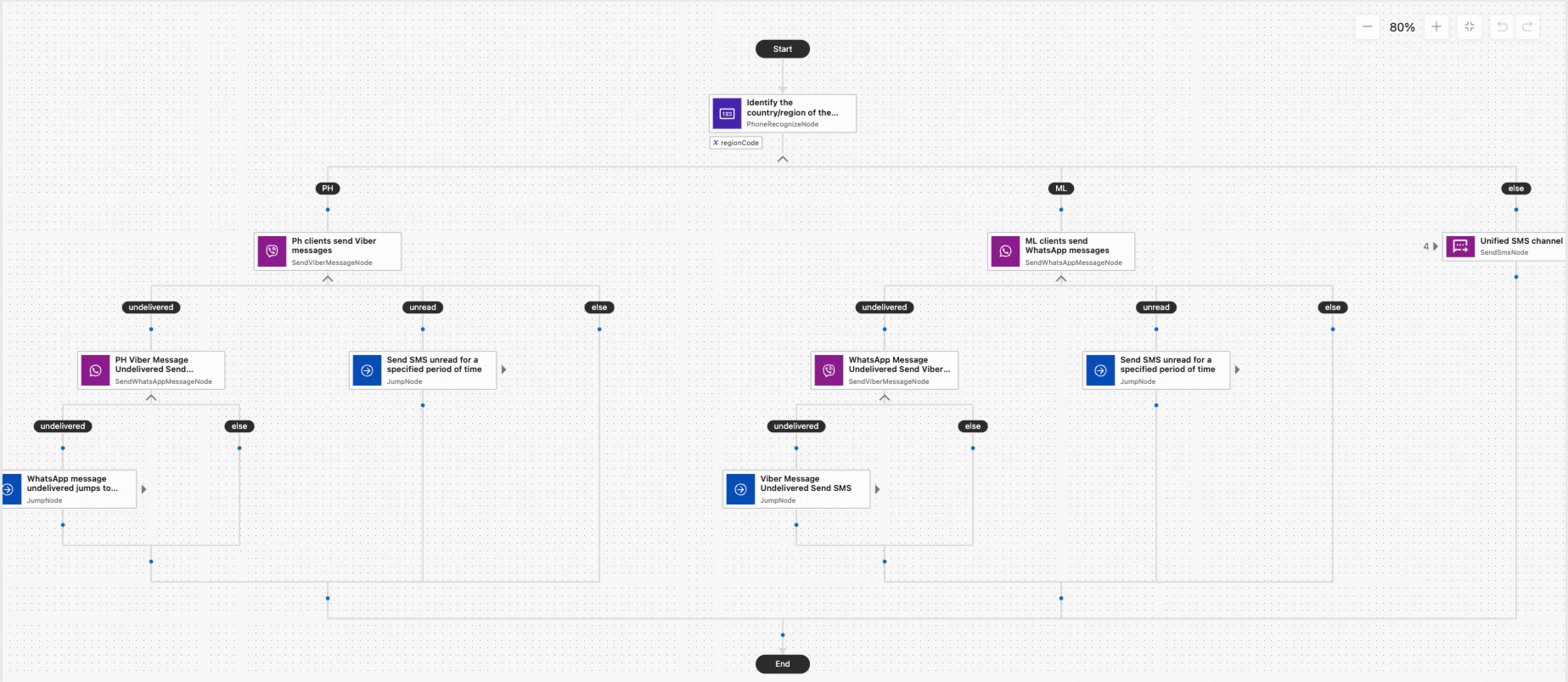
Scenario: You want to send OTPs through Viber to users in the Philippines, through WhatsApp to users in Malaysia, and through SMS to users in all other countries.
Flow diagram:
Complete the following five steps:
Set variables
In the tab, click the Flow Name of a flow for which the Trigger Type is Manual. The canvas editor page opens. On the canvas, click Start, and in the right-side panel, turn off Do Not Accept Incoming Variables. For example, in this scenario, after you turn off Do Not Accept Incoming Variables, you must enter the following variables: customer phone number (
customerPhoneNumber) and verification code (verificationCode).Create PH and ML branches
From the component library, select the Recognize a Phone Number component and drag it to the canvas. Enable the Multi-branching button. If you want to branch based on region codes, select the Region Code option. In the branches below, select the international codes for the target countries or regions, such as the Philippines (PH) and Malaysia (ML). Set the Output Variable Name. You can use this name to reference the variable in subsequent components.
In the Input Settings section, select the
customerPhoneNumbervariable. Set the Output Variable Name toregionCode.Configure the else branch
In the else branch, drag and drop the Send SMS component. Set the sender ID. For the recipient's phone number, select the customerPhoneNumber variable that is set in the Start node. For the Message Content, set the Content Type to Verification Code. The message content is the body of the message that is sent to the user. For this scenario, enter the following:
"Your one-time password is:{{verificationCode}} The password is valid for 10 minutes. Please do not share this password with anyone to protect your account."
In this case, verificationCode is the name of the variable that represents the verification code and is defined in the Start node. To use variables, enter {{. You can then select an existing variable or create a new one. The variable list contains all variables that are available in the current component.
NoteIt is a best practice to configure the else branch first. This branch serves as the fallback branch, which you can jump to from other branches if you need to handle exceptions.
Configure the PH branch
Drag the Send Viber Message component to the PH branch, and configure related settings, such as Message Sending Settings, Message Settings, and Timeout Settings.
Message Sending Settings: Set Action to From/To, Message Type to Transaction, and Sending Type to Service ID (which is the Viber business account). For Channel, select the channel that you want to use to send messages. For the recipient, use the customerPhoneNumber variable defined in the Start node, which represents the user's mobile phone number.
Message settings: For Message Type, select Text, and enter the message body. For this scenario, enter:
"Your one-time password is:{{verificationCode}} The password is valid for 10 minutes. Please do not share this password with anyone to protect your account."
NoteWhere verificationCode is the name of the variable for the verification code, which is defined in Start.
In the Send a Viber Message in PH region node, the message sending settings are configured as follows:
Action: From/To
Sending Message Type: Transaction
Sending Type: Service ID
Sending Channel: Viber
Recipient:
{{customerPhoneNumber}}
Timeout Settings: To ensure users receive the OTP, you can configure an action that is triggered if the message is not delivered or read within a specified period.
The following sections describe how to configure this.
Send WhatsApp if undelivered
Follow these three steps:
Drag the Send a WhatsApp Message component to the undelivered branch of the Send a Viber Message component.
Click the Send WhatsApp Message component. In the pane on the right, select From/To. For Sending Type, select Mobile Number. For Channel, select the WABA channel that you want to use to send the message. For Sender Mobile Number, select a verified number under the WABA channel. For Recipient, enter the user phone number variable defined in the Start node, such as customerPhoneNumber.
In Message Settings, set Message Type to Template Message, select the same channel as the sending channel for Channel, and select the template to be sent for Template Message. The template must be created in advance and approved by WhatsApp.
Send SMS if unread
Follow these two steps:
Drag the Jump to Another Step component to the unread branch of the Send a Viber Message component.
Click the Jump to Another Step component. In the right-side pane, under , select the Send SMS node component. Maximum number of jumps specifies the maximum number of times the jump component can be triggered. For example, if you enter 3, the jump component will not be triggered the fourth time it is entered.
In the PH branch, you can also configure the undelivered and unread branches for the Send a WhatsApp Message component. In this flow, if the WhatsApp message is not delivered within 30 seconds, the flow jumps to the unified Send an SMS Message component in the else branch. The configuration is similar to the preceding steps. In the jump component, you must specify the name of the component to which you want to jump. You can customize component names on the canvas to differentiate them.
NoteFor users in the Philippines, the flow first attempts to send the OTP via Viber. If delivery fails, the flow immediately retries via WhatsApp. If WhatsApp also fails, it finally falls back to SMS. This multi-channel approach maximizes the chance of successful message delivery.
Configure the ML branch
Configure the flow for Malaysian phone numbers in the ML branch. The configuration process is similar to the PH branch, but the channel priority is different. For users in Malaysia, the flow first attempts to send the message via WhatsApp. If that fails, it falls back to Viber. If Viber also fails, a Jump to Another Step component redirects the flow to the unified SMS channel in the else branch. If the WhatsApp message is successfully delivered and read, the flow concludes.