Background information
If you notice a sudden increase in CDN traffic or requests, you may be experiencing resource abuse or a malicious attack. Analyze your logs to check if the attack requests share a specific User-Agent (UA) signature. If they do, you can use the UA blacklist and whitelist feature to block these malicious requests.
Understanding the User-Agent
Unlike the Referer header, the UA header contains information about the client's device. This makes it more difficult to determine if a request is legitimate based on the UA alone. You can evaluate whether a UA is normal by considering different scenarios.
Browser and non-browser requests
Browser UAs typically start with
Mozilla/5.0for historical compatibility.PC and mobile devices
Mobile devices usually include fields such as
Mobile,Android,iPhone, oriPad.PCs usually include desktop operating system identifiers such as
Windows NT,Macintosh, orLinux.Browser engines
Common browser engines include the following:
Google Chrome: Chrome/
Firefox browser
Safari: Version/
Edge (new version): Edg/
WeChat built-in browser (X5 kernel): MicroMessenger/
You can use this information to check if the UAs match your expected traffic. For example, if your service is a WeChat mini program, requests from PC browsers are likely abnormal. You can then block requests that have PC-specific UA signatures.
Identify traffic abuse
Basic: offline logs
You can download offline logs to view the access logs of a selected time period, analyze the details of HTTP requests, and identify suspicious IP addresses and User-Agent headers.
Offline logs contain a small number of fields. If you want to view more details, use the real-time logs feature.
After you obtain offline log files, you can use command-line tools to quickly parse log files and extract information such as the top 10 IP addresses or User-Agent headers by access volume. For more information, see Analysis method of Alibaba Cloud Content Delivery Network access log.
Advanced: Real-time logs
If you want to query more log information, such as Referer and URI, you must activate Simple Log Service (SLS) and push the collected real-time logs to SLS. After you enable real-time logging and successfully deliver the logs, you are charged based on the number of real-time log entries.
Follow the instructions in Configure real-time log delivery to set up real-time log delivery for the CDN-accelerated domain name that you want to analyze.
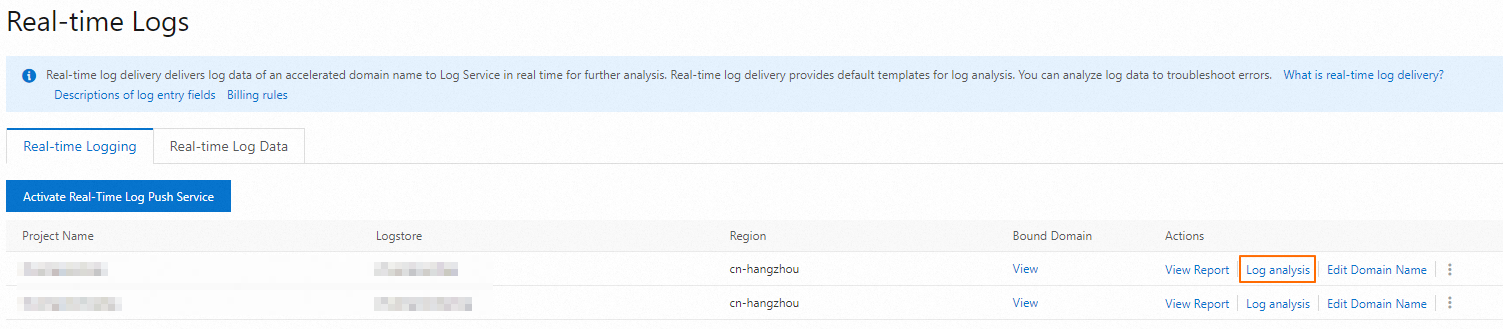
On the real-time log page, find the Project that contains the logs you want to analyze and click Log analysis.
On the Log Analysis page, filter the logs by time period in the upper-right corner. Click the Raw Logs tab on the left. Find the
user_agentfield to view the UA information, which is sorted in descending order of frequency.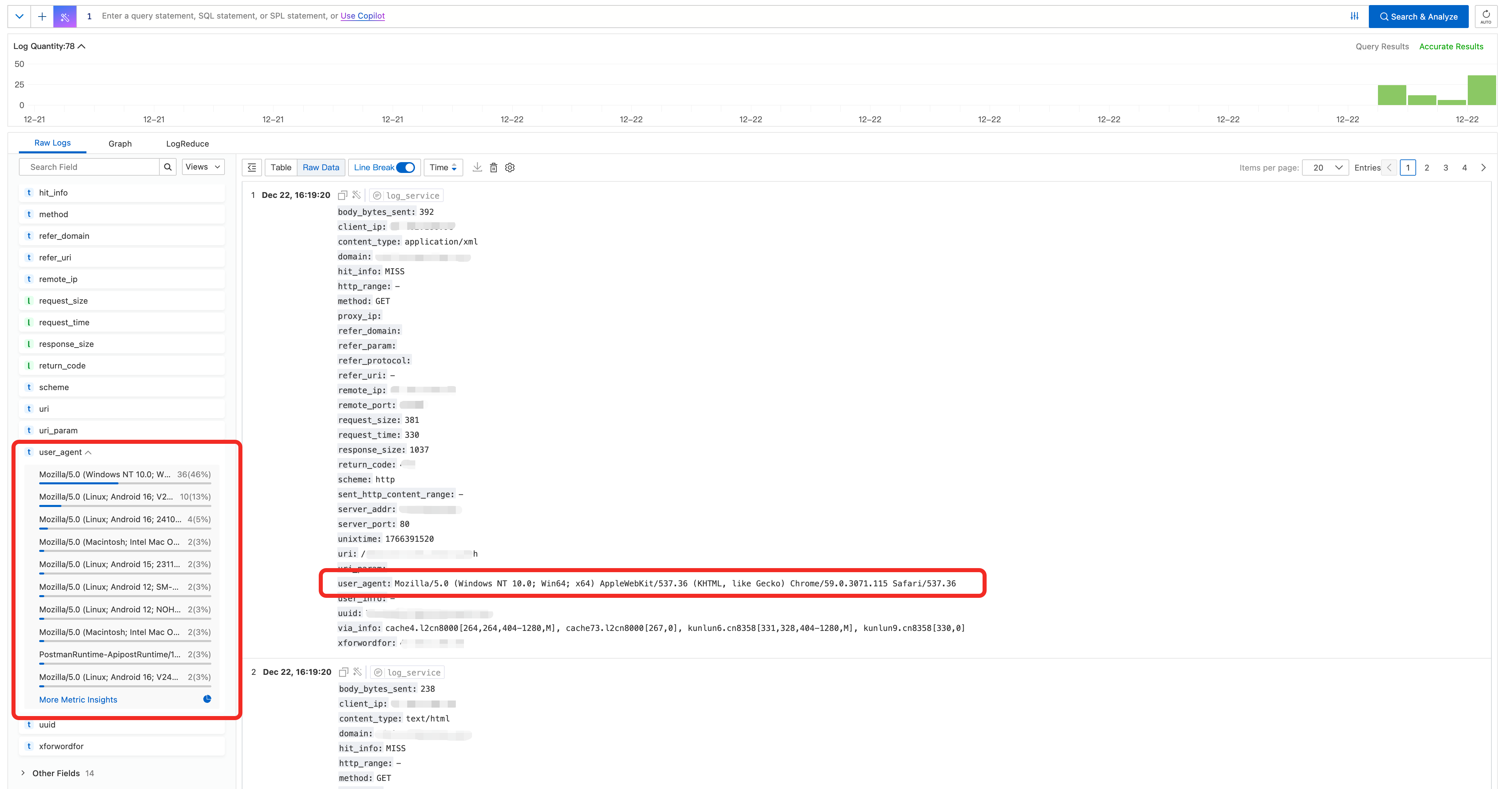
Blocking policy
The User-Agent header is easy to forge. Blocking requests based only on the UA is a supplementary security measure.
Incorrectly configured UA blocking rules can prevent legitimate users from accessing your service (false positives) and cause business disruptions. Before you configure any rules, thoroughly analyze your access logs to ensure the accuracy of your blocking targets. You should also perform phased grayscale testing and continuously monitor your business metrics.
Block illegitimate UAs
Log on to the CDN console.
On the Domain Names page, find the target domain name and click Manage in the Actions column.
In the domain's navigation pane, click Access Control.
Click the User-Agent Blacklist/Whitelist tab.
On the User-Agent Blacklist/Whitelist tab, click Modify.
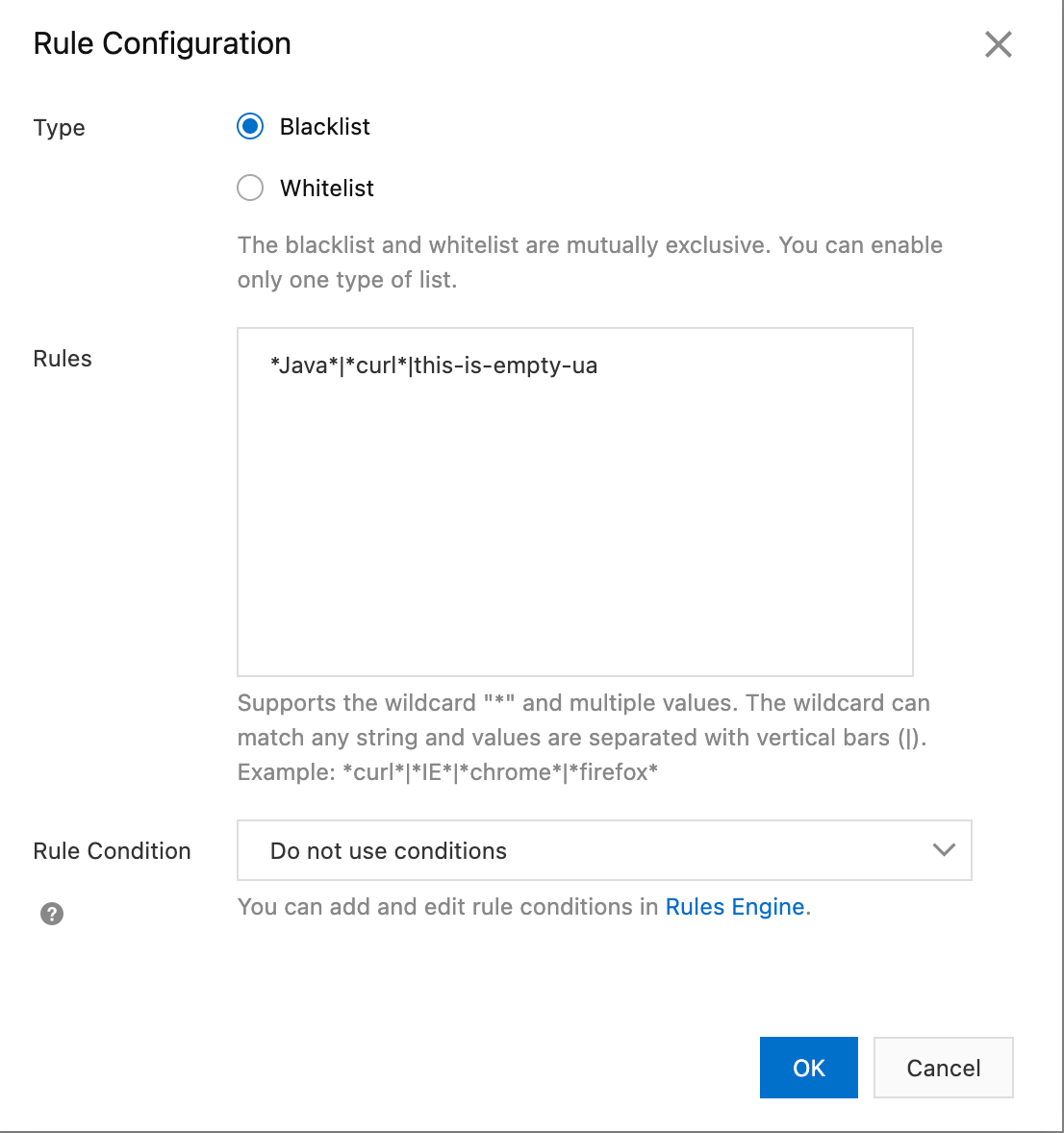
Set Type to Blacklist and enter the unauthorized User-Agents (UAs). Examples include the following:
Empty UA: The request does not contain UA information. You can use
this-is-empty-uato match these requests. Some browsers in privacy mode or certain applications might send requests with an empty UA. However, malicious scanners and crawlers also frequently use this method.Specific programming libraries: such as
python-requests,Java/,Apache-HttpClient, andGo-http-client. If your service does not expect server-side calls from these libraries, a high volume of requests with these UAs is likely malicious.Common scanners or tools: such as
sqlmap,Nmap,Wget, andcurl.UAs that do not match your business scenario: For example, if your service is a mobile-only app, but the logs show many requests from PC browsers with UAs such as
Windows NTorMacintosh, these requests are likely abnormal.
Control access frequency
If you cannot determine whether a Referer is legitimate and are unable to use a Referer blacklist, you can use the rate limiting feature of ESA to limit access frequency and reduce malicious traffic.
In the ESA console, choose Websites. In the Actions column of the target site, click the
 > WAF icon.
In the navigation pane on the left, choose .
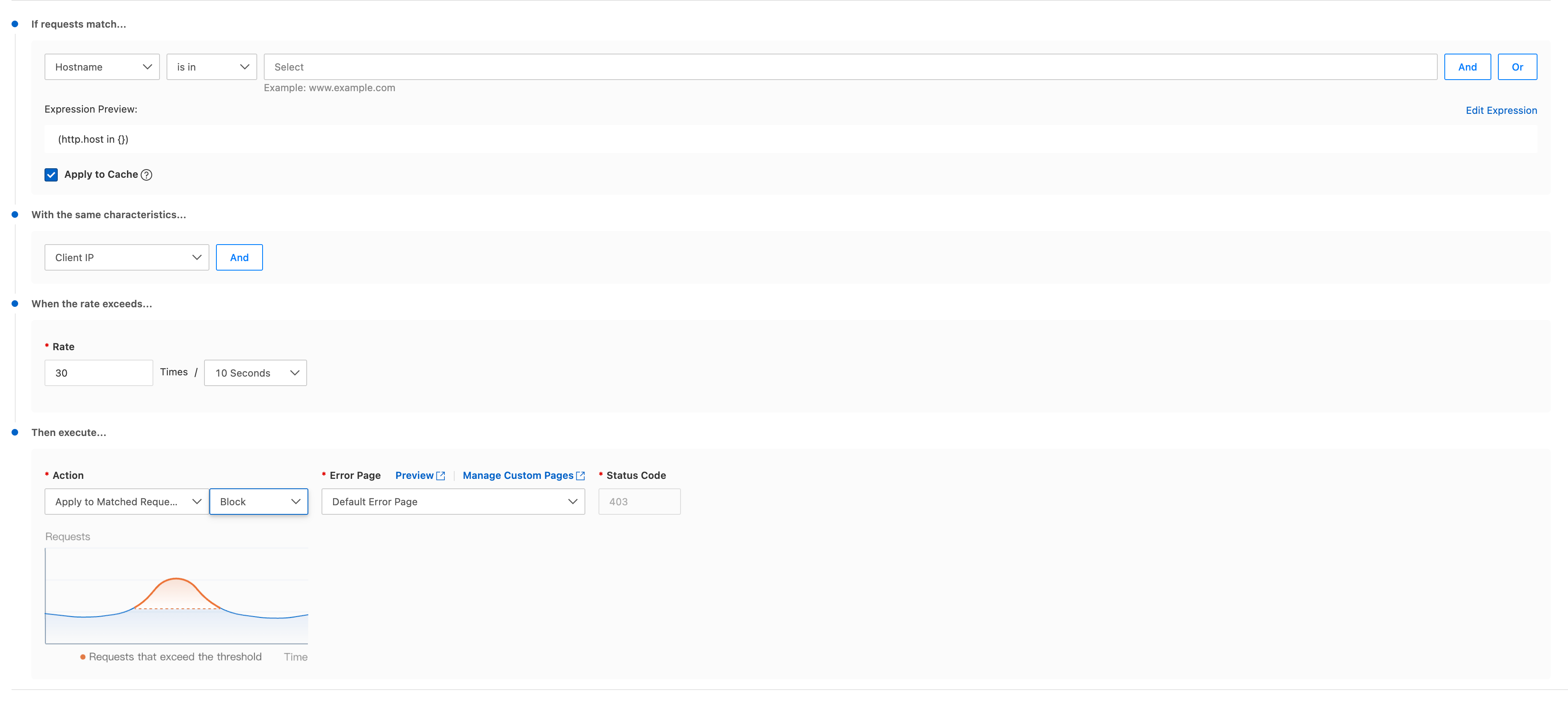
On the WAF page, select the Rate Limiting Rules tab, click Create Rule, and enter the required information for the rule.
Set Hostname to the specified domain name and set the statistical item to Client IP. Set Frequency to a threshold that reflects your normal business traffic. We recommend setting the threshold to 1.2 to 2 times your normal access frequency. For the action, select Apply to Matched Requests and Block.
Click OK.