Issue
You have configured CDN but are not sure whether it is working.
Solution
Follow these steps to check whether CDN is accelerating your domain name:
Confirm that the CNAME is configured correctly
In the console, check that the CNAME Status is Configured and the domain name Status is Enabled.

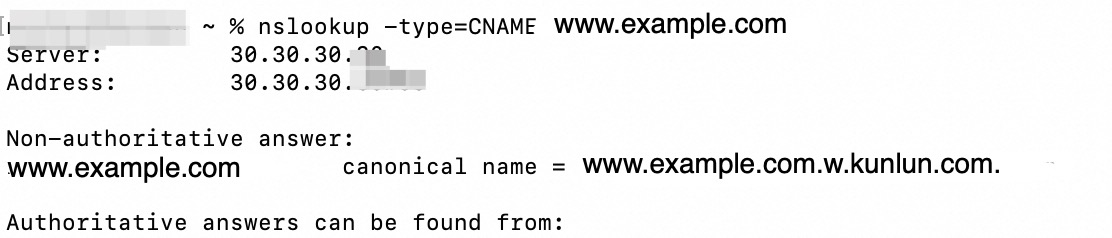
Run the nslookup -type=CNAME <accelerated domain name> command. For example, nslookup -type CNAME www.example.com. If the returned result matches the CNAME value for the accelerated domain name in the CDN console, the canonical name (CNAME) is active.
Verify that the CDN cache is active
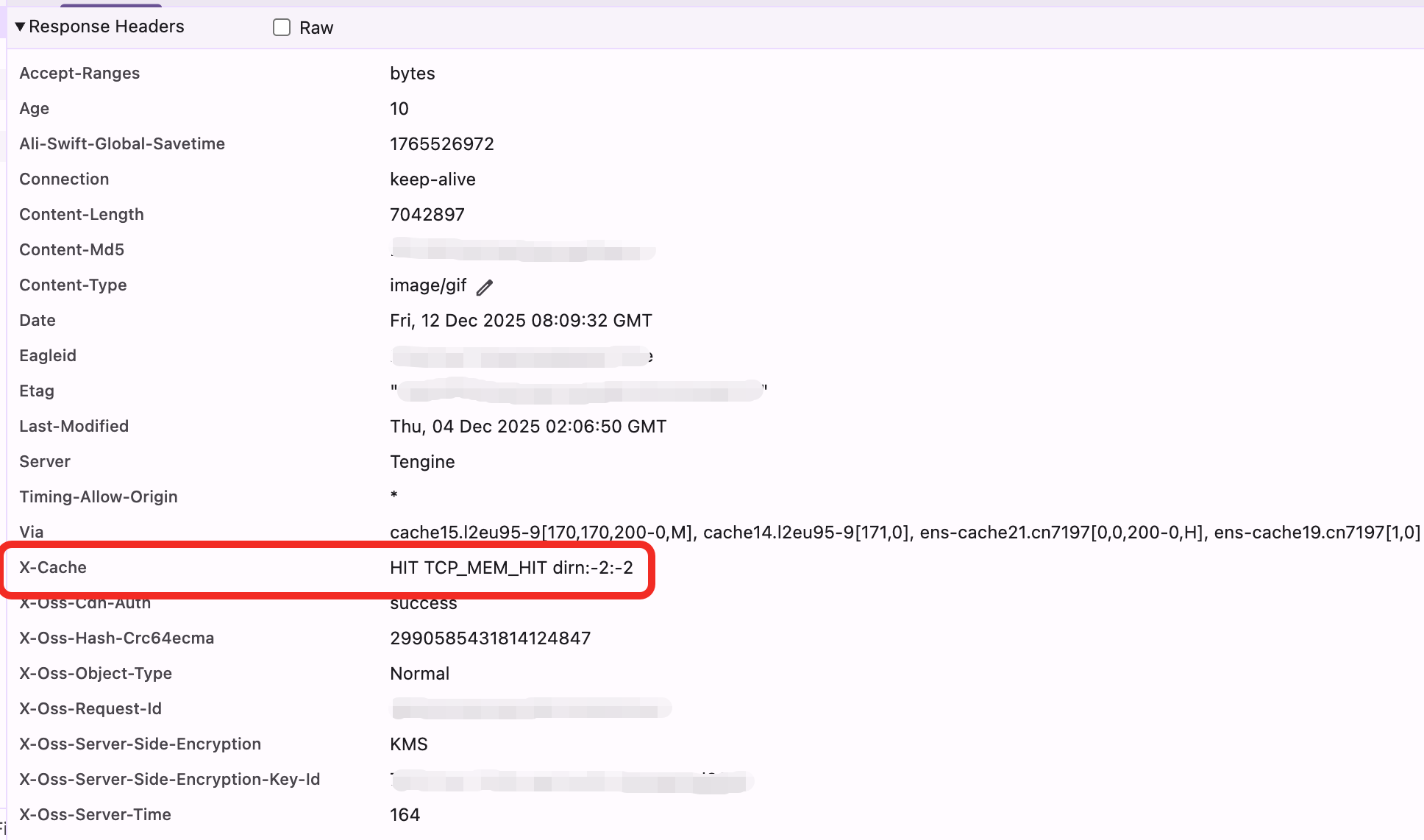
Access the domain name in a browser and open the developer tools.
If the response header contains the
Age,X-Cache,X-Swift-SaveTime, andX-Swift-CacheTimefields, CDN is active.NoteX-Cache: A value of MISS indicates a cache miss and requires an origin fetch. A value of HIT indicates a CDN cache hit, and the cached data is read directly from the cache.Age: Specifies the time in seconds that a file has been cached on a CDN point of presence (PoP). If the file is refreshed or accessed for the first time, this field is not included. AnAgevalue of 0 indicates that the cache has expired and an origin fetch for validation is required.X-Swift-SaveTime: Indicates the time in GMT when the resource is first cached on a CDN node.X-Swift-CacheTime: The value of this field indicates how long the file can be cached on a CDN node. A value of 0 indicates that the request cannot be cached.
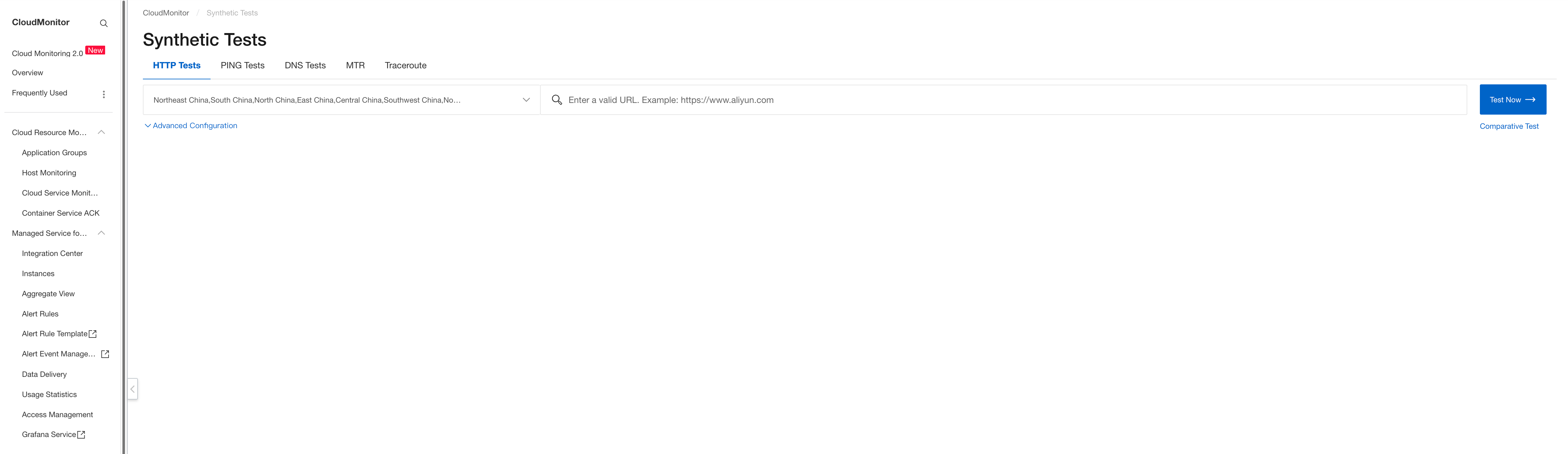
To verify the overall acceleration effect, you can perform a comparison test using a network probe. You can use the Disposable Test Tool to separately test a domain name attached to CDN and a domain name attached to the source server.