Background
CADT does not allow you to select a payment method during deployment. It automatically pays for resources in a predefined sequence. For more information, see Automatic Bill Charge Rules for Alibaba Cloud Accounts .
In some production environments, you may need to generate an unpaid order instead of using automatic payment. Common use cases include:
-
Internal payment procedures require an unpaid order for financial approval.
-
A special discount must be applied to an unpaid order before payment.
-
A specific payment channel is required, such as a credit card or PayPal.
-
The account has multiple vouchers or coupons, and a specific one must be used for payment.
Solution
CADT allows you to create an unpaid order for the resources in your architecture. You can then pay for the order in the Orders section of the console to provision the resources.
Procedure
Create an application
-
Log on to the Cloud Architect Design Tools (CADT) console and click Create > Application. A drop-down menu appears.
-
In this example, create an application that includes a VPC, a vSwitch, a security group, an ECS instance, and an RDS MySQL instance. The resources are automatically connected based on the network topology.

-
Configure the parameters for each resource.
NoteSelect the subscription billing method. This procedure is not applicable to some pay-as-you-go resources.
The left pane lists cloud product categories. The main canvas displays the resource topology. Click a resource node to configure its parameters in the right pane.

-
After you complete the configuration, click Save in the upper-right corner and set the application name.
Configure a template
-
After you save the application, navigate to the Application > My Applications page.
-
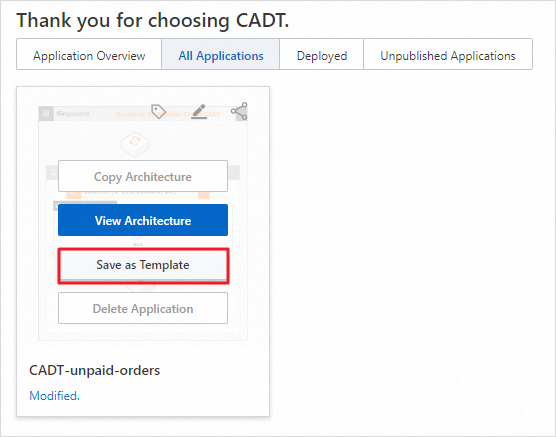
Find the application and click Save as Template in the Actions column.
-
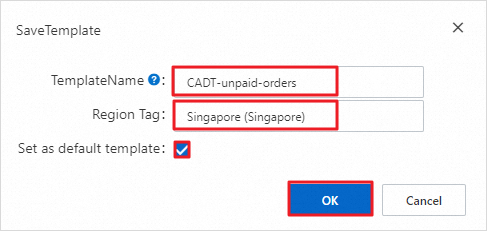
Set the template name and description, and then click Confirm.
-
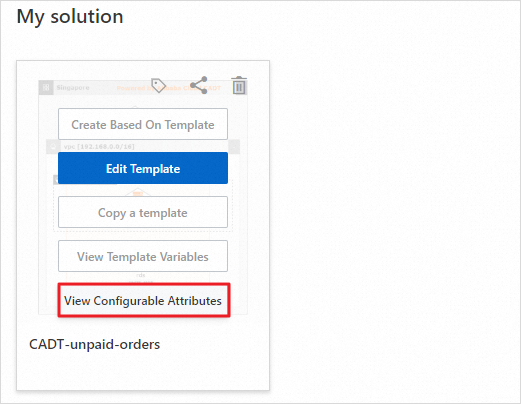
Find the template under New > My Solutions, and click View Configurable Properties.
-
In the Configurable Properties dialog box, set Automatic Payment (auto_pay) to false.
-
Close the dialog box. The auto_pay attribute now shows false.
Create an application from a template
-
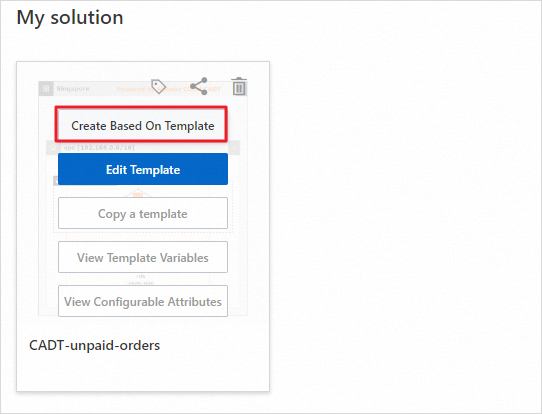
Click Create from Template in the upper-right corner to create a new application.
-
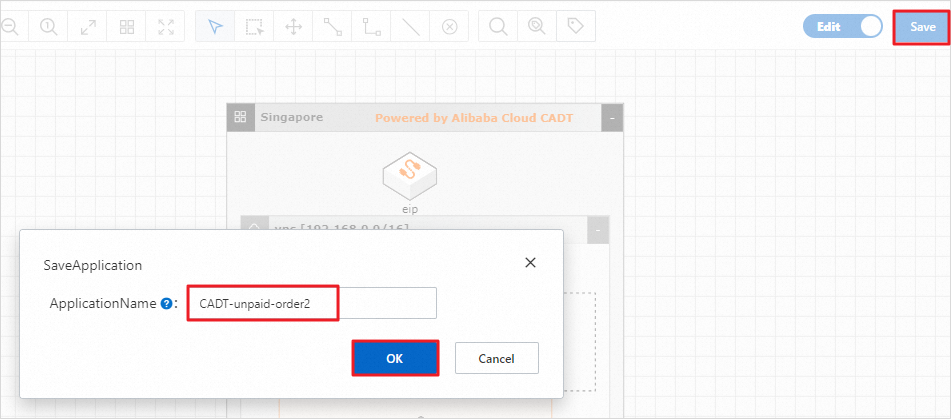
Click Save. In the dialog box that appears, enter a new application name and click Save.
-
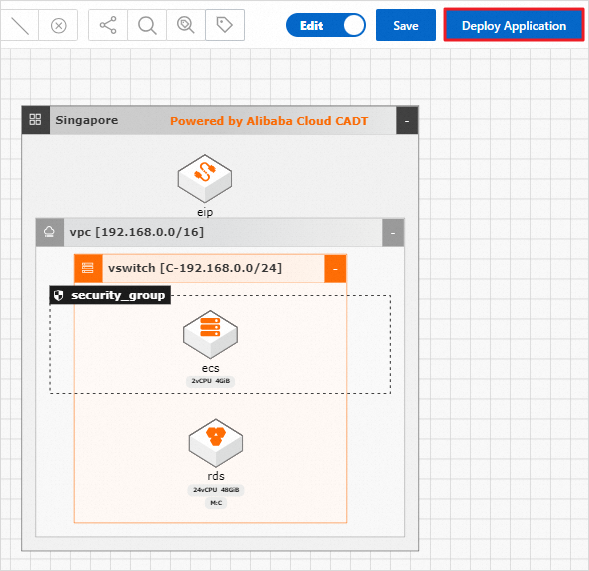
Click Deploy Application in the upper-right corner.
-
Follow the deployment wizard to validate resources, get a price quote, and place the order. Click Next to proceed through each step.
-
Because automatic payment is disabled, you must manually pay for the order to provision the resources.
View and confirm the unpaid order
-
Log on to the Expenses and Costs console and go to Orders.
-
The generated unpaid orders are displayed. Click Pay on an order and select your preferred payment method.