Define template variables
Configure local variables
-
On the My solution page, find the template where you want to define variables and click Edit Template. This topic uses an ECS template as an example.
-
Double-click a resource icon to open its configuration panel. You can define variables for any attribute marked with an fx icon.
-
Click the fx icon on the right to open the Custom Variable dialog box. The following table describes the parameters.
Parameter
Description
Format
Requirement
Variable Name
The name of the variable.
${variable_name}
-
The ${} syntax is required.
-
The variable name can contain only letters, digits, hyphens, and underscores.
Placeholder
The placeholder format used in the architecture description file.
A combination of the ${variable_name} and other characters, such as numbers (0-9) and letters (A-Z).
The placeholder must typically be the same as the variable name.
When using a global variable, you must add the global variable's name to the placeholder.
Default Value
The value used for the variable if no other value is assigned.
You cannot configure default values for secondary attributes.
-
-
Here, we define variables for the
countandinstance nameattributes of the ECS resource. Click the fx icon to set a custom variable. For example, set both Variable Name and Placeholder to${count}, set Default Value to1, and then click Add Variable. For the instance name, set Variable Name and Placeholder to${instance_name}, set Default Value toecs, and then click Add Variable.
When you configure a local variable, the variable name and placeholder must be the same.
Configure global variables
Use cases: Global variables let you apply the same variable to multiple resources of different types across a template. For example, you can add a common prefix or suffix to the names of all instances in the template shown in the following figure.
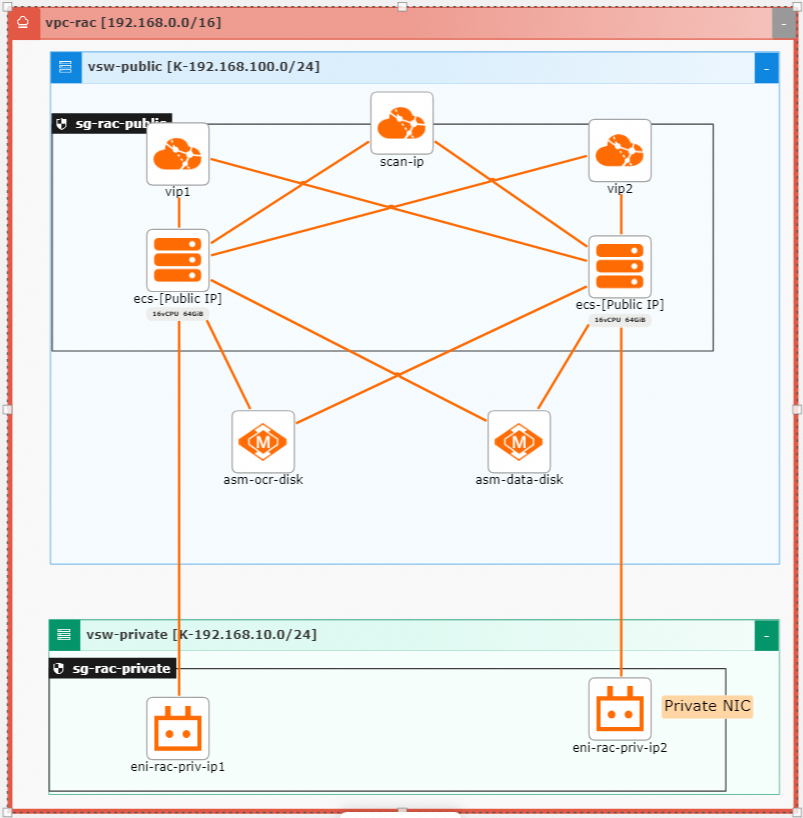
-
After defining the variables, find the template on the My solution page and click View Template Variables.
-
Click Add Global Variable in the upper-left corner. The configuration process is similar to that of local variables. In the dialog box that appears, set Variable Type to String. For Variable Name, enter
${prefix}. The name must use the${variable_name}format and can only contain letters, digits, hyphens, and underscores. For Default Value, enterprefix. This value is optional. Then, click Add Variable. The defined${prefix}variable appears in the Global Variable section of the Custom Variable dialog box, with its type shown as String and default value as prefix. -
Modify the local variables to incorporate the global variable. You can use a character, such as a hyphen (-), to concatenate the global variable with the local variable. For example, to add a prefix to the ECS instance name, change its Variable Name to
${prefix}-${instance_name}and its Placeholder to${prefix}-${instance_name}, and then click Add Variable. Similarly, modify the local variable for the Kafka instance name to${prefix}-${kafka_name}and click Add Variable.ImportantA global variable is not bound to a specific resource attribute and therefore does not have a placeholder. When assigning a value from a global variable to a local variable, ensure their data types match.
-
Example instance names created from the template:
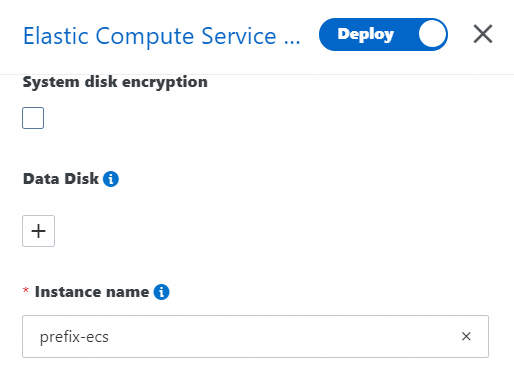
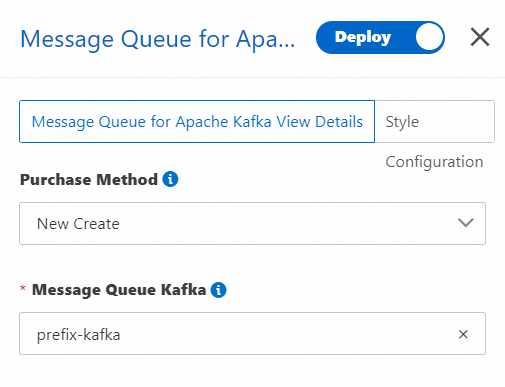
In the preceding example, the hyphen (-) used for concatenation can be replaced with any other character or string, provided it complies with the instance naming rules. The system preserves the concatenating character when it resolves the variable.
View template variables
-
After defining the variables, find the template on the My solution page and click View Template Variables.
-
-
Variable Name: The name of the defined variable.
-
Default Value: The default value used if no other value is assigned to the variable.
-
Variable Type: The data type of the variable, which determines how values can be assigned.
-
Placeholder: Associated with a local variable. Global variables, such as
${prefix}, do not have placeholders. The Placeholder column shows how placeholders can reference global variables to create combined names, for example${prefix}-${ecsName}or${prefix}-${kafkaName}. The RefId and Attribute Name columns link variables to specific resource attributes.
-
Delete a template variable
Delete a template variable by using either of the following methods:
-
In the View Template Variables dialog box, click Delete in the Action column for the target variable.
-
In the variable definition dialog box: Click the Delete Current Variable button to remove the variable.