If you no longer need a deployed application, use Cloud Architect Design Tools (CADT) to release its resources and save costs. This topic describes the release process and important considerations.
Notes
-
CADT supports releasing pay-as-you-go resources. You cannot release subscription resources before they expire.
-
For some resources, such as Object Storage Service (OSS) and Simple Log Service (SLS), you must manually delete any stored data before releasing them in CADT. Otherwise, the release process fails.
-
Before you can use CADT to release a VPC or vSwitch, you must first delete any resources you manually added to them, such as Elastic Compute Service (ECS) instances.
-
If a release is only partially successful, troubleshoot the issue by using the error message, and then retry the release in CADT.
-
CADT only releases resources that it creates and does not support imported resources. To release an imported resource, you must do so manually in the corresponding service's console.
Release specific resources
CADT allows you to release specific resources in an application without affecting others.
-
Log on to the Cloud Architect Design Tools (CADT) console. In the top navigation bar, choose Application > My Applications. Find the target application whose status is Deployed.
-
On the My Applications page, find your application and click View Architecture.
-
Click the Edit switch in the upper-right corner to enter edit mode.
-
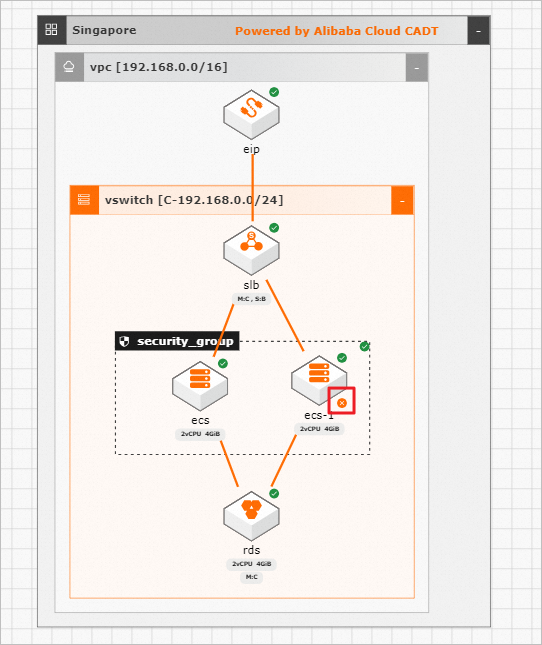
Select the resource you want to release. For example, to release ecs-1, right-click the resource and select Delete.
-
In the confirmation dialog box that appears, click Confirm.
-
A pending deletion marker is added to ecs-1. The instance is not yet deleted but will be permanently released the next time you deploy the application.
-
Repeat these steps to mark other resources for deletion as needed.
-
After you finish, Save the application and click Deploy Application.
-
The deployment wizard starts with resource validation. In the Resource Validation dialog box, after all resources pass validation, click Next: Price List to review the price and complete the deployment.
-
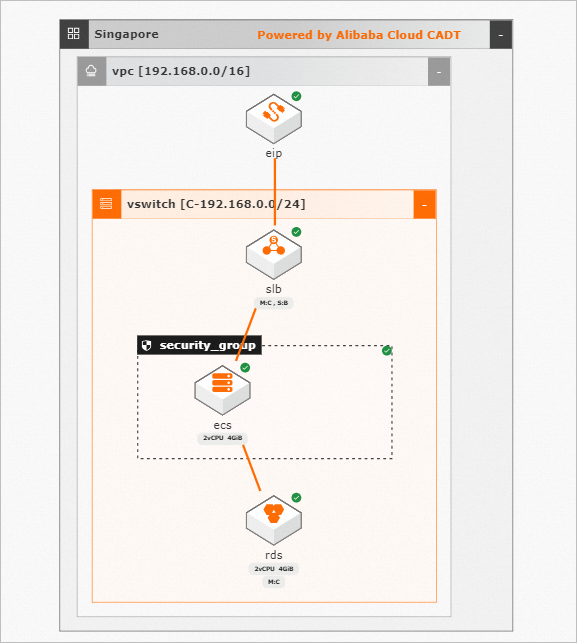
After the deployment is complete, the status of ecs-1 changes to Deleted. Click Back to view the application architecture diagram.
-
The ecs-1 resource is removed from the architecture diagram.
Release all resources
CADT provides a one-click feature to release all resources in an application at once, which avoids releasing them individually.
-
Log on to the Cloud Architect Design Tools (CADT) console.
-
Go to Application > My Applications, find the application to release, and click View Architecture.
-
Open the Resource List and click Release All Resources.
-
In the Release All Resources confirmation dialog box, click OK.
-
The Resource Deployment Status dialog box appears, displaying the message: "Releasing. Do not perform any operations. Please wait...".
-
Wait for all resources to be released. When the process is complete, the status of all resources in the Resource Deployment Status dialog box changes to Deleted, and the deployment summary shows a status of Released.
A green Released tag appears next to the application title, indicating that all cloud resources have been released.
Delete application
After releasing all of an application's resources, you can delete the application itself.
-
Navigate to Application > My Applications.
-
Find the released application and click Delete Application at the bottom of its card.
-
In the confirmation dialog box, click OK.