Cross-region operations and maintenance (O&M) over the public network often suffers from high latency, packet loss, and unstable connections. This guide shows how to pair Alibaba Cloud Global Accelerator (GA) with Bastionhost to route O&M traffic through Alibaba Cloud's backbone network, reducing latency while keeping all sessions auditable.
Is this solution right for you?
| Situation | This solution fits |
|---|---|
| Your O&M engineers access Bastionhost from regions different from where the instance is deployed | Yes |
| Your team is distributed across multiple countries and shares the same infrastructure | Yes |
| Your industry (finance, healthcare) requires strict audit trails for cross-region O&M | Yes |
| You manage business systems in multiple regions from a central region | Yes |
| Your Bastionhost instance and all engineers are in the same region | No — GA acceleration has no effect when the access region matches the instance region |
How it works
End users connect to the nearest GA point of presence (POP). GA forwards the traffic over Alibaba Cloud's backbone network to the Bastionhost instance, reducing network latency and packet loss.

Acceleration areas (where your engineers are located):
| Area | Supported regions |
|---|---|
| Asia-Pacific - China | China (Hangzhou), China (Shanghai), China (Qingdao), China (Beijing), China (Ulanqab), China (Shenzhen), China (Guangzhou), China (Chengdu), China (Hong Kong) |
| Asia-Pacific - Other | Japan (Tokyo), South Korea (Seoul), Singapore, Malaysia (Kuala Lumpur), Indonesia (Jakarta), Philippines (Manila), Thailand (Bangkok), Vietnam (Ho Chi Minh) Edge POP |
| Europe & Americas | Germany (Frankfurt), UK (London), US (Silicon Valley), US (Virginia), Canada (Toronto) Edge POP, Canada (Vancouver) Edge POP, Mexico |
Endpoints (where your Bastionhost instance is located):
If the region of your Bastionhost instance is not listed below, select the geographically closest region. GA automatically routes traffic to the optimal node.
| Area | Supported regions |
|---|---|
| Asia-Pacific - China | China (Hangzhou), China (Shanghai), China (Qingdao), China (Beijing), China (Ulanqab), China (Shenzhen), China (Guangzhou), China (Chengdu), China (Hong Kong) |
| Asia-Pacific - Other | Japan (Tokyo), South Korea (Seoul), Singapore, Malaysia (Kuala Lumpur), Indonesia (Jakarta), Philippines (Manila), Thailand (Bangkok), Vietnam (Ho Chi Minh) Edge POP |
| Europe & Americas | Germany (Frankfurt), UK (London), US (Silicon Valley), US (Virginia), Mexico |
Benefits
Low latency, high reliability: GA routes traffic through Alibaba Cloud's global POPs using high-quality Border Gateway Protocol (BGP) bandwidth, reducing latency and packet loss for cross-region access. Intelligent traffic scheduling across multiple nodes avoids single points of failure to ensure high availability (HA).
Full audit trail: Bastionhost records all O&M sessions and supports screen recording playback and audit trails. Fine-grained permission management helps meet classified protection compliance requirements.
Protocol support: Supports SSH, RDP, MySQL, and PostgreSQL — suitable for hybrid cloud and multi-region architectures.
Fast setup: Configure and deploy the solution in minutes. Manage all resources centrally from the console.
Limitations
GA acceleration has no effect when the acceleration area matches the region of the Bastionhost instance. Do not select the instance's region as an acceleration area.
For Bastionhost instances in the Zhengzhou and China (Ulanqab) regions, the O&M portal (web console, port 443) cannot record the real client source IP. This limitation affects only the web O&M portal — connections over RDP, SSH, and database protocols (ports 60022 and 63389) are not affected.
If the acceleration area includes the Chinese mainland, the custom domain name must have an ICP filing.
GA uses the standard pay-as-you-go billing model. Costs include instance fees, compute unit (CU) fees, and traffic fees. For pricing details, see Pay-as-you-go billing for standard GA instances.
Prerequisites
Before you begin, make sure you have:
A Bastionhost instance with public network access enabled
A custom domain name (for example,
bh.yourcompany.com) for accessing Bastionhost, and DNS resolution permissions for that domainA valid SSL certificate for the custom domain name
Set up the solution
The setup has four steps:
Create a GA instance — configure TCP listeners for SSH and RDP traffic
Add an HTTPS listener — accelerate the Bastionhost O&M portal
Configure DNS — point your custom domain to the GA CNAME
Verify the acceleration effect — confirm lower latency
Step 1: Create a GA instance
Go to the Instances page of the Global Accelerator console and click Create Standard Pay-as-you-go Instance.
In the Basic Instance Configuration step, set the following: Click Next.
GA Instance Name: Enter a name for the instance.
Accelerated IP Address Type: Select EIP. GA assigns an independent EIP to each acceleration area.
In the Configure Acceleration Area step, set the following: Click Next.
Acceleration Areas: Select the regions where your Bastionhost users are located, for example, China (Chengdu). > Important: Do not select the region where the Bastionhost instance is deployed. If the acceleration area and instance region are the same, acceleration becomes ineffective.
Assign Bandwidth: For each acceleration area, configure:
Maximum Bandwidth: 200 Mbps by default. Adjust as needed.
IP Protocol: IPv4.
In the Configure Listeners step, set the following: Click Next.
Listener Name: Enter a name for the listener.
Protocol: TCP.
Port: Add both default Bastionhost O&M ports: > Note: If you have customized these ports on your Bastionhost instance, use the modified port numbers instead.
63389— RDP O&M protocol port60022— SSH O&M traffic port
In the Configure an Endpoint Group step, set the following: Click Next.
Region: Select the region where your Bastionhost instance is located.
Backend Service Type: Custom Domain Name.
Backend Service: Enter the Public address of the Bastionhost instance (for example, `nl****ur-public.bastionhost.aliyuncs.com`). > Note: To find the Public address: go to the Bastionhost instance list, locate the instance, and copy the value from the Public field. Alternatively, open the instance details page, click Overview in the left menu, and find the Public address in the Bastion Host Information** section.
Preserve Client IP: Preserve. > Note: Setting Preserve Client IP to Preserve ensures that Bastionhost records the real client source IP for operation audits and access control.
Retrieve Client IP: ProxyProtocol.
In the Configuration Review step, confirm the settings and click Submit. Wait about one minute for the operation to complete, then click Go to Instance Details. Acceleration for access to the Bastionhost instance takes effect immediately for users who match the configured acceleration areas.
Step 2: Add an HTTPS listener
This step accelerates the Bastionhost O&M portal (port 443).
Go to the Instances page of the Global Accelerator console, find the instance created in Step 1, and click its name to open the instance details page.
Click Listeners > Add Listener.
In the Configure listener and protocol step, set the following: Click Next.
Listener Name: Enter a name for the listener.
Protocol: HTTPS.
Maximum HTTP Version: HTTP/1.1.
Port: 443.
Server Certificate: Select the SSL certificate for your custom domain (for example,
bh.yourcompany.com). The dropdown lists valid certificates from Certificate Management Service. If you need an SSL certificate:To purchase one, see Purchase a commercial certificate.
To upload a certificate from a third-party provider, see Upload a local certificate.
In the Configure Endpoint Group step, set the following: Click Next.
Endpoint Group Name: Enter a name for the endpoint group.
Region: Select the region where your Bastionhost instance is located.
Backend Service Type: Custom Domain Name.
Backend Service: Enter the Public address of the Bastionhost instance (for example,
nl******ur-public.bastionhost.aliyuncs.com).Backend Service Protocol: HTTPS.
IP Version: HTTP/1.1.
In the Configuration Review step, confirm the settings and click Next. Wait about one minute for the operation to complete, then click View Listeners.
Step 3: Configure DNS
Go to the Instances page of the Global Accelerator console, find the instance created in Step 1, and click its name.
On the instance details page, switch to the Instance Information tab and copy the CNAME value from the Basic Information section.
In your domain name provider's DNS management console, add a CNAME record for your custom domain (for example,
bh.yourcompany.com) pointing to the copied CNAME address.
DNS changes typically propagate within a few minutes to tens of minutes.
Step 4: Verify the acceleration effect
After DNS propagation completes, verify the setup using any of the methods below.
Option 1: Browser connectivity test
Open https://bh.yourcompany.com in a browser and confirm that the Bastionhost O&M portal loads and you can log in.
Option 2: CLI latency comparison
Run the following commands from a machine in an acceleration area to compare latency between the direct public address and the accelerated custom domain:
# Test latency to the direct Bastionhost public address
ping nl******ur-public.bastionhost.aliyuncs.com -c 10

# Test latency to the accelerated custom domain
ping bh.yourcompany.com -c 10
The latency for bh.yourcompany.com should be noticeably lower than for the direct public address.
Option 3: CloudMonitor PING test
Go to the Synthetic Tests page.
Switch to the PING Tests tab and set the destination probe regions to the regions where your Bastionhost users are located.
Click Comparative Test. Enter the Public address of the Bastionhost instance (for example, `nl****ur-public.bastionhost.aliyuncs.com`) and your custom domain (for example, `bh.yourcompany.com`), then click Test Now**.
The results show lower latency for the custom domain compared to the direct public address, as measured from the configured acceleration areas.
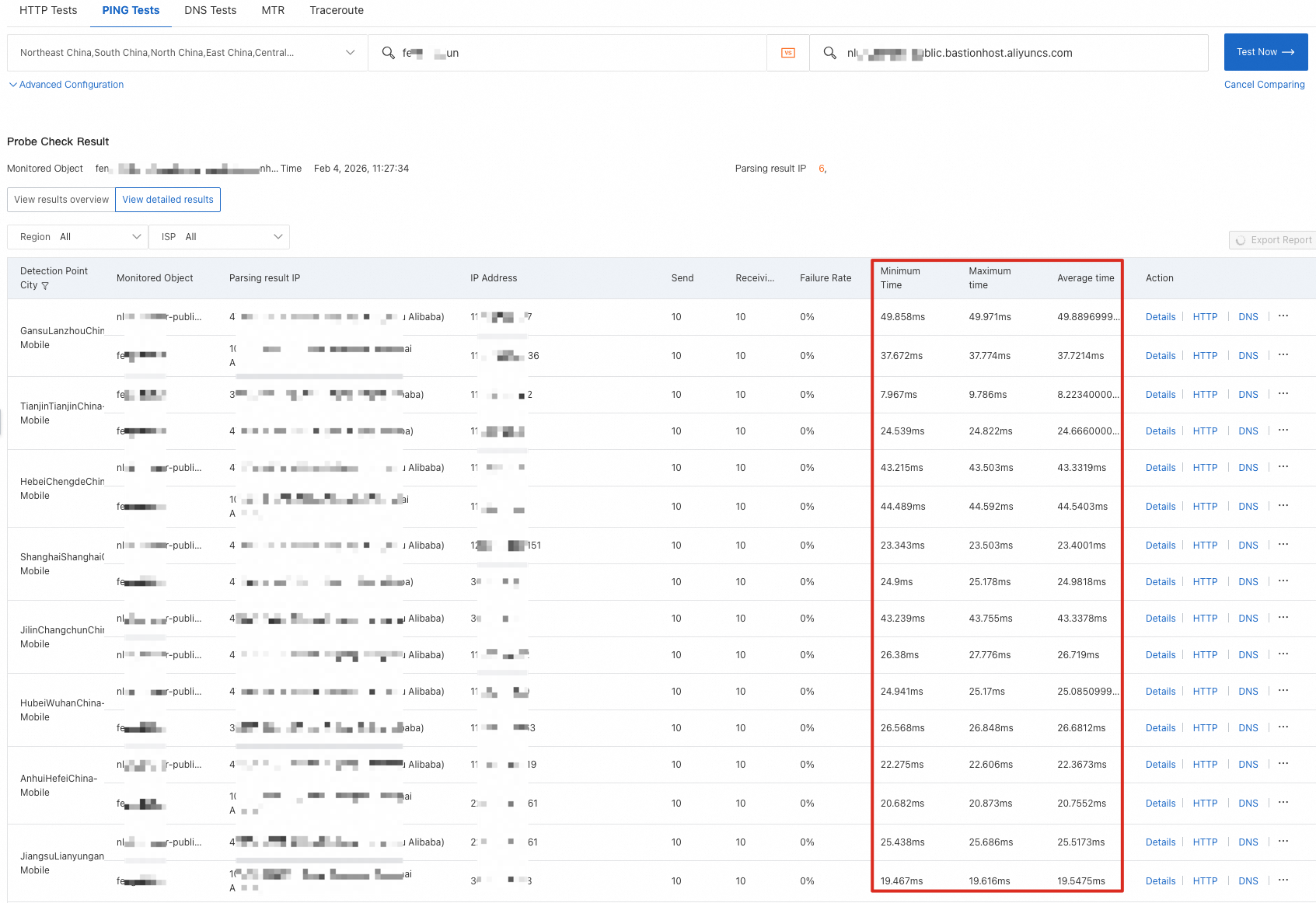
For more information about performance testing, see Test the acceleration performance of GA.
Going live
Security hardening
Rotate O&M account passwords regularly.
Enable operation approval workflows.
Set blocking rules for sensitive commands.
Audit permission configurations regularly.
Performance optimization
Adjust GA bandwidth based on actual usage patterns.
Configure client affinity as needed.
Use the nearest acceleration POPs.
Monitor network quality metrics regularly.
O&M standards
Establish standard O&M procedures.
Back up audit logs regularly.
Develop an emergency response plan.
Conduct regular security drills.
SSL certificate renewal
Track the expiration date of the SSL certificate used for the HTTPS listener. An expired certificate makes the O&M portal inaccessible. Renew it before it expires.