Backup and Disaster Recovery Center (BDRC) lets you assess the disaster recovery status of your Alibaba Cloud resources, identify risks, and take corrective action. This topic describes how to get started with BDRC.
Procedure
Use the BDRC console to manage disaster recovery for your cloud resources:

-
Activate BDRC.
BDRC activation, scanning, scoring, and risk fixing are free. Services used to fix risks, such as disk snapshots and Cloud Backup, incur separate charges.
-
Check resources.
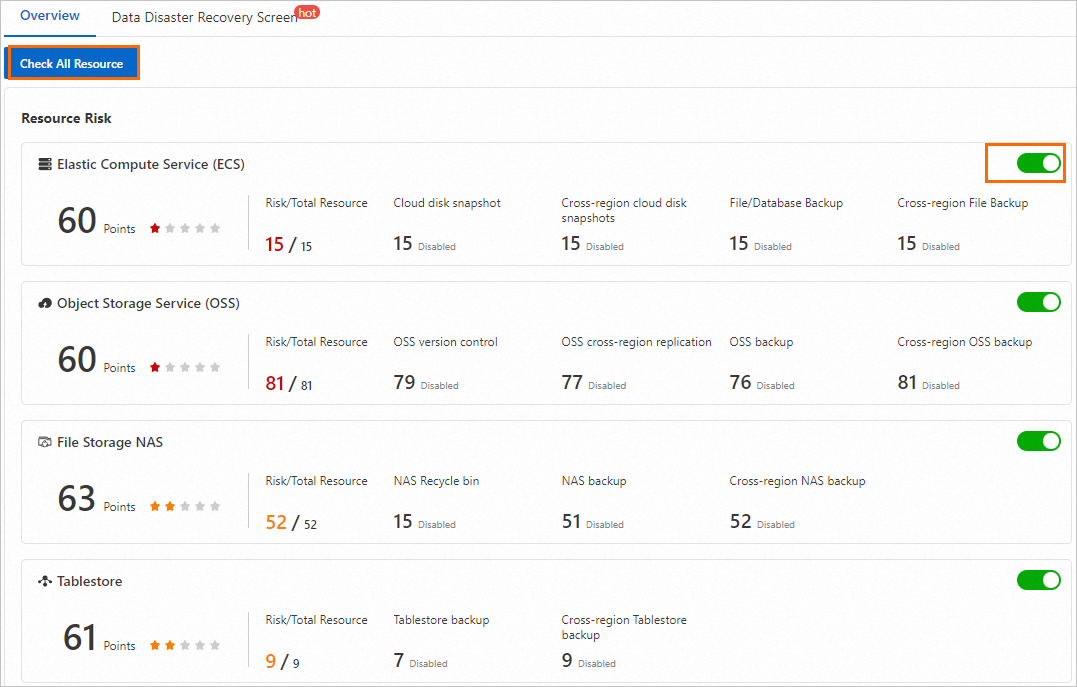
After you activate and authorize BDRC, it automatically scans the data protection status of your cloud resources, monitors them, and updates the data protection status daily. BDRC does not read your resource data. Click Check All Resource to trigger an immediate scan.
-
View scores and risks.
View data protection scores on the Overview tab or view the scores in a diagram on the Data Disaster Recovery Screen tab. Check disaster recovery configurations and risks for individual resources such as ECS instances or OSS buckets in Resource Center. Review failed checks on the Risk Detection page.
Overview
Click Check All Resource on the Overview tab to scan resources including ECS instances, OSS buckets, File Storage NAS (NAS) file systems, and Tablestore instances. Each resource type shows a data protection score. The Resource Detection switch is on by default. Turn it off to exclude a resource type from scanning and scoring.
Resource Center
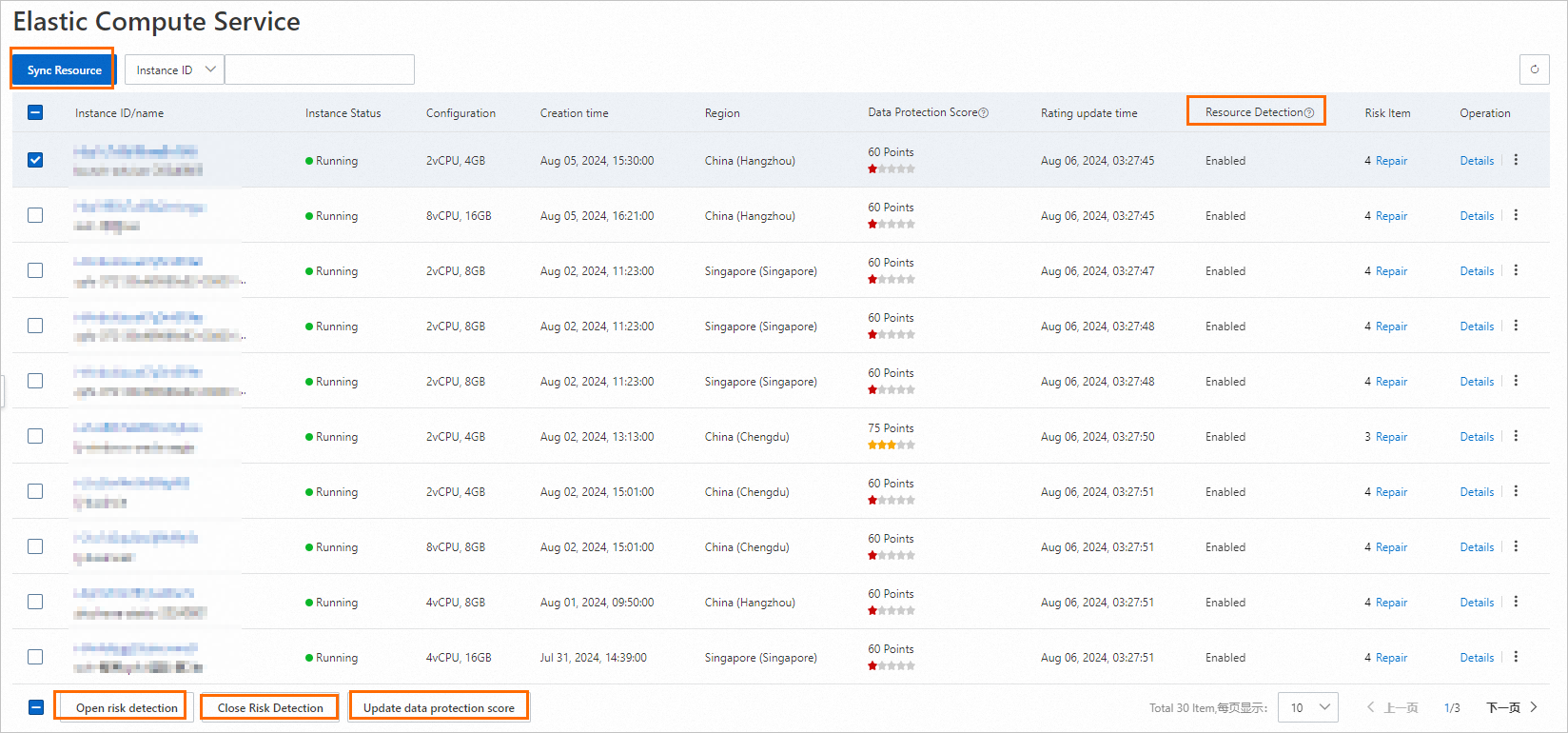
Resource Center shows the data protection score of each resource. On the ECS page, for example:
-
Select instances and click Sync Resource to check all risk items. In the lower-left corner of the page, use Open risk detection or Close Risk Detection to toggle risk detection, or click Update data protection score to refresh scores. The Resource Detection column shows whether risk detection is enabled.
-
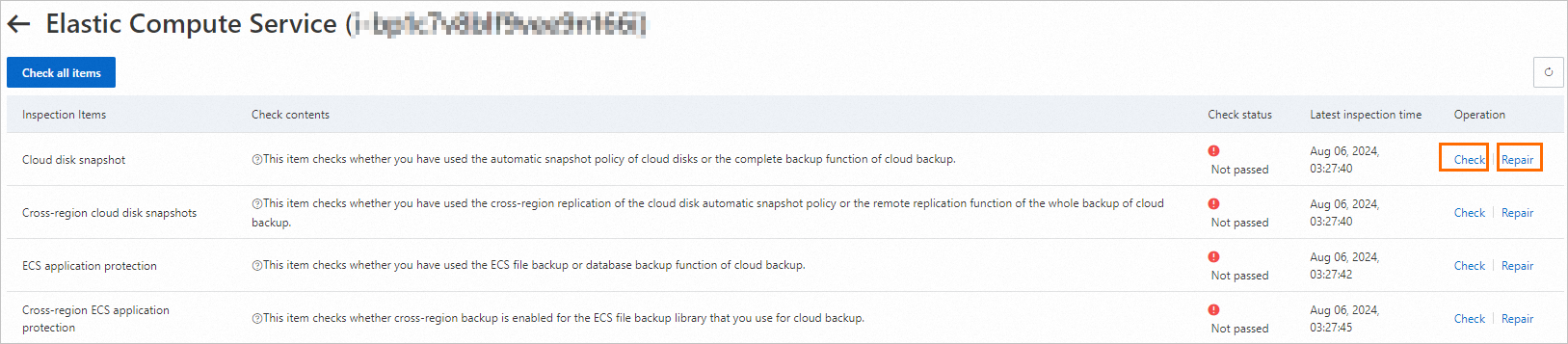
The Risk Item column shows detected risks. Click Repair to fix risks, or click Details in the Operation column to view failed check items.

On the Details page, click Check all items to scan all risk items, or check and fix each item individually.
Risk Detection
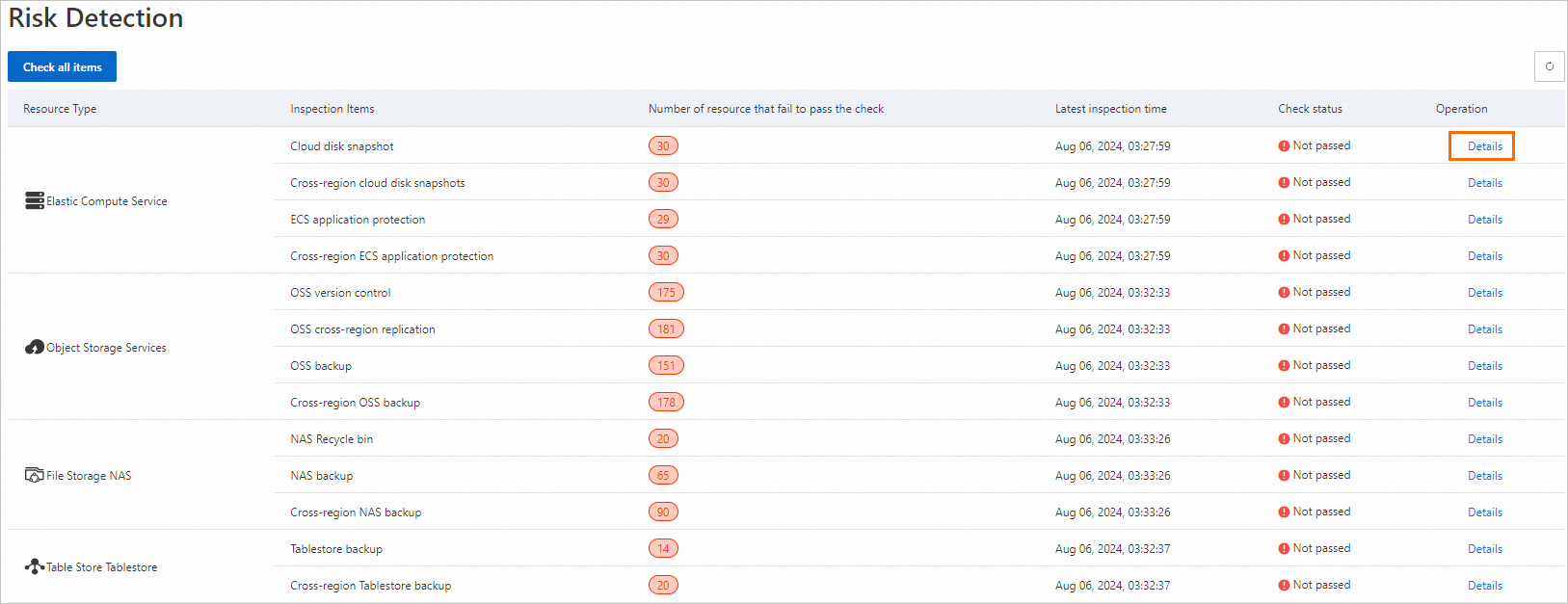
Click Check all items on the Risk Detection page to scan all resources. The Number of resource that fail to pass the check and Check status columns show scan results. Click Details in the Operation column to view resources that failed the check.
-
-
Fix risks.
In Resource Center or on the Risk Detection page, view risk details, recheck risks, and apply the recommended fixes.

Video tutorial
Watch this video to learn how to use the BDRC console.