Auto Scaling supports both scheduled tasks and event-triggered tasks (including target tracking rules). When both are active, improper configuration can cause an event-triggered task to override a scheduled scale-out, leading to unexpected capacity. This topic explains how these tasks interact and provides a recommended configuration to avoid scaling conflicts.
Problem scenario
When a scaling group has the expected number of instances, scheduled tasks, and event-triggered tasks (such as target tracking rules) enabled simultaneously, a conflict can occur: a scheduled task triggers a scale-out, but before it completes, an event-triggered task fires and overwrites the expected number of instances, preventing the scale-out from taking effect.
Typical cases
Cause analysis
The root cause lies in the different execution mechanisms of scheduled tasks and event-triggered tasks:
|
Aspect |
Scheduled task (only modifies expected number of instances) |
Event-triggered task |
|
Execution method |
Only modifies the expected number of instances value without directly triggering a scaling activity. |
Immediately triggers a scaling activity and simultaneously updates the expected number of instances. |
|
Effective time |
Takes 30 seconds to 1 minute to take effect after the expected number of instances is modified. |
Takes effect immediately. |
|
Conflict risk |
During the delay window, the value can be overwritten by other tasks. |
After execution, the expected number of instances is updated to the current actual value. |
Core issue: When a scheduled task only modifies the expected number of instances, the change is not atomic or immediately effective. During the 30-second to 1-minute delay, an event-triggered task can fire based on the current actual instance count, recalculate, and overwrite the expected number of instances.
Best practice: Scheduled tasks for base capacity, event-triggered tasks for elastic capacity
Solution overview
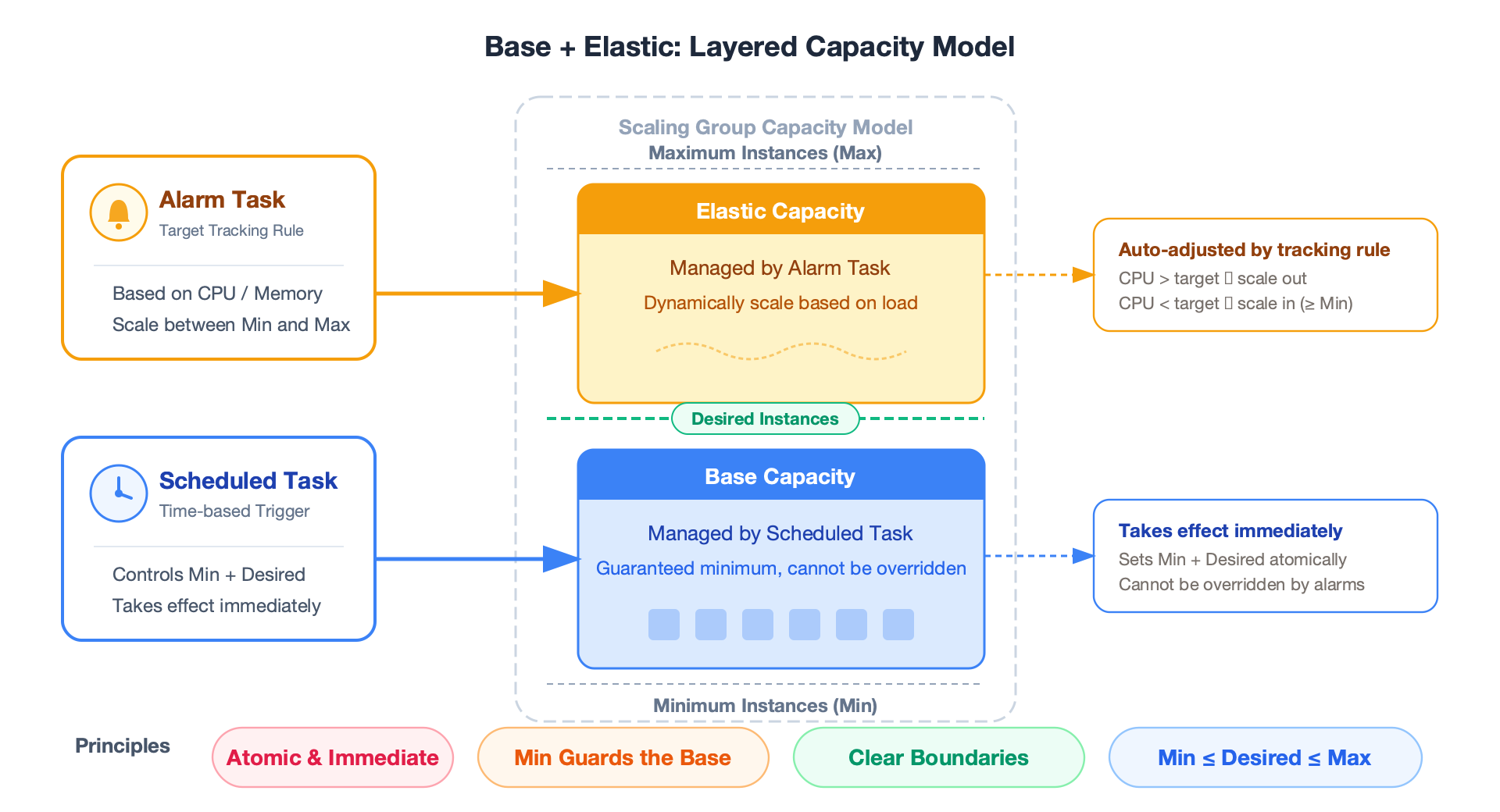
Use a "base + elastic" layered capacity model to clearly separate the responsibilities of scheduled tasks and event-triggered tasks:
-
Base capacity (managed by scheduled tasks): Use scheduled tasks to set both the minimum and expected number of instances, ensuring the capacity floor during peak hours cannot be reduced by event-triggered tasks.
-
Elastic capacity (managed by event-triggered tasks): Use target tracking rules or event-triggered tasks to dynamically add or remove instances above the base capacity based on actual load.
Procedure
The following example demonstrates the recommended configuration. Assume your business needs to scale from a daily baseline of 10 instances to 50 at 8:00 AM, restore to the normal level at 10:00 PM, and use a target tracking rule to maintain CPU utilization at 60%.
Step 1: Create a scheduled scale-out task
Create a scheduled task that sets both the minimum and expected number of instances at the start of peak hours, ensuring the base capacity takes effect immediately and cannot be overridden by event-triggered tasks.
-
Log on to the Auto Scaling console.
-
In the left-side navigation pane, click Scaling Groups.
-
Find the target scaling group and click its name to open its details page.
-
Click the Scaling Rules and Tasks tab. On the Scheduled Tasks tab, click Create Scheduled Task.
-
Create a scheduled scale-out task with the following settings:
Parameter
Value
Task Name
scheduled-scale-up
Executed At
8:00 AM every day (or the start of your peak business hours)
Recurrence
Daily
Scaling Method
Configure Number of Instances in Scaling Group
Minimum Instances
50
Expected Instances
50
Key configuration: Set Scaling Method to Configure Number of Instances in Scaling Group, and set both Minimum Instances and Expected Instances to 50. This way, the scheduled task simultaneously updates the minimum number of instances and expected number of instances, preventing event-triggered tasks from scaling in below 50 instances.
Step 2: Create a scheduled scale-in task
Create a paired scheduled scale-in task. After peak hours end, restore the minimum number of instances to the normal level to avoid resource waste.
-
On the Scheduled Tasks tab, click Create Scheduled Task and use the following settings:
Parameter
Value
Task Name
scheduled-scale-down
Executed At
10:00 PM every day (or the end of your peak business hours)
Recurrence
Daily
Scaling Method
Configure Number of Instances in Scaling Group
Minimum Instances
10
Expected Instances
10
Step 3: Configure a target tracking rule
Create a target tracking rule that allows event-triggered tasks to automatically scale based on actual load above the base capacity set by scheduled tasks.
-
Click the Scaling Rules and Tasks tab. On the Scaling Rules tab, click Create Scaling Rule.
-
Create a target tracking rule with the following settings:
Parameter
Value
Rule Type
Target Tracking Scaling Rule
Metric Type
(ECS) Average CPU Utilization
Target Value
60%
The target tracking rule automatically adjusts the number of instances between the scaling group's minimum and maximum based on CPU utilization. Because the scheduled task sets the minimum number of instances to 50, the instance count does not drop below 50 even when CPU utilization is low.
Expected behavior after configuration
|
Time |
Event |
Minimum number of instances |
Expected number of instances |
Actual effect |
|
8:00 AM daily |
Scheduled scale-out task triggers |
10 → 50 |
10 → 50 |
Immediately begins scaling out to 50 instances |
|
8:00 AM – 10:00 PM |
Target tracking rule runs continuously |
50 |
≥50 |
When CPU utilization exceeds 60%, scales out above the base of 50 instances. When below 60%, scales in to a minimum of 50 instances. |
|
10:00 PM daily |
Scheduled scale-in task triggers |
50 → 10 |
50 → 10 |
Restores to normal capacity level. Excess instances are gradually released. |
|
Other times |
Target tracking rule runs continuously |
10 |
≥10 |
Elastically scales from a base of 10 instances based on CPU utilization |
Key configuration points
-
Select "Configure Number of Instances in Scaling Group" as the scaling method for scheduled tasks. Set both the minimum number of instances and expected number of instances, rather than only modifying the expected number of instances.
-
Create scheduled tasks in pairs: Scale-out and scale-in tasks should come in pairs to ensure the minimum number of instances returns to normal after peak hours and avoid resource waste.
-
Relationship between minimum number of instances, expected number of instances, and maximum number of instances:
-
Scheduled tasks control the base capacity by setting the minimum number of instances and expected number of instances.
-
Event-triggered tasks and target tracking rules elastically adjust between the minimum number of instances and maximum number of instances.
-
Built-in system rules guarantee that minimum number of instances ≤ expected number of instances ≤ maximum number of instances. The priority is clear, and no additional conflict-avoidance mechanism is needed.
-
FAQ
-
After a scheduled task successfully scales out, will the target tracking rule scale instances back in if CPU utilization is low?
No. The scheduled task also sets the Minimum Instances. The target tracking rule will not scale in below Minimum Instances. This is why simultaneously setting Minimum Instances is critical.
-
Is it feasible to only modify the expected number of instances in a scheduled task?
Not recommended. Only modifying the Expected Instances involves the following risks:
-
The Expected Instances change has a 30-second to 1-minute delay before taking effect. During this period, an event-triggered task may overwrite the value.
-
Even if the scale-out succeeds, because the Minimum Instances was not updated accordingly, the target tracking rule may scale in below the intended level.
-
-
Do I need to set the maximum number of instances in a scheduled task?
Usually not. The Maximum Instances typically remains a fixed upper limit to prevent unlimited scaling in abnormal situations. If your business requires different instance limits at different times, you can also adjust Maximum Instances in the scheduled task.
-
Will conflicts occur with event-triggered tasks that use simple rules instead of target tracking rules?
Yes, conflicts can still occur. Regardless of whether the event-triggered task is associated with a Simple Scaling Rule, Step Scaling Rule, or Target Tracking Scaling Rule, it will overwrite the Expected Instances if it triggers during the scheduled task's delay period. The solution in this topic applies to all types of event-triggered tasks.