Economical Mode improves scaling efficiency for VPC-based ECS scaling groups. Instead of releasing instances during scale-ins, it stops them and retains their cloud disks, enabling faster restarts during scale-outs.
Background
When you create a scaling group for ECS instances in a VPC, you can choose between two options for the Instance Reclaim Mode: Release and Economical Mode. For large-scale scaling scenarios, Economical Mode offers the following advantages over Release mode:
-
During a scale-in, Release mode terminates ECS instances entirely. Economical Mode instead stops them, preserving resources for future scale-out events.
-
During a scale-out, Release mode must create new ECS instances, which can be slow due to inventory shortages or slow resource creation. Economical Mode first restarts stopped instances and creates new ones only if more are needed, significantly improving scale-out efficiency.
Usage notes
When you use Economical Mode, note the following:
-
Economical Mode is available only for scaling groups where the Type is ECS and the Network Type is VPC.
-
After you set the Instance Reclaim Mode to Economical Mode during creation, you cannot change it.
-
In a scaling group that uses Economical Mode, an ECS instance that enters the Stopped state due to a non-scaling event, such as a manual stop or an exception, Auto Scaling considers it unhealthy and terminates the instance during the next health check.
-
Economical Mode is not supported for instances with local disks, such as d1, d1ne, ga1, gn5, i1, and i2 instance types.
How it works
An ECS instance consists of three resource types: compute, network, and storage. During a scale-in, the scaling group releases only compute and network resources while retaining storage. During a scale-out, only compute and network resources need to be reacquired. The following figure illustrates these resource changes.
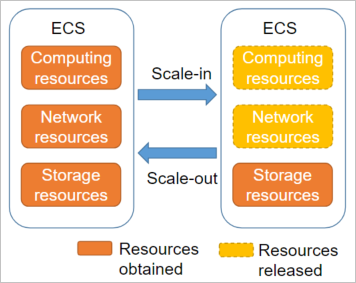
In Economical Mode, automatically created ECS instances that enter the Stopped state join a stopped instance pool. The mode works as follows:
-
When a scale-in is triggered, automatically created ECS instances enter the Stopped state and are added to the stopped instance pool. The following resource changes occur:
-
Some resources are released, and billing for them stops. This includes compute resources such as vCPUs and memory, an auto-assigned public IP address, and fixed bandwidth. When an instance is restarted, the system assigns a new public IP address.
-
Some resources are retained, and billing for them continues. This includes cloud disks such as the system disk and data disks, paid images, elastic IP addresses (EIPs), and EIP bandwidth. The EIP remains unchanged when the instance restarts.
-
-
When a scale-out is triggered, the scaling group first starts instances from the stopped instance pool and moves them to the In Service state. If the number of instances in the pool is insufficient to meet the demand, the scaling group creates new ECS instances.
NoteInstances in the stopped instance pool are not guaranteed to start successfully and enter the In Service state. For example, an instance in the Stopped state may fail to start due to insufficient inventory or an overdue payment. In this case, the scaling group terminates the instance and creates a new one to ensure the scaling activity meets its target.
-
The scaling group ensures that the total number of instances, including both instances that are and instances in the stopped instance pool, does not exceed the maximum size of the scaling group. If you manually decrease the maximum size, the scaling group terminates instances from the stopped instance pool first.
-
The scaling group ensures that the number of instances that are is always greater than or equal to the minimum size of the scaling group. If you manually increase the minimum size, the scaling group first starts instances from the stopped instance pool.
Procedure
Enable Economical Mode and verify its status in the console.
-
Enable Economical Mode for a scaling group.
When you create a scaling group, configure its VPC. Then, for the Instance Reclaim Mode parameter, select Economical Mode. For more information about how to create a scaling group, see Configure a scaling group.
-
Find a scaling group with Economical Mode enabled and view the number of Stopped ECS instances.
The number of Stopped ECS instances is displayed only when such instances exist in the scaling group.
Log on to the Auto Scaling console.
In the navigation pane on the left, click Scaling Groups.
In the top navigation bar, select a region.
Find the scaling group that you want to manage and open its details page.
In the Scaling Group Name/ID column, click the ID of the scaling group.
In the Actions column, click View Details.
-
On the scaling group details page, click the Instances tab to view the number of ECS instances in the Stopped state.
-
On the Auto Created tab, in the list of ECS instances, click the filter icon
 in the Status (All) column and select Stopped.
 -
Select an ECS instance in the Stopped state and click its ID.
On the Instance Details tab, in the Other Information section, you can see that Stop Mode is set to Stopped (No charge). You are no longer charged for compute resources such as vCPUs and memory. Charges continue for other resources, including cloud disks, EIPs, and bandwidth.